Google Sheets Lambda: A Practical Step-by-Step Guide
Learn how to implement Lambda-style reusable functions in Google Sheets using Apps Script. This practical guide covers design patterns, coding, testing, and sharing modular logic across workbooks for scalable spreadsheets.


Google Sheets Lambda-style patterns use Apps Script to build reusable, cell-callable functions that behave like built-ins. They clean complex workflows, promote reuse, and simplify maintenance across spreadsheets for teams. To start, you need a Google account with access to Apps Script and a sheet to modify.
What is Google Sheets Lambda and Why Use It?
In modern spreadsheet work, Lambda-style patterns give you a way to compose logic into small, reusable pieces rather than burying everything in nested formulas. In Google Sheets, you can implement this pattern with Apps Script, creating custom functions that act like first-class building blocks. According to How To Sheets, teams that adopt this approach see clearer data flows, easier maintenance, and faster onboarding for new collaborators. The Lambda approach isn't tied to a single feature; it's a design mindset that combines modular code, documented interfaces, and disciplined versioning.
Key principles include single responsibility, deterministic output, and explicit inputs. Start by outlining the problem you want to solve—e.g., a date normalization helper, a currency formatter, or a data-cleaning step. Then encapsulate that logic in a function that accepts a defined set of parameters and returns a value without changing the sheet state except via its return value. This separation simplifies testing: you can verify the function with sample inputs in isolation before wiring it into cells.
As you scale, you can compose small Lambdas to build more complex behavior, much like a pipeline. Each Lambda should have a clear role, a stable interface, and a minimal surface area for changes. When used thoughtfully, Lambda-style modules reduce formula fatigue and help teams reason about spreadsheets the same way they reason about code. I
-Note: This block intentionally expands on ideas rather than repeating the quick answer; it sets the stage for deeper exploration of patterns, design principles, and practical patterns you can implement in Google Sheets using Apps Script.
Tools & Materials
- Google account with Apps Script access(Needed to create and edit Apps Script projects from within Sheets or via script.google.com.)
- Google Sheets document(The sheet you want to enhance with Lambda-style functions.)
- Apps Script editor(Open from the sheet: Extensions > Apps Script (or Tools > Script editor in older UIs).)
- Web browser with internet access(Chrome/Edge/Firefox or other modern browser with JavaScript enabled.)
- Optional code editor or snippets repository(Helps manage multi-file Lambda modules and versioning.)
- Library/project for sharing (optional)(If you plan to publish as a reusable library across workbooks.)
Steps
Estimated time: 1 hour 30 minutes to 2 hours
- 1
Define the Lambda-style problem and inputs
Identify a small, reusable calculation you want to expose as a function. Write down the exact inputs it needs and the single value it should return. Keep the function isolated from side effects so it remains predictable during recalculation.
Tip: Document the expected parameter types and default values to make it easy for others to reuse. - 2
Open Apps Script in the target sheet
From the Google Sheet, open Extensions > Apps Script to access Code.gs or create a new script file. This is where you’ll implement the Lambda-style function. Ensure you save changes before testing.
Tip: Use a descriptive project name to distinguish this Lambda module from other scripts. - 3
Implement a clean, reusable function
Write a pure function that takes defined inputs and returns a value. Avoid reading or writing to the sheet within the function. Include a simple error handling path for invalid inputs.
Tip: Name the function with a clear, purpose-driven name like normalizeDate or currencyFormatter. - 4
Expose the function as a custom function
If you want to call the function from any cell, declare it as a custom function. Ensure it’s deterministic and returns a value without triggering side effects. Test by typing =yourFunction(params) in a cell.
Tip: Keep the function’s public interface stable to avoid breaking existing sheets. - 5
Test with sample data in Sheets
Create a test sheet or test range and feed varied inputs to validate correctness, edge cases, and performance. Use the logger (Logger.log) for debugging during development.
Tip: Document test cases so you can reproduce issues quickly. - 6
Organize into modules for reuse
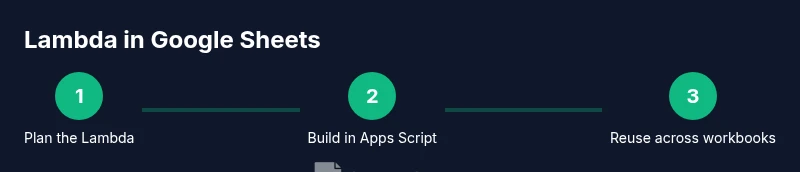
Move related functions into separate files or a library project. Document interfaces and usage examples so teammates can reuse modules across workbooks without reimplementing logic.
Tip: Adopt a naming convention for modules and functions that mirrors their purpose.
FAQ
What exactly is Google Sheets Lambda and what problem does it solve?
Google Sheets Lambda refers to a pattern of building reusable, serverless-like functions using Apps Script. It helps replace long, brittle formulas with modular components that can be composed, tested, and reused across sheets, reducing maintenance effort.
Google Sheets Lambda is a pattern for reusable functions built with Apps Script to replace complex formulas and make spreadsheets easier to maintain.
Do I need to write Apps Script to use Lambda-like functions in Sheets?
Yes. Apps Script is the primary way to create custom functions in Google Sheets. Lambda-like patterns rely on custom functions, which you write in Apps Script and call from cells or scripts.
Yes. You’ll use Apps Script to create those reusable functions and then call them from your sheet.
Can Lambda-style functions call external APIs or services?
Lambda-style functions can call external services via Apps Script, but you must be mindful of Apps Script quotas and authorization. Plan for caching and rate limiting where appropriate.
They can call external services, but watch quotas and authorization limits.
Is Google Sheets Lambda an official feature or a community pattern?
Lambda-style patterns are a design approach and best practices, not a single official feature. They combine Apps Script, named interfaces, and modular design to achieve reusable logic.
It's a pattern, not a single built-in feature, using Apps Script to build reusable code.
How do I share Lambda modules across multiple workbooks?
Share logic via Apps Script libraries or by exporting modules and reusing them in other Sheets projects. Clear interfaces and documentation help teams reuse modules effectively.
Use libraries or well-documented modules to reuse across workbooks.
Watch Video
The Essentials
- Define clear, reusable function boundaries
- Use modular design for maintainability
- Test Lambda-style components in isolation
- Share and reuse modules across workbooks