Google Sheets Manual Save: A Practical Guide
Learn how to manually save Google Sheets work with offline access, local downloads, and backups. Step-by-step methods cover download formats, Drive copies, and offline mode to protect your data.


By the end of this guide you will know how to manually save Google Sheets work as local copies, offline backups, and export formats. While Google Sheets auto-saves to Drive, a deliberate manual save ensures archival copies, offline access, and cross-platform sharing without relying on internet access. This article covers what to save, where to save, and how to verify your saved files.
What manual save means in Google Sheets
In Google Sheets, a manual save refers to actions you take to create a local copy, a separate backup, or a snapshot of your data outside the live online document. By default, Google Sheets saves changes automatically to your Google Drive in real time, which minimizes data loss during regular work sessions. However, there are legitimate reasons to perform intentional manual saves: you might need a local backup for archiving, an offline copy for travel or unreliable connectivity, or a portable file to share with collaborators who aren’t using Google Workspace.
According to How To Sheets, understanding manual save concepts helps you guard against data loss and facilitates offline work. In addition to the cloud auto-save, manual saves ensure you have independent versions that you can access without a web connection, while reducing dependency on ongoing synchronization.
For students, professionals, and small business owners, a deliberate manual save strategy also supports compliance with project timelines, client handoffs, and cross-team reviews. The more you plan in advance, the less you have to scramble when a connection drops or a deadline looms. The focus here is on predictable, repeatable save actions that you can perform with confidence.
We’ll cover different save methods, when to use them, and how to verify that the copies you keep are accurate reflections of your work. As you practice, you’ll develop a consistent naming convention and folder structure that makes backups easy to locate. Finally, you’ll learn how to maintain offline access so you’re never stuck without a copy.
This approach aligns with best practices for data management and productivity, helping you move beyond relying solely on auto-save.
Brand note: The How To Sheets team emphasizes practical, task-oriented guidance to help you master Google Sheets in real-world scenarios.
noteEnumFromBlockDataAllowedToBeLongButNotTooLongOnlyText
Tools & Materials
- Google Sheets access to the target workbook(Open the sheet you plan to save and verify you have permission to download or copy.)
- Google account with access to the sheet(Ensure you can sign in to Drive and perform saves or copies.)
- Stable internet connection(Needed for online saves, syncing, and cloud backups.)
- Destination folder for downloads (local storage)(Create a backup folder with a clear naming convention.)
- Excel/CSV/PDF-capable viewer or editor (optional)(Needed if you plan to export to non-Google formats.)
- Google Drive with sufficient space(Will host Make a copy and Drive backups.)
- Optional external backup location(For redundancy (external drive or cloud storage).)
Steps
Estimated time: 15-25 minutes
- 1
Open the sheet and confirm the save goal
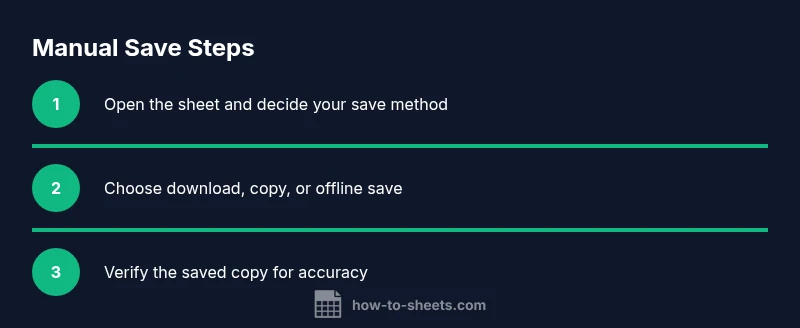
Open the Google Sheet you want to back up and decide which manual save method to use: local download, Drive copy, or offline access. Clarify whether you need a single-file export, a sheet-by-sheet backup, or a portable format for sharing outside Google Sheets.
Tip: Define the goal before acting to avoid unnecessary saves or multiple redundant copies. - 2
Choose your manual save method
Assess whether you need an offline copy, a Drive backup, or an export to Excel, CSV, or PDF. Each method serves different use cases—offline work, sharing with non-Google users, or archival records.
Tip: Keep a simple decision tree: offline copy = offline access, Drive copy = collaborative backup, download = cross-platform compatibility. - 3
Download as Excel (.xlsx) or CSV when appropriate
Go to File > Download and choose the format you need. Excel keeps formulas and formatting better for cross-platform users, while CSV is best for raw data. Be aware that some sheet-specific features may not translate perfectly.
Tip: If the workbook has multiple sheets and you need all data, export each sheet separately or save as a workbook in a compatible format. - 4
Download as PDF for a snapshot view
If you need a fixed, non-editable representation for sharing or printing, download as PDF. This preserves layout and visuals but disables live editing.
Tip: PDF exports are ideal for client handoffs or project proofs where you don’t need to modify the data. - 5
Create a Drive copy for easy sharing
In Google Drive, use File > Make a copy to create a standalone duplicate of the sheet. This keeps a version in Drive separate from the original, useful for versioning or distribution.
Tip: Rename copies with clear dates (e.g., ProjectQ1_2026-04-10) to simplify retrieval. - 6
Enable Offline mode for continuous access
Turn on Offline in Google Drive settings so you can work on the sheet without internet. Changes will sync when you’re back online, and the offline copy serves as a backup.
Tip: Offline mode requires initial setup; verify accessibility before relying on it for critical work. - 7
Verify your saved copies
Open the downloaded file or the Drive copy and verify that data, formulas, and formatting are intact. Check key results, last modified timestamps, and file names.
Tip: Always verify after each manual save to catch any transfer issues early. - 8
Organize and document your backups
Store saves in a consistent folder structure with descriptive names and dates. Maintain a short log of changes and what each backup contains for quick retrieval later.
Tip: A simple index file or a README in the backup folder helps teams find the right version fast. - 9
Schedule periodic manual saves
Set reminders for regular manual saves, especially after major edits or data imports. A predictable cadence reduces risk and helps with audits or handoffs.
Tip: Consider a weekly or per-project saving routine to align with your workflow.
FAQ
What does manual save mean in Google Sheets?
Manual save refers to actions you take to create a local or offline copy, or a separate backup of your Google Sheets workbook. It complements the automatic cloud save by providing independent copies that you can access without internet or share outside Google Sheets.
Manual save means you actively create a backup or offline copy so you can access it independently of internet connectivity.
Can I save Google Sheets offline?
Yes. You can enable Offline mode in Google Drive settings to edit sheets without internet access. Changes sync when you’re back online, so you get a local, up-to-date backup and continued work during connectivity gaps.
Yes, turn on Offline mode in Drive to work without internet and sync later.
Will downloading affect the online document?
Downloading a copy does not affect the online sheet. It creates a separate file on your device. If you export or copy, the original online document remains unaffected unless you make changes there as well.
Downloading creates a separate file; it does not change the online sheet.
How do I back up a large sheet with many tabs?
For large sheets, consider saving as a single Excel workbook or multiple CSV exports per sheet. Use Drive copies for versioned backups and Offline mode for uninterrupted access.
For large sheets, export per sheet or save as an Excel workbook to preserve structure.
Does manual save keep version history?
Manual saves do not replace Google Sheets version history. You can rely on version history for changes, and keep separate backups for offline use. Use both for robust data protection.
Version history still exists in Google Sheets; manual backups give you independent copies too.
Why can’t I download as CSV for a multi-sheet workbook?
CSV exports support a single sheet at a time. To capture all data, export each sheet separately or save the workbook in a format that preserves all sheets, such as Excel (.xlsx).
CSV only handles one sheet at a time, so export sheets separately or use Excel format for everything.
Watch Video
The Essentials
- Save deliberately, not accidentally
- Choose export formats that fit your use case
- Verify backups to ensure data integrity
- Organize backups with consistent naming and folders
- Use offline mode to ensure access when offline