How to Save a Google Sheets File: Step-by-Step Guide
Learn how to save a Google Sheets file with autosave, backups, offline access, and exports. This How To Sheets guide covers real-time saving, version history, and safe backup strategies for students, professionals, and small business owners.


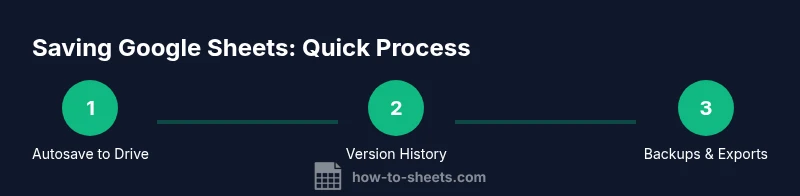
Google Sheets saves automatically to Google Drive in real time; there is no manual Save button. To be sure, keep an internet connection and watch the status near the top show 'All changes saved in Drive' or 'Last edit was just now.' For external backups, use File > Download to export as Excel, PDF, or CSV, or create a named copy in Drive.
Understanding Autosave and Saving Basics
If you're wondering how to save a Google Sheets, the answer is simple: Google Sheets saves automatically. Real-time autosave means every edit is captured to Google Drive without you needing to click a Save button. This reduces the risk of data loss during crashes or disconnections. For teams, this autosave makes collaboration smoother because everyone sees up-to-date changes. If you ever doubt whether changes are stored, look for status indicators near the top of the screen that say things like "All changes saved in Drive" or show the timestamp of the most recent edit. In practice, this behavior means you should plan for backups by exporting or duplicating essential files, not by relying on manual saves.
Tip: Turn on notifications for Drive changes, so you’re aware of critical edits even if you forget to check the sheet.
Managing Drive Storage and File Location
Google Sheets files live in Google Drive, which acts as the central repository for your work. By default, new sheets are saved in the Drive root, but you can move them into folders to keep projects organized. Setting up a clear folder structure helps teams locate documents quickly and reduces the chance of data duplication. If you work across devices, ensure that Drive is syncing correctly so your most recent version appears everywhere. You can also use the "Move to" option from the File menu to relocate a file without changing its sharing settings.
Organization matters for long-term projects. Create a dedicated folder for school assignments, client proposals, or internal dashboards to streamline backups and version control.
Saving, Renaming, and Organizing Your Sheet in Drive
Renaming a sheet is a simple but important habit for quick identification. Use File > Rename to assign a descriptive title that reflects the project and date. Consider a naming convention that includes the project name, date, and version number (for example, "Q2 Sales Dashboard 2026-03-05 v1"). This practice makes it easier to find files in a crowded Drive. Additionally, always move files into a relevant folder, not just the root storage, to ensure consistent backups and easier sharing with teammates.
Pro tip: Regularly review folder permissions to prevent accidental edits by unintended collaborators.
Backups and Exports: Practical Ways to Preserve Your Work
Autosave is excellent for on-going work, but you’ll often want a portable copy of your data. Use File > Download to export sheets in formats such as Microsoft Excel (.xlsx), Comma-Separated Values (.csv), or PDF for easy distribution. Keeping periodic exports is a simple insurance policy against data loss or format incompatibilities. For internal backups, you can also use File > Make a copy to create a separate Google Sheet that acts as a checkpoint. Schedule backups by creating a small Apps Script that triggers a daily export to a designated Drive folder.
Note: Each export creates a standalone file that won’t reflect future edits unless you re-export.
Version History and Collaboration: Preventing Data Loss
Version history is your safety net when edits go wrong or when multiple people work on the same file. Open File > Version history > See version history to view and restore previous states. Naming a critical snapshot (e.g., the end of a sprint) helps you identify important points quickly. This is especially valuable in collaborative projects where several contributors might modify data simultaneously. Regularly using version history reduces the risk of irreversible mistakes and saves time in audits or rollbacks.
Tip: If you anticipate major updates, create a dedicated version snapshot before making significant changes.
Offline Access: When You Need to Work Without Internet
If you travel or work in areas with spotty connectivity, enabling offline access for Drive and Sheets can be a lifesaver. In Chrome, turn on Offline in Google Drive settings and ensure the file you’re editing is marked for offline use. Changes you make offline will sync automatically when you reconnect. This capability is particularly useful for fieldwork, travel, or remote locations where internet access is limited. Remember that offline edits will not appear in the live version until the connection is restored.
Warning: Offline mode is only available for files that have been opened previously while online; plan ahead to avoid surprises when you’re offline.
Exporting and Archiving for Long-Term Preservation
Even with autosave, long-term archival practices protect you from platform changes or migration needs. Create periodic archives by exporting crucial sheets and storing them in a separate archival drive or cloud location. A simple habit is to download a monthly Excel or CSV copy and keep it in a dedicated backup folder labeled by year. This ensures you have a portable, portable-friendly record in case you need to share data with stakeholders who don’t use Google Sheets.
Another option is to use the "Make a copy" command to create a cloned Google Sheet that serves as a permanent, standalone document separate from the original.
Common Pitfalls and How to Avoid Them
Relying solely on autosave without a backup plan is a common pitfall. Create a routine: after major edits or at the end of each session, export a copy and confirm the file appears in the designated Drive folder. Avoid renaming a file in a way that obscures its version history. Also, be mindful of sharing settings; if a sheet is too broadly shared, unintended edits may occur. Finally, test offline workflows before relying on them in critical projects to ensure your edits sync once online.
Pro tip: Set up a quick backup checklist to keep your workflow consistent across devices and collaborators.
Tools & Materials
- Google account with Drive access(Active account to save and back up sheets)
- Stable internet connection(Needed for autosave to Drive)
- Computer or mobile device with a web browser(To edit and save sheets)
- Web browser up to date(Chrome/Edge/Firefox for best compatibility)
- External backup option (optional)(Downloaded formats like Excel/CSV/PDF for offline backups)
Steps
Estimated time: 15-30 minutes
- 1
Open the target Google Sheet
Launch your browser, sign in to your Google account, and open the specific sheet you want to save. Ensure you can view the top bar that indicates the file is loaded from Drive. This initial step confirms you’re working on the correct document and sets up the autosave environment.
Tip: Verify you’re on the latest version by refreshing the page after loading. - 2
Check autosave status
Observe the status near the top of the window to confirm saving activity. In most cases you’ll see messages like 'All changes saved in Drive' or a timestamp showing the last edit. This step reassures you that ongoing edits are being captured in real time.
Tip: If you don’t see a saving indicator, ensure you have active internet and refresh if needed. - 3
Rename and organize the file
Use File > Rename to give the sheet a descriptive title. Move the file into a well-named Drive folder to simplify retrieval for backups and sharing. Consistent naming helps avoid duplicates and keeps versions aligned with projects.
Tip: Adopt a naming convention like Project_Date_Version for quick scanning. - 4
Create a local backup copy
Create an offline backup by downloading the sheet in a portable format such as Excel (.xlsx) or CSV. This export ensures you have an independent copy in case you need to share it outside Drive or run analysis offline.
Tip: Store backups in a clearly labeled backup folder with year and project name. - 5
Utilize version history
Open Version history to see previous edits and, if necessary, revert to a prior state. Name a critical checkpoint at a meaningful moment (e.g., sprint end) to simplify future rollbacks.
Tip: Regularly review version history during major milestones. - 6
Enable offline editing (optional)
If you must work offline, enable Drive offline access and mark the necessary sheets for offline use. Changes will sync automatically when you reconnect to the internet. Test this workflow before you rely on it in critical work.
Tip: Only enable offline for files you know you’ll need without connectivity. - 7
Make a copy for long-term archiving
For high-value projects, create a separate copy in Drive labeled as an archive version. This provides a stable snapshot that remains available even if the original is edited or deleted.
Tip: Consider tagging archived copies with a clear year identifier. - 8
Schedule regular backups
Set a routine to export and store backups at defined intervals (e.g., weekly or monthly). Automation can be introduced later with Apps Script to streamline this task.
Tip: Automate backups with a simple script if your workflow demands frequent snapshots.
FAQ
Does Google Sheets require manual saving?
No. Google Sheets autosaves to Google Drive in real time, so there is no traditional Save button. You can export or duplicate for backups, but editing within the sheet is saved automatically as you work.
No manual saving is needed. Google Sheets saves automatically as you work; you can export or duplicate for backups if you want an offline copy.
How can I ensure a backup exists for important sheets?
Create a local export via File > Download (Excel, CSV, PDF) and/or use File > Make a copy to create a separate Google Sheet. For critical projects, schedule periodic exports and organize them in a dedicated backup folder.
Export or duplicate the sheet to keep a reliable backup in Drive or as a standalone file.
Can I work without internet and still save changes?
Yes, with offline mode enabled. Drive will sync changes once you reconnect to the internet. This is useful for fieldwork or travel but test before relying on it for critical data.
Yes, you can work offline; changes sync when you're back online.
Where does Google Sheets store my edits?
Edits are stored in Google Drive, typically in the same folder as the sheet or a chosen location. You can move, rename, or organize the file to fit your workflow.
Your edits are saved to Google Drive, in the file’s assigned location.
How do I recover a previous version of a sheet?
Use Version history (File > Version history > See version history) to view and restore prior states. This is helpful after a mistaken change or an unintended edit.
Open version history to restore a prior state when needed.
Is there a recommended backup cadence for teams?
Aim for at least weekly backups for active projects and more frequent exports for time-sensitive data. Automating backups with Apps Script can reduce manual effort.
Weekly backups are a good baseline; automate where possible.
Can I save a Google Sheet as a PDF directly?
Yes. Use File > Download > PDF Document to create a portable read-only version suitable for sharing or archiving.
Yes, export as PDF from the Download menu.
Watch Video
The Essentials
- Rely on real-time autosave to protect work.
- Export backups in preferred formats for portability.
- Name versions to create checkpoints.
- Organize sheets in a dedicated Drive folder.
- Enable offline access only when needed and test beforehand.