Google Sheets Statistics Add-On: A Practical Guide
Learn how to use the Google Sheets statistics add-on to perform descriptive analysis, generate charts, and automate reporting directly in Sheets. Practical steps, best practices, and templates for students, professionals, and small business owners.


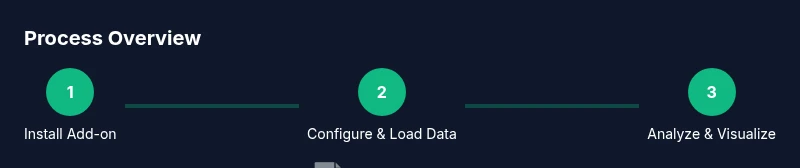
Goal: use a Google Sheets statistics add-on to analyze data, visualize results, and automate reporting. Steps: 1) pick a trusted add-on from the Google Workspace Marketplace, 2) install and authorize, 3) load your dataset and set analysis options, 4) run statistics and generate charts, 5) refresh data and share dashboards. This guide covers selection, setup, and practical workflows.
What is a Google Sheets statistics add-on?
A Google Sheets statistics add-on is a software extension that integrates with Sheets to perform statistical calculations, generate descriptive statistics, and create charts without leaving your spreadsheet. For students, professionals, and small business owners, these tools turn raw numbers into actionable insights with repeatable workflows. According to How To Sheets, these add-ons are designed to augment built-in functions by offering guided wizards, templates, and data handling that reduce manual errors. A well-built add-on keeps data and results inside the same environment, preserves existing formulas, and makes dashboards that update when source data changes. In practice, you install the add-on from the Google Workspace Marketplace, grant the necessary permissions, and open the analytics pane inside Sheets. Once active, you can select a data range, choose statistics to compute (mean, median, mode, standard deviation, and percentiles), and generate tables and charts with a few clicks. This article focuses on practical workflows for everyday tasks—from class assignments to monthly team reporting. Understanding the core concepts empowers you to leverage the add-on effectively and avoid common misconfigurations.
Why use a statistics add-on in Google Sheets?
Using a statistics add-on in Google Sheets offers several advantages: consistency, repeatability, and speed. For teams relying on data-informed decisions, standardized analyses ensure everyone sees the same results from the same data. How To Sheets analysis shows that practitioners who adopt add-ons report smoother collaboration and fewer manual errors when computing descriptive statistics and generating charts. The add-on's guided workflows reduce the learning curve compared with scripting from scratch. It also supports audit trails because steps and settings can be saved as templates. For students, it streamlines homework and lab reports by enabling quick replication of analyses across datasets. For small businesses, dashboards built around these tools can refresh automatically as data changes, providing near real-time insights. When evaluating options, consider how well the add-on handles data quality checks (missing values, non-numeric cells), supports your preferred chart types, and integrates with other Sheets features like filters and named ranges. In short, the right add-on turns data into a reliable narrative you can share with teammates. As Looker Studio and other BI tools evolve, keeping your primary analyses in Sheets offers an accessible, auditable workflow.
How to choose the right add-on
There are several criteria to weigh when selecting a Google Sheets statistics add-on. Start with data privacy and security: read the vendor's privacy policy, ensure you retain control over the data you upload, and avoid data sharing with unnecessary services. Next, assess compatibility with your Sheets workflow: does the add-on work with named ranges, filters, and pivot-style summaries? Look for features you actually need, such as descriptive statistics, distribution charts, correlation metrics, or hypothesis testing. Availability of templates and wizards can shorten the learning curve. Price is another factor: many options offer a free tier with paid upgrades for larger datasets or advanced charts; plan a budget around the typical cost range and the value you expect. Finally, confirm support and documentation: reliable add-ons provide clear setup guides, inline help, and an active user community. How To Sheets research suggests prioritizing add-ons with transparent update histories and clear data-handling practices. By writing down your requirements and testing one or two options, you can reduce decision fatigue and select a tool that fits your team’s needs.
Installation and initial setup
To begin, open Google Sheets and navigate to Extensions > Add-ons > Get add-ons. Use the marketplace search to find a statistics add-on that meets your criteria, then click Install and follow the prompts to grant permissions. After installation, open the add-on panel from Extensions or the Add-ons menu and connect it to your active spreadsheet. Configure the default settings, including your preferred decimal precision, date formats, and any locale-specific settings. If the add-on supports templates, import a starter sheet to see how templates structure data and outputs. Do a quick sanity check by running a small analysis on a clean dataset to verify that the behavior matches your expectations. If you encounter permission prompts or data access warnings, review which features require access and adjust accordingly. The goal of this step is to establish a safe baseline so you can explore the add-on’s capabilities without risking live data.
Core features and sample workflows
Most Google Sheets statistics add-ons provide a core suite of features: descriptive statistics (mean, median, mode, standard deviation), distribution analyses (histograms and percentiles), and lightweight inferential tests or correlations. They may also generate charts and dashboards that summarize results, often with automatic labeling and copy-ready visuals. In practice, you can run a two-step workflow: first, clean and validate data (handle missing values, convert data types, identify outliers); second, execute statistical calculations and render charts in adjacent tabs or embedded panels. A common workflow for monthly reporting involves a data slice per department, computing key metrics, and updating a dashboard with fresh visuals. For students, this enables quick repetition across different datasets (e.g., quizzes, experiments, surveys). For professionals, it supports quick scenario analysis and decision-ready visuals for leadership reviews. Some add-ons also offer automation options—triggering analyses on a schedule or when the underlying data changes. Always compare results against manual calculations for a small subset of data to confirm accuracy and ensure the outputs align with your reporting standards.
Building repeatable analytics with templates
Templates are the backbone of scalable analytics in Google Sheets. A good statistics add-on will let you save analysis configurations as templates so you can reuse them across datasets without re-creating steps. Start by saving a template that includes your data range, chosen statistics, visualization options, and formatting. Name the template descriptively so teammates understand its purpose (for example, Quarterly Sales Stats or Experiment Descriptive Summary). When new data arrives, you can simply duplicate the template, point it at the new data, and run the analysis again. This approach reduces manual errors and helps maintain consistency across reports. Consider pairing templates with named ranges and data validation rules to ensure the data fed into analyses is clean and consistent. If your organization relies on Looker Studio or other BI tools, look for templates that export outputs in a ready-to-share format, such as slides, PDFs, or embedded panels. How To Sheets emphasizes building templates that are easy to audit and reproduce, which is essential for academic work and client projects alike.
Best practices for data quality and governance
Quality data = reliable insights. Before you run statistics, establish data governance basics: define data types for each column (numbers vs text), ensure you don’t mix numeric and string categories, and keep a clean header row. Use named ranges for inputs and outputs so formulas and add-ons remain stable when you copy or move sheets. Implement data validation rules to catch incorrect entries (for example, restricting a “date” column to valid dates or a numeric field to positive values). Document your analysis steps in a separate sheet or within the add-on’s notes to maintain auditable workflows. When sharing results, decide whether recipients should see raw data, intermediate outputs, or only final dashboards, and configure your permissions accordingly. Look for an add-on with a robust update history, clear changelogs, and a privacy-friendly data-handling policy. The How To Sheets team recommends establishing a baseline governance policy to maintain consistency and protect sensitive data over time.
Integrating with dashboards and automation
A powerful pattern is to feed the add-on’s outputs into a dashboard that updates automatically as data changes. Many users connect Google Sheets statistics outputs to Looker Studio dashboards or other BI tools, enabling a single source of truth for stakeholders. In Sheets, you can place charts alongside summary tables and use slicers or filters to explore different scenarios. Some add-ons support automated refreshes, which trigger re-runs of the statistics when the underlying data changes or on a schedule (for example, daily or weekly). If you track metrics across teams, create separate dashboards with shared data but restricted access to sensitive fields. Always design dashboards to be legible: consistent color palettes, clear axis labels, and concise annotations. Finally, maintain a data dictionary that describes the meaning of each metric and the specific analysis that produced it. This ensures future users understand the outputs and reduces the risk of misinterpretation.
Troubleshooting common issues
Even well-designed setups can encounter hiccups. Typical problems include permission prompts that block analysis, non-numeric data in numeric columns, or inconsistent date formats that break time-based calculations. If a calculation seems off, verify the data type of each column and run a quick check on sample rows. Check that you’re using the recommended data range (the add-on often honors headers and excludes non-data cells). If charts don’t render, ensure the output cells aren’t locked and that the dashboard components aren’t filtered out by permissions. When in doubt, revert to a known-good template and re-run the analysis with a small subset of data to isolate the issue. Finally, consult the add-on’s documentation and the vendor’s support resources. How To Sheets recommends maintaining a log of issues and fixes to accelerate troubleshooting over time.
Tools & Materials
- Google account(With admin privileges if using Google Workspace)
- Computer with internet access(Needed to install and use the add-on)
- Google Sheets add-on (Marketplace)(Choose a reputable option with good reviews)
- Sample dataset (optional)(Use to practice analysis workflows)
- Data privacy checklist (optional)(Before handling sensitive data)
Steps
Estimated time: 25-40 minutes
- 1
Install from Marketplace
Open Google Sheets, choose Extensions > Add-ons > Get add-ons, search for a statistics add-on, and click Install. Follow prompts to grant permissions.
Tip: Read permissions carefully; grant only what’s necessary. - 2
Authorize and set defaults
Approve required permissions and configure default options such as decimal precision and locale settings.
Tip: Test with a small dataset to confirm formatting. - 3
Load data and select analytics
Highlight your data range, choose the statistics you want (mean, median, stdev, percentiles), and decide output location.
Tip: Ensure headers exist and data types are consistent. - 4
Run analysis and create visuals
Execute the analysis and insert charts or dashboards into the sheet for quick interpretation.
Tip: Cross-check a sample calculation against manual results. - 5
Refresh and share
Set a refresh schedule and share the dashboard with teammates with appropriate permissions.
Tip: Prefer view-only access for external collaborators.
FAQ
What is a Google Sheets statistics add-on?
A Google Sheets statistics add-on is a software extension that integrates with Sheets to perform statistical calculations, generate descriptive statistics, and create charts without leaving your spreadsheet. It augments built-in functions with guided workflows and templates for repeatable analyses.
A Google Sheets statistics add-on is a tool you install in Sheets to run statistics and create charts without leaving your spreadsheet. It streamlines calculations and makes it easy to reuse analyses.
How do I install a Google Sheets statistics add-on?
Installations happen from the Google Workspace Marketplace. Open Sheets, go to Extensions > Add-ons > Get add-ons, search for a statistics add-on, and click Install. Follow the prompts to grant permissions and complete setup.
To install, open Google Sheets, go to Extensions, choose Get add-ons, find a statistics add-on, and install it. Follow the prompts to grant permissions.
Do statistics add-ons work offline?
Most add-ons require internet access since they run within Google's online environment. Some features may cache locally, but full functionality typically needs an active connection.
Generally, these add-ons need an internet connection to run, though some cached results might appear offline.
Can I share add-on results with others?
Yes. You can share sheets containing outputs or dashboards. Set permissions to control who can view or edit, and consider exporting visuals for external stakeholders.
You can share the Sheets and dashboards with others, using proper permissions to control access.
Are free options available?
Several add-ons offer free tiers with essential features. For more advanced needs or larger datasets, paid plans may be required.
There are free versions with core features, and paid plans for more advanced analytics.
Watch Video
The Essentials
- Choose reputable statistics add-ons in Google Sheets
- Install and authorize with care, testing on sample data
- Configure descriptive stats and charts for dashboards
- Refresh schedules keep dashboards up-to-date
- Share results securely with appropriate permissions