Google Sheets Statistics: A Practical Step-by-Step Guide
Learn to perform descriptive statistics in Google Sheets using formulas, pivot tables, and charts. This practical, step-by-step guide covers cleaning data, calculating stats, and visualizing results for students, professionals, and small businesses.


With Google Sheets you can compute descriptive statistics directly from your data using built-in functions, pivot tables, and simple charts. This guide shows how to summarize distributions, compare groups, and spot outliers without leaving the sheet. You’ll perform practical, step-by-step analyses on real datasets and reproduce results consistently across projects.
Why Google Sheets for Statistics
According to How To Sheets, Google Sheets is a practical starting point for statistics because it combines data storage, calculation, and visualization in a single, shareable workbook. For students, professionals, and small business owners, this reduces the friction of moving data between tools and ensures transparency. Sheets' cloud-based nature means teammates can review, comment, or reproduce analyses in real time. Importantly, most statistical tasks—mean, median, variability, distribution checks—can be performed with built-in functions, without needing specialized software. This makes Sheets an accessible platform for quick explorations and iterative testing. When done properly, the approach scales: you can widen data ranges, add new categories, or re-run analyses with a couple of clicks. As you build confidence, you can layer more advanced steps like confidence intervals, pivot-based summaries, and simple regressions using linear formulas. The key is to keep a clean data structure from the start and document your steps so others can audit results quickly.
Core Statistical Functions in Google Sheets
Google Sheets offers a core set of statistical functions that cover central tendency, dispersion, and distribution. Common choices include AVERAGE, MEDIAN, MODE, STDEV.S, STDEV.P, QUARTILE.INC, and PERCENTILE. You can use these to summarize datasets, detect skew, or compare groups. For non-numeric data, functions like COUNT and COUNTA help quantify occurrences and presence. Remember to handle blanks and non-numeric entries carefully, as they affect results. You can also combine functions with IF, FILTER, and SORT to run conditional analyses on subsets of your data.
Data Cleaning for Accurate Stats
Accurate statistics start with clean data. Start by removing duplicates, standardizing formats (dates, numbers, text), and handling missing values. Use IFERROR to manage errors in calculated fields, and FILTER to exclude outliers or irrelevant records when needed. When datasets come from multiple sources, consider consolidating with IMPORTRANGE, pointing to a single canonical source, and validating consistency with a quick check formula like COUNTIF across columns. Establish a simple naming convention for columns and keep a data dictionary in a separate sheet.
Descriptive Statistics: Formulas and Examples
A solid statistical workflow begins with descriptive statistics. Compute mean, median, mode, range, variance, and standard deviation to describe the data distribution. Use array formulas to apply calculations to entire columns efficiently (for example, =AVERAGE(B2:B100) or =ARRAYFORMULA(STDEV.S(B2:B100))). Build a small example dataset to illustrate how the numbers shift when you segment data by category (e.g., by region or time period). Create basic confidence intervals with simple formulas to illustrate uncertainty, and compare across groups using a pivot table or a summary table.
Visualizing Statistics with Charts
Charts help communicate statistical insights clearly. Use line charts for time series, column charts for group comparisons, and box plots to visualize distribution. In Google Sheets, you can customize axes, series, colors, and labels to highlight key moments. Place charts on a dashboard sheet or alongside data summaries so stakeholders can interact with the visuals without navigating the raw data. Remember to add clear titles and axis labels to avoid ambiguity.
Practical Workflows: From Data to Decisions
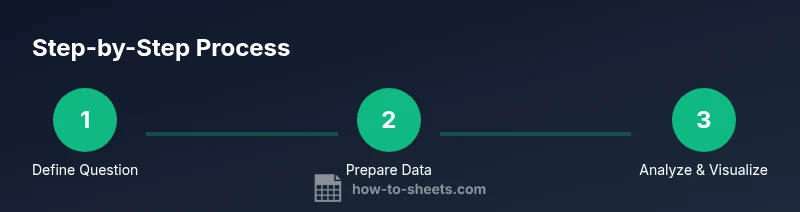
A practical workflow starts with a clear data plan: define the question, collect data, clean it, compute statistics, visualize, and interpret. Use named ranges to keep formulas readable, and apply data validation to maintain data integrity. Document assumptions and steps in a separate sheet to facilitate audits and future replication. Finally, share the workbook with colleagues and gather feedback to improve future analyses.
Advanced Techniques: Pivot Tables, QUERY, and ArrayFormulas
Pivot tables enable quick cross-tabulations and subgroup statistics without writing multiple formulas. The QUERY function provides SQL-like flexibility to filter, aggregate, and reshape data directly within Sheets. Array formulas enable batch processing across ranges, reducing repetitive formula entries. Combine these tools to create dynamic dashboards that adapt when new data is added. Always review the underlying data and test results using a small sample before applying to large datasets.
Best Practices and Performance Tips
To keep performance steady on larger datasets, avoid volatile functions in every cell; prefer array formulas and named ranges. Document every formula and maintain a minimal, well-structured data model. Use data validation to prevent bad inputs and keep source data clean. When sharing analyses, protect key sheets and consider version control through Google Drive to track changes over time. Finally, revisit your statistical assumptions regularly as data evolves.
Tools & Materials
- Computer or laptop with internet access(Google Sheets access via a Google account)
- Sample dataset(CSV or Excel file to import into Sheets)
- Google Sheets document(Active sheet with version history enabled)
- Data cleaning templates(Optional templates for deduplication and validation)
- Reference charts and pivot tables(Optional, for demonstration)
Steps
Estimated time: 45-60 minutes
- 1
Define the statistical question
State the analysis goal in measurable terms and identify the data needed to answer it. This step frames the entire workflow and prevents scope creep.
Tip: Write a one-sentence objective and list the data columns required. - 2
Import and clean data
Bring data into Google Sheets, remove duplicates, standardize formats, and handle missing values. Clean data improves the reliability of outcomes.
Tip: Use IMPORTRANGE to pull a canonical data source and guard against mismatched columns. - 3
Calculate descriptive stats
Compute mean, median, mode, standard deviation, and range. Use array formulas to apply to a whole column and minimize manual steps.
Tip: Wrap formulas in IFERROR to gracefully handle non-numeric cells. - 4
Segment data by category
Create filters or pivot tables to compare subsets (e.g., by region or quarter). Subgroup analyses reveal patterns hidden in the full dataset.
Tip: Use pivot tables for quick, reliable cross-tabulations. - 5
Visualize results
Choose appropriate chart types to convey findings. Customize axes, labels, and colors to emphasize key points.
Tip: Place charts alongside data summaries in a dashboard sheet. - 6
Validate and document
Cross-check results with alternative methods and document formulas and assumptions in a separate sheet.
Tip: Include a short methodology note for future readers.
FAQ
What are the essential functions for statistics in Google Sheets?
Key functions include AVERAGE, MEDIAN, STDEV, QUARTILE, and COUNT. These cover central tendency, spread, and distribution. Combine with IFERROR to handle non-numeric entries gracefully.
The essential functions to know are AVERAGE, MEDIAN, STDEV, QUARTILE, and COUNT, plus how to handle errors.
How do I compare groups in Sheets?
Pivot tables and the QUERY function let you summarize data by categories such as region or time period. Use charts to visualize group differences.
Pivot tables let you summarize data by category, and you can visualize the differences with charts.
Can I automate the statistics workflow?
Yes. Use ArrayFormulas, named ranges, and Apps Script for recurring analyses. Automations reduce manual steps and ensure consistency.
You can automate with array formulas and named ranges, possibly Apps Script for recurring tasks.
What should I document for future replication?
Record data sources, cleaning steps, formulas used, and chart configurations in a separate sheet. This helps others reproduce your results.
Document sources, cleaning steps, and formulas in a dedicated sheet for easy replication.
Are there any caveats when handling missing data?
Missing data can bias statistics. Use clear rules for imputation or exclusion, and always report how missing values were treated.
Missing data can bias results; decide how to handle it and report your method.
Watch Video
The Essentials
- Define a clear statistical question
- Clean data before analysis
- Use descriptive stats for summaries
- Leverage charts to communicate insights
- Document your methodology for replication