Google Sheets Vehicle Maintenance Template: A Practical Guide
Learn how to build and customize a Google Sheets vehicle maintenance template to log service dates, mileage, costs, and reminders. A practical, scalable guide for students, professionals, and small business owners.


You will learn to build a ready-to-use Google Sheets vehicle maintenance template that logs service history, mileage, parts, and costs, and sets automatic reminders. This step-by-step approach covers essential fields, practical layouts, and simple formulas to keep every vehicle in top shape. No advanced scripts required, and you’ll customize columns for your vehicles while using conditional formatting to highlight overdue tasks.
Why a Google Sheets Vehicle Maintenance Template Is Handy
A google sheets vehicle maintenance template brings all maintenance data into a single, auditable location. Whether you manage a personal car, a small company fleet, or a student project, this template helps you log service dates, mileage at service, costs, parts replaced, and next due dates. By standardizing data entry, you reduce misseds, improve budgeting, and make it easier to generate maintenance reports for inspections or audits. The template scales from one vehicle to several, and because it lives in Google Sheets, you can access it from any device with a web browser. When you combine this with simple formulas and conditional formatting, you gain clear visibility into what needs attention and when.
Core Fields You Should Include in a Google Sheets Vehicle Maintenance Template
A robust template should balance comprehensiveness with ease of use. Start with a vehicle catalog sheet listing each vehicle by a unique ID, make/model, year, and license plate. The maintenance log sheet should capture: Date of service, Vehicle ID, Service type (oil change, tire rotation, brake inspection, etc.), mileage, service center, cost, parts replaced, next due date, and notes. Including a column for whether the maintenance was preventative or repair helps with budgeting and reporting. Currency formatting for costs and a date column for service dates ensure consistency. Optional but helpful fields include receipt number, odometer readout at service, and a link to the service invoice stored in Drive.
Layout and Data Entry Best Practices
Design matters for long-term usefulness. Use a two-sheet approach: a master vehicle list (one row per vehicle) and a maintenance log (one row per service event). Employ data validation to constrain Service Type to a predefined list and to ensure dates and numbers are correctly formatted. Use a named range (e.g., ServiceTypes) to keep drop-downs consistent. Apply alternating row colors and bold headers to improve scanability. Consider a separate Dashboard sheet that pulls key metrics (next service due, total maintenance cost this year, average mileage between services) using dynamic ranges. Finally, copy the template structure to new vehicles without altering the core schema.
Automating Reminders and Alerts in Sheets
You don’t need heavy automation to stay proactive. Use TODAY() and a few logical formulas to flag upcoming or overdue maintenance. Conditional formatting can highlight cells where Next Due Date is within 30 days or where mileage indicates a service is due. For more automation, you can add a simple Apps Script to email a reminder to a list of addresses when a due date approaches. If you prefer no scripting, you can rely on the built-in email notifications of Google Workspace and periodic manual checks tied to calendar events.
Advanced Formulas You Can Use
Leverage VLOOKUP, INDEX/MATCH, and IFNA to pull vehicle data into a service log. Use SUMIFS to track total costs per vehicle or per year, and AVERAGEIF to measure average miles per service. A robust template uses a dynamic named range for Vehicle IDs, then VLOOKUPs to fetch Make, Model, and Year as you enter a Vehicle ID. For overdue detection, combine TODAY() with NextDueDate using IF statements. You can also build a simple pivot table to summarize costs by vehicle and service type for quarterly reporting.
Sample Template Design: A Walkthrough
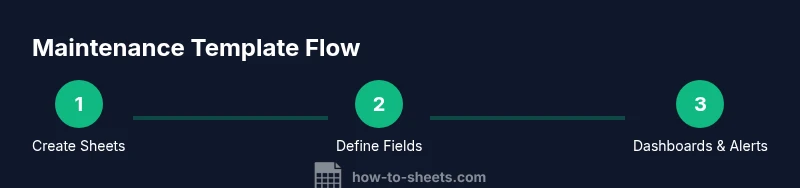
Imagine a three-sheet structure: Sheet1 named Vehicles (VehicleID, Make, Model, Year, Plate). Sheet2 named ServiceLog (Date, VehicleID, ServiceType, Mileage, Center, Cost, Parts, NextDue, Notes). Sheet3 named Dashboard (Key metrics and charts). This layout keeps data normalized, enables easy filtering, and supports dashboards that show upcoming due dates, cost trends, and maintenance frequency. You can customize colors and fonts to match brand or project aesthetics while preserving the core data model.
Handling Multiple Vehicles Efficiently
To manage multiple vehicles without duplication, use a single VehicleID column across sheets. Create a filterable view in ServiceLog so you can view all entries for a single vehicle, or all vehicles for a date range. A pivot table summarizing maintenance costs by ServiceType per VehicleID can reveal where you invest most. Use data validation to ensure that each ServiceType entry comes from a controlled list, minimizing misspellings and ensuring consistency across vehicles.
Data Visualization: Dashboards and Reports
Dashboards turn raw data into actionable insights. Create charts showing maintenance costs by month, miles driven between services, and the distribution of ServiceTypes. A compact KPI tile can display total maintenance this year, upcoming due dates, and average cost per service. Regularly exporting a PDF version of the dashboard helps with stakeholder reporting. With a well-structured template, you can reuse dashboards for multiple fleets by simply updating the VehicleID filter.
Common Mistakes and How to Fix Them
Common pitfalls include free-form data entry (typos in ServiceType), inconsistent date formats, and not updating NextDue after a service. To fix these, lock service types to a dropdown, apply a consistent date format, and enforce a process where NextDue is updated after every entry. Regularly audit the template for broken formulas or missing data. Finally, ensure your sheet has proper permissions so contributors cannot alter the schema.
Tools & Materials
- Google account(Needed to access Google Sheets and Drive)
- Google Sheets(Either web or mobile app; offline mode available)
- Vehicle maintenance template (Google Sheet)(Create or duplicate the template for multiple vehicles)
- Access to Google Drive(Store linked invoices or receipts if desired)
- Service type list (dropdown values)(Standardize service entries (oil change, brakes, tires, etc.))
- Apps Script (optional)(For automated email reminders or advanced automation)
- Calendar integration (optional)(Sync upcoming due dates with Google Calendar)
- Currency formatting and date formats set(Keeps data consistent for reporting)
Steps
Estimated time: 60-120 minutes
- 1
Create a new Google Sheet
Open Google Sheets and start a new blank spreadsheet. Name it 'Vehicle Maintenance Template' to clearly identify its purpose. This central file will host vehicle catalog, maintenance logs, and dashboard views.
Tip: Set the file to 'Anyone with the link can view' during setup, then restrict editing to collaborators you trust. - 2
Define core sheets and headers
Create Sheet1 as Vehicles and Sheet2 as ServiceLog. In Vehicles, include VehicleID, Make, Model, Year, Plate. In ServiceLog, include Date, VehicleID, ServiceType, Mileage, Center, Cost, Parts, NextDue, Notes.
Tip: Use bold headers and freeze the top row for easy scrolling. - 3
Set up data validation
Create a named range like ServiceTypes with allowed values (Oil Change, Tire Rotation, Brakes, etc.). Apply data validation to the ServiceType column in ServiceLog, plus a VehicleID lookup to ensure consistency across sheets.
Tip: Use dropdown lists to prevent typos and improve reporting quality. - 4
Enter your initial data
Populate Vehicles with your vehicles and add a few initial ServiceLog entries to establish a baseline. Ensure dates are in a consistent format and Costs use currency format.
Tip: Include at least one test entry per vehicle to validate formulas. - 5
Add NextDue and conditional formatting
Compute NextDue date by adding the service interval or based on recommended mileage. Apply conditional formatting to highlight NextDue within 30 days or overdue.
Tip: Choose a clear color (e.g., orange for due soon, red for overdue). - 6
Create a basic dashboard
In a new Dashboard sheet, add metrics like Total Maintenance Cost This Year, Upcoming Due Dates, and Average Cost per Service. Link these to ServiceLog and Vehicles with simple SUMIFS and AVERAGEIFS formulas.
Tip: Use pivot tables for flexible summaries or connect charts to the dashboard cells. - 7
Add basic automation (optional)
If desired, implement Apps Script to email reminders when NextDue approaches and to export monthly reports. Start with a simple trigger to run on a schedule.
Tip: Test scripts in a separate copy of the sheet before enabling in production. - 8
Protect critical data
Lock critical cells and formulas to prevent accidental edits. Use Sheet protection and set permissions for collaborators.
Tip: Keep a separate backup version of the file in Drive. - 9
Share and iterate
Share with teammates or family as needed. Collect feedback and refine the template based on real usage and new needs.
Tip: Document the template usage in a 'README' tab for new users.
FAQ
What is a Google Sheets vehicle maintenance template?
A Google Sheets vehicle maintenance template is a structured spreadsheet that records service history, mileage, costs, and upcoming maintenance for one or more vehicles. It standardizes data entry and supports reporting.
A Google Sheets maintenance template is a structured spreadsheet for tracking service history, mileage, costs, and upcoming maintenance across vehicles.
Which columns are essential for the maintenance log?
Key columns include Date, VehicleID, ServiceType, Mileage, Center, Cost, Parts, NextDue, and Notes. These provide a complete view of past and upcoming maintenance.
Important columns are Date, VehicleID, ServiceType, Mileage, Center, Cost, Parts, NextDue, and Notes.
How can I set up reminders without coding?
Use TODAY() with conditional formatting to highlight upcoming due dates. You can also use a basic Apps Script later to email reminders if needed.
Highlight due dates with conditional formatting and consider simple scripts for email reminders later.
Can this template handle multiple vehicles?
Yes. Use a VehicleID in both the Vehicles and ServiceLog sheets and filter views or pivot tables to analyze data by vehicle.
Yes, use VehicleID to manage multiple vehicles and filter data by vehicle.
Is this template mobile-friendly?
Google Sheets is accessible on mobile, but complex dashboards are best viewed on a larger screen. Keep critical data on a single sheet for easier mobile viewing.
You can view it on mobile, but dashboards are easier on a larger screen.
Watch Video
The Essentials
- Define a clear two-sheet structure (Vehicles, ServiceLog).
- Use data validation to ensure consistent entries.
- Leverage conditional formatting to spot overdue tasks quickly.
- Build a basic dashboard to summarize costs and due dates.
- Protect critical data and document usage for new users.