Google Sheets YouTube Analytics Guide: Pull, Refresh, and Visualize Data
Learn to connect YouTube Analytics with Google Sheets, automate data refreshes, and build dashboards to monitor views, watch time, audience retention, and engagement for smarter channel decisions.


You will learn how to pull YouTube analytics data into Google Sheets, set up automatic updates, and use Sheets formulas to analyze views, watch time, and engagement. This step-by-step approach helps students, professionals, and small business owners monitor channel performance without leaving Sheets. You'll also learn basic error handling and how to visualize trends with built-in charts.
Why integrating YouTube data with Google Sheets matters
For content creators and marketers, merging YouTube metrics with Google Sheets unlocks a centralized view of performance. When you pull views, watch time, subscriber growth, and engagement into Sheets, you can summarize performance across videos, run benchmarks, and quickly share dashboards with teammates. According to How To Sheets, integrating YouTube analytics directly into Sheets is a scalable, audit-friendly way to track campaigns over time, compare videos, and iterate based on data. This approach reduces context-switching between platforms and supports faster, data-driven decisions. Using Sheets as a data hub also makes it easier to apply formulas, conditional formatting, and charts to reveal trends that might be missed in a standalone YouTube Dashboard.
Prerequisites and the data you’ll pull
Before you start, decide which YouTube metrics matter most for your goals. Typical metrics include views, watch time, average view duration, engagement (likes, comments, shares), new subscribers, and traffic sources. You’ll also want to track video-level data (title, publish date, video ID) and, if relevant, channel-level metrics. This section covers selecting the right data, understanding simple data types (numbers, dates, strings), and planning a data model that stays maintainable as you add more videos or campaigns. As you design your sheet, consider naming conventions, headers, and a data schema that supports future automation and visualization.
Connect YouTube Data API with Google Sheets (high-level options)
There are two practical methods to bring YouTube data into Sheets: (1) use Google Apps Script to call the YouTube Data API v3 and write results directly into a sheet, or (2) leverage an add-on or connector that abstracts the API calls. Apps Script offers maximum flexibility, but requires basic coding. Add-ons provide a friendlier, code-free path with built-in error handling and scheduling. Regardless of method, you’ll generally: create a Google Cloud project, enable the YouTube Data API, obtain credentials, and implement a function that fetches metrics for selected videos and writes them into a tab.
Step-by-step workflow: fetch, store, and refresh data
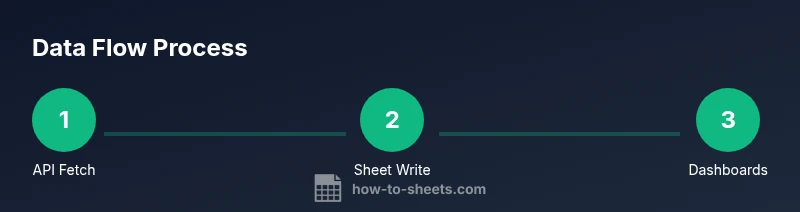
The core workflow is repeatable and designed for a clean data model. Fetch: call the API for the chosen metrics and date ranges. Store: write results into a dedicated sheet with a consistent header row (Video ID, Title, Date, Views, Watch Time, etc.). Refresh: schedule automatic updates so new data lands on the same sheet without manual intervention. This workflow reduces manual copy-paste errors and keeps dashboards current. Ensure you handle API quotas by batching requests and reusing results where possible.
Building a reusable data model in Sheets
A robust data model in Google Sheets separates raw data from derived metrics. Create a raw data tab that records the API results in a stable schema (Video ID, Title, Publish Date, Views, Watch Time, Likes, Comments, etc.). Add a separate calculations tab to compute derived metrics (e.g., engagement rate, average view duration, retention metrics). Use named ranges for essential sections and create a small metadata area to track the last refresh date. This structure makes it easier to extend with new metrics or campaigns and simplifies troubleshooting.
Automating refreshes with Apps Script or triggers
Automating data refreshes reduces manual effort and ensures dashboards stay up to date. In Apps Script, you can set up a time-driven trigger (for example, daily or every few hours) to run your fetch function and update the raw data tab. Consider implementing incremental updates to minimize quota use: only fetch new data for videos added since the last run. Always set error handling in your script to log failures and alert you when a refresh fails.
Analyzing data in Sheets: formulas and charts
Once data lands in Sheets, you can summarize with formulas like SUM, AVERAGE, and COUNT, and join datasets with VLOOKUP or INDEX(MATCH). Use QUERY to filter by date ranges, channels, or video groups, and create dynamic dashboards with charts (line charts for trends, column charts for comparisons, and sparklines for compact visuals). Build monthly or weekly dashboards by slicing the data with relative date filters and named ranges. This section demonstrates practical, ready-to-use formulas and chart configurations.
Common pitfalls and best practices
Common issues include API quota limits, partial data due to missing fields, and time zone mismatches. To avoid these, batch requests, cache results, and normalize dates to a single timezone in Sheets. Keep your data schema stable; whenever you add new metrics, update derived metrics and dashboards carefully to maintain consistency. Document your process inside the sheet (a help tab) so teammates can replicate the workflow and understand the data lineage.
Tools & Materials
- Google account with Google Sheets access(Essential for creating and editing sheets and Apps Script projects)
- YouTube Data API access (API key or OAuth credentials)(Needed to fetch metrics from YouTube)
- Google Cloud project and OAuth consent screen configured(Required to generate credentials)
- Google Apps Script editor (built into Google Sheets)(Option 1 for API calls)
- Optional: a Google Sheets add-on/connector(Simplifies setup if you prefer no code)
- A sample YouTube channel or video IDs list(Helpful for testing the fetch workflow)
Steps
Estimated time: 1-2 hours
- 1
Set up API access
Create a Google Cloud project, enable the YouTube Data API, and generate credentials (API key or OAuth client). This establishes the authorization your app will use to fetch data.
Tip: Store credentials securely and restrict API key usage to your domain. - 2
Prepare the Sheets data model
Create a raw data tab with headers (Video ID, Title, Publish Date, Views, Watch Time, Likes, Comments, etc.). Add a metadata section for last refresh date and source.
Tip: Use a consistent header order to simplify formulas and scripts. - 3
Write a fetch function (Apps Script)
In Apps Script, write a function that calls the YouTube Data API for the selected videos and writes results into the raw data tab. Include error handling.
Tip: Start with a small test set of videos to confirm fields map correctly. - 4
Run a test pull and verify data
Execute the function to populate the sheet and verify that each column contains the expected data types and values.
Tip: Check for null fields and handle missing data gracefully. - 5
Set up a time-driven refresh
Create a trigger to run the fetch function at a chosen interval (e.g., daily). This keeps dashboards current without manual input.
Tip: Avoid overly frequent triggers to respect API quotas. - 6
Build derived metrics
In a separate calculations tab, compute metrics like engagement rate, average view duration, and retention proxies using stable formulas.
Tip: Document each metric with a brief description in the sheet. - 7
Create dashboards and visuals
Use QUERY and FILTER to produce focused views, then add charts (line, column, sparklines) to visualize trends over time.
Tip: Link charts to a dynamic date range for auto-updating dashboards. - 8
Test, document, and hand off
Validate data accuracy with a few known videos, create a help tab with how-to notes, and prepare a short handoff for teammates.
Tip: Keep versioned backups of your sheet and scripts.
FAQ
Do I need an API key to start fetching YouTube data?
Yes. Access to the YouTube Data API typically requires an API key or OAuth credentials. Start by creating a Google Cloud project, enabling the API, and generating credentials. Then, secure and restrict the key for your domain or app.
Yes. You’ll need API credentials from Google Cloud to access YouTube data in Sheets.
How often can data be refreshed without hitting quotas?
Data refresh frequency depends on your quota and how you structure requests. Start with a conservative schedule (for example, daily) and batch requests to minimize calls. If you exceed quotas, consider caching results and refreshing only new data.
Start with daily refreshes and adjust based on quotas and needs.
Can I fetch comments or channel-level data beyond basic metrics?
The YouTube Data API supports a range of endpoints, but not all data is available for every plan. Video-level metrics (views, watch time) are common, while comments require specific endpoints and may have additional limits. Always review the API scope for your credentials.
Video metrics are common; comments and other data depend on API scope.
What should I do if some videos have missing data?
Missing fields can occur if a video is private, deleted, or outside the requested data range. Implement robust checks in your script (null checks) and provide fallbacks or placeholders in Sheets to keep the data structure intact.
If data is missing, use checks and placeholders so your sheet stays structured.
Is this approach compliant with YouTube’s terms of service?
As long as you use the API within the terms of service and respect quotas and user data privacy, the workflow is compliant. Avoid scraping data outside API envelopes and never misuse sensitive information.
Yes, when you follow the API terms and respect quotas.
Watch Video
The Essentials
- Connect YouTube data to Sheets for centralized dashboards
- Automate refreshes to keep insights up to date
- Use formulas and queries to derive meaningful metrics
- Visualize trends with charts for quick decisions
- Document the workflow to support team adoption