YouTube Google Sheets Tutorial: Build a Data Dashboard
Learn to pull YouTube metrics into Google Sheets, refresh data automatically, and visualize views, subscribers, and engagement with a reusable dashboard—step-by-step guidance by How To Sheets.


This guide helps you build a YouTube analytics dashboard in Google Sheets. You’ll learn how to pull video metrics from YouTube, refresh data automatically, and visualize key KPIs. Essential prerequisites include a YouTube Data API key, a Google account, and basic Sheets skills. By the end you’ll have a repeatable template you can reuse.
Overview: Why integrate YouTube data with Google Sheets
Automation and lightweight dashboards make it easy to monitor channel performance without complex BI tools. A YouTube Google Sheets workflow lets you pull video metrics such as views, watch time, and subscriber changes directly into a familiar spreadsheet. This approach is ideal for students tracking coursework, professionals evaluating content strategies, and small business owners measuring marketing impact. With a template you can reuse, you cut setup time and focus on insights rather than data wrangling. The key is to define your KPIs up front and build a repeatable data flow that refreshes on a schedule.
In practice, you’ll blend data sourcing (YouTube Data API) with data handling in Sheets, then create charts and dashboards that answer business questions like “Which videos drive subscriber growth?” and “How does engagement trend over time?” The How To Sheets team emphasizes actionable templates, practical steps, and clear visuals that support decision making.
bold: true],
Prerequisites and initial setup
Before you begin, gather a few essentials. You’ll need access to a Google account with Google Sheets, a Google Cloud project, and an API key for the YouTube Data API v3. It’s important to understand quota limits and authentication methods, because public metrics can be retrieved with an API key, while private data requires OAuth authentication. Prepare a short list of target metrics and a sample video ID list to test the flow. This preparation saves time later when you scale to your entire catalog. Finally, ensure you have a reliable internet connection and a dedicated spreadsheet for the project to avoid mixing data across tasks.
The How To Sheets methodology emphasizes keeping your API key secure, labeling data fields clearly, and documenting each step so teammates can reproduce or modify the workflow. If you’re new to Google Cloud, start with a minimal project and enable the YouTube Data API on the console, then proceed to create credentials for your Sheets integration.
bold: true],
Data model: metrics that matter and data structure
A well-structured data model makes analysis straightforward. Typical YouTube metrics to track include viewCount, likeCount, commentCount, and subscriberCount, along with videoPublishedAt and duration where available. In Sheets, set up a table with columns for videoId, title, publishedDate, and each KPI. Consider also creating derived KPIs such as engagement rate (comments + likes) divided by views. Consistency in date formats and time zones is critical for accurate trend analysis. When possible, store historical rows per video to enable longitudinal comparisons, and use a separate sheet tab to hold video metadata like channelName and category. Planning your data model up front reduces rework later and supports more advanced charts and dashboards.
For scalability, design your fetch function to normalize JSON fields into fixed columns and gracefully handle missing data. This approach minimizes errors when YouTube updates its data fields or when some videos lack certain metrics.
bold: true],
Data access methods: API vs manual export
There are two common paths to get YouTube data into Sheets. The first uses the YouTube Data API v3 via Apps Script or a simple custom function. This is automated, scalable, and keeps data within your Sheet. The second approach is manual export from YouTube Analytics into CSV, then importing into Sheets. While manual export can be useful for one-off analyses, it becomes tedious for ongoing dashboards. A hybrid approach—automated pulls for core metrics with occasional manual checks for validation—often works best for students and small businesses. The choice depends on your needs, technical comfort, and tolerance for maintenance.
In this tutorial we’ll focus on the API-based pipeline because it serves as the backbone for automation, scalability, and repeatable templates that How To Sheets advocates for in educational guides.
bold: true],
Setting up API access and quotas
Effective API use starts with proper credentials and mindful quota management. Create a Google Cloud project, enable the YouTube Data API, and generate an API key for public data. Then secure the key by restricting it to your domain and, if possible, limit usage to your Sheets project. Understand quota usage—each request costs a portion of your daily quota, and bulk fetches for multiple videos consume more. Plan your fetch schedule to stay within limits, and implement basic error handling to catch quota overruns early. This prep work prevents interruptions during critical dashboards and supports smooth collaboration with teammates. How To Sheets emphasizes documenting quotas and adding alerts for anomalies so you can adjust the workflow proactively.
bold: true],
Step-by-step workflow: fetch, parse, and refresh
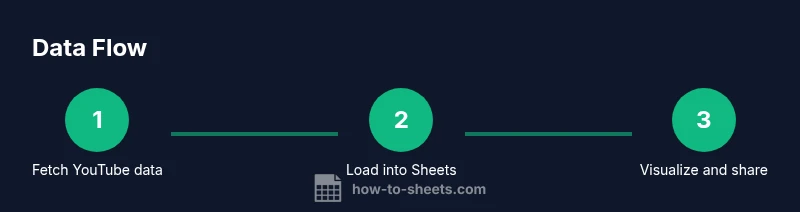
This section outlines the practical flow you’ll implement in Google Sheets and Apps Script. Start by listing your target video IDs, then build a fetch function that calls the YouTube Data API and returns a normalized JSON object. Next, parse the response into your Sheet’s columns, handling missing fields gracefully. Create a batch function to process multiple IDs in a single run and schedule a time-driven trigger to refresh data automatically. Finally, link the data to charts or pivot tables for live insights. The step-by-step approach keeps code modular, making it easier to tweak metrics later without reworking the entire pipeline.
As you test, begin with a small set of videos to validate data types and dates. Once the pipeline is stable, scale to your full list. If you encounter rate limits, space requests or batch them to stay within quotas, and consider caching results for the most frequently viewed videos to minimize API calls. This methodology supports reusability and reduces maintenance in longer-term projects.
bold: true],
Visualization and analysis: charts, dashboards, and automation
Visualizing data in Sheets is where insights become actionable. Start with simple line charts to show views over time and bar charts for top-performing videos. Use a pivot table to summarize metrics by video category or publishing month, and apply conditional formatting to highlight spikes or declines. For dashboards, arrange key KPIs in a compact grid, add sparklines for quick trends, and include a date filter to focus on recent data. Automation can include weekly or daily refreshes, auto-notes highlighting trends, and a share-ready view that excludes raw IDs. If you need more advanced visuals, you can export data to a charting add-on or connect Sheets to a BI tool.
Always validate charts against raw data and keep a changelog of any metric definitions you modify to avoid misinterpretation during reviews. How To Sheets prioritizes practical, repeatable design that supports quick decision-making and easy maintenance for students and professionals alike.
bold: true],
Troubleshooting: common issues and fixes
Even well-designed workflows encounter hiccups. Common problems include invalid API keys, quota limits, and JSON parsing errors due to unexpected API responses. If you see 403 or 429 errors, review your key restrictions and quota usage, then adjust the fetch schedule or batch size. When fields appear as null, verify the API response structure and update your parsing logic accordingly. Date formats can break charts if time zones shift; ensure your script normalizes dates to a consistent format before writing to Sheets. Logging each fetch and creating a simple error sheet helps you diagnose issues quickly and prevents silent data gaps. Regularly test with a known video list to confirm the pipeline remains healthy after API changes.
bold: true],
Advanced topics: automation, templates, and security
For power users, extend the template with more automation and governance. Create a reusable Apps Script library to share across multiple Sheets workbooks, and document a standardized data schema within a separate readme sheet. Add OAuth for private data access if needed, and maintain a rotation policy for API keys. You can also implement versioning of your dashboard templates and keep a changelog for metric definitions, data sources, and visualization choices. Finally, consider publishing a lightweight template as a downloadable How To Sheets template, enabling others to clone the workflow with minimal setup. These practices improve reliability, collaboration, and long-term maintainability.
bold: true],
Security and privacy considerations
Data pulled from YouTube may contain sensitive information or usage metrics not intended for public sharing. Always restrict API keys, store credentials securely, and avoid embedding keys in shared scripts or repos. When sharing dashboards, consider using access controls and filtering sensitive fields. Document data retention policies and ensure your workflow adheres to YouTube’s terms of service and privacy guidelines. Regularly review permissions and remove unused keys or accounts to minimize risk. By following these practices, you protect both your organization and your viewers while maintaining a clear audit trail for your analytics.
bold: true]} ,
toolsMaterials
stepByStep
tipsList
keyTakeaways
videoEmbed
faqSection
mainTopicQuery
Tools & Materials
- Google account(Active Gmail with access to Google Drive and Google Sheets)
- YouTube Data API key(Public data access; restrict key to your domain if possible)
- Google Cloud Console project(Create a project, enable YouTube Data API v3)
- Google Sheets(New or existing sheet dedicated to the project)
- Apps Script editor(Accessed via Extensions > Apps Script in Sheets)
- Internet connection(Stable connection for API calls and updates)
- Optional: data visualization add-ons(For advanced charts and dashboards)
Steps
Estimated time: Total time: 40-90 minutes
- 1
Create API access
In Google Cloud Console, create a new project and enable the YouTube Data API v3. This establishes the data channel you’ll query from Sheets and sets the foundation for all subsequent steps.
Tip: Document the project ID and API key; restrict usage to your domain for security. - 2
Generate and restrict API key
Create an API key in the console and apply key restrictions to limit calls to your domain or specific IPs. This prevents unauthorized usage and protects quota.
Tip: Always enable HTTP referrers (websites) or Android apps restrictions if applicable. - 3
Open Sheets and prepare your sheet
Create a new spreadsheet dedicated to your YouTube data. Set up a clean header row with columns for videoId, title, publishedAt, and core metrics you plan to track.
Tip: Use clear column names and consistent date formats from the start. - 4
Set up Apps Script and fetch function
In Extensions > Apps Script, write a function to call the YouTube Data API and return data in a normalized structure that matches your sheet columns.
Tip: Modularize code so parsing logic can be reused for multiple endpoints. - 5
Create batch fetch and parsing
Add a function to process a list of video IDs in a single run, parse the API response, and write values to your sheet without overwriting existing data.
Tip: Include error handling for missing metrics and rate limits. - 6
Schedule automatic refresh
Configure a time-driven trigger to refresh data daily or weekly, depending on your needs. This keeps your dashboard up to date with minimal effort.
Tip: Test triggers with a short interval to confirm reliability. - 7
Add visuals and share
Insert charts and a simple dashboard layout in Sheets. Share the sheet with teammates, applying view/edit permissions as appropriate.
Tip: Provide a README tab with metric definitions and data sources.
FAQ
Can I fetch historical data for all videos in my channel?
Yes, you can accumulate data over time by appending new rows for each fetch. To do this effectively, store a date stamp and keep a separate history tab so you can compare metrics across time.
Yes. You can build a history by appending new rows each fetch and tracking the date. This lets you compare performance over time.
Do I need OAuth if I only access public metrics?
For most public YouTube metrics (views, likes, comments on public videos), an API key is sufficient. OAuth is required if you start accessing private data or channel-level insights.
No, for public metrics an API key is usually enough; OAuth is only needed for private data.
How often can I refresh data without hitting quota limits?
Quota limits depend on your project and API calls. Start with daily refreshes and monitor usage; scale up gradually if your quota allows and you need more up-to-date data.
Start with daily refreshes and watch your quota to avoid interruptions.
What if the API returns missing fields or errors?
Handle missing fields by setting defaults and logging errors in a separate sheet. Update your parsing logic when the API response structure changes and re-test with a small set of video IDs.
If fields are missing or you see errors, log them and adjust parsing to prevent blank cells.
Can I share the dashboard with others securely?
Yes. Use Google Sheets sharing settings to grant access only to intended users. Consider masking sensitive data by creating a view-only dashboard that references a separate data feed.
You can share using Sheet permissions; consider a read-only view for teammates.
Watch Video
The Essentials
- Define your KPIs before fetching data
- Automate refresh to keep dashboards current
- Secure API keys and restrict access
- Validate data with spot checks
- Reuse templates to scale across projects