How Often Does IMPORTRANGE Update Google Sheets
Explore how often IMPORTRANGE updates Google Sheets, what drives refresh delays, and practical tips to optimize data imports for reliable workflow.


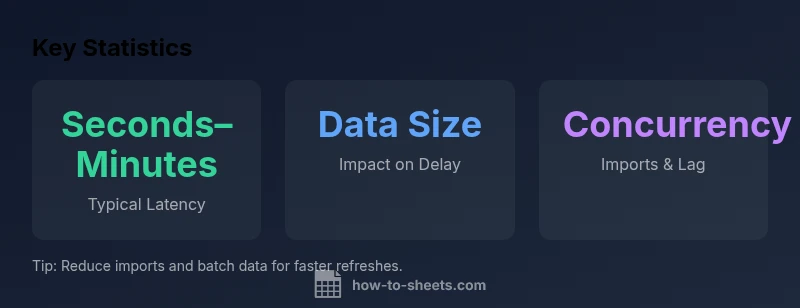
IMPORTRANGE does not refresh in real time. Google Sheets recalculates formulas in the destination sheet when dependencies update or when you trigger a manual refresh. Updates from the source occur after a recalculation pass and can take from a few seconds to several minutes, depending on the size of the source/destination files, network latency, and how busy Google’s servers are. There is no fixed interval; for faster updates, force a recalculation or reopen the sheet.
How ImportRange Updates Work in Google Sheets
IMPORTRANGE pulls data from a source spreadsheet and feeds it into a destination sheet. However, unlike a true live feed, the destination formula depends on Google Sheets’ recalculation mechanism. When the source data changes, or when other formulas that reference the imported range update, Google Sheets performs a recalculation pass for the destination. This means the data you see in the destination sheet may lag behind edits in the source. The timing is influenced by several factors, including the size of the source range, the number of concurrent imports, and overall load on Google’s servers. It’s also important to recognize that when a user opens the destination sheet, Sheets may trigger additional recalculation activity that can affect perceived freshness.
From a workflow perspective, think of IMPORTRANGE as a near-real-time connector rather than a streaming data link. For most practical purposes, expect short delays, not instant reflex updates. This distinction is critical for reporting timelines, dashboards, or data integrations that depend on timely pulls from external sheets.
What Triggers a Refresh for IMPORTRANGE
Refreshes are not initiated on a fixed timer. Instead, they occur when the destination sheet’s calculation cycle runs and when the source data or dependent formulas change. Key triggers include:
- Edits in the source spreadsheet that affect imported cells
- Changes within the destination sheet that cause recalculation to occur (e.g., adding rows, changing formats, or moving sheets)
- Complex formulas in the destination that reference the imported range, which can prompt cascading recalculations
- Manual recalculation or reopening the destination sheet, which forces a recalculation pass
Understanding these triggers helps you predict update timing and plan data refreshes around reporting deadlines.
Typical Delay Ranges and What They Depend On
There is no single fixed interval for IMPORTRANGE updates. In practice, many users observe refreshes that occur within a few seconds to a few minutes after a source change. The actual delay depends on:
- Data volume: larger ranges take longer to recalculate and transfer
- Number of IMPORTRANGE calls in the destination: multiple imports increase the calculation load
- Destination complexity: AVMs (Array Formulas, QUERY, FILTER) layered on top of IMPORTRANGE add processing steps
- Google server load and network latency: service conditions beyond user control
For operational planning, allocate a small, predictable buffer for refreshes, especially when building dashboards or automations that depend on current data.
Diagnosing Delays and Forcing Updates: Practical Steps
If you notice stale data, try these techniques:
- Force a manual recalculation: use the menu (Data > Calculation > Recalculate) or press the appropriate keyboard shortcut for your platform
- Reopen the destination sheet: a simple reload can trigger another calculation pass
- Minimize cascading dependencies: reduce layers above the IMPORTRANGE call to lower calculation overhead
- Break large imports into smaller chunks: importing huge blocks as discrete ranges can improve responsiveness
- Check for competing formulas: remove or simplify formulas that rely on the same imported data
These steps help you distinguish between a normal delay and a broader performance issue, making data refresh more predictable.
Best Practices to Minimize Refresh Delays
To keep data current without sacrificing performance:
- Limit the number of distinct IMPORTRANGE connections in a single sheet
- Prefer importing only the necessary columns and rows instead of entire ranges
- Cache results when possible: use in-sheet calculations to summarize data rather than re-importing large datasets repeatedly
- Schedule refresh windows around critical reporting times and communicate expected delays to stakeholders
- Consider alternative approaches for large, dynamic data: Apps Script triggers, or an external data pipeline for frequent, live updates
Adopting these practices can reduce wait times, improve reliability, and yield more predictable data refresh behavior in Google Sheets.
Practical Scenarios and How to Plan Around Them
- Small dashboards with a few imports: refreshes are typically quick; plan updates within a couple of minutes of source changes.
- Medium reports with multiple linked ranges: expect occasional variability; test your sheet under peak load to set realistic SLA-like expectations.
- Large data integrations: implement chunked imports and caching; consider a supplemental data pipeline for near real-time needs.
In all cases, document expected refresh behavior for users and stakeholders to manage expectations and prevent misinterpretation of stale data.
Understanding refresh drivers for IMPORTRANGE
| Aspect | Refresh Trigger | Typical Delay | Notes |
|---|---|---|---|
| Source Data Change | Yes | Seconds to minutes | Depends on data size and source latency |
| Manual Recalculation | Optional | Immediate | Forcing a refresh can help when data is stale |
| Sheet Dependencies | Depends | Seconds to minutes | Other formulas referencing IMPORTRANGE can delay refresh |
FAQ
Does IMPORTRANGE update automatically in real time?
No. Updates occur during a recalculation pass, not instantaneously as source edits happen. The delta between source and destination depends on calculation cycles and data size.
No—updates happen during recalculation, not instantly as you edit the source.
Can I force an immediate refresh?
Yes. Trigger a manual recalculation or reopen the destination sheet to prompt a new calculation pass.
You can force a refresh by recalculating manually or reopening the sheet.
Why does it lag on large data?
Large source data and many IMPORTRANGE calls increase calculation overhead, leading to longer refresh times.
Large data and many imports slow things down.
Does changing the source trigger updates instantly?
Source edits trigger recalculation on the next pass; there is no guaranteed immediate update.
Source changes prompt the next recalculation pass.
Are there alternatives to keep data live?
Apps Script triggers or a data pipeline can offer more control for frequent or near-live updates, depending on your setup.
Apps Script or external pipelines can provide more control.
What about using IMPORTRANGE with QUERY?
QUERY can filter and reshape imported data, but update timing remains similar to a plain IMPORTRANGE refresh.
QUERY doesn't dramatically speed up refresh timing.
“The How To Sheets team emphasizes that understanding update mechanics helps teams design reliable data workflows around IMPORTRANGE.”
The Essentials
- IMPORTRANGE updates are not real-time; plan for potential delays
- Delay varies with source size and server load
- Minimize concurrent imports to reduce lag
- Use manual recalculation to speed up a refresh when needed