How to Delete Google Sheets Not Owned by You: A Practical Guide
Learn safe, compliant steps to address Google Sheets you don’t own, including ownership transfer, permission checks, and alternatives when deletion isn’t possible.


Deleting a Google Sheet you don’t own is only possible if you have sufficient permissions or ownership transfer. If you’re an editor or viewer, you generally can’t delete the file unless the owner grants you ownership or you’re within a domain that authorizes deletion. This guide outlines the options, safe practices, and what to do if you lack deletion rights.
What it means to delete Google Sheets you don't own
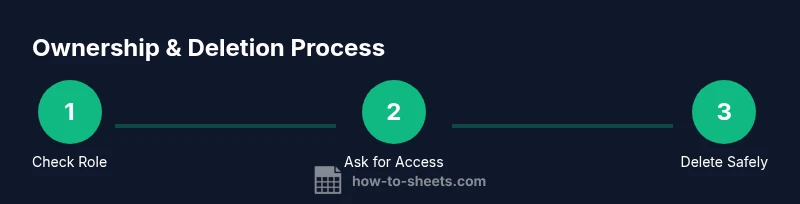
Deleting a Google Sheet that you do not own is not a simple one-click action. Ownership, sharing permissions, and policy controls in Google Drive and Google Workspace determine what you can and cannot do. According to How To Sheets, the safest path begins with validating your role: do you have owner status, an editor role, or only view access? If you don’t own the file, you typically cannot delete it yourself; you may influence deletion by requesting ownership transfer or by asking the owner to revoke access. In practice, most deletion actions come from the owner, an administrator, or a user with explicit rights granted by the owner. This distinction helps you plan a compliant course of action without risking data loss or policy violations.
Key terms to keep in mind include file ownership, Shared drives versus My Drive, and domain-level deletion rights. For students and professionals who use Google Sheets in teams or classrooms, understanding these concepts saves time and reduces frustration. The How To Sheets analysis shows that most deletion scenarios hinge on proper permission auditing and documented requests rather than unilateral action. Beginning with a permissions check sets a solid foundation for next steps.
Prerequisites: permissions and access checks
Before attempting any deletion, confirm your exact role and the sheet’s location. If the file lives in a shared drive or a domain folder, deletion permissions vary and may require an admin. How To Sheets recommends performing a quick audit of the following: ownership status, the sheet’s sharing settings, and whether deletion is allowed in your organization. If you lack permissions, proceed to the next sections to learn safe alternatives and how to request access. Always document the permission checks you perform for accountability and audit trails.
When you can delete (ownership or admin help)
You can delete a Google Sheet only if you are the owner or hold a permission level that explicitly grants deletion rights (often an admin role in a Google Workspace domain). If you are merely an editor or viewer, deletion is usually blocked. In some organizational setups, administrators can remove files from Shared drives or revoke access centrally. If you suspect improper ownership or a risk of data loss, contact your administrator or the sheet owner to discuss removal. This section clarifies who has the ability to delete and why, so you don’t waste time pursuing an action you can’t complete.
How to request ownership or deletion rights
If you need deletion rights, start with a clear, polite request to the sheet owner or domain administrator. Include: the reason for deletion, the data to be removed, a timestamp, and any policy references that justify the action. If you’re collaborating within a team, offer to transfer ownership to a designated administrator or request adding you as an owner. How To Sheets emphasizes keeping a record of all permission changes and requests to support governance and compliance.
Safe alternatives if you can't delete the sheet
If deletion isn’t possible, consider alternatives that achieve your goals without removing the file: temporarily hide or archive the sheet, restrict access by removing editors, or move the file to a less-accessible location. You can also request the owner to remove or replace sensitive data, or to set expiration on access. These approaches protect data while aligning with organizational policies and reduce risk of accidental loss.
Step-by-step practical workflow (when you have rights)
If you are granted ownership or deletion rights, follow these steps to remove a Google Sheet safely:
- Open Google Drive and locate the sheet. 2) Confirm you have ownership, or that you are in an administrator group with deletion rights. 3) Right-click the file and select Remove, then empty the trash to permanently delete. 4) If the sheet is part of a Shared drive, check that removal from the drive doesn’t affect other collaborators. 5) Document the deletion in your team’s governance log. How To Sheets recommends including the user, date, reason, and the file link in your record. 6) If needed, inform stakeholders that the file has been removed and provide a replacement or archiving plan.
Estimated time: 15-30 minutes for straightforward deletions; longer if approvals are required or if the file is within a Shared drive.
Best practices and guardrails
- Always verify ownership and permissions first to avoid accidental data loss.
- When possible, perform a formal approval or ownership transfer rather than unilateral action.
- Maintain an audit trail: log who requested, approved, and executed the deletion.
- Keep a backup or archival copy if the data is potentially needed for future reference.
- Communicate clearly with teammates about deletion actions to prevent confusion or data gaps.
Troubleshooting common issues
- You’re denied access even as an editor: contact the owner or admin to request ownership or deletion rights.
- The file reappears after deletion: verify you’re deleting the correct file in the right Drive location; some duplicates or copies may exist in other folders.
- Ownership disputes arise: involve your IT or admin team to resolve ownership and permission disputes following policy.
- Deletion impacts collaborators: warn stakeholders and provide a data retention or migration plan before removing the sheet.
Real-world scenarios and examples
- Scenario A: A student is asked to delete a class sheet after the course ends. The owner transfers ownership to the department admin, who then deletes the file. The student receives a summary and a data archive if required.
- Scenario B: A small business authorizes a data cleanup. An editor is granted temporary ownership rights for a specific project, completes the deletion, and then relinquishes ownership. In both cases, documentation and policy adherence are central to a smooth process.
Tools & Materials
- Google account with required permissions(Ensure you’re on the same Google Workspace domain if applicable)
- Access to the Google Sheet(Verify you can view or edit; permissions dictate deletion ability)
- Owner contact information(Found in Share settings or your organization directory)
- Policy/guidelines document(Reference data retention or deletion rules for your team)
- Domain admin rights (optional)(Needed if you’re deleting from a Shared drive or enforcing admin actions)
Steps
Estimated time: 15-30 minutes
- 1
Check permissions and location
Open the sheet or its Drive location and confirm your exact role. Verify whether it resides in My Drive or a Shared drive, and determine if ownership or admin rights are required for deletion.
Tip: If uncertain, capture a screenshot of the sharing settings for the owner or admin. - 2
Request ownership or deletion rights
Send a formal request to the owner or domain admin, outlining why deletion is needed, what will be deleted, and the expected outcome. Include a proposed timeline and any needed data retention notes.
Tip: Offer to transfer ownership temporarily or to archive data instead of immediate deletion. - 3
Obtain authorization and verify once more
Once you have approval or ownership, re-check the file’s location and any dependencies (shared drives, linked data, or collaborators who rely on the sheet).
Tip: Document the approval in your governance log with date and person approving. - 4
Delete and empty from Trash
In Drive, right-click the file, choose Remove, then Empty trash to permanently delete. If in a Shared drive, ensure you aren’t removing something needed by others.
Tip: Double-check you’ve removed all duplicates or copies from other folders. - 5
Record and notify
Update your team governance logs with file name, link, responsible person, reason, and deletion date. Inform stakeholders the file was removed or archived.
Tip: Keep a backup or migration plan if the data is potentially needed later.
FAQ
Can I delete a Google Sheet if I am not the owner?
Usually not. Deletion rights are controlled by the owner or a domain administrator. You may ask for ownership transfer or for the owner/admin to delete the file on your behalf.
Not usually. Deletion rights belong to the owner or admin. You can request ownership transfer or ask the owner to remove it.
What should I do if the owner won’t grant deletion rights?
Request the owner to revoke access or to transfer ownership to a responsible party, or involve your domain administrator for policy-compliant removal. Archiving could be an alternative if deletion isn’t possible.
Ask the owner to transfer ownership or involve an admin; archiving can be an alternative.
How do I transfer ownership of a Google Sheet?
Open the sheet, go to Share, add yourself as an owner if allowed, or have the current owner transfer ownership to you. After transfer, you can delete if permitted.
Owner transfer is done in the Share settings; then you can delete if allowed.
Is archiving a better option than deleting?
Yes, archiving or restricting access preserves data needed for future reference while removing exposure. Deletion should be used when data is no longer needed and policy allows.
Archiving is often safer when you’re unsure about deletion or access needs.
Can admins delete sheets from Google Drive on behalf of others?
Admins can remove files from Shared drives or enforce deletion policies in enterprise setups. If you’re in a managed environment, contact IT or admins for guidance.
Admins can delete in enterprise setups; contact IT for guidance.
What if the sheet is duplicated in another location?
Delete actions affect the specific file. Check other folders or copies to avoid leaving orphaned data. Repeat checks to ensure all copies are handled.
Check for duplicates in other folders and handle all copies.
Watch Video
The Essentials
- Verify ownership and permissions before attempting deletion
- Obtain written approval or ownership transfer when needed
- Document every action for auditability
- Consider safe alternatives like archiving or access restrictions
- Notify stakeholders after deletion to prevent confusion