Google Sheets Transfer Ownership: A Step-by-Step Guide
Learn how to transfer ownership in Google Sheets with a clear, safe process. This guide covers prerequisites, step-by-step instructions, and best practices to keep access secure and auditable.


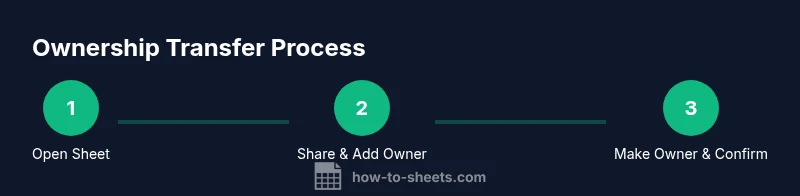
You can transfer ownership of a Google Sheet by using the Share settings. You must be the current owner (or have equivalent rights) and the recipient must have a Google account. Add or select the new owner, choose 'Make owner,' and confirm. Notify collaborators and verify access after the transfer.
What ownership means in Google Sheets
Ownership in Google Sheets defines who has the highest level of control over a file. The owner can share access, change permissions, transfer ownership, and delete the file. For maintained accountability, ownership is a critical concept when teams collaborate on shared documents. In Google Sheets, ownership is not just about having the ability to edit; it is the permission to designate who controls access and how that access is managed over time. According to How To Sheets, clear ownership supports smoother handoffs and reduces confusion during project transitions. When you own a sheet, you are responsible for keeping access lists up to date and ensuring that the right people retain the right level of access. The transfer process is intended to be deliberate and well-documented, especially for team projects, student groups, or business workflows. If you're unsure whether you should own a sheet, discuss with your team lead or administrator to confirm ownership responsibilities.
Who can transfer ownership in a Google Sheet
Ownership transfer is a privileged action. Typically, the current owner can initiate the transfer, and in Google Workspace environments, some admins may have oversight capabilities. If you’re just a collaborator with Edit access, you cannot transfer ownership—you must either become the owner or have the current owner perform the handoff. Planning ahead is wise: when a team changes, designate a successor and ensure they have a Google account linked to your domain. This avoids last-minute roadblocks and preserves project momentum. How To Sheets emphasizes aligning ownership changes with governance policies so that access remains auditable and compliant.
Considerations before transferring ownership
Before you hand off control, review any scripts, add-ons, or connected services that rely on the sheet’s original owner credentials. The new owner should understand the project’s life cycle, the shared datasets involved, and any domain-specific sharing constraints. If you are within a Google Workspace domain, check with the administrator about transfer restrictions and expected audit trails. Communicate the planned handoff to your team, update runbooks or documentation, and decide whether you will relinquish all access or retain limited administrative rights for a transitional period. Planning ahead minimizes downtime and prevents workflow disruptions.
Common pitfalls and safety tips
Common pitfalls include transferring ownership without notifying collaborators, accidentally revoking access for yourself, or transferring to someone who does not accept the invitation promptly. A practical safety tip is to verify the new owner’s email address and ensure they have a verified Google account before initiating the transfer. Avoid performing ownership transfers during peak deadlines or when the sheet is critical to ongoing operations. Consider keeping a backup copy or creating a change log so you can track the handoff and restore access if something goes wrong.
Alternatives and aftercare
If ownership transfer is blocked by domain policies or administrative controls, you can still grant the new owner broader access by sharing with Editor rights and coordinating a later formal transfer. Another option is to duplicate the sheet and share the copy with the intended owner, then gradually migrate workflows to the new sheet. After the transfer, update your project documentation, note the change in logs, and remind all collaborators to review access settings. Finally, consider setting up recurring audits of ownership for high-risk sheets to maintain governance standards.
Tools & Materials
- Google account with owner privileges(You must be the current owner or have equivalent rights to initiate the transfer.)
- Target Google Sheet(Open the sheet you intend to transfer and prepare for permission changes.)
- New owner email address(The recipient must have a Google account to receive ownership.)
- Stable internet connection(Ensure you have a reliable connection to avoid partial transfers.)
- Communication plan(Draft a quick note to inform collaborators about the handoff.)
Steps
Estimated time: 15-25 minutes
- 1
Open sheet and verify ownership
Open the target Google Sheet and confirm you are the current owner or have explicit permission to transfer ownership. This ensures you are authorized to initiate the handoff and helps prevent accidental transfers.
Tip: If you’re not the owner, request ownership or coordinate with the actual owner before proceeding. - 2
Open the Share settings
Click the Share button in the top-right corner to access sharing permissions. You should see your name listed as the owner or a note indicating owner status. This step prepares you for the transfer action.
Tip: If you do not see the Share button, you may be in view-only mode; request Editor access first. - 3
Add or verify the new owner's access
Enter the new owner's email in the Share with people field and ensure their permission is set to Editor or higher if required for the handoff. If the user is already listed, verify their email matches exactly.
Tip: Double-check the spelling of the email to avoid an erroneous user assignment. - 4
Transfer ownership
From the new owner's entry, open the permissions dropdown and select Make owner, then confirm the action. This is a final, irrevocable step that grants full control to the new owner.
Tip: Be aware that ownership transfer is typically final; you may lose owner privileges once confirmed. - 5
Confirm transfer and adjust access
Refresh the page and verify the new owner is listed as Owner. If needed, remove your own access or retain it with limited permissions for a transitional period.
Tip: Keep a backup contact in case the transfer needs troubleshooting after completion. - 6
Notify collaborators and document the handoff
Send a quick note to the team about the ownership change and log the transfer in your project records for audit purposes. Include date, new owner, and affected sheets.
Tip: Documenting the transfer helps maintain governance and simplifies future audits.
FAQ
Who can transfer ownership of a Google Sheet?
Typically the current owner can initiate the transfer. In some organizations, domain admins may also oversee transfers. If you lack ownership, you’ll need the current owner to perform the handoff.
The current owner usually handles the transfer; if you’re not the owner, you’ll need them to do it for you.
Can I transfer ownership if I am not the current owner?
Not usually. You must either be the owner or have explicit permission from the owner to start the transfer. If the owner is leaving, arrange for an interim owner before you proceed.
If you’re not the owner, you can’t initiate the transfer unless the owner grants you rights.
What happens to collaborators after ownership transfer?
Collaborators retain their access levels unless the owner changes permissions. The new owner can adjust sharing settings, but existing shares generally remain unless removed by the owner.
Collaborators keep their access unless the owner changes it.
Can ownership transfer be reversed?
Some changes can be undone by the new owner or an admin, but there is no simple, universal ‘undo’ for ownership. Plan carefully and maintain a record of the handoff.
There isn’t a simple undo for ownership; plan ahead and keep records.
Are there domain restrictions in Google Workspace?
Yes, some transfers may require admin approval or occur only within the same domain. Check with your administrator if your sheet is part of a corporate or school domain.
Domain policies can affect transfers, so verify with your admin.
How long does the transfer take to take effect?
Ownership changes typically take effect immediately after confirmation, but you may need to refresh and re-check access for all collaborators.
Ownership usually changes instantly after confirmation; refresh to verify.
Watch Video
The Essentials
- Identify current owner before initiating transfer.
- Verify the new owner's email and access level.
- Transfer ownership via Share settings and confirm.
- Notify collaborators and document the handoff.
- Audit ownership changes for governance and compliance.