How to Fill Series in Google Sheets: Step-by-Step Guide
Learn to fill numeric, date, and text series in Google Sheets with simple steps, formulas, and best practices for accurate data entry.


By the end of this guide, you'll be able to auto-fill numeric, date, and text sequences in Google Sheets using the fill handle, built-in options, and formulas. Start with seed values, select the range, and drag the fill handle to extend the series. For custom patterns, use SEQUENCE, ARRAYFORMULA, and DATE functions.
Why series filling matters in Google Sheets
When you manage data in spreadsheets, consistency is key. A reliable way to accelerate data entry and reduce manual errors is to use series fills. If you're curious about how to fill series in google sheets, this technique offers scalable options for every workflow—from planning budgets to compiling project timelines. Using the fill handle and a few built-in functions, you can extend a seed value into long sequences without copying and pasting. For students, professionals, and small business owners, mastering series fills translates into more time for analysis and less drudgery in repetitive tasks. In addition to speeding up tasks, series fills help maintain formatting, ensure uniform increments, and preserve data types (numbers, dates, and text) across rows and columns. This section lays the groundwork for practical, repeatable results.
What series can you fill? Numbers, dates, text patterns
Google Sheets supports filling a wide range of patterns: numeric sequences like 1, 2, 3; dates like 2026-03-16; and text patterns such as Item A, Item B. It's important to understand the rules Sheets uses to infer the pattern from seed values. For example, if you start with 1 and 3 and drag, Sheets may continue with 5, 7 (step 2) or simply fill with the next numbers if you only select a single seed. In this section, you’ll see how to predict the outcome and when to intervene with manual tweaks. The goal is to choose starting seeds that clearly define the pattern and ensure the target range is formatted correctly. By mastering these basics, you’ll be ready to tackle more complex sequences using formulas.
Basic technique: using the fill handle for quick sequences
Start with your seed value in a cell. Enter a second seed if you want a specific increment. Select both cells, then drag the small square in the bottom-right corner (the fill handle) along the direction you want to fill. As you drag, a preview appears showing the series outcome. Release to apply. If you only have a single seed, Sheets will continue that value or increment with a default pattern depending on what you drag into the adjacent cells. This method is fast, intuitive, and works for most everyday needs. Tip: double-click the fill handle to auto-fill down a column to the length of adjacent data.
Extending patterns with the Fill Down / Fill Right and smart auto-fill
Beyond simple numbers, you can extend more complex patterns by selecting a seed range that includes multiple columns or rows. The fill handle then recognizes the sequence and continues it in the direction you drag. If the pattern is textual (like Monday, Tuesday, Wednesday) Sheets will fill subsequent days or items accordingly. You can also use right-click to access the Fill series option for more control: choose what to fill, such as days, months, or years, and specify the increment. Smart auto-fill learns common patterns from your data, making it easier to auto-populate long sheets without formula syntax.
Custom sequences with SEQUENCE and ARRAYFORMULA
This is where Google Sheets shines for scalable data generation. The SEQUENCE function generates a list of numbers, dates, or other items in a single formula. For example, =SEQUENCE(10,1,1,1) returns numbers 1 through 10 in a column. Combine SEQUENCE with other functions to create dates and patterns, such as =DATE(2026,1,1) + SEQUENCE(12,1,0,1) for monthly dates. ARRAYFORMULA expands formulas across multiple rows without copying. These tools are essential for tasks like forecasting, inventory planning, or building dynamic templates that grow as your data grows.
Working with dates: incremental days, months, and business days
Dates are a common use case for series fills. You can create a date series by starting with a date and using the fill handle to extend daily increments. For larger gaps or irregular calendars, use WORKDAY or NETWORKDAYS to skip weekends and holidays. Example: =WORKDAY(DATE(2026,1,1), ROW(A1)-1) creates consecutive weekdays starting January 1, 2026. Paired with SEQUENCE, you can generate iterative schedules, project timelines, or milestone trackers efficiently. Be mindful of locale settings and date formats; misinterpretations can lead to misaligned data if the sheet uses a non-standard date format.
Text patterns and step-based sequences
Text patterns can be extended with the fill handle, such as Item A, Item B, Item C. For more control, you can derive sequences from the ROW function: =CHAR(64+ROW(A1)) returns A, B, C, etc., and can be combined with CONCAT to produce items like Item A, Item B. Step-based sequences (like A1, B2, C3) require either manual seeds or a formula approach that manipulates characters or uses SEQUENCE with TEXT. These methods allow you to label rows or columns in a consistent, scalable way without manual editing.
Troubleshooting common issues and locale considerations
Sometimes the series fill doesn’t behave as expected. Common issues include misinterpreted dates due to locale, accidental overwriting of existing data, and formatting mismatches. If the fill pattern seems off, re-check the seed values and ensure the target range is empty or intended for filling. Locale settings may influence date and number formats; adjust your sheet settings to match your region. If necessary, convert text to numbers after filling using VALUE or by multiplying by 1. Also, remember that formulas like SEQUENCE generate dynamic results that update when the source data changes.
Real-world templates: starter sheets you can copy
Include ready-to-use templates in your workbook: a quarterly budget with automatic date columns, a project timeline template with weekly dates, and a product inventory sheet with sequential SKU numbers. Use similar starter patterns to save time: begin with a small seed, extend with the fill handle, and upgrade to a dynamic SEQUENCE-based approach for large datasets. You can adapt these patterns to your coursework, professional reports, or client projects, turning a manual task into a repeatable workflow.
Quick-start checklist
Use the seed method, extend with the fill handle, and verify results. When patterns are complex, switch to SEQUENCE/ARRAYFORMULA for scalability. Check date and locale settings to avoid misinterpretation. Protect critical ranges to prevent accidental overwriting.
Tools & Materials
- Computer or laptop with internet access(Any modern browser; access to Google Sheets or a Sheets-compatible workspace)
- Google account(Needed to sign in to Google Sheets)
- Practice spreadsheet(A clean sheet or template to practice seeds, dates, and text patterns)
- Optional: reference data(Helpful for complex sequences (lists, dates, or calendars))
Steps
Estimated time: 15-25 minutes
- 1
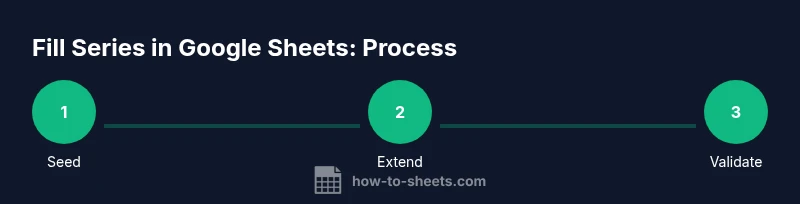
Set seed values for the series
Enter the starting value in the first cell. If you want a specific increment, enter a second seed in an adjacent cell to define the pattern. This establishes the pattern Sheets will infer.
Tip: Two seeds often yield a clearer pattern than a single seed. - 2
Select the seed range
Highlight the seed cells and any neighboring cells you plan to fill. A larger seed area helps Sheets deduce the intended pattern.
Tip: Include at least two cells to guide auto-increment logic. - 3
Use the fill handle to extend
Drag the small blue square (fill handle) in the bottom-right of the selection to extend the series down or across. Release when you reach the desired length.
Tip: If you double-click the handle, Sheets auto-fills down to match adjacent data. - 4
Refine with fill options for dates
If the default fill isn’t your target (e.g., you need days, months, or years), right-click the fill area and select Fill > Series to customize.
Tip: Choose Date, Day, Month, or Year increments for precise control. - 5
Create dynamic sequences with SEQUENCE
In a cell, type =SEQUENCE(rows, cols, start, step) to generate a reusable array. For example, =SEQUENCE(10,1,1,1) yields 1–10 in a column.
Tip: Pair SEQUENCE with ARRAYFORMULA for large, dynamic blocks. - 6
Fill dates with date math
Combine SEQUENCE with DATE to create a date series, or use WORKDAY to skip weekends. Example: =WORKDAY(DATE(2026,1,1), ROW(A1)-1).
Tip: LIST your locale’s date format to avoid misinterpretation. - 7
Fill text sequences
Type Item A in the first cell and Item B in the second to establish a pattern, then drag. For custom text logic, use CONCAT and ROW/CHAR tricks.
Tip: Text sequences often require seeds that define the alphabet or wording clearly. - 8
Validate and protect
After filling, check data types (numbers vs text) and formatting. Lock or protect cells that shouldn’t change to avoid accidental edits.
Tip: Convert misformatted strings to numbers with VALUE or by multiplying by 1.
FAQ
What is the fill handle and how do I use it to start a series in Google Sheets?
The fill handle is the small square at the bottom-right of a selected cell. Drag it to extend a seed pattern into adjacent cells, which creates a continuing series. Release to apply, and Sheets will infer the pattern from your seeds.
The fill handle is your quick way to extend patterns—drag it to fill more cells with the same sequence.
Can I fill series across both rows and columns?
Yes. Select a seed area that includes enough context, then drag the fill handle in the desired direction. Sheets will attempt to preserve the established pattern across the entire selected block.
You can fill across rows or down columns by selecting the seed block and dragging in the direction you want.
How do I fill a date series while skipping weekends?
Use the WORKDAY function to skip weekends and holidays. For example, =WORKDAY(DATE(2026,1,1), ROW(A1)-1) produces consecutive business days starting from the given date.
Use WORKDAY with SEQUENCE to generate business-day dates.
How can I extend a text sequence beyond simple letters?
Text sequences can be extended by seeds that define the pattern (e.g., Item A, Item B). For more control, combine CONCAT, ROW, and CHAR to generate extended patterns like Item C, Item D.
Seed with Item A, then use concatenation or ROW-based logic for longer patterns.
What should I do if auto-fill overwrites existing data?
Always fill into an empty range or a dedicated copy of your data. If overwriting happens, use Undo, or perform the fill on a separate sheet to preserve originals.
If you see a risk of overwriting data, stop and undo, then try the fill on a new sheet first.
How can I make a dynamic series that updates automatically?
Use SEQUENCE or a combination of SEQUENCE with ARRAYFORMULA so the series expands as new data is added. This avoids manual re-filling each time data grows.
Go dynamic with SEQUENCE and ARRAYFORMULA so your series grows with your data.
Watch Video
The Essentials
- Start with clear seeds to define the pattern.
- Use the fill handle for quick, error-free fills.
- Leverage SEQUENCE and ARRAYFORMULA for scalable needs.
- Date and locale considerations prevent misinterpretation.
- Protect critical ranges to avoid accidental edits.