How to Google Docs in Dark Mode
Learn how to enable dark mode for Google Docs across web and mobile, with step-by-step instructions, accessibility tips, and troubleshooting for a comfortable editing experience.


You can enable dark mode for Google Docs across web and mobile by using system theme or Docs’ own theme settings. This quick answer guides you through enabling the feature on desktop and on iOS/Android, plus tips for consistent readability. According to How To Sheets, adopting a dark palette can reduce eye strain during long editing sessions and improve focus.
Why people want dark mode in Google Docs
Many readers prefer dark mode in writing apps to reduce glare, improve focus, and extend device battery life. In Google Docs, a true built-in dark interface on the web has historically been limited, so users often rely on system themes or browser-level tricks. This matters across study sessions, remote work, and collaborative projects, where long editing hours can cause eye strain. If you're asking how to google docs in dark mode, you're not alone: the basic idea is to invert or dim backgrounds while preserving readable text and image visibility. In this section we’ll examine why people switch, what it means for readability, and how to approach cross-platform solutions without sacrificing document fidelity. According to How To Sheets, the most effective setups balance contrast, color temperature, and consistency across devices so you don’t have to repaint your documents for every platform. As you read, keep in mind that the options described here are designed to work with a broad range of documents, from school papers to client reports.
Understanding the available options for dark mode
There isn’t a single toggle labeled dark mode in every Google Docs environment. Options typically include using your device or browser’s dark appearance, applying a browser extension that forces a dark stylesheet, or relying on any official Docs appearance option if present. Web users often combine OS dark mode with a browser’s force-dark feature to achieve a consistent look. On mobile, the Google Docs app usually follows the device setting, so turning on dark mode at the system level commonly switches the app as well. When choosing an approach, consider the potential impact on images, diagrams, and color-sensitive elements to preserve document fidelity across platforms.
Cross-platform availability: web vs mobile
On desktop web, dark mode is most reliably achieved by aligning Google Docs with your operating system’s dark theme or by using a browser setting that darkens web content. In many cases, there is no separate Docs toggle, so you’ll rely on system-wide appearance. The mobile Docs apps (iOS and Android) tend to respect the device-wide appearance, providing a more seamless experience when you switch themes. If your team collaborates across devices, agree on one approach to minimize inconsistent viewing of colors and backgrounds. The practical takeaway is that you can still read and edit documents comfortably without a dedicated Docs built-in dark mode.
Quick-start checklist before you enable
Before you enable dark mode, gather a few essentials to ensure a smooth experience: (1) a device with internet access and a Google account, (2) a supported browser on desktop or the Google Docs app on mobile, and (3) a plan for testing readability on sample documents. Also consider your lighting environment, font choices, and contrast preferences. By setting up these basics first, you reduce the chance of discovering late incompatibilities when you start working on longer documents.
Step-by-step: enabling on desktop (web)
- Open Google Docs in a modern browser and sign in to your account. This action gains access to all documents and your display preferences. Tip: Use a dedicated workspace to avoid mixing personal and work documents.
- Ensure your operating system is set to dark appearance, as many browsers apply your OS theme to web content by default. If your OS is light, you may see limited changes in Docs. Pro tip: test both light and dark appearances to compare readability.
- If your browser supports a dedicated dark mode flag or extension, enable it to more consistently darken Docs pages. This can help when Docs’ built-in options are limited.
- Refresh Google Docs and review a few pages to verify the background and text contrast meet your needs. Pro tip: check menus, comments, and images for readability across sections.
- Save this setup as your default for future documents and share the look with collaborators to maintain consistency. Warning: some extensions may affect other sites; use trusted sources.
Step-by-step: enabling on mobile (iOS and Android)
- On iOS, switch your device to Dark Appearance in Settings > Display & Brightness. The Docs app generally respects this setting and will switch to a dark interface.
- On Android, enable System dark theme in Settings > Display, then open Google Docs. The app should reflect the change without extra steps.
- If your device supports a per-app appearance override, ensure Google Docs is allowed to follow the system theme.
- Open a document in the Docs app and scroll through to confirm the background and text contrast are comfortable.
- If you notice any legibility issues, adjust font size in Docs or fine-tune display density in your device’s accessibility settings.
- Keep the app updated to receive the latest appearance refinements.
Tips for readability and color consistency
- Favor a neutral or slightly warm gray background with dark gray text to avoid harsh contrast that strains the eyes.
- Use consistent font sizes across headings and body text to preserve structure when the theme changes.
- Test a variety of document types, including slides, tables, and images, to ensure the dark background does not distort visuals.
- If some colors look off, consider adjusting the document’s color palette or using high color contrast colors.
- Remember that external images may render differently under dark mode; plan to review images after enabling the theme.
Accessibility considerations and testing
Dark mode can improve readability for many users, but it is not a universal fix. Check color contrast ratios against accessibility guidelines and ensure interactive elements remain visible in both light and dark appearances. Test with screen readers and keyboard navigation to ensure controls are reachable. If you collaborate with teammates who use various devices, perform cross-device tests and gather feedback on legibility and comfort. According to How To Sheets, prioritizing accessibility in color choices is essential for inclusive documents.
Common issues and troubleshooting
If dark mode looks inconsistent across documents or devices, confirm you are using a supported approach (system theme vs browser based) and re-check any extensions. Some elements such as images, embedded charts, or comments may retain lighter hues. When sharing documents, verify that collaborators see the same appearance by performing a quick cross-device view. If you still see issues, reset to your default light appearance and reapply the chosen dark setup.
Verifying dark mode is active and next steps
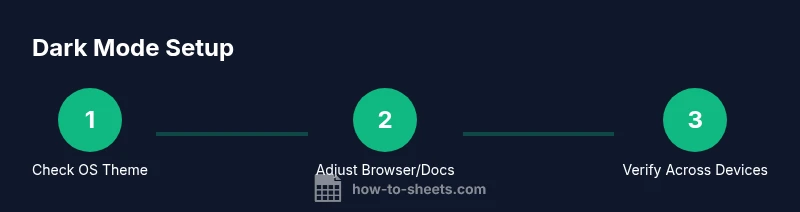
To verify, open multiple documents on each device and switch between pages to confirm background, text, and visuals stay readable. Compare the same document across desktop and mobile to catch any inconsistencies. The How To Sheets Team recommends documenting your chosen setup and sharing it with collaborators to maintain uniformity. Next, explore additional tweaks like adjusting font size, line height, or system display settings to optimize comfort for your typical editing sessions.
Tools & Materials
- Device with internet access(Desktop or mobile device with a modern browser or Google Docs app)
- Google account login(Needed to access and edit documents in Docs)
- Web browser (Chrome/Edge/Firefox)(Supports OS dark mode and optional dark-mode flags)
- Optional: browser extension to force dark mode(Use trusted extensions if you don’t have OS support)
- Optional: secondary viewing device for testing(Phones/tablets to compare experiences)
Steps
Estimated time: 20-35 minutes
- 1
Open Google Docs
Launch Google Docs in a modern browser and sign in to your account to access your documents.
Tip: Bookmark docs.google.com for quick access - 2
Decide your approach
Choose whether to use OS-level dark mode or a browser/Docs-specific method based on platform availability.
Tip: If unsure, start with OS-level dark mode for broad compatibility - 3
Enable desktop dark mode
If your OS supports dark mode, enable it in System Settings and refresh Docs to apply the change.
Tip: Test both a simple doc and a complex one to see contrast in tables and images - 4
Test browser dark options
Explore browser flags or extensions that force dark mode for web content if Docs lacks a built-in toggle.
Tip: Only use reputable extensions and disable others that conflict - 5
Check mobile appearance
On iOS or Android, ensure the device-wide dark theme is active so Docs follows suit.
Tip: If the Docs app doesn’t switch, verify app permissions and updates - 6
Validate readability
Open several documents and review background, text, and color fidelity across pages and images.
Tip: Adjust font size or line height if needed - 7
Finalize the setup
Decide on a default look and communicate it to collaborators to ensure consistency.
Tip: Document the chosen approach for future edits - 8
Document verification
Save your preferences and run a quick cross-device test with a sample document.
Tip: Share the sample doc with a peer to confirm appearance
FAQ
Is dark mode officially available in Google Docs on the web?
Google Docs on the web does not always include a built-in dark mode toggle. Most users rely on system-wide dark themes or browser features/extensions to achieve a dark appearance.
There isn’t a universal web toggle for dark mode in Docs; use system or browser options instead.
Will dark mode affect colors in images and diagrams?
Backgrounds and text will adapt to dark mode, but images and color-heavy diagrams may appear differently. Review visuals after enabling the theme and adjust if needed.
Images can look different in dark mode; always review visuals after switching themes.
Can I force dark mode with a browser extension?
Yes, you can use browser extensions to force a dark appearance. Choose trusted extensions and test across documents to ensure compatibility.
Extensions can help, but pick reputable ones and test for consistency.
Does Google Docs dark mode sync across devices for collaborators?
If you use a consistent approach (system theme or browser option), collaborators on different devices should see a similar look. Confirm with teammates on multiple platforms.
Make sure everyone uses the same method so you all see the same look.
How do I revert to light mode quickly?
To switch back, retrace your steps: disable the dark theme in your OS or browser, refresh Docs, and test a sample page to verify light mode. Keep a quick toggle handy.
Just reverse the steps you used to enable dark mode.
Does the Android or iOS Google Docs app follow system appearance automatically?
In most cases, yes. The mobile Docs apps adopt the device’s system theme, so turning on dark mode at the system level typically switches the app as well.
Mobile Docs usually follows your device theme automatically.
Watch Video
The Essentials
- Start with OS-level dark mode for widest compatibility.
- Test on multiple documents to verify color fidelity.
- Communicate the chosen setup to collaborators for consistency.
- Use accessibility checks to ensure readable contrast.
- Keep Docs and browser extensions up to date for best results.