How to Create a Calendar in Google Sheets
Learn to build, customize, and share a calendar in Google Sheets with practical steps, formulas, and tips. Ideal for students, professionals, and small business owners seeking a lightweight scheduling solution.


You will learn how to create a functional calendar in Google Sheets, from planning the layout to populating dates with a single formula and adding events. This guide covers setup, formulas, event entry, formatting, and sharing. If you’re wondering how to google sheets calendar, this approach stays lightweight, flexible, and easy to customize for 2026 and beyond.
Overview: Why use Google Sheets for calendars
A calendar built in Google Sheets offers unparalleled control over layout, formatting, and sharing. It lets you tailor a calendar to your exact needs—whether you’re tracking class schedules, project deadlines, or team milestones—without relying on a separate calendar app. The How To Sheets team often recommends Sheets for its portability and collaboration features. For readers aiming to learn how to google sheets calendar, this approach begins with a simple plan and scales to more advanced workflows as your needs grow. You’ll gain a reusable template you can duplicate for any month or year, and you’ll keep all data in a single, searchable sheet. The result is a lightweight, maintainable calendar that you can update in real time, share with colleagues, and modify without special software. Expect a practical mix of layout choices, stepwise setup, and concrete formulas you can adapt to your own workflow.
Planning your calendar layout
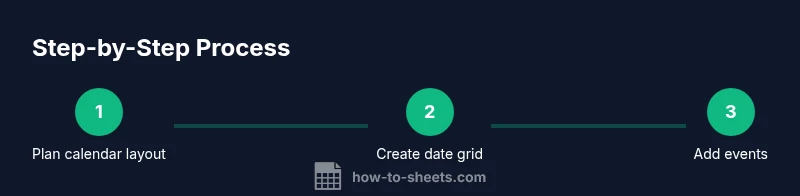
Before you touch a formula, take a moment to sketch the calendar on paper or in a fresh sheet. Decide whether you want a monthly grid (6 weeks by 7 days) or a compact side-by-side view for several months. Common decisions include the week start (Sunday or Monday), whether to display holidays, and how to label adjacent days with notes. A well-planned layout reduces the number of edits later and helps users scan dates quickly. The How To Sheets team suggests starting with a consistent grid: a header row listing Sun, Mon, Tue, Wed, Thu, Fri, Sat, followed by six rows for weeks. Create dedicated cells for the year and month so formulas can reference them dynamically. This upfront clarity makes it much easier to expand functionality later, such as adding event notes or color-coding categories.
Step-by-step setup: Create a monthly calendar in Sheets
To set up a reusable calendar, you’ll create inputs for year and month, add weekday headers, and then populate a 6x7 grid with dates. The month you select should generate a grid that shows all days of that month, with blanks for days outside the month. This middle section dives into practical details with concrete actions and examples. As you follow along, you’ll build a template that can be copied for each new month, keeping your data consistent and easy to maintain. Remember to label your inputs clearly and keep the grid area separate from data-entry cells for better organization.
Automating dates with a single array formula
A robust approach uses a single ArrayFormula to fill a 6x7 grid with the correct day numbers. Place this formula in the first date cell of your grid and let it spill across the entire 6x7 area:
=ARRAYFORMULA(IF(MONTH(DATE($A$1,$B$1, SEQUENCE(42,1,1,1)))=MONTH(DATE($A$1,$B$1,1)), DAY(DATE($A$1,$B$1, SEQUENCE(42,1,1,1))), ""))- $A$1 is the year input (e.g., 2026)
- $B$1 is the month input (1–12)
- SEQUENCE(42,1,1,1) generates 42 consecutive day numbers for six weeks
- The MONTH check ensures only the current month’s days appear; other cells stay blank
- Day() extracts the numeric day from each date
This formula makes the calendar dynamic: changing the year or month automatically refreshes the grid. For beginners, consider starting with a single month in a new sheet to validate the logic before expanding to multiple months. Use this technique consistently across your 6x7 grid to keep dates aligned and predictable.
Adding events and reminders
A calendar is only as useful as its events. Keep an events column adjacent to the date grid, or a separate events sheet that links back to the grid by date. Start with a simple structure:
- Date: the day number that appears in the grid (you can reference the cell in the grid).
- Event: a short title for the appointment or task.
- Type/Category: a dropdown (e.g., Meeting, Deadline, Personal).
- Notes: optional details.
Use Data Validation to create a controlled list for the Type/Category and apply conditional formatting to highlight important events. This keeps your calendar clean while enabling fast, at-a-glance understanding. The ability to filter or sort events by date is a valuable enhancement for project teams and study groups alike.
Optional: Syncing with Google Calendar (one-way export)
Sheets doesn’t natively sync with Google Calendar in real time, but you can bridge the gap with a CSV export or a lightweight Apps Script. A simple workflow is:
- Add an Events sheet with columns for Date, Time, Title, and Description.
- Export that sheet as CSV and import into Google Calendar, using the date and time fields appropriately.
- For recurring reminders, create separate entries or use a script to generate a new calendar entry from the Sheets data.
If you need tighter integration, consider a custom Apps Script that reads new or updated rows and pushes events to Calendar. This approach requires basic scripting but yields near real-time sync and automation.
Sharing and collaboration best practices
If you’ll share the calendar with colleagues, set up proper permissions to avoid accidental edits in the formula area. Protect the date grid and year/month input cells, while leaving the events area editable for contributors. Create a short guide within the sheet itself (a dedicated Help sheet) that explains how to use the calendar, how to add events, and what each column means. Regularly back up the workbook or keep a version history so you can recover from mistakes. Finally, avoid embedding sensitive event data in shared links; use access controls to protect private information.
Troubleshooting: common calendar issues and fixes
If dates appear in the wrong places, verify that the year and month inputs are correct and that the formula references those cells exactly. If cells show numbers outside the current month, double-check the MONTH() condition and ensure your SEQUENCE range matches your grid size (6 weeks by 7 days). For formatting issues, confirm that borders, background colors, and text colors are not hiding essential data, and test on different months to ensure consistency. When in doubt, create a copy of the sheet to test changes so you don’t disrupt your live calendar.
Tools & Materials
- Google account(Needed to access Google Sheets and sharing features)
- Google Sheets document(Create a new sheet named 'Calendar' or similar)
- Year input cell(Reserve a cell for the year (e.g., A1))
- Month input cell(Reserve a cell for the month (1-12) (e.g., B1))
- Calendar grid area(A 6x7 grid starting from C3 (adjust to fit your sheet))
- Weekday headers(Bold header row for Sun–Sat)
- Conditional formatting rules(For color-coding weekends and events)
- Event data sheet (optional)(Separate sheet to store events if needed)
Steps
Estimated time: 60-90 minutes
- 1
Set up year and month inputs
Create dedicated cells for Year and Month at the top of the calendar sheet. This makes the calendar dynamic, so changing the year or month refreshes the grid automatically. Bind the inputs with clear labels.
Tip: Label inputs clearly and consider using data validation for the month to restrict values to 1–12. - 2
Create weekday headers
Add a single row with the days of the week: Sun, Mon, Tue, Wed, Thu, Fri, Sat. Freeze this header row so it remains visible when you scroll. This provides a stable reference for the 6x7 date grid.
Tip: Use bold text and a light background to improve readability. - 3
Populate the 6x7 grid with dates
Place a single ArrayFormula in the first date cell to generate all 42 cells for six weeks. The formula reads the year/month inputs and fills dates for the current month, leaving blanks for days outside the month. `=ARRAYFORMULA(IF(MONTH(DATE($A$1,$B$1, SEQUENCE(42,1,1,1)))=MONTH(DATE($A$1,$B$1,1)), DAY(DATE($A$1,$B$1, SEQUENCE(42,1,1,1))), ""))`
Tip: Ensure the formula spills across exactly a 6x7 range; adjust if your grid size changes. - 4
Format headers and borders
Apply borders around the calendar grid and differentiate weekends with a subtle color. Use conditional formatting to highlight today’s date and upcoming events. Keep the layout clean to avoid visual clutter.
Tip: Lock the header row to keep navigation stable as you scroll. - 5
Add an events column and basic data validation
Create adjacent columns for Event, Type, and Notes. Use Data Validation to constrain Type to predefined categories (e.g., Meeting, Deadline, Personal). Link events to dates so you can filter by date.
Tip: Use a separate sheet or a dedicated area to store recurring events for reuse. - 6
Color-code dates and events
Apply conditional formatting rules to color-code weekends, today, and heavy-importance events. This makes the calendar scannable at a glance and helps with prioritization.
Tip: Test formatting on multiple months to ensure consistency across year changes. - 7
Test with a sample month and publish
Enter a test year/month (e.g., 2026 and 2 for February) and verify that all days, weekends, and events display correctly. Copy the template for other months and adjust as needed before sharing.
Tip: Create a short internal guide within the sheet for teammates to follow. - 8
Share and protect the calendar
Share the sheet with teammates using appropriate permissions. Protect the core date grid and year/month inputs to prevent accidental edits, while keeping the events area editable for collaboration.
Tip: Enable version history to recover from unwanted changes.
FAQ
Can I create a monthly calendar in Google Sheets without scripting?
Yes. You can build a month calendar with a simple layout and a single array formula to fill dates. No Apps Script is required for a functional calendar.
Yes, you can build a month calendar in Sheets using a formula—no scripting needed.
How do I auto-fill dates for different months?
Use a dynamic date formula that references year and month inputs and fills a 6x7 grid, showing blanks for days outside the current month.
Use a date formula that references year and month inputs to fill the calendar grid.
Is syncing with Google Calendar possible from Sheets?
Native two-way sync isn’t built in. You can export calendar data as CSV to Google Calendar or use Apps Script to push events to Calendar from Sheets.
You can export or script a push to Calendar from Sheets, but there isn’t native, automatic syncing.
How can I share a Google Sheets calendar with teammates?
Share the sheet with appropriate permissions, protect the core date grid, and provide a brief usage guide to teammates.
Share the sheet with the right permissions and protect critical cells.
What are common pitfalls when making a calendar in Sheets?
Misaligned dates and incorrect month detection can break the grid. Always test with multiple months and avoid editing date cells manually.
Common issues include misaligned dates and editing date cells manually.
Watch Video
The Essentials
- Plan layout before building.
- Use a single array formula to populate dates.
- Color-code and validate events for clarity.
- Consider CSV export for Google Calendar if needed.