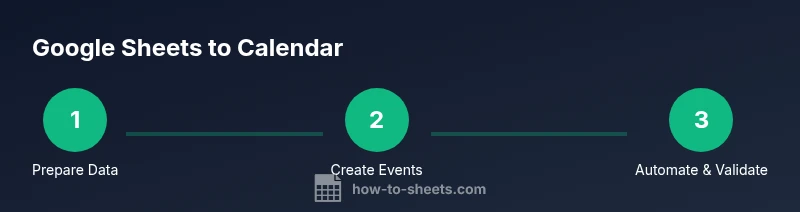
Google Sheets to Google Calendar: A Practical How-To
Learn how to automate Google Calendar events from Google Sheets data with step-by-step scripts, templates, and best practices for students and professionals.


By the end of this guide you will be able to automate calendar events directly from a Google Sheets dataset. You’ll learn two reliable pathways: a custom Google Apps Script solution for full control, and a no-code option for speed using popular automation tools. Both methods require a clean data template and proper authorization.
Data flow overview
The goal of this guide is to show how to connect google sheets to google calendar so sheet rows become calendar events. In practice, you prepare event data in a sheet (title, date, times, location, notes, attendees), then push each row to Google Calendar. A reliable flow minimizes manual copy-paste and reduces errors by enforcing a consistent data structure. You’ll see how to map sheet columns to calendar fields, perform validation, and run checks after events are created. This approach benefits students organizing study schedules, professionals coordinating meetings, and small teams tracking project milestones. The How To Sheets team emphasizes starting with a clean data template and test runs before production use. It’s important to align time zones, attendee emails, and reminders to your organization’s standards for accuracy and reliability.
Prerequisites and setup
To begin, you’ll need a Google account with access to Google Sheets and Google Calendar. Create a dedicated sheet for events and verify a calendar you own or have permission to modify. Enable Google Apps Script from Extensions > Apps Script in the Sheets UI, then authorize the necessary scopes (Sheets, Calendar). If you prefer a no-code route, have a Zapier or Make (Integromat) account ready and be prepared to connect Sheets as a trigger. Finally, decide on a data template: headers, data types, and strict formats will determine how smoothly the automation runs. The How To Sheets approach always starts with data hygiene and explicit field mappings.
Two practical methods for integration
You have two effective paths to connect Sheets to Calendar. Method 1 uses Google Apps Script to read each row and create a Calendar event with CalendarApp or the Calendar API. This path offers full customization, error handling, and scheduling options. Method 2 uses a no-code automation tool (like Zapier or Make) to trigger on new/updated rows in Sheets and create corresponding events in Calendar. This is faster to deploy but may require plan limitations and an extra learning curve for complex rules. Both approaches benefit from a consistent data template and clear field mapping.
Preparing your data for calendar events
A robust data template is the backbone of reliable automation. Include columns for Title, Date, Start Time, End Time, Time Zone, Location, Description, Attendees (comma-separated emails), and Reminders. Use ISO date formats where possible and keep time formats consistent (24-hour format is often simplest). Where possible, add a unique identifier for each row to simplify updates or deduplication. Validate emails in a separate pass, and consider a dedicated column for whether an event is All Day. By enforcing these conventions, you reduce the risk of malformed events and ensure consistent results in Google Calendar.
Step-by-step considerations for time zones, attendees, reminders
Time zones matter when syncing, so decide a single time zone for all events or store a per-row time zone if needed. Attendee emails must be valid and reachable; consider batching invites to minimize calendar clutter. Reminders help attendees show up on time, but too many reminders can annoy users. For guests, ensure you’re managing permissions and privacy settings appropriately. In Apps Script, you can customize reminders via advanced settings, while in no-code options you’ll rely on the platform’s reminder fields. Testing with a small sample set helps prevent mass errors.
Common errors and how to fix them
Typical issues include date parsing failures, invalid attendee emails, and time zone mismatches. If a script cannot parse a date, verify the sheet’s date cells are actual date values (not text) and consider using Utilities.parseDate or new Date() logic. For attendee emails, validate with a regex or a separate validation step before sending invites. If events don’t appear in Calendar, confirm that the script’s credentials have Calendar scope and that the correct calendar ID is used. Check triggers, if you set them, to ensure they run as expected.
Extending with templates and templates for different workflows
You can extend the basic solution with templates for recurring events, multi-day events, or events with conferencing links. For recurring events, map your sheet to recurrence patterns (RRULE) and handle exceptions. If you manage multiple calendars, include a Calendar ID column to direct events to the right calendar. Consider creating a separate template for each team or project to avoid confusion. Keep templates in a dedicated Google Sheet tab and reuse them across automation runs.
Security and compliance considerations
When automating calendar events, protect sensitive information such as attendee emails and meeting descriptions. Use Google Workspace accounts where possible and enforce least-privilege permissions for any Apps Script project or automation tool. Regularly review OAuth scopes and refresh tokens, and implement error logging to detect unusual activity. If your organization has data governance policies, align your data handling with those rules and document the automation process for audits.
Real-world examples and templates
Example templates help you jump-start your project. Create a sample sheet with 5-10 rows representing typical events, including varied start times and time zones. Use this sample to validate your script or automation workflow before rolling out to the whole team. For recurring events, build a separate template that generates a series of calendar entries with appropriate RRULEs. Finally, save and reuse the templates for future projects, adjusting only the fields that differ between events.
Tools & Materials
- Google account with Sheets and Calendar access(Fundamental prerequisite; ensure you have edit rights to both apps.)
- Prepared event data sheet(Columns: Title, Date, Start Time, End Time, Time Zone, Location, Description, Attendees, Reminders.)
- Google Apps Script access(Extensions > Apps Script in Sheets; authorizations will be requested.)
- Calendar for testing(A separate calendar or a test calendar to avoid disrupting production schedules.)
- No-code automation account (optional)(Zapier or Make (Integromat) you can use if you prefer no-code paths.)
- Sample templates(Create and reuse templates for recurring events or multi-calendar setups.)
Steps
Estimated time: 45-60 minutes
- 1
Prepare your sheet
Create headers for Title, Date, Start Time, End Time, Time Zone, Location, Description, Attendees, and Reminders. Fill with example rows to test the automation. Ensure dates and times are correctly formatted and time zones are consistent.
Tip: Use a dedicated test sheet and a sample row to validate mappings before using real data. - 2
Open Apps Script from Sheets
Navigate to Extensions > Apps Script and create a new project. This is where you’ll implement the code to read your sheet and create Calendar events.
Tip: Authorize the script with Calendar and Sheets scopes when prompted. - 3
Write a function to read rows
Write a function to read each data row, parse the date/time, map fields to Event attributes, and call CalendarApp.createEvent or the Calendar API.
Tip: Handle exceptions per row to avoid stopping the entire run. - 4
Run and authorize
Run the function once and grant access to Google Calendar and Sheets. Review the authorization prompts and scopes requested.
Tip: Check the execution log for errors and adjust parsing logic if needed. - 5
Set up triggers or scheduling
Optionally configure time-driven triggers or onFormSubmit triggers to automate event creation as data changes.
Tip: Avoid excessive triggers to prevent API quota issues. - 6
Test with real data
Run the script with a small batch of rows. Validate all event fields, recipients, and reminders in Calendar.
Tip: Compare created events to your sheet for a quick consistency check.
FAQ
Can I automate only certain rows or conditions?
Yes. You can add a condition column in Sheets and check it before creating events, ensuring only qualified rows are processed.
Yes, you can set a condition column to filter rows before creating events.
Do I need to enable the Calendar API for Apps Script?
With Apps Script using CalendarApp, you don’t need to enable the API separately, but you must grant Calendar access in the authorization flow.
Calendar access is required during authorization; no separate API enablement is usually needed.
What if an event already exists for a row?
Implement a deduplication strategy, such as checking for a unique ID in the sheet and querying Calendar for existing events before creating a new one.
Deduplicate by checking for a unique ID and existing events before creation.
How should time zones be handled?
Store a time zone per row or use a single standard time zone in your script, and convert times accordingly to ensure correct scheduling.
Use a consistent time zone per event or per sheet row to avoid mis-scheduled times.
Can I extend this to recurring events?
Yes, but it requires mapping a recurrence rule (RRULE) and handling exceptions. This adds complexity but is feasible with Apps Script or a no-code tool.
Recurring events are possible with RRULE mapping; handle exceptions carefully.
Watch Video
The Essentials
- Map sheet fields to calendar fields precisely
- Choose Apps Script for full control or a no-code tool for speed
- Validate data formats before running
- Test thoroughly before rolling out to production