How to Insert Symbol in Google Sheets: A Practical Guide
Learn practical methods to insert symbols in Google Sheets using built-in tools, Unicode formulas, and keyboard shortcuts. This guide covers emoji, special characters, fonts, and accessibility considerations for data work.


By the end, you'll know how to insert symbols in Google Sheets using built-in menus, keyboard shortcuts, and formulas. You'll be able to add common symbols, emoji, and Unicode characters, with guidance on font support and locale considerations. This quick start covers steps, tips, and common pitfalls so you can confidently insert symbols in data cells, headers, or charts.
Why inserting symbols matters in Google Sheets
Every day, professionals organize data, track status, or annotate observations in Google Sheets. Symbols provide quick visual cues that text alone can’t convey. For example, check marks indicate completed tasks, arrows show trend direction, and bullets structure lists in headers. According to How To Sheets, symbols can improve data readability and scanning efficiency in spreadsheets. When used consistently, symbols help teammates understand data at a glance, reduce misinterpretation, and speed up decision-making. In this section, we explore why symbols are worth the effort, what kinds of symbols to consider, and how to decide when to insert them. We’ll cover use cases across budgets, schedules, inventories, and performance dashboards. The goal is to give you practical guidelines you can apply in real work scenarios, not to overwhelm your sheets with decoration. Start by clarifying your symbol taxonomy: a small, readable set is better than a long, random mix. After that, you can mix symbols with color formatting to emphasize status without overshadowing numbers.
Understanding symbol types you can insert
Google Sheets supports many symbol types you can insert to annotate data, mark statuses, or decorate headers. Common choices include check marks (✔), crosses (✖), arrows (↑, ↓, ↗), bullets (•, ○), currency signs ($, €, £), mathematical symbols (±, ×, ÷), and Unicode emoji. Before selecting symbols, define a small, consistent set so readers don’t get confused. If you work across locales, prefer symbols that render consistently across systems and fonts. Remember to favor symbols that convey meaning at a glance, rather than decorative glyphs that require context. If you rely on emoji, test how they render on different devices and in printed formats. Finally, document your symbol guide in a sheet or a shared doc so teammates apply the same vocabulary.
Built-in methods: Insert > Special characters dialog
The easiest way to add a broad range of symbols without leaving Sheets is the Insert > Special characters dialog. Open the menu, choose a category (Symbols, Arrows, Punctuation, or Emoji, depending on your locale), and search by name or description. Click a character to insert it into the active cell, then copy it to adjacent cells if you need repeated use. Pro tip: use the search field to find symbols by semantic meaning (for example, search “check” or “arrow”). If you need a specific Unicode, you can search for the closest name or character family. This method works well for headers, footers, and list markers in rows and columns. For accessibility, keep text labels visible alongside symbolic indicators so screen readers convey meaning to all users.
Keyboard and copy-paste methods for speed
For frequent insertions, use your operating system’s character picker or a quick copy-paste from a symbol repository. On Windows, you can use the Alt code approach if your keyboard supports a numeric keypad (e.g., Alt+0176 for the degree symbol). On macOS, press Control + Command + Space to bring up the emoji & symbol viewer, then double-click a symbol to insert it. You can also copy symbols from reliable sources and paste them into multiple cells. When working with large datasets, paste as plain text to avoid formatting conflicts. If you paste into a chart caption or header, ensure symbols don’t shift alignment in responsive views.
Inserting symbols with formulas: CHAR and UNICHAR
For dynamic sheets, formulas offer a scalable way to generate symbols. Use =CHAR(code) for ASCII or extended-ASCII symbols and =UNICHAR(code) for full Unicode code points. For example, =UNICHAR(9733) returns a black star (★) that scales with font size, and =UNICHAR(9786) returns a smiling face (☺) in many fonts. You can combine these with IF statements to display symbols based on data values, or wrap them in TEXT to control formatting. When you use Unicode, consider font support and cross-device rendering. If your sheet is shared with teammates, provide a small helper column with the symbol formulas and a legend explaining what each symbol means.
Font and emoji considerations
Symbols rely on font support for consistent rendering. Some symbols display differently or fail to render at all on older fonts or restricted environments. If you use emoji, be aware that color and size may vary across devices. To avoid inconsistent visuals, stick to a canonical symbol set (e.g., check marks, bullets, arrows) for core data views, and reserve emoji for decorative or contextual cues in headers or titles. When sharing sheets, note that some platforms may replace certain symbols with placeholders. Test your sheet on the devices your team uses most and adjust fonts or symbol choices accordingly.
Practical templates and data examples
Template A: Status board
- Column A: Task
- Column B: Status (use ✓ for done, ✗ for not started)
- Column C: Priority (Low, Medium, High) Template B: Budget notes
- Column A: Item
- Column B: Amount
- Column C: Symbol (use € or $ as relevant) in a separate helper column for quick scanning. Template C: Procedure steps
- Column A: Step
- Column B: Symbol (use → or ↑ to show progression) and a short description in Column C These templates show how symbols can improve readability. Replace the symbols with those your team agrees on, and document the meanings in a shared glossary. How To Sheets suggests standardizing symbol usage to minimize confusion.
Locale and accessibility considerations
Locale settings may affect how symbols render and how they’re interpreted by screen readers. Ensure your sheet’s language matches your symbol vocabulary, so punctuation or currency signs align with regional conventions. For accessibility, place a short text label adjacent to symbolic indicators (e.g., "Done" with a checkmark) so assistive technologies can convey meaning. If you publish dashboards, consider exporting to PDF or print where symbol rendering can vary; back up important indicators with text descriptions. Always test with authors and end users who rely on assistive tech to verify clarity.
Troubleshooting and quick-start example
Problem: Symbol not appearing in a cell after insert. Cause: font does not support the symbol; Solution: try a different symbol or switch fonts. Problem: Unicode symbol displays as a box. Cause: unsupported font or platform. Solution: use UNICHAR with a supported code point and a widely supported font. Problem: Symbols distort in charts. Cause: chart font or size. Solution: adjust chart font or move to data labels with symbols in the data itself. Always ensure you are in Edit mode and not viewing a protected sheet. Quick-start example: open a sheet, select a header cell, insert a star via Insert > Special characters or =UNICHAR(9733), copy across headers, and document meanings in a legend.
Step-by-step quick-start companion
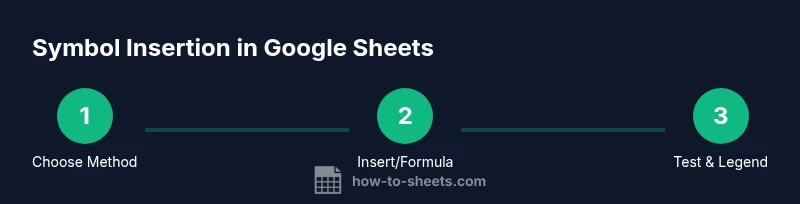
- Open your sheet and select a header cell. 2) Use Insert > Special characters to add a star, or enter =UNICHAR(9733) for a star via formula. 3) Copy the symbol to adjacent header cells for consistency. 4) Add a short legend nearby explaining what the symbol means. 5) Check symbol rendering on devices your team uses to ensure compatibility. 6) Save your sheet and share the legend with collaborators for alignment.
Tools & Materials
- Google account with access to Google Sheets(Needed to open and edit sheets online.)
- Symbol to insert (Unicode code point or copy-paste source)(Have a reliable source ready or memorize common codes like 9733 (star).)
- Stable browser and internet connection(Ensure Sheets loads without interruptions.)
- Font that supports symbols(Some symbols render differently depending on the font (e.g., Arial, Noto, Segoe UI Emoji).)
- Emoji picker or character map (optional)(Useful for quick access to a variety of symbols.)
- A sample dataset or template sheet(Helps test rendering across cells, headers, and charts.)
Steps
Estimated time: 20-40 minutes
- 1
Open Google Sheets and select a target cell
Navigate to your document and click the cell where you want the symbol. Ensure you are in Edit mode so the symbol will be inserted as content, not as a formula alone.
Tip: If you plan to use multiple symbols, prepare a small legend to keep meanings consistent. - 2
Choose an insertion method
Decide whether to insert via Special Characters, copy-paste, or a formula like UNICHAR. Each method suits different scenarios, such as static labels vs. dynamic indicators.
Tip: For headers or labels that repeat, a formula often reduces maintenance. - 3
Insert via Special Characters dialog
Go to Insert > Special characters, browse categories, search by name, and insert the symbol. This is ideal for a one-off symbol without formula dependencies.
Tip: Use the search to find symbols by meaning (e.g., 'check', 'arrow'). - 4
Insert using a formula
In a cell, type =UNICHAR(code) or =CHAR(code) for relevant symbols. This makes the symbol dynamic and data-driven.
Tip: Experiment with IF to display different symbols based on values. - 5
Copy/paste to adjacent cells
If you need the same symbol across many cells, copy the first result and paste across the range. This saves time and keeps consistency.
Tip: Paste as plain text if formatting problems occur. - 6
Test rendering and finalize
Review the sheet on devices used by collaborators to ensure symbols render consistently and are accessible.
Tip: Add a short legend nearby to explain symbol meanings.
FAQ
How do I insert a symbol quickly in Google Sheets?
Use Insert > Special characters for a broad set, or copy-paste from a symbol source. For dynamic needs, try UNICHAR/CHAR formulas.
Open Insert > Special characters to pick a symbol, or use UNICHAR in a formula for automatic symbols.
Can I insert emojis in Google Sheets?
Yes. Emoji can be inserted via Special characters or by copying from an emoji picker, but rendering may vary by device and font.
You can insert emojis, but check how they render on different devices.
What is the best method for inserting math symbols?
For math symbols, UNICHAR is reliable. Use a Unicode code point for the symbol, and consider a legend for readers.
UNICHAR with a Unicode code point is the most reliable math symbol method.
Do symbols render the same on mobile and desktop?
Symbol rendering can differ by device, font, and OS. Test on both platforms and keep a standard font when possible.
Test symbols on both mobile and desktop to ensure consistency.
Why might a symbol display as a box or missing character?
This usually means the chosen font doesn’t support the symbol. Try another symbol or switch fonts.
If you see a box, try a different symbol or font that supports it.
Can I use symbols in charts or data labels?
Yes, you can. Place symbols in the data range or labels; ensure the chart font supports the symbols.
Symbols can appear in charts, but verify font compatibility.
Watch Video
The Essentials
- Use a small, consistent symbol set.
- Choose the insertion method based on whether it’s static text or dynamic data.
- Test across devices and fonts to ensure consistency.
- Document meanings in a team glossary.
- Leverage formulas for scalable, data-driven symbols.