How to Install Google Sheets on Windows 11
Learn how to access Google Sheets on Windows 11 via browser and how to install it as a Windows app (PWA) for quick access, with offline setup and troubleshooting tips.


By the end, you'll be able to access Google Sheets on Windows 11 through a browser and, if you prefer a desktop app, install it as a PWA for quick access. Prerequisites include a Google account and an internet connection. This guide also covers offline access setup and troubleshooting common issues.
Why Windows 11 users benefit from Google Sheets
For students, professionals, and small business owners, Google Sheets offers a cloud-based spreadsheet experience that stays in sync across devices. On Windows 11, you gain the convenience of a fast browser workflow and, if you choose, a desktop-like feel by installing Sheets as a Progressive Web App (PWA). The combination of browser access and optional PWA support means you can work offline for short bursts, then sync once you reconnect to the internet. This approach aligns with the How To Sheets philosophy: practical, step-by-step guidance that minimizes friction while maximizing productivity. By using Sheets on Windows 11, you can leverage real-time collaboration, powerful formulas, and seamless integration with Drive without installing a bulky desktop application.
This article emphasizes practical, actionable steps you can follow today. If you already have a Google account, you’re ready to start; otherwise, create a new account and sign in. The goal is to give you reliable access to spreadsheets, budgets, and data lists while keeping your workflow simple and efficient.
Before you start: prerequisites and setup
Before diving into Sheets on Windows 11, assemble a few essentials. You will need a computer running Windows 11 with an up-to-date browser (Chrome or Edge recommended). A stable internet connection is crucial, and you should have an active Google account to sign in and save files in Drive. If you plan to use the PWA, make sure your browser version supports app installation and that you’re comfortable with a slightly different launch experience compared to a traditional browser tab. Finally, allocate some disk space for offline caching if you intend to enable offline mode. This upfront preparation helps prevent surprises during setup.
As you proceed, keep in mind that Google Sheets is designed for cross-device productivity. You can start a sheet on Windows 11, continue on another device, and share it with teammates. If you rely heavily on offline work, ensure your storage allocation matches your typical file size to avoid cache issues. The How To Sheets team recommends testing one simple sheet first to validate sign-in, syncing, and offline behavior.
Access Sheets in a browser on Windows 11
Access to Google Sheets on Windows 11 is straightforward when using a modern Chromium-based browser like Chrome or Edge. Open sheets.google.com, sign in with your Google account, and allow any requested permissions. Treat Sheets as part of your daily browser workflow: keep it in a pinned tab or use a browser shortcut for faster access. If you use multiple Google accounts, select the correct one to avoid confusion during collaboration. After signing in, you can create a new spreadsheet or open an existing file from Drive. This section also covers common early pitfalls, such as browser extensions that interfere with real-time collaboration or file syncing.
To speed up daily use, consider enabling browser features like password managers and session restore. These enable smoother sign-ins and reduce repeated prompts. If you work across multiple devices, remember that changes you make in Sheets are saved to Google Drive automatically, which minimizes the risk of data loss. The goal is to establish a stable baseline so you can focus on data when you begin your first spreadsheet on Windows 11.
Install Google Sheets as a Windows app (PWA) for quick access
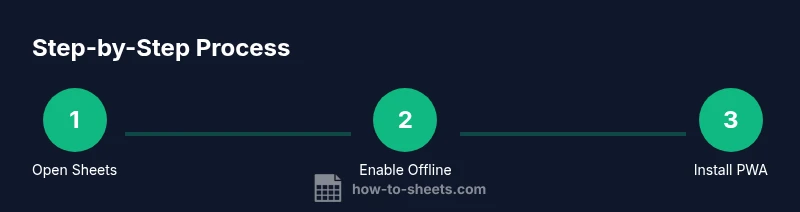
Installing Google Sheets as a Windows app (PWA) gives you a desktop-like experience without installing a full desktop application. In Chrome or Edge, navigate to sheets.google.com, then use the browser menu to install Sheets as an app. In Chrome, you’ll typically find this option under the three-dot menu labeled Install or Apps > Install Google Sheets. In Edge, use Apps > Install this site as an app. After installation, you’ll get a standalone window that launches Sheets without the browser chrome, which you can pin to the taskbar for rapid access.
If you want to customize the app’s presence, rename it and pin it to the Start Menu or taskbar. Each browser handles PWAs a little differently, but the core idea is consistent: you get a clean, app-like interface that behaves similarly to a dedicated Windows app. This approach reduces tab clutter and makes Sheets feel more integrated with Windows. Remember to keep the app updated by updating the browser itself, which ensures compatibility and security.
Enable offline access for uninterrupted work
Offline access is a powerful feature for Windows 11 users who travel or have intermittent connectivity. To enable offline editing in Google Sheets, turn on offline mode via Google Drive settings. Go to drive.google.com, click the gear icon, select Settings, and toggle Offline to On. Allow time for the local cache to populate—this can take several minutes depending on your library size. Once offline mode is enabled, you can edit recently opened sheets and create new ones offline; changes will sync automatically when you reconnect online.
A few best practices help: periodically connect to the internet to refresh the offline cache, manage storage by deleting unused offline files, and keep Drive’s offline cache within your available disk space. If you rely on large spreadsheets, consider segmenting data into smaller files to ensure offline performance remains smooth. The How To Sheets team notes that offline mode is especially valuable for travel or remote work, turning Windows 11 into a resilient data environment.
Collaboration, sharing, and workflow tips
Google Sheets shines when teams collaborate. On Windows 11, you can share a sheet with teammates, set permission levels (viewer, commenter, editor), and use comments and notes to communicate in context. Real-time editing works across devices, with changes appearing instantly for everyone. For better organization, structure data using named ranges, filters, and protected ranges to control who can modify sensitive formulas. Templates are your friend: create a budgeting sheet, project tracker, or inventory log to accelerate future work.
To keep your workflow clean, consider using add-ons or built-in functions like VLOOKUP, QUERY, and IMPORTRANGE to automate tasks. For Windows users, keyboard shortcuts can save a lot of time—Ctrl+C to copy, Ctrl+V to paste, and Ctrl+Shift+Arrow keys to select data quickly. As you grow more confident, establish a naming convention and a version history routine to track changes and maintain accountability.
Troubleshooting common issues and best practices
Even with a smooth setup, issues can arise. If Sheets won’t load, verify your internet connection and ensure Drive is reachable. Check that you’re signed into the correct Google account, and try reloading the page or clearing browser cache. If you’ve installed the PWA but it’s not launching correctly, reopen it from the Start Menu or taskbar, then sign in again if needed.
Best practices include keeping your browser up to date, disabling conflicting extensions, and using a trusted network. Regularly review Google Drive’s offline settings to ensure your offline cache remains accurate and up to date. If conflicts persist, consult Google’s help resources or the How To Sheets troubleshooting guide for Windows 11-specific tips.
Security, privacy, and maintenance
Security and privacy matter when using Google Sheets on Windows 11. Always sign in with a Google account you trust and enable two-factor authentication for added protection. When using PWAs and offline mode, be mindful of shared devices and public networks. In terms of maintenance, set up periodic review cycles for access permissions, shared spreadsheets, and data validation rules to reduce risk.
Finally, remember that your Google Sheets data is stored in Google Drive, so you benefit from Google’s cloud security model and version history. For professionals handling sensitive data, consider additional controls such as protected sheets, audit logs, and restricted sharing. By following these practices, you’ll maintain a secure, reliable workflow on Windows 11 while leveraging the collaboration power of Google Sheets.
Tools & Materials
- Windows 11 PC(Ensure the OS is up to date for best compatibility with PWAs and browsers.)
- Chromium-based browser (Chrome or Edge)(Latest stable version recommended for PWA installation.)
- Active Google account(Needed to sign in and save files to Drive.)
- Reliable internet connection(At least 5 Mbps for smooth browsing and syncing.)
- Optional: Browser extensions that aid productivity(Ad blockers can interfere with Sheets; consider disabling briefly if needed.)
Steps
Estimated time: 25-40 minutes
- 1
Open Google Sheets in a browser
Launch Chrome or Edge and navigate to sheets.google.com. Sign in with your Google account, and grant any required permissions for Drive access. This establishes a working session and ensures your files will sync across devices. Why: A stable sign-in is the foundation for creating, editing, and sharing spreadsheets across platforms.
Tip: If you have multiple Google accounts, use the account switcher in the top-right corner to choose the correct one. - 2
Create a new sheet or open an existing one
From the Sheets homepage, click Blank to start a new spreadsheet or select a file from Google Drive to continue work. Organize your files with folders in Drive to keep related projects together. Why: Starting from a clean slate helps you validate basic editing and sharing features before adding complexity.
Tip: Use Ctrl+N to open a new sheet quickly.” - 3
Enable offline access in Google Drive
Open drive.google.com, click Settings (gear icon), and toggle Offline to On. Wait a few minutes for the offline cache to populate so you can edit recent files without internet. Why: Offline mode protects your productivity when network access is unstable or unavailable.
Tip: If a sheet isn’t available offline, open it online once and let it cache for offline use later. - 4
Install Sheets as a Windows app (PWA)
In Chrome or Edge, use the browser menu to Install Google Sheets as an app (Chrome: three-dot menu > Install; Edge: Apps > Install this site as an app). A separate window launches, and you can pin the app to the taskbar for quick access. Why: A desktop-like experience reduces tab clutter and speeds up access.
Tip: Pin the app to the taskbar or Start Menu for easier launching. - 5
Launch and use Sheets like a desktop app
Open the Sheets app from the taskbar or Start Menu. Sign in if prompted and verify offline mode works by editing a file while offline. After connecting to the internet, changes will sync automatically. Why: This setup provides fast access and resilience for intermittent connectivity.
Tip: If the app prompts for permissions, grant them to avoid blocking essential features. - 6
Collaborate and manage sharing
Share Sheets with teammates using their Google accounts, set permissions (viewer, commenter, editor), and use comments to communicate. Maintain version history to track changes and restore earlier data if needed. Why: Collaboration is a core strength of Sheets, especially when using Windows 11 in a team environment.
Tip: Establish a naming convention for files and maintain a versioning habit. - 7
Troubleshoot common issues
If Sheets fails to load, check internet connectivity, browser updates, and sign-in status. Clear cache, disable conflicting extensions, or try the offline mode again after a restart. Reinstall the PWA if needed. Why: Most problems come from network issues or browser interference, not the Sheets service itself.
Tip: Use an alternate browser to isolate whether the issue is browser-specific.
FAQ
Can I install Google Sheets as a desktop app on Windows 11?
Yes. You can install Google Sheets as a Progressive Web App (PWA) via Chrome or Edge, giving you a desktop-like experience. The app runs in its own window and can be pinned to the taskbar for quick access.
Yes. You can install Sheets as a PWA for a desktop-like experience on Windows 11.
Do I need Google Chrome to install Sheets as a PWA?
No. Both Chrome and Edge support installing Sheets as a PWA, though the exact menu labels may vary slightly between browsers.
No, Edge also supports installing Sheets as a PWA.
Is offline mode available for Google Sheets on Windows 11?
Yes. Enable offline access in Google Drive settings to edit recently opened sheets without an internet connection; changes will sync when you’re back online.
Yes, you can edit offline if you enable offline mode in Drive.
What are the basic steps to sign in and start using Sheets on Windows 11?
Open sheets.google.com, sign in with your Google account, and create or open a sheet. If you have multiple accounts, select the correct one to avoid permission issues.
Sign in to Sheets at sheets.google.com and choose or create a sheet.
What should I do if Google Sheets won’t load on Windows 11?
Check your internet connection, verify sign-in status, clear browser cache, and disable conflicting extensions. If needed, try the PWA reinstall or use an alternate browser.
If Sheets won’t load, check your connection, sign-in, and browser extensions, then retry or reinstall the app.
Watch Video
The Essentials
- Open Sheets in a modern browser on Windows 11
- Enable offline access for uninterrupted work
- Install Sheets as a Windows app (PWA) for quick access
- Collaborate with teammates using built-in sharing features
- Troubleshoot connectivity and browser issues promptly