How to Remove Lines in Google Sheets: A Practical Guide
Learn how to remove lines in Google Sheets, including hiding gridlines and clearing cell borders. This step-by-step guide from How To Sheets covers on-screen viewing and print-ready results so your data looks clean and professional.


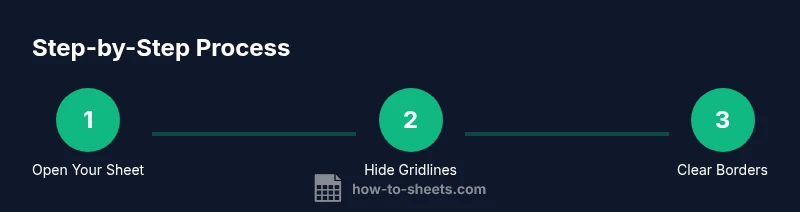
Removing lines in Google Sheets can improve readability by turning off gridlines and clearing cell borders. Start by hiding gridlines in View > Gridlines, then remove borders with the Borders tool. This two-pronged approach covers on-screen visuals and printed copies. This quick guide shows you how to do both, with safe steps for beginners.
Why lines in Google Sheets matter and what removing lines can do
According to How To Sheets, lines in spreadsheets influence readability and how quickly data is scanned. When you ask how to remove lines in google sheets, you’re choosing between a grid-backed canvas and a minimal, border-free view. Lines, including gridlines and cell borders, serve different purposes: gridlines help you orient data across rows and columns, while borders clearly define where one cell ends and the next begins. In some contexts, removing them reduces visual clutter and highlights numbers, formulas, and trends. In others, borders support clarity for printed reports or shared dashboards. The goal is to strike a balance between clarity and simplicity. This section lays the groundwork with practical concepts, then moves into safe, repeatable steps you can apply in any sheet. You’ll see examples, common mistakes to avoid, and tips drawn from the How To Sheets philosophy of practical, step-by-step guidance for Google Sheets users.
-0
Tools & Materials
- Device with internet access(Laptop, desktop, or tablet; ensure you can sign in to Google Sheets)
- Google account(Needed to access and edit Sheets)
- Target Google Sheet open in browser(The sheet you want to edit for removing lines)
- Mouse or trackpad(For precise selection and UI navigation)
- Keyboard (optional)(Faster navigation and editing)
- Printer or print preview access(If you plan to print after changes)
- A simple reference cheatsheet(Quick shortcuts or menu paths can speed up work)
Steps
Estimated time: 15-25 minutes
- 1
Open the target sheet
Launch Google Sheets and open the specific document where you want to remove lines. Ensure you’re viewing the correct tab and range to avoid unintended changes. Take a moment to save a quick backup copy if the sheet is shared or contains critical data.
Tip: Create a quick backup copy (File > Make a copy) before making formatting changes. - 2
Decide what to adjust
Determine whether you want to hide gridlines for on-screen clarity or remove borders for print-friendly output. You can also do both, but plan which sections will retain borders for readability.
Tip: If unsure, start with a small test area to verify readability before applying to the full sheet. - 3
Hide gridlines in the view
Go to the top menu: View > Gridlines and toggle Gridlines off. The sheet immediately updates on screen, making data stand out without the background lines.
Tip: Test both with and without gridlines to see which view you and collaborators prefer. - 4
Select cells to adjust borders
If you want to remove borders, first select the cells whose borders you want to clear. You can use Ctrl+A to select the entire sheet or drag to select a specific range.
Tip: Only remove borders where necessary to preserve reference lines for readers. - 5
Remove cell borders
Click the Borders button in the toolbar and choose None for the selected range. This action clears visible borders without altering cell contents.
Tip: If borders come back after some edits, reapply None to the affected range. - 6
Preview print output
Open the print preview (File > Print or Ctrl+P) to verify how the sheet will look when printed. In the preview, toggle options like Gridlines off to reflect your on-paper appearance.
Tip: Print preview is your best check for readability after removing lines. - 7
Adjust for readability
If the data becomes harder to read, consider light shading or bold header rows to guide the eye without relying on borders. Consistency is key for professional worksheets.
Tip: Use alternating row colors or a bold header row to maintain structure. - 8
Save changes and share
Once you’re satisfied with the visual result, save your sheet and share it with collaborators. Document the formatting changes in a comment or changelog if teamwork is involved.
Tip: Communicate formatting decisions so others understand the new visuals. - 9
Review and revert if needed
Periodically review the sheet’s readability with others. If readability drops, revert borders selectively or re-enable gridlines for parts of the sheet.
Tip: Keep a rollback plan in case the changes don’t land as expected.
FAQ
What is the difference between gridlines and borders in Google Sheets?
Gridlines are the light background lines that help you read the sheet; borders are the defined edges around cells. You can turn off gridlines for a cleaner view and remove borders to alter the printed appearance, without changing data.
Gridlines are the background guide lines, while borders are the cell edges you can remove or keep for clarity.
How do I print a sheet without gridlines or borders?
In Print Preview, uncheck the Show gridlines option and choose None for borders in the Borders tool for the selected area. This ensures a clean print without extra lines.
Use the print preview to turn off gridlines and remove borders before printing.
Can I remove lines from only part of the sheet?
Yes. Select the specific range you want to adjust, then apply the borders removal or gridline toggle for that selection. Changes apply only to the chosen area.
You can target only the cells you want to change.
What if a sheet is protected or shared with others?
If a sheet is protected, you may not be able to hide gridlines or remove borders until you have the necessary editing permissions. Check with the owner or adjust protection settings.
If you don’t have edit rights, ask the owner to update protections.
Is there a quick keyboard shortcut to hide gridlines?
There isn’t a universal keyboard shortcut to toggle gridlines in Google Sheets. Use the View menu to toggle Gridlines on or off for reliable results.
There isn’t a built-in shortcut; use the menu to change gridlines.
Watch Video
The Essentials
- Hide gridlines for cleaner on-screen viewing
- Remove borders only where necessary for print clarity
- Always preview before printing
- Communicate formatting changes with collaborators
- Keep a safe backup before major formatting