Print Google Sheets Without Gridlines: A Practical Guide
Learn how to print Google Sheets without gridlines, with step-by-step instructions, print settings tips, and troubleshooting to achieve clean, professional results.


How to print google sheets without lines: To start, open your sheet in a web browser, choose File > Print, and in the Print Settings disable Gridlines. This hides the lines on your page. You can also export as PDF or adjust margins, scale, and orientation for a clean, border-free result. The key is turning off gridlines before you print.
Why print Google Sheets without lines
Printing a spreadsheet without the faint gridlines helps reduce visual clutter and makes your data appear more professional in reports, dashboards, or class handouts. When lines aren’t competing with text, headers, and highlights you add, the focus shifts to values, formulas, and color-coded sections. This approach is especially useful for client deliverables, slide decks, or academic handouts where a clean, minimal layout is essential. If you frequently convert sheets into printable summaries, turning off gridlines during printing can save time and avoid post-print edits in a word processor. Remember gridlines are a display feature, not data, so you can safely toggle them off to preview how the sheet will look in print.
Before you print: plan your print layout
Take a moment to plan the layout before hitting Print. Decide which sheets or tabs to include and identify any header rows you want repeated on every page. Check that the print area captures all relevant columns and rows without truncation. If you have many columns, consider switching to landscape orientation or using a custom scale (for example 90%) to fit content on a single page. Verify margins and page breaks so nothing important gets cut off. Finally, confirm you will print the intended range and not the entire workbook to avoid extra pages.
The official print flow: gridlines toggle in the print preview
In Google Sheets, open File > Print to launch the Print Settings panel. The gridlines toggle is the simplest way to remove lines from the printed page. Deselect Gridlines and review the live preview. You can adjust layout options like orientation, scale, and margins as needed. If printing multiple sheets, you may choose Current sheet to keep the layout consistent. Make gridlines-off your default before you print to ensure a clean output.
Printing without gridlines on mobile and desktop
Desktop printing follows the standard Print Preview approach, with the gridlines checkbox easily found in the settings. On mobile, tap the sheet menu (three dots), select Print, and locate the Gridlines option within the print options. The mobile interface can be less intuitive, so always verify the preview. If the preview doesn't match your goal, switch to a desktop for more precise control.
Customizing borders vs gridlines: when to use borders
If turning off gridlines leaves data looking sparse, consider adding explicit cell borders to emphasize borders without showing the paper grid. Borders reproduce a clean structure while giving you control over spacing. Apply bold borders to headers or key sections to maintain readability when gridlines are off. Use borders sparingly; too many lines can recreate clutter.
Export options: PDF, PNG, or print directly
Depending on your workflow, you might print directly from Sheets or export to PDF for distribution. Printing to PDF often yields more consistent results across devices. When exporting, select the correct paper size and orientation and keep Gridlines turned off in the export settings. If you need an image version, export the visible range as a high-resolution PNG, but note that multi-page layouts may not transfer perfectly.
Troubleshooting common issues
If gridlines still appear, re-open the Print Settings and confirm the Gridlines toggle is off. Ensure you’re printing the intended range and not a different view. If data is cut off, adjust margins and scale, or reformat the sheet to better fit the page. For very wide datasets, print in landscape and consider splitting across pages or using a narrower print area. Update your browser to the latest version for stability.
Best practices for clean prints
- Always preview the print before finalizing changes. - Use landscape orientation for wide datasets and adjust scale to fit width. - Keep headers visible across pages to aid readability. - Save as PDF for consistent formatting and easy sharing. - Test print a single page first to verify gridlines are off and borders print as intended.
Tools & Materials
- Computer or mobile device with internet(Chrome or a modern browser is recommended for consistent Print Preview)
- Printer or PDF printer(If printing physically, connect to a printer; for digital copies, Save as PDF)
- Google account with access to the Sheet
- The sheet prepared for print (desired range, visible headers)(Ensure headers and data are ready to print; consider freezing headers if needed)
- Optional: margins and scaling plan(Having a plan helps speed up adjustments if the first print isn't perfect)
Steps
Estimated time: 15-25 minutes
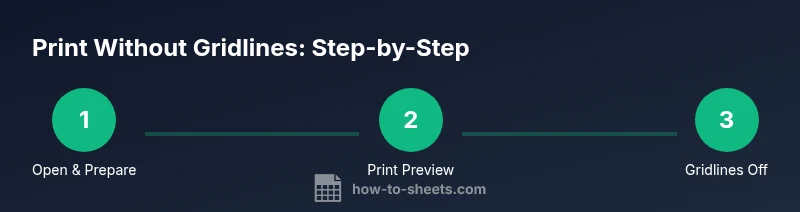
- 1
Open your sheet and prepare data
Open the Google Sheets file you want to print. Review headers and the selected range. Ensure any rows/columns you need are visible and remove anything extraneous that could appear on the printout. This preparation reduces reprints and ensures gridlines off doesn’t cut off important information.
Tip: Tip: Use Freeze panes to keep headers visible on every page. - 2
Open Print Preview
From the menu, go to File > Print to open the Print Settings panel. This panel shows a live preview of how your sheet will print. You can switch between portrait and landscape, and adjust scale to fit content. The goal is to have a clear view without gridlines.
Tip: Tip: Use the 'Current sheet' option to avoid printing empty tabs. - 3
Turn off gridlines in print settings
In the Print Settings panel, locate and deselect the Gridlines option. This hides the faint lines in the preview and on the final print. If you don’t see Gridlines, try expanding advanced settings or scrolling the panel. Verify that the preview now shows a gridline-free page.
Tip: Tip: If you rely on borders, you may adjust them before turning gridlines off to preserve structure. - 4
Adjust margins, scale, and orientation
Set margins to Narrow or Custom to maximize the printable area. Choose Landscape for wide sheets and adjust the scale (for example 90%) to fit content on a single page. The objective is legibility and professional appearance without lines.
Tip: Tip: Small text may benefit from a slightly larger font by adjusting zoom while keeping print resolution. - 5
Print or Save as PDF
Decide whether you want a physical print or a digital copy. Use the Print button to send to your printer, or click 'Save as PDF' in the destination dropdown. Review the final preview before confirming. Saving as PDF preserves formatting if sending via email.
Tip: Tip: Save a PDF first as a backup before printing. - 6
Verify output and adjust if needed
Review the printed pages for data truncation, header repetition, and alignment. If issues persist, go back to Print Settings and tweak orientation, margins, or scale. A quick test print on one page can prevent waste and ensure gridlines remain off.
Tip: Tip: Keep a checklist to reproduce the exact print settings in future sheets.
FAQ
Can I print without lines on mobile devices?
Yes. On mobile, open the sheet menu, select Print, and locate the Gridlines option in the print settings. Verify the preview shows no gridlines before printing.
Yes, you can print without gridlines from mobile by using the Print option and turning gridlines off in the settings.
Gridlines off but borders still appear—what gives?
Gridlines off hides the grid, but borders you explicitly added in cells will still print. If you want a clean look without any lines, rely on borders strategically for headers or section dividers.
Borders you add print, even with gridlines off, so plan borders to preserve structure.
Can I save these print settings for future sheets?
Google Sheets does not save a universal print preset. You’ll need to configure gridlines off and layout options again for each sheet or use a template.
No universal print presets exist; you’ll need to reapply the settings for new sheets.
How do I ensure headers repeat on every printed page?
In the print settings, ensure that header rows are identified and set to repeat across pages if the option is available. This keeps context on multi-page prints.
Set the header rows to repeat so each page includes column names.
What should I check if content is cut off in print?
Adjust margins and scale in the print settings, or switch to landscape orientation. Sometimes splitting the data across pages helps preserve readability.
Tweak margins, scale, or layout to avoid truncated data.
Watch Video
The Essentials
- Turn off gridlines before printing.
- Preview margins and orientation for best fit.
- Export to PDF for consistent sharing.
- Check print area to avoid missing data.