How to Print in Google Sheets: A Step-by-Step Guide
Learn how to print in Google Sheets with proper margins, gridlines, and headers. This comprehensive guide covers print setup, previews, and exporting to PDF for clean, shareable reports.


Goal: print a Google Sheets document with crisp formatting. You’ll need a computer with internet access, a Google account, and a printer or PDF printer. This guide covers opening the print dialog, choosing scale and margins, enabling gridlines and headers, selecting paper size, and printing or saving as a PDF. We’ll also highlight common pitfalls and quick fixes.
Before you print: prepare the sheet
Begin by cleaning up data and planning what will appear on the page. Hide columns or rows that aren’t part of the report, adjust column widths for readability, and freeze and repeat header rows if needed. Decide whether you want to print the entire worksheet, a single tab, or a specific range. If you’ve got multiple sheets, you can print them individually or combine them into a single PDF later. Ensuring the right print area reduces wasted paper and keeps the focus on the essential data. For students, professionals, and small business owners, it's worth spending a few minutes organizing the sheet before you print. A tidy source sheet translates into faster review and fewer follow-up questions about what the numbers mean.
Print settings you should know
Google Sheets’ print dialog is a preview-driven tool. You can choose the destination (printer or Save as PDF), paper size (Letter or A4), orientation (portrait or landscape), and scale (fit to page, fit to width, or a fixed percentage). Margins can be set to default, narrow, or custom to control white space. There are toggles for gridlines, notes, and printing of the sheet name or titles. If your sheet has frozen header rows, enable the option to repeat them on every page. Preview is your friend here: small changes can dramatically improve legibility and reduce the number of pages needed.
How to print from Google Sheets (web)
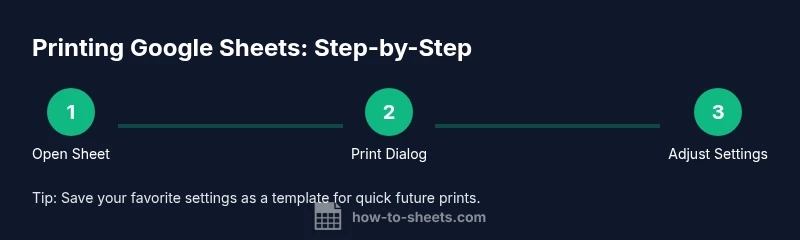
Start by opening File > Print (or press Ctrl/Cmd + P). In the print preview, review how the data will appear on each page. Set the destination to a printer or Save as PDF. Adjust orientation for wide tables (landscape) and choose scale that preserves readability without shrinking text. Enable gridlines and header rows as needed. If the preview shows extra blank pages, tweak the margins or print area. When you’re satisfied, click Print or Save, and select a location for the PDF if you chose that option.
Printing tips for polished reports
- Use print titles for header rows so readers know what the columns mean on every page.
- Prefer landscape orientation for wide tables to avoid wrapping.
- Choose Fit to width to make the sheet fit neatly on standard pages.
- Hide unnecessary rows or columns for a cleaner print.
- Preview, tweak margins, then re-preview until the layout is stable.
- Save commonly used print settings as a template sheet or a Google Sheets script to standardize future reports.
Troubleshooting common print issues
If gridlines don’t appear, verify that the Gridlines option is enabled in the print dialog. If header rows aren’t repeated, ensure you selected the correct print area and that the Freeze panes feature is active for those rows. When pages print with blank sections, re-check margins and print area. For PDFs, confirm you’ve chosen the correct destination and that you’re exporting the intended range. If something looks misaligned after printing, re-run the preview with adjusted scale and margins, then reprint. Finally, remember that certain fonts or font sizes may scale oddly in print; consider using standard fonts like Arial or Calibri for consistent results.
Printing from mobile or offline
The Google Sheets mobile apps support printing through your device’s native print function. Open the sheet, tap the Menu (three dots), and select Print. On iOS or Android, you can also export to PDF from the Share or Export options and then print the PDF from your device. If you’re offline, you can prepare the sheet in advance and save as a PDF once you’re back online; the printing process is identical once you have access to the correct file. For best results, keep fonts legible and margins comfortable even on smaller screens.
Tools & Materials
- Computer or mobile device with internet access(Needed to access Google Sheets and the print dialog)
- Google account(Required to access Google Sheets documents)
- Printer or Save as PDF capability(Printer or PDF printer is needed for output; saving as PDF is common for sharing)
- Printed paper or PDF reader(Useful for reviewing printed results or PDFs)
- Selected Google Sheets file or range(Have the exact sheet or range ready before printing)
Steps
Estimated time: 15-25 minutes
- 1
Open the Google Sheets file you want to print
Navigate to Google Sheets and open the document containing the data you intend to print. Confirm you’re viewing the latest version and the correct tab is active to avoid printing outdated information.
Tip: Tip: Use Ctrl/Cmd+P as a shortcut to jump straight to the print dialog. - 2
Decide the print range
Choose whether to print the entire sheet, a single tab, or a specific range. Selecting a precise range reduces wasted pages and keeps the focus on relevant data.
Tip: Pro tip: Use the Print Area option to limit output to your chosen cells. - 3
Open the print dialog
Open File > Print (or press Ctrl/Cmd + P) to launch the print preview window. This is your staging area to adjust how the sheet appears on paper.
Tip: Pro tip: Before adjusting settings, take a quick glance at the current preview to identify obvious issues. - 4
Choose destination and paper settings
Set the destination to a physical printer or Save as PDF. Pick a paper size (Letter or A4) and orientation (portrait or landscape) that fits your data well.
Tip: Pro tip: For wide tables, landscape orientation often improves readability. - 5
Adjust scale and margins
Use Scale to fit width or page, or select a fixed percentage that preserves legibility. Choose margins (default, narrow, or custom) to balance whitespace and content.
Tip: Pro tip: If you see awkward breaks, tweak the scale by 5% increments and re-preview. - 6
Enable gridlines and header rows
Turn on gridlines for clear cell boundaries and repeat header rows if needed for multi-page prints. Confirm that the print area aligns with these features.
Tip: Pro tip: Reprint after enabling header repetition to verify consistency across pages. - 7
Review the print preview
Scan the entire preview for any orphaned columns, truncated data, or extra pages. Make small adjustments and preview again until satisfied.
Tip: Pro tip: Use the zoom function in the preview to catch legibility issues you might miss at full size. - 8
Print or export as PDF
Click Print to send to your printer or Save as PDF to generate a shareable file. Choose a destination on your computer if saving as PDF, and then complete the action.
Tip: Pro tip: Save print settings as a template so you can reuse them later with a single click. - 9
Optional: save a print template
If you print similar sheets regularly, create a template in a dedicated sheet or note the preferred settings for quick future prints.
Tip: Pro tip: Document the exact scale, margins, and headers used for future reference.
FAQ
Can I print only part of a Google Sheets workbook?
Yes. You can print a selected range or specific sheets by setting the print area in the Print dialog. This helps you isolate the data you need for a report.
Yes. You can print a selected range or a specific sheet by using the Print dialog to set the print area.
How do I repeat header rows on every printed page?
In the print dialog, enable the option to repeat frozen rows as headers on every page. This keeps context for readers across pages.
In the print dialog, turn on Repeat frozen rows so headers appear on each page.
Why are gridlines missing in the printed output?
Make sure the Gridlines option is checked in the print settings. If data is hidden or margins are extreme, gridlines may not render.
Gridlines don’t show if the option is off or if the data hides them; check the print settings.
Can I print to PDF directly from Google Sheets?
Yes. In the print dialog, choose Save as PDF as the destination and select a location on your device.
Yes. Choose Save as PDF in the print dialog to export your sheet as a PDF.
How do I change orientation for wide tables?
Switch the orientation to landscape in the print dialog to prevent excessive wrapping and improve readability.
Set orientation to landscape in the print dialog for wide tables.
How to print multiple sheets at once?
Google Sheets prints one sheet per print command. To output several sheets, print them sequentially or export to PDF and combine.
Prints one sheet at a time; you can print each sheet or combine PDFs afterward.
Watch Video
The Essentials
- Plan print range before printing.
- Use print preview to fine-tune layout.
- Repeat header rows for multi-page prints.
- Export to PDF for easy sharing.