Best Way to Print Google Sheets: A Practical Guide
Learn the best method to print Google Sheets, focusing on layout, scaling, margins, and gridlines. This step-by-step guide covers practical tips, PDF exports, and common pitfalls for clean, repeatable prints.


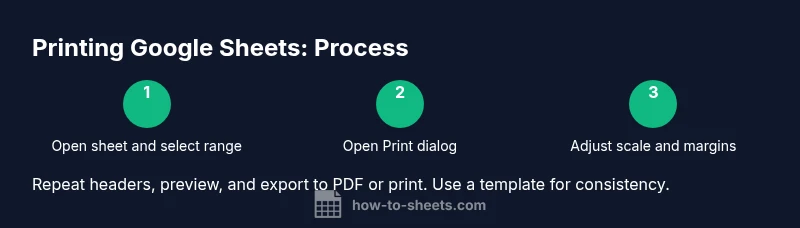
To print Google Sheets efficiently, start by opening your sheet and selecting the portion you need. Use File > Print (or Ctrl+P) to open the print dialog. Choose the right scope (current sheet or entire workbook), set scale to Fit to width, adjust margins, and enable gridlines or headings as needed, then print or save as PDF.
Why printing from Google Sheets matters
Printing from Google Sheets is a practical habit for students, professionals, and small business owners who need shareable, tangible records. Whether you’re distributing a budget, a roster, or a project tracker, getting clean, readable prints saves time and reduces miscommunication. The best way to print Google Sheets balances fidelity with efficiency: you preserve essential structure (like headers and gridlines) while avoiding overcrowded pages. In this guide, you’ll learn how to prepare your data, choose the right print settings, and export to PDF when sharing is the goal. By following these steps, you can produce consistent prints that align with your reporting standards. According to How To Sheets, investing a few minutes in the print setup upfront yields more reliable results across teams and devices.
Prepare your sheet for print
Before you hit the print button, take a moment to prepare the sheet so the output is easy to read and free of extraneous data. Start by selecting the exact range you want to print, then hide or collapse columns that aren’t needed on paper. Freeze the header row(s) so they repeat at the top of every page, making multi-page prints readable. Clear any notes or comments that would clutter the layout, and ensure fonts and font sizes are consistent throughout the sheet. If you’re printing a budget or a dataset, consider splitting wide tables into logical chunks and using landscape orientation when necessary. These preparatory steps reduce last-minute tweaks in the print dialog and help maintain a professional appearance across pages. The How To Sheets team emphasizes a deliberate prep phase to minimize reprints.
Master the Print dialog in Google Sheets
The Print dialog in Google Sheets is your control center for how data appears on paper. Access it via File > Print or Ctrl+P. Decide whether to print the current sheet or the entire workbook, and choose the appropriate scale: Fit to width for wide tables, Fit to page for compact reports, or a custom percentage if you need precise sizing. You can toggle options like gridlines, notes, and cell borders to improve readability. If your sheet includes headers or frozen rows, ensure they’re set to repeat at the top of each printed page. Use the preview pane to verify alignment, and adjust margins and paper size to prevent data from being cut off. As you refine these settings, you’ll develop a mental model for efficient print preparation that saves time on future documents.
Layout and scaling: fit to width vs fit to page
Choosing the right layout is essential for readability. Use Fit to width when your data is spread horizontally across many columns, ensuring all columns fit on a single width without wrapping. For tall datasets, Fit to page helps maintain a consistent page count, though some data may shrink. When margins are too wide, try Narrow or Custom margins to maximize usable space without cutting off content. Orientation matters: portrait is typical for smaller tables, while landscape better suits wide budgets or inventories. Start with a tested layout on a small sample, then apply the same settings to similar sheets to preserve consistency. How To Sheets recommends creating a standard print profile for recurring reports.
Repeating headers and multi-page management
For multi-page prints, repeating header rows at the top of every page is a lifesaver. In the Google Sheets print dialog, specify the rows to repeat at the top by selecting your header row(s) and applying the repeat option. This keeps column labels visible as pages turn, reducing confusion for readers. If your sheet includes multiple sections, consider printing them as separate ranges to avoid overly long pages. You can also split large datasets into logical groups and print each group separately with its own header. Planning page breaks ahead of printing helps deliver clean, professional reports.
Export options: PDF vs hard copy
PDF is the most common digital distribution format for Google Sheets prints. It preserves layout, fonts, and styles across devices and platforms. In the print dialog, choose Save as PDF as the destination, verify the page range, and confirm settings before saving. PDFs are easy to share via email or cloud storage, and they’re less prone to printer-specific variations. If you require a physical copy, connect a printer and print directly from the dialog. For frequent reports, save a PDF template with predefined print settings to streamline future exports. This reduces friction and keeps your output consistent.
Common printing pitfalls and fixes
Some of the most common issues include data cut off at page edges, inconsistent scaling, and missing gridlines. To fix these, first verify margins and scale; select a more conservative setting like 90% or 95% if data is cut off. Ensure you’re printing the correct range and that headers are included where needed. If gridlines disappear, toggle the Gridlines option in the print panel. If notes or comments don’t appear, enable the corresponding option. Finally, always preview the print before committing to paper or PDF to catch misalignments, orphaned data, or unwanted page breaks. This proactive approach minimizes waste and ensures accuracy.
Real-world printing scenarios and templates
In practice, many teams use printed sheets for weekly status reports, monthly budgets, and classroom rosters. Create a simple, repeatable template for these tasks: define a fixed header row, set a standard margin and orientation, and establish a baseline scale (e.g., Fit to width). For budget sheets, printing a summary page with supporting details on separate pages can improve readability. For class rosters, repeat header rows and include essential columns (Name, ID, Status) on every page. By analyzing real-world use cases and saving these settings as a template, you reduce guesswork and improve consistency across departments.
Quick-start checklist for printing Google Sheets
- Identify the exact range to print
- Open File > Print to access the dialog
- Choose current sheet or entire workbook
- Apply Fit to width or Fit to page as needed
- Enable gridlines and recurring header rows
- Preview, then export as PDF or print
Tools & Materials
- Computer or device with internet access(Ensure a modern browser (Chrome/Edge/Safari) is up to date.)
- Google account with access to Google Sheets(Needed to open and print sheets saved in Drive.)
- Printer or PDF workflow(Optional for physical copies; use Save as PDF in the print dialog to share digitally.)
- Sample printed draft or template(Helpful for testing layout before final production prints.)
Steps
Estimated time: Estimated total time: 15-25 minutes
- 1
Open sheet and select range
Open the Google Sheet you’ll print and select the exact cells you want to print. If you need the whole sheet, skip range selection. Selecting the range helps control what appears on paper and reduces waste.
Tip: Tip: Use Ctrl+A to select the entire sheet if you want to print everything. - 2
Open the Print dialog
From the menu, choose File > Print or press Ctrl+P to open the print preview. This dialog is where you’ll adjust what, how, and where it prints.
Tip: Tip: Use the print preview pane to verify content flow before saving or printing. - 3
Choose print scope
Decide between printing the current sheet or the entire workbook. For multi-page reports, current sheet is often enough; for consolidated reports, print all relevant sheets.
Tip: Tip: If your workbook contains multiple sections, consider printing them as separate ranges to preserve readability. - 4
Adjust scaling and margins
Set scaling to Fit to width for wide tables or Fit to page for compact reports. Pick Narrow or Custom margins to maximize printable area without clipping.
Tip: Tip: Always preview after changing scale to avoid data getting cut off at the edges. - 5
Set orientation and paper size
Choose portrait for tall data and landscape for wide datasets. Pick a standard paper size (A4 or Letter) that matches your printer.
Tip: Tip: If your data spans many columns, landscape often yields better readability. - 6
Enable headers, gridlines, and notes
In the options, enable gridlines and the option to repeat header rows on every page. If needed, include notes to provide context for the printed data.
Tip: Tip: Repeating header rows is a big readability win on multi-page prints. - 7
Preview and export or print
Review the final layout in the preview. If you’re sharing, export as PDF; otherwise, click Print to send to your printer.
Tip: Tip: Save a PDF version for future sharing without re-creating the print settings. - 8
Review output and adjust if needed
After printing or exporting, review the physical or digital copy. If content is cramped or misaligned, adjust scale or margins and reprint a test page.
Tip: Tip: Maintain a standard print profile for recurring documents to speed up future tasks.
FAQ
Should I print the current sheet or the entire workbook?
Print scope depends on your purpose. If you need one report, print the current sheet; for consolidated data across multiple sheets, print the entire workbook. Use the print dialog to switch between options easily.
Print the specific range you need to avoid wasting paper.
How do I repeat header rows on every printed page?
In the Print dialog, locate the option for Rows to repeat at top and select the header row range. This ensures column labels stay visible on every page.
Use the Repeat header option in the print settings.
Can I print gridlines and notes?
Yes. Enable Gridlines in the print options to show cell borders. Notes can often be included by turning on the Notes option in the dialog.
Turn on gridlines and notes if you want full context in print.
Is exporting to PDF better than printing directly?
Exporting to PDF preserves layout, fonts, and margins consistently across devices, making it ideal for distribution. You can still print from the PDF if you need a hard copy.
PDFs are great for sharing without layout surprises.
What if text gets cut off on page edges?
Adjust margins and scaling, then re-preview. If necessary, switch to a narrower scale or different orientation to fit content.
Tweak margins and scale to avoid cut-off text.
Do I need special software to print Google Sheets?
No special software is required. Printing can be done directly from Google Sheets or by exporting to PDF and printing the file with your preferred viewer.
No extra software needed; use the built-in print options.
Watch Video
The Essentials
- Plan the print range before opening the dialog
- Use scaling to fit data cleanly on paper
- Repeat header rows for multi-page prints
- Export to PDF for consistent sharing
- Preview every print to avoid wasted pages