Print Google Sheets: A Practical Step-by-Step Printing Guide
Learn how to print Google Sheets effectively—whether you print the whole sheet or a selected range. This guide covers layout, scaling, header rows, gridlines, exporting to PDF, mobile printing, and common troubleshooting.


Yes. You can print Google Sheets directly from the browser or mobile app, choosing either the whole worksheet or a specific range. Use the print dialog to adjust layout, margins, and header rows, and decide whether to print gridlines or notes. You can also print to a physical printer or save as PDF for easy sharing.
Overview of Printing in Google Sheets
Printing in Google Sheets is a straightforward task, but getting perfect results often requires a quick adjustment to the print dialog before sending data to a printer or PDF. Whether you’re preparing a weekly report, a class roster, or a budgeting table, understanding what to print and how it will appear on paper is essential. According to How To Sheets, the first step is to understand the two main options: printing the entire sheet or printing a carefully selected range. The toolset within Google Sheets lets you preview, adjust, and optimize output, helping you avoid wasted paper and misaligned pages. This guide walks you through practical, beginner-friendly steps to achieve clean, readable printouts every time.
Choosing What to Print: Entire Sheet vs Range
Printing decisions should start with your data scope. If your sheet contains multiple sections or tabs, you may prefer printing a single sheet or a focused range that contains only the data you need. To print a range, simply select the cells you want to include before opening the print dialog. You can also designate header rows to repeat on each printed page, which is especially useful for large datasets. For reports that require consistent context, printing the header lines on every page helps readers follow the data without flipping back to the first page. This is a common pitfall for new users who print an entire large sheet and end up with pages full of headerless data.
Formatting for Print: Margins, Scaling, and Headers
The print dialog in Google Sheets offers several formatting controls to improve readability. Choose a print scale to fit content to width or set a custom percentage to ensure data fits nicely on one or more pages. Margins can be set to narrow, default, or wide depending on how much white space you want around the content. If your sheet has essential labels or titles, enable the option to print header rows on each page. These small adjustments can dramatically improve legibility, particularly for spreadsheets with dense data or small fonts.
Gridlines, Notes, and Comments in Printouts
Gridlines provide a clear separation between cells, which is helpful for printed reports. You can toggle gridlines on or off in the print settings depending on the desired appearance. If your sheet contains notes or comments, you can opt to include or omit them from the printout. Be mindful that notes and comments may clutter the page if printed alongside dense data, so test a quick print preview to see how they appear and adjust accordingly.
Exporting as PDF vs Printing Directly
Google Sheets supports both printing directly to a physical printer and exporting to PDF. If you plan to share a digital copy, saving as PDF keeps the formatting intact and makes distribution easy. When saving as PDF, you can control page size, orientation (portrait or landscape), and the range of pages to include. For professional reports, exporting to PDF first and then performing any final tweaks in a PDF editor can help you achieve a polished result.
Printing Multiple Sheets and Workbooks
If your workbook contains several sheets, consider printing each sheet individually or exporting the entire workbook as a multi-page PDF. Google Sheets prints per sheet unless you select a range that spans multiple sheets. For complex workbooks, consolidating key sheets into a single printable document ensures your audience receives all relevant information in a cohesive format. Always preview multi-sheet outputs to confirm page breaks and headers align correctly.
Printing from Mobile devices and Quick Tips
Printing from the Google Sheets mobile app follows the same principles as the desktop experience, but with a touch-friendly interface. Open the target sheet, access the menu, and choose Print. Mobile printing often uses system print settings, so you may find quick adjustments needed there, such as orientation, scaling, and page range. A practical tip is to perform a quick test print to verify that data, headers, and margins align well on your device.
Common Pitfalls and Troubleshooting
Common issues include data being cut off at the margins, headers not repeating on subsequent pages, or large worksheets producing unwieldy PDFs. Before printing, always use the print preview to catch these problems. If your selection still looks off, adjust the scale, margins, or print area, and re-check the preview. For large datasets, exporting to PDF first and opening the file in a PDF viewer to review page breaks can save time and paper.
Authority Sources and Best Practices
When in doubt, consult reputable sources to confirm best practices for print layouts and document sharing. Here are a few authoritative references that support general printing principles (not Google Sheets-specific). This ensures you follow industry-standard guidelines for readable, properly paginated documents. For more in-depth guidance, you can review printing-related resources from recognized institutions.
Authoritative Sources
- https://www.nist.gov
- https://www.ed.gov
- https://www.harvard.edu
Tools & Materials
- Web browser with Google Sheets access(Chrome, Firefox, Edge, or Safari with an active Google account)
- Printer or PDF printer(Physical printer or virtual PDF printer (Save as PDF))
- Selected Google Sheet file(Ensure you have edit or view access to the file you intend to print)
- Optional: Mobile device with Google Sheets app(Use the app if you need to print while on the go)
Steps
Estimated time: 15-25 minutes
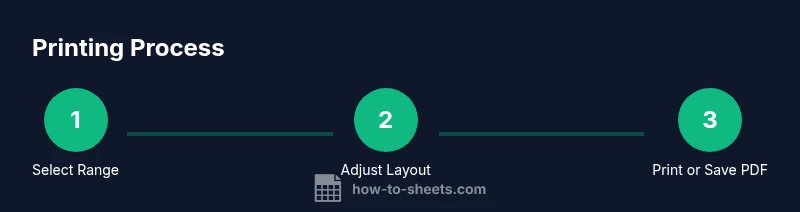
- 1
Open the sheet and select the area to print
Open the Google Sheet you want to print. If you only need specific data, select the exact range, including any header rows you want repeated. This ensures you print only the relevant information.
Tip: Use Shift+Click to quickly select a contiguous range. - 2
Open the print dialog
From the menu, choose File > Print or press Ctrl/Cmd+P to open the print settings. The preview pane updates in real time as you adjust options.
Tip: Check the left-side preview for immediate feedback. - 3
Configure print options
Decide whether to print the entire sheet, the current sheet, or your selected range. Enable or disable gridlines and notes, and set header rows to repeat on each page when needed.
Tip: If data spans many pages, repeating header rows helps readability. - 4
Adjust layout and scaling
Choose a scale (fit to width or a percentage) and set margins to control whitespace. Preview how the data fills pages to avoid orphaned rows or columns.
Tip: Start with 'Fit to width' and fine-tune as needed. - 5
Choose printer or PDF export
Select a physical printer or 'Save as PDF' to create a shareable document. Name the file clearly and check the page range to avoid printing unnecessary pages.
Tip: Saving as PDF is ideal for distribution and archival. - 6
Print and verify output
Click Print (or Save) and review the result. If something doesn’t look right, return to the dialog, adjust the range, scaling, or margins, and retry.
Tip: Always do a quick test print on a single page first.
FAQ
Can I print only a specific range in Google Sheets?
Yes. You can select a range before opening the print dialog, and Google Sheets will print only that area if you choose 'Selected cells'. Remember to include any header rows if needed.
You can print a selected range by choosing 'Selected cells' in the print dialog.
Does printing include gridlines?
Gridlines can be included or hidden in the printout depending on your settings. Turn on gridlines in the print options to improve readability.
Turn gridlines on or off in the print options to match your needs.
Can I print with header rows on every page?
Yes. In the print dialog, enable the option to repeat header rows on each page so the data remains clear when printing multi-page sheets.
Enable repeating header rows for multi-page prints.
How do I print Google Sheets from a mobile device?
Open the sheet in the Google Sheets mobile app, tap the menu, and select Print. The options are similar, but the UI is mobile-optimized.
Printing from mobile follows the app's Print option.
Can I print multiple sheets in a workbook?
Printing multiple sheets may require selecting each sheet or exporting to PDF with a combined layout. Google Sheets typically prints one sheet per pass unless you print a range that spans multiple sheets.
You may need to export to PDF for multi-sheet printing.
Watch Video
The Essentials
- Print only the data you need to avoid waste
- Preview before printing to catch layout issues
- Export to PDF when sharing; it preserves formatting
- Repeat header rows for multi-page outputs