How to Save Google Sheets as PDF: A Complete Guide
Learn practical steps to save Google Sheets as a PDF, including export options, print setup, and best practices. Ideal for students and professionals needing sharable PDFs from Sheets.


You can save Google Sheets as a PDF by exporting the current sheet or the entire workbook. Use File > Download > PDF Document (.pdf) and customize settings like orientation, paper size, scale, and margins. You can also use Print settings for more control. This guide covers two reliable methods and practical tips.
Understanding PDF export options in Google Sheets
PDF export in Google Sheets gives you control over what to export (a single sheet or the whole workbook) and how it appears on the page. When you prepare a sheet for PDF, you should decide early whether you want only a specific tab or all tabs included. Key settings influence readability: page orientation (portrait or landscape), paper size (A4, Letter), scale (fit to width or page), and margins. Gridlines, notes, and print titles are optional toggles that can dramatically affect how data reads in the final document. By understanding these options, you can ensure your PDF matches a report format, a presentation handout, or a data appendix.
- Primary goal: create a readable, professional PDF that your audience can view without Google Sheets.
- Common trade-offs: more data per page reduces clutter but may require tighter margins or smaller text.
- Quick tip: if your sheet has a lot of columns, landscape orientation and a wider paper size (like A4 or Letter) usually improve legibility.
Method overview: two reliable export paths in Google Sheets
There are two dependable ways to save a Google Sheets file as PDF. The first method uses the built-in File menu, which offers direct export with a PDF wrapper. The second uses your browser's print-to-PDF feature, which can provide more granular control over on-screen rendering before you save. Both methods support exporting a single sheet or the entire workbook. The choice depends on what you want to share and how you want it to appear on the page. For consistent results across devices, prefer the official PDF export path when possible, and reserve print-to-PDF for custom layouts or quick ad-hoc shares.
- The export path is often simpler for standard reports.
- Print-to-PDF gives you more control over on-screen rendering, especially for complex layouts.
Method 1: File > Download > PDF Document (.pdf)
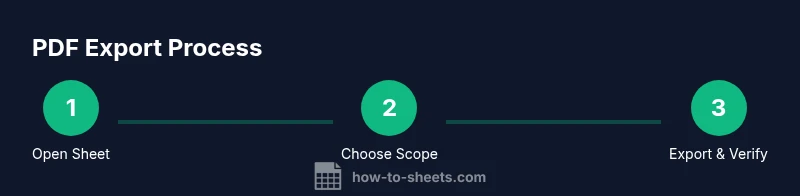
This is the most common route to create a PDF from Google Sheets. Start by opening the Google Sheet you want to convert, then select File > Download > PDF Document (.pdf). A settings panel appears, letting you choose the export scope (current sheet or entire workbook), orientation, paper size, scale, and margins. Preview appears in a right-side panel to show how your choices affect the final document. After adjusting the options, click Export to generate the PDF. This method preserves most data formatting and is ideal for formal reports.
- Scope: current sheet vs entire workbook.
- Preview helps verify how options impact layout before saving.
Method 2: Print to PDF via your browser
If you need more custom control over the final layout, you can use your browser’s Print dialog and select Save as PDF. In Google Sheets, choose File > Print, configure the Print settings (you’ll see a print preview), then choose Destination as Save as PDF. You can adjust scale, margins, and whether to print gridlines or notes. This method can be handy when you want to combine multiple sheets or tweak the visual presentation more freely than the standard export tool allows. Once satisfied with the preview, save the PDF.
- Print preview is your friend for layout adjustments.
- This route can be quicker for ad hoc sharing.
Preparing your sheet for a clean PDF output
A clean PDF starts with tidy data. Hide or collapse unnecessary columns, delete extraneous rows, and make sure headers repeat where needed. If you have large datasets, consider freezing header rows so they appear on every page. Before exporting, check that all essential columns fit within the chosen paper size or adjust the scale to ensure readability. Clearing unused formatting can also reduce file size and improve printing accuracy. A well-prepared sheet reduces back-and-forth edits after export.
- Freeze headers for clarity on multi-page PDFs.
- Remove excessive formatting that clutters the page.
Page layout and scaling: tuning for readability
Page layout is more than aesthetics; it impacts readability. Start with portrait or landscape orientation based on how many columns you have. Set an appropriate paper size (A4 or Letter) and apply a scale that fits your content without wrapping too aggressively. Margins should balance white space with data density; narrow margins often work well for dense sheets, but consider standard margins for formal reports. Enable or disable gridlines and notes as needed. Unique data like small fonts or dense tables may require increasing font size or adjusting column widths to maintain legibility in the PDF.
- Landscape orientation suits wide tables.
- Use scaling to avoid excessive page breaks or cropped data.
Handling multi-sheet workbooks and large data
Exporting a workbook with many sheets can produce a long PDF. If you need a compact document, export only the sheets that are relevant. For multi-sheet reports, consider exporting individual sheets as separate PDFs and then merging them, or using a dedicated report layout that presents data in a logical sequence. If you must include multiple sheets in one PDF, ensure consistent formatting across sheets (font size, margins, and header repetition) so the final document looks cohesive. Always review the merged PDF for any alignment issues before sharing.
- Selective export reduces file size and clutter.
- Consistency across sheets improves professionalism.
Common pitfalls and how to avoid them
Several pitfalls can undermine a PDF export. Overly dense data can overwhelm readers; therefore, reduce clutter by removing unused columns or using filters before export. Gridlines and notes can distract if not needed; turn them off for a cleaner look. Page breaks can appear unexpectedly when you have long lists; adjust the scale or insert manual breaks if supported by your export option. Finally, verify that you’re exporting the correct range (current sheet vs workbook). A quick preview can catch many layout problems before you save.
- Preview early and adjust before exporting.
- Keep a balance between data density and readability.
Best practices for professional PDFs from Google Sheets
For a polished, ready-to-share PDF, plan the export like a mini-presentation. Start by choosing the right scope, then fine-tune orientation and scale for legibility. Use consistent fonts and avoid overly bright colors that may appear faded in print. If you’re sharing with colleagues, consider adding a title block or a brief header row to help readers identify the data quickly. Save a reusable export preset if you frequently convert similar sheets, so you can produce consistent PDFs with just a few clicks.
- Create a reusable export preset for consistency.
- Prioritize readability and concise labeling for professional documents.
Quick reference checklist for saving Google Sheets as PDF
- Decide export scope: current sheet or entire workbook.
- Choose orientation, paper size, and margins.
- Set scale to fit width or page, then review gridlines and notes.
- Use Print-to-PDF if you need extra layout control.
- Review the final PDF for readability and accuracy before sharing.
Tools & Materials
- Computer or mobile device with internet access(Any device with a modern browser; Chrome recommended for compatibility)
- Google account with access to the Sheets you want to export(Sign in to the Google account that owns or has access to the file)
- The Google Sheet file you plan to save as PDF(Open the specific tab or workbook you intend to export)
- PDF viewer or printer (optional for verification)(Helpful to quickly check the PDF after export)
Steps
Estimated time: 15-25 minutes
- 1
Open the Google Sheet
Open the Google Sheets document you plan to export and verify the data is current. This step ensures you’re exporting the exact content you intend to share. If you need only a portion, mark the relevant tab or range before exporting.
Tip: Tip: Ensure the sheet is saved and up to date to avoid exporting outdated data. - 2
Decide export scope (current sheet or whole workbook)
Choose whether to export just the active sheet or the entire workbook. Exporting the whole workbook can produce a multi-page PDF; exporting a single sheet keeps the document concise. Your choice should align with the recipient’s needs.
Tip: Tip: Use the current sheet option when sharing a focused data snippet. - 3
Open the export dialog
Go to File > Download > PDF Document (.pdf). This opens the export settings panel where you can tailor the output. You’ll see live previews to help you fine-tune the layout.
Tip: Tip: If you don’t see the right options, refresh the page to load the latest export dialog. - 4
Configure orientation, paper size, and margins
Choose portrait or landscape based on your column width. Select a suitable paper size (A4 or Letter) and set margins that balance space and readability. The preview will update as you adjust these settings.
Tip: Tip: Landscape helps when your data has many columns; it reduces the need to shrink fonts. - 5
Set scale and option toggles
Adjust the scale to fit width or page, and decide whether to include gridlines and notes. A smaller scale can fit more content on a page, but too small text reduces legibility.
Tip: Tip: Use Fit to Width for wide tables and Confirm readability in the preview panel. - 6
Review the preview and export
Inspect the PDF preview to ensure headers repeat as needed and data isn’t cropped. If satisfied, click Export. Saving completes the process and places the PDF in your Downloads folder.
Tip: Tip: Check for broken page breaks or truncated headers in the preview before exporting. - 7
Alternative: use browser Print to PDF for extra control
If you require tighter control over the rendering, use File > Print to open the browser print dialog and select Save as PDF as the destination. Adjust margins and scale, then save.
Tip: Tip: Print to PDF is handy for precise margins and custom layouts that aren’t available in the standard exporter. - 8
Verify and share the PDF
Open the saved PDF to confirm formatting, then share via email or a cloud link. If any issues arise, reopen the original Sheets file and redo the export with adjusted settings.
Tip: Tip: Maintain a consistent naming convention for exported PDFs to keep versions organized. - 9
Archive the export settings for future use
If you export PDFs from Sheets regularly, note the optimal settings and consider documenting a short template. This speeds up future conversions and ensures consistency across documents.
Tip: Tip: Create a quick reference sheet documenting your preferred export options for each use case.
FAQ
Can I export only visible cells or filtered data as PDF?
PDF export captures what is visible on the sheet at export time. To include only visible data, apply filters or hide unnecessary columns before exporting. You can also print selected ranges if you need tighter control.
Export only what you have visible by filtering first, or adjust the sheet to display the data you need before exporting.
How do I include header rows on every PDF page?
Google Sheets lets you set print titles so header rows repeat on each page of the PDF. Configure this in the export dialog by selecting the rows to repeat at top. This helps readers understand columns on multi-page PDFs.
Use print titles to repeat header rows across pages for clarity.
Can I export multiple sheets into one PDF?
Directly exporting multiple sheets into a single PDF isn’t always straightforward in Sheets. You can export sheets individually and then merge the PDFs using a third-party tool, or export the entire workbook if you want all sheets in one file.
You may need to merge PDFs yourself if exporting multiple sheets at once.
Is there a mobile way to save Google Sheets as PDF?
Yes. On mobile, open the Sheet in the Google Sheets app, use the share or export options to download as PDF. The interface mirrors desktop options but may be more compact, so expect fewer customization controls.
You can export on mobile, but expect fewer options.
What should I check if the PDF looks different from the sheet?
Differences usually come from scaling or margins. Use the preview to adjust scale, margins, and orientation until the PDF matches your expectation. If needed, try the browser print-to-PDF route for finer control.
Adjust scale and margins in the preview until the PDF matches your expectation.
Watch Video
The Essentials
- Export scope matters: current sheet vs entire workbook.
- Preview settings to balance readability and data density.
- Two primary export routes: Google Sheets export and browser print-to-PDF.
- Prepare data with clean formatting for professional results.
- Verify the final PDF before sharing.