How to See When a Google Sheet Was Created
Learn reliable methods to find the creation date of a Google Sheet using Drive UI, Activity panels, and APIs. Step-by-step guidance for students and professionals seeking accurate timestamps.


If you want to see when google sheet was created, you can verify the timestamp in Google Drive, check the file's Details panel, and corroborate with Drive Activity or API calls. This quick guide gives practical steps to locate the creation date without guessing.
Where creation date lives in Google Drive and Sheets
If you're asking how to see when google sheet was created, this guide covers reliable methods. The creation date is stored as a file property in Google Drive (the underlying storage for Google Sheets). You can view it directly in Drive, or corroborate it with the file's Activity log or API calls. Understanding where this timestamp lives helps with audits, compliance, and project histories. Remember that a sheet can be created by copying an existing file; in that case, the creation date reflects the copy's creation, not the original's. In this article, we'll walk through non-technical methods first, then show code-based approaches for teams that manage many sheets.
Quick path: viewing the creation date in Google Drive UI
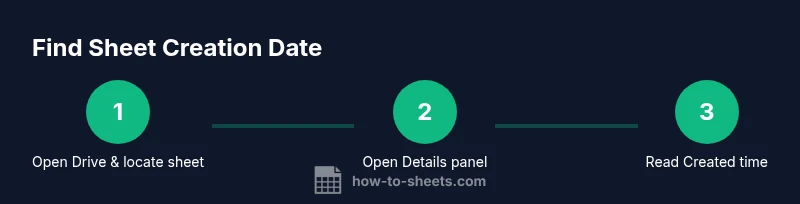
The fastest way to verify creation date is through the Google Drive interface. Locate the Google Sheet in Drive, then open the Details panel (the info pane) to view the file metadata. In most cases you will see a Created timestamp under Details. If you prefer a broader view, switch to List view and enable the Created date column so you can scan multiple files at once. This method works without writing any code and is ideal for occasional checks when auditing a few sheets.
Using the Details panel and file properties
The Details panel (often accessed by clicking the 'i' icon in the upper-right corner or by right-clicking the file and selecting Details) exposes essential metadata, including the Created date. Look for a field labeled Created or Created time. This is the official record of when the file first appeared in Drive. For accuracy, compare it with the sheet's first appearance in Drive rather than relying on the last edit time, which reflects subsequent activity rather than creation.
Using Drive Activity to verify creation times
If you want to corroborate Creation with user activity, open the Drive Activity panel. This shows a chronological log of actions affecting the file, including when it was created and by whom. Filter the activity to the specific file and review the earliest entry labeled as Created. This is especially helpful in collaborative environments where multiple people contribute to the same sheet.
Programmatic approaches: Drive API and Apps Script
For teams that manage many sheets, programmatic access is invaluable. Two common approaches are:
- Apps Script (built-in Auto-Drive services):
function logCreatedTime(fileId) {
  var file = DriveApp.getFileById(fileId);
  var created = file.getDateCreated();
  Logger.log(created);
}- Drive API (advanced):
GET https://www.googleapis.com/drive/v3/files/fileId?fields=createdTimeOr in Python with the Google API client:
service = build('drive', 'v3', credentials=creds)
file = service.files().get(fileId=file_id, fields='createdTime').execute()
print(file['createdTime'])
These methods return the ISO 8601 timestamp in UTC. Remember to request the createdTime field explicitly and handle permissions correctly.
Special cases: copies, shared drives, and permissions
Creation timestamps are tied to the specific file in Drive. If a sheet is copied, the copy receives a new Created timestamp corresponding to the copy moment, not the original's creation. On Shared drives, timestamps still come from the file metadata; however, access to Created times may depend on your permission level. If you don’t see a Created timestamp, request access from the file owner or a Drive administrator. Always consider timezone differences when comparing timestamps across different systems.
How to verify across multiple files quickly
To audit several sheets at once, start by filtering for spreadsheets in Drive and then sort by Created Time (or use a script to enumerate and export createdTime values). A simple Apps Script snippet can loop through a folder and print each file's ID, name, and createdTime. This is especially useful for project rollups and compliance reports where dozens or hundreds of sheets are involved.
Best practices: maintain accurate timestamps
Adopt a consistent workflow for new sheets by documenting who creates the file and when. Use naming conventions that incorporate creation dates for quick visual cues. Enable the Created date column in Drive’s list view to speed up auditing. If you rely on API-based checks, store retrieved createdTime values in a centralized log or asset tracker for future reference.
Common mistakes to avoid
Avoid assuming that the last modified date equals the creation date, as edits happen after creation. Don’t rely on a copied file to reflect the original creation time. If you cannot access the Created field due to permissions, contact the owner or Drive administrator for visibility. Finally, beware time zone differences when aligning timestamps with local reports or calendars.
Tools & Materials
- Computer with internet access(Sign in to Google account with access to the Sheet and Drive.)
- Web browser (Chrome recommended)(Use incognito if you want to test with minimal cache influence.)
- Access to Google Drive for the target sheet(View or edit permissions needed to see details and activity.)
- Optional: Google Apps Script editor(Useful for quick in-browser scripting to fetch createdTime.)
- Optional: Google Drive API access (OAuth credentials)(For bulk or automated checks across many files.)
Steps
Estimated time: 15-25 minutes
- 1
Open Google Drive and locate the Sheet
Sign in to drive.google.com and locate the Google Sheet by name or using the type filter (type: spreadsheet). This step establishes the file you’ll inspect for creation time.
Tip: Use the search bar with type:spreadsheet to narrow results quickly. - 2
Open the Details panel
Select the file and open the Details panel (the small i icon on the right or via the kebab menu) to view metadata like Created time.
Tip: If you don’t see the panel, ensure you’re in List view or click the small “i” once the file is selected. - 3
Find the Created timestamp
In Details, locate the Created or Created time field. This is the official creation date stored by Drive.
Tip: Note the timezone shown in Drive and adjust if your report uses a different zone. - 4
Cross-check with Drive Activity
Open the Activity pane to see the initial creation event and confirm it aligns with the Created timestamp.
Tip: Look for the earliest entry labeled Created by the file owner. - 5
Try a programmatic approach (optional)
If you manage many sheets, use Apps Script or Drive API to fetch createdTime programmatically for all items in a folder.
Tip: Request the createdTime field explicitly in API calls to avoid missing data. - 6
Account for edge cases
If a file was copied, the copy's Created time reflects the copy moment. Be aware of files migrated to Shared drives.
Tip: Document the original vs. copy distinction in your audit notes. - 7
Audit multiple files (optional)
Use a script to enumerate a folder and export a CSV with file name, ID, and createdTime for easy review.
Tip: Schedule periodic checks for ongoing project governance. - 8
Document and share results
Record the creation dates in a centralized log or asset tracker and share with stakeholders as needed.
Tip: Keep notes about permission scope to avoid future access issues.
FAQ
Can I see the creation date for any Google Sheet I don’t own?
You can view the creation date if you have access to the file’s details in Drive or via the Activity panel. If you don’t have access, request permission from the owner or an admin.
You can check the creation date only if you have access to the file in Drive or can contact the owner for permission.
Does the creation date in Drive always reflect when the sheet was first created?
Yes, the Created timestamp reflects when the file was first created in Drive, though copying a file creates a new Created time for the copy.
The Created time shows when the file was created or copied, not when someone first edited it.
What if the Created time isn’t visible in Details?
If Created isn’t shown, check the Activity panel for the initial creation event or ensure you have enough permissions. You can also use Drive API to fetch createdTime with proper credentials.
If you can’t see Created, try the Activity log or API access with permission.
Can I programmatically retrieve createdTime for a folder of sheets?
Yes. Use the Drive API or Apps Script to iterate files in a folder and fetch createdTime values in bulk.
You can automate retrieval of creation dates for multiple sheets using API or Apps Script.
Is there a difference between 'Created' and 'Last modified' times?
Yes. Created represents the initial file creation, while Last modified shows the latest change made by users or systems.
Created is when the file was first made; modified is about subsequent edits.
Watch Video
The Essentials
- Identify the creation date from Drive Details (Created timestamp).
- Use Drive Activity to corroborate the creation event.
- API/Apps Script provide scalable options for many files.
- Edge cases include copied files and shared-drive permissions.