How to See When a Google Sheet Was Last Edited
Learn how to see when a Google Sheet was last edited with version history, the Activity dashboard, and best practices for auditing changes in collaborative work.


To see when a Google Sheet was last edited, open the file and use Version history to view edits by date and editor. You can also open the Activity dashboard for a quick overview of recent changes. These methods work for owners and collaborators alike, even on mobile.
What counts as 'last edited' in Google Sheets?
In Google Sheets, the concept of 'last edited' is tied to the revision history rather than a single timestamp on the file header. Sheets autosaves continuously, and every revision captures who made changes and when the snapshot was created. Within a version, you can see the cells that changed, the date and time of the snapshot, and the editors involved. For teams, this approach gives a clear trail of significant edits over time.
It’s important to note that a revision’s timestamp marks when that snapshot was saved, not every individual keystroke. If many edits happen in rapid succession, they may appear under the same version. For granular auditing beyond a single snapshot, compare adjacent versions to observe precise differences.
How you interpret last-edited information depends on why you’re auditing: for compliance, you’ll rely on version snapshots; for day-to-day collaboration, the version history is usually sufficient to identify when major edits occurred and by whom.
Where to find last edited information: Version history
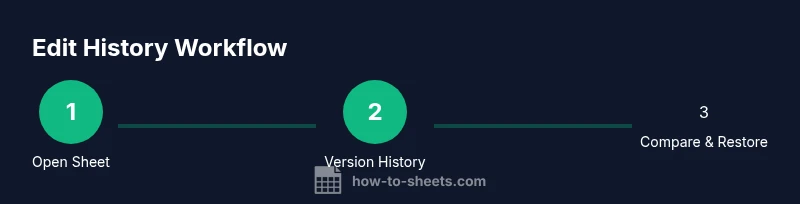
The primary place to verify edits is Version history. In the Google Sheets menu, select File > Version history > See version history. A panel slides in on the right with a chronological list of versions, each showing the date, time, and editor. You can click any version to view the sheet as it existed then, and you can restore that version if needed. When you open a specific version, you’ll see the changes highlighted, making it easy to spot what was altered.
If you’re searching for a particular change, use the version list filters or the search within version history (if available) to narrow down dates or editors. You don’t have to navigate away from the sheet to inspect the past; the version history panel stays anchored for quick reference.
How to interpret the Version history panel
Each revision entry in Version history shows the editor’s name, date and time, and a thumbnail of the sheet as it appeared. If multiple people edited in a short window, you’ll see several adjacent revisions with different editors. When you click a version, you can compare it with another version to highlight the exact changes, either by color-coding altered cells or by a side-by-side diff.
Look for the following cues:
- The editor’s initials or name next to each version
- A timestamp indicating when the revision was created
- A summary of how many cells or areas changed in that version
Understanding these cues helps you build an accurate edit timeline for audits, project tracking, or error recovery.
Using the Activity dashboard for context
Beyond version history, the Activity dashboard provides a high-level view of interactions with the sheet, such as who opened the file or downloaded content. Access it via Tools > Activity dashboard (availability depends on permissions). While it won’t replace version history for edit times, it gives context about engagement and access patterns that can complement your audit trail.
Tip: Use the Activity dashboard to identify potential contributors or stakeholders during a deadline-driven review cycle. For edit-specific timing, rely on Version history, then triangulate with activity signals when needed.
Limitations and caveats when auditing edits
Auditing edits relies on viewer permissions. Only editors and the file owner can access version history details. If you’re not granted sufficient access, you’ll see limited or no revision data. History depth varies with Drive settings and sharing configurations; some organizations archive or restrict historical data, which could affect long-term audits.
Additionally, per-version changes may group minor edits together, so the exact minute-by-minute trail may not be visible. Always supplement with notes or documented change requests for critical changes to ensure a robust record.
Practical workflows for teams: building a reliable edit-trail
To make last-edit information actionable, adopt a consistent workflow:
- Establish an editing protocol: save major changes in clear versions with descriptive titles
- Regularly review Version history during project milestones
- Use the Compare versions feature to confirm what changed between key milestones
- Communicate edits in a shared log to maintain transparency
By codifying these practices, you’ll maintain a trustworthy edit history that supports audits, accountability, and collaboration.
Tools & Materials
- Google account with sheet access(Use an account that has at least Editor access to the target sheet.)
- Internet-connected device (desktop or mobile)(A computer with Chrome is ideal, but rules apply to mobile browsers as well.)
- Stable internet connection(Avoid interruptions while loading version history and dashboards.)
- Permission to view version history(If you’re not the owner, request Editor access to see revisions.)
Steps
Estimated time: 15-25 minutes
- 1
Open the Google Sheet
Navigate to the file in Google Drive or open it via a shared link. Confirm you have Editor access, which is required to view revision history. If you’re on mobile, you can use the Google Sheets app to open the document.
Tip: If the sheet is shared with you, use the link you received or search for the sheet name in Drive. - 2
Access Version history
From the top menu, choose File > Version history > See version history. A panel slides in on the right showing a chronological list of revisions with dates, times, and editors.
Tip: Pro tip: you can filter by editor if you’re collaborating with a large team. - 3
Review recent versions
Scroll through the revisions to identify the most recent edits. Click a version to view the sheet as it existed then and inspect what changed.
Tip: Look for versions labeled with a recent date and the editor’s name to pinpoint the last significant edits. - 4
Compare versions for changes
Select two versions and use the compare or See changes option to highlight differences between them. This makes it easy to see exactly what was altered.
Tip: Use this for troubleshooting when data looks different after a merge or update. - 5
Restore a previous version if needed
If you need to revert, click Restore this version. This creates a new revision and preserves the older version in history for reference.
Tip: Restoring won’t delete the older versions; it simply adds a new snapshot with the restored data. - 6
Check context with the Activity dashboard
Open the Activity dashboard (Tools > Activity dashboard) to view viewer activity, access patterns, and other interactions that can supplement your edit history.
Tip: Use it to confirm who accessed the sheet around critical edits. - 7
Establish a team workflow
Create a standard auditing routine: review Version history at key milestones, document major edits, and communicate changes in a shared log.
Tip: Consistency helps audits, accountability, and smoother collaboration.
FAQ
Can I see exact timestamps for every change in a cell?
Google Sheets tracks edits per revision rather than every individual cell timestamp. You can see when a version snapshot was created and who contributed, but not a precise minute-by-minute log of each cell change. For granular needs, compare adjacent versions.
Version history shows edits by revision date and editor, not every cell timestamp.
Who can view the last edited information?
Editors and the sheet owner can access version history. Other collaborators may have limited visibility depending on their permission level and the sheet’s sharing settings.
Only editors and the owner can view revision details.
Is history unlimited or are there limits?
Version history includes revisions saved by Google Drive for the sheet, but access depends on permissions and retention policies. There isn’t a user-visible strict expiry for standard sheets, though organizations may impose limits.
History availability depends on permissions and Drive retention policies.
Can I restore a previous version without losing data?
Yes. Restoring creates a new revision and leaves the old history intact, so you can return to the previous state while preserving a complete edit trail.
Restoring adds a new version while keeping the old versions accessible.
Does the mobile app support viewing last edited information?
The mobile app supports viewing version history, but some features may differ from the desktop experience. If in doubt, use a desktop browser for full revision controls.
You can view edits on mobile, but desktop often has the most complete history view.
What should I do if I cannot see version history even with access?
Double-check your permission level and confirm you’re opening the correct sheet in a compatible Google account. If issues persist, contact the sheet owner or your IT admin to verify access settings.
If you can’t see version history, verify your permissions and the correct sheet.
Watch Video
The Essentials
- Review edits via Version history for date, editor, and changes
- Use the Compare versions feature to see exact diffs
- Check the Activity dashboard for engagement context
- Restore past versions when needed to recover data
- Maintain a standard audit workflow for teams