How to Use Google Docs and Sheets: A Practical Step-by-Step Guide
Learn how to use google docs and sheets together to create, edit, and share documents and data with real-time collaboration, templates, and cross-app linking.


This guide shows you how to use google docs and sheets together to streamline writing, data collection, and reporting. You’ll learn how to create documents in Docs, pull live data from Sheets, and share everything with teammates in real time. By the end, you’ll master essential cross-app workflows for faster, more accurate results. How to use google docs and sheets becomes a single, cohesive process for everyday tasks.
Getting Started with Google Docs and Sheets
If you’re new to the Google Workspace, this guide helps you translate a simple idea into docs and data that live in the cloud. This overview focuses on how to use google docs and sheets together so you can write, collect data, and share results in one fluid workflow. According to How To Sheets, starting with a clear plan and a predictable file structure in Drive makes cross-application work faster and less error-prone.
Before you begin, ensure you have a Google account with access to Docs and Sheets. The essentials are a web browser with internet access and a Drive folder where you’ll store your documents and spreadsheets. Once you have access, take a moment to name folders by project or client, so related Docs and Sheets stay together. This reduces confusion when you collaborate with others.
Key prerequisites:
- Google account with Drive access
- A supported web browser (Chrome recommended)
- A simple data source or draft document to connect
- Optional: a Google Workspace plan for advanced features
In the Docs and Sheets interfaces, you’ll notice familiar menus across both apps: File, Edit, View, Insert, and Share. The real power comes from linking content across apps, embedding data charts, and using templates to speed up your workflows.
By the end of this section, you should feel comfortable opening Docs and Sheets side by side and preparing to build cross-document content that updates automatically when your data changes.
note
Tools & Materials
- Google account with Docs/Sheets access(Needed to access Google Docs and Sheets via Drive)
- Web browser with internet access(Chrome is recommended; keep it up to date)
- Sample documents and data sets(Great for practice and templates)
- Practice folder structure in Drive(Helps keep projects organized)
Steps
Estimated time: 60-90 minutes
- 1
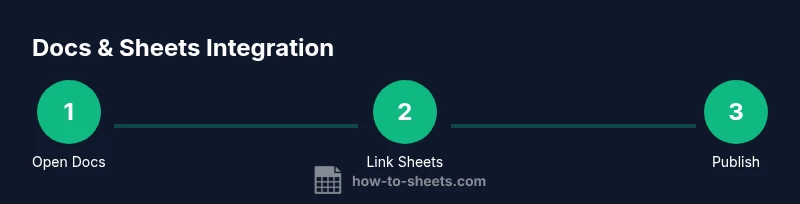
Open and prepare your Docs document
Open Google Docs and create a new document or select an existing one to use as your written narrative. Name the document clearly and set up a consistent header style to make navigation easy for readers. This step lays the foundation for integrating data from Sheets later.
Tip: Use a single, descriptive document title and a simple header hierarchy (Heading 1, Heading 2) for easy later linking. - 2
Create or select a Sheets data source
Open Google Sheets and create a new spreadsheet or choose an existing one that contains the data you want to reference in Docs. Use named ranges for key datasets to simplify linking and refreshing content later.
Tip: Name important ranges (e.g., sales_Q1, headcount) so you can reference them without guessing ranges. - 3
Embed a chart or data table in Docs
In Docs, go to Insert > Chart > From Sheets to embed a live chart or table sourced from your Sheets data. Choose the exact chart or range you want to display, then insert. The embedded item will link back to Sheets and can update when data changes.
Tip: Opt for charts over raw tables when you want visual impact and quick insight for readers. - 4
Link data and ensure live updates
If you add charts from Sheets, they can be set to update automatically. Use the refresh option in Docs to pull the latest data from Sheets, so readers always see current information.
Tip: Check the update status before presenting to ensure your figures reflect the latest data. - 5
Share and collaborate across Docs and Sheets
Use Share settings to grant appropriate access to teammates. Real-time collaboration allows multiple people to edit the Doc and the underlying Sheet simultaneously, with changes syncing live.
Tip: Assign Editor rights when team members need to modify both documents and data sources. - 6
Export, publish, or circulate results
When your document is ready, export as PDF or Word, or publish the Doc to the web for wider distribution. You can also preserve the live link to Sheets for ongoing data refreshes.
Tip: Choose the distribution method that matches your audience’s needs (internal vs external, live vs static data).
FAQ
Can I embed a spreadsheet into a Google Docs document?
Yes. You can embed a live chart from Sheets or insert a Link to Sheets to display a table. Use Insert > Chart > From Sheets for charts and the data will stay connected to Sheets.
Yes. You can embed live charts or linked data from Sheets into Docs.
Will embedded charts update automatically when the source data changes?
Charts linked from Sheets can refresh automatically when opened in Docs or when you manually refresh the chart. This keeps presentations accurate.
Yes, you can automatically refresh or manually refresh embedded charts.
Can multiple people edit Docs and Sheets at the same time?
Yes. Google Docs and Sheets support real-time collaboration, with changes appearing within seconds for all editors.
Yes, you and teammates can edit together in real time.
Are there security concerns when sharing links?
Share settings control who can view or edit. Avoid making documents publicly accessible; use specific people or groups instead.
Be careful with access controls to protect sensitive data.
What about offline access?
Both Docs and Sheets support offline work. Enable offline mode in Drive settings to continue editing without internet access.
Yes, you can work offline after enabling the feature.
Can I export Docs and Sheets to other formats?
Yes. Docs and Sheets support exporting to PDF, Microsoft Word, CSV, and other common formats.
You can export to PDF, Word, CSV, and more.
Watch Video
The Essentials
- Link Docs and Sheets for live data and narrative