How to Import XML to Google Sheets: A Practical Guide
A practical, step-by-step guide to import XML to Google Sheets using IMPORTXML and Google Apps Script, including troubleshooting, automation, and templates for reliable data integration.


Import XML to Google Sheets using two reliable approaches: IMPORTXML for public XML feeds and Google Apps Script for private XML or custom parsing. This guide covers setup, XPath basics, common pitfalls, and how to automate updates. You’ll learn no-code and code-based methods, plus templates you can adapt to real-world data flows.
Why import XML to Google Sheets matters
XML remains a staple data interchange format across many industries, from publishing to e-commerce feeds and scientific datasets. Importing XML to Google Sheets empowers teams to convert raw XML into structured worksheets for analysis, reporting, and collaboration. With the right approach, you can refresh data automatically, join XML data with other sources, and create dashboards without leaving Sheets. According to How To Sheets, practical XML-to-Sheets workflows reduce manual copy-paste and errors and enable faster decision-making. The How To Sheets team found that students, professionals, and small businesses rely on a lightweight, repeatable XML-to-Sheets process to keep data synchronized across systems. This guide covers both no-code and code-based methods to meet a variety of needs, from public XML feeds to private XML repositories, while emphasizing reliability and security.
XML basics you need to know
XML structures organize data as nested elements and attributes. Understanding tags, attributes, namespaces, and hierarchy helps you craft precise XPath queries. In Google Sheets, IMPORTXML accepts a URL and an XPath expression to pull the matching data. If you’re using Apps Script, you gain more control over parsing and can handle complex XML structures with XmlService. A solid grasp of element names, parent-child relationships, and text content will pay off when you map data to your sheet. Always test XPath expressions incrementally against a sample XML file to avoid surprises in production.
Quick method: IMPORTXML for public XML feeds
IMPORTXML is a powerful no-code option for public XML feeds. The syntax is simple: =IMPORTXML("URL","XPath"). Replace URL with a public XML endpoint and XPath with the path to the data you want (for example, //record/title). This method works well for straightforward, flat XML structures and is ideal for dashboards and quick analyses. Be mindful of possible limitations: the feed must be publicly accessible, the data should be stable, and dynamic or authentication-protected feeds won’t import with IMPORTXML alone. If the feed changes shape, your formula may return errors or incomplete results.
Example workflow: Pulling data from a sample XML feed
Suppose you have an XML feed hosted at https://your-domain.com/data.xml with items under the path //record. You can pull titles and dates using:
=IMPORTXML("https://your-domain.com/data.xml","//record/title | //record/pubDate")
This expression demonstrates how to fetch multiple fields in a single formula. In real scenarios, you may need to adjust the XPath to match the actual XML schema, and consider using separate columns for distinct fields. If the feed requires authentication, or if the data is behind a login, youll need a script-based approach instead of IMPORTXML.
Handling namespaces, attributes, and nested elements
XML namespaces can complicate XPath queries. IMPORTXML has limited native support for namespaces, so you may need to strip namespaces or reference elements using local-name() predicates in your XPath. For more complex structures, such as nested elements or attributes, Apps Script offers robust XmlService parsing. In Apps Script, you can navigate through elements with getChild(), getAttributes(), and getText(), then flatten the results into a 2D array suitable for setValues on a sheet. Practically, plan your data model first: decide which fields you want in columns and how to handle missing values gracefully.
Alternative method: Google Apps Script to parse XML
When IMPORTXML isn’t enough, Apps Script provides a flexible, programmable path. A typical workflow is to fetch the XML with UrlFetchApp, parse it with XmlService, extract the data you need, and write it to a sheet with setValues. The example below demonstrates a minimal pattern you can adapt to your XML schema:
function importXMLFromUrl(url) {
  var xml = UrlFetchApp.fetch(url).getContentText();
  var doc = XmlService.parse(xml);
  var root = doc.getRootElement();
  var items = root.getChildren("item");
  var data = [];
  for (var i = 0; i < items.length; i++) {
    var it = items[i];
    var title = it.getChildText("title");
    var date = it.getChildText("pubDate");
    data.push([title, date]);
  }
  var sheet = SpreadsheetApp.getActiveSpreadsheet().getSheetByName("ImportedXML") || SpreadsheetApp.getActiveSpreadsheet().insertSheet("ImportedXML");
  sheet.clear();
  if (data.length > 0) {
    sheet.getRange(1, 1, data.length, data[0].length).setValues(data);
  }
}
This approach handles namespaces, attributes, and nested elements more gracefully than IMPORTXML and supports private feeds with authentication control.
Automating periodic imports with triggers
Automation is key to keeping data fresh. In Apps Script, you can create time-driven triggers that run your XML import function at regular intervals (e.g., hourly or daily). This eliminates manual refreshes and helps teams maintain up-to-date dashboards. When you set a trigger, consider the data volume and quota limits to avoid hitting execution time constraints. Start with a modest schedule and monitor runtime logs and errors to fine-tune performance.
Data quality and error handling
XML imports can fail for several reasons: invalid XPath, unreachable URLs, or changes in the XML schema. Validate both the source URL and XPath on a sample XML before deploying. Implement error handling in Apps Script to catch exceptions, log meaningful messages, and optionally fall back to the last good data snapshot. For IMPORTXML, keep separate test sheets to verify that each XPath returns the expected number of rows and columns before using it in production.
Security, privacy, and quotas
Avoid embedding credentials directly in your formulas or scripts. Use Apps Script Properties or Google Cloud Secret Manager for sensitive information, and restrict access to the data by setting sheet permissions. Both IMPORTXML and Apps Script are subject to Google’s quotas; large XML files or frequent fetches may require batching results, streaming partial data, or splitting tasks across multiple sheets. Plan data refreshes to align with user needs and system limits.
Ready-to-use templates and patterns
Templates accelerate XML import workflows. Patterns you can adapt include: 1) Public RSS/Atom feeds mapped to a two-column layout (title, date), 2) Product feeds with price, availability, and description, and 3) Weather or sensor feeds with timestamped measurements. When adapting templates, document the source URL, XPath expressions, and any data transformations you perform. Keeping templates centralized in a shared sheet or a Git repo helps maintain consistency across projects.
Getting started: plan and next steps
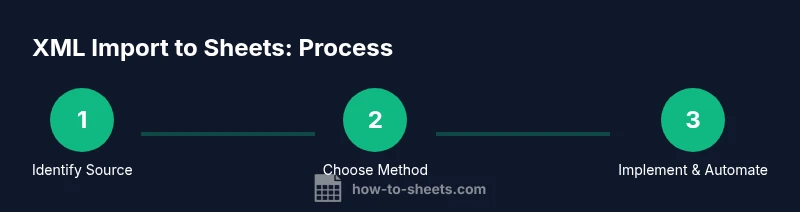
Begin by identifying your XML source, determining whether it’s publicly accessible, and mapping the data you want in Sheets. Start with a simple IMPORTXML formula for a quick win, then expand to Apps Script for private feeds or complex schemas. Consider automation via triggers once you have a reliable import path. By following this plan, you’ll convert XML feeds into actionable Sheets data and unlock faster, more reliable workflows. The How To Sheets team recommends starting with a small, well-scoped project to build confidence and iterate toward a robust, automated solution.
Tools & Materials
- Google Sheets account(Any standard account; ensure you have edit access to the target sheet.)
- XML data source URL(Public URL or credentials provided; test accessibility in a browser first.)
- XPath expression(Identify the exact nodes you want to pull (e.g., //record/title).)
- Google Apps Script editor(Accessed via Extensions > Apps Script in Sheets.)
- Optional: XML file (local) and Google Drive integration(If you host the XML on Drive or convert it to a Google Drive URL; requires script to fetch.)
- Internet connection(Stable connection for fetching data.)
Steps
Estimated time: Total time: 45-90 minutes
- 1
Prepare your data source and destination
Identify the XML source URL and the Google Sheet where data will live. Decide which worksheet will store the imported data to avoid clutter. This setup makes validation and refreshing straightforward.
Tip: Tip: Create a dedicated 'ImportedXML' sheet to keep the workflow clean. - 2
Open the target Google Sheet and start Apps Script
Open Extensions > Apps Script and create a new project. This is where you’ll implement either IMPORTXML-based steps or a custom XML parser. Initial setup should be quick if you use a simple public XML feed.
Tip: Tip: Name your function something memorable like importXMLFromUrl to keep maintenance easy. - 3
Write a simple IMPORTXML formula for public feeds
In a test cell, enter a formula like =IMPORTXML("https://your-domain.com/data.xml","//record/title"). Adjust the XPath to match the XML structure. Confirm the results populate as expected before proceeding.
Tip: Tip: Start with a small, flat XML structure to validate your XPath quickly. - 4
Switch to Apps Script for private XML
If the feed is private, switch to a script-based approach to fetch and parse XML. You’ll write a function that uses UrlFetchApp.fetch and XmlService to extract fields and write to the sheet.
Tip: Tip: Use a separate function to fetch and parse, then another to write to the sheet for clarity. - 5
Parse XML with XmlService and map to rows
Parse the XML into elements, extract values for your columns, and accumulate them in a 2D array. This array is ready for setValues on the target sheet.
Tip: Tip: Normalize missing data to empty strings to keep the sheet structure intact. - 6
Write data to the sheet
Write the parsed data to the sheet using setValues. Clear prior content if necessary, then place a header row to ensure context.
Tip: Tip: Prepend a header row with column names to make downstream analysis easier. - 7
Run and authorize the script
Initial runs require authorization. Review permissions carefully and grant access to the necessary services. This step is essential for security and proper operation.
Tip: Tip: Use a test sheet first to avoid accidentally overwriting production data. - 8
Set up a time-driven trigger for automation
Configure a trigger to run the import at a desired interval (hourly, daily). Triggers keep data fresh without manual intervention, but monitor quotas and performance.
Tip: Tip: Start with a modest schedule and adjust based on data volume and needs. - 9
Test with multiple XML samples
Test with varied XML structures to ensure robustness. Validate that all intended fields populate and that missing nodes do not break the import.
Tip: Tip: Log results to help identify inconsistent structures early. - 10
Implement error handling and logging
Add try-catch around fetch and parse steps, log meaningful messages, and consider a fallback strategy if the feed is unavailable.
Tip: Tip: Use Logger.log or Spreadsheet logs to capture failures for debugging.
FAQ
Can I import XML data directly into Google Sheets using IMPORTXML?
Yes, for public XML feeds at a simple URL. It’s ideal for straightforward data that can be mapped with a single XPath. If the feed requires authentication or has a complex structure, a script-based approach is more reliable.
Yes, you can use IMPORTXML for public XML feeds, but for private feeds or complex data you’ll want to use Apps Script.
What if the XML is behind a login?
IMPORTXML cannot handle HTTP authentication. Use Google Apps Script with UrlFetchApp to supply credentials or use a proxy/API layer that exposes a public endpoint. Always keep credentials secure.
If the XML feed requires login, IMPORTXML won’t work; use Apps Script with authenticated requests.
How do I handle namespaces and nested elements?
Namespaces can complicate XPath with IMPORTXML. Apps Script via XmlService offers more control for namespaces and nested structures, letting you navigate elements and attributes explicitly.
Namespaces can be tricky; you’ll need to manage them in Apps Script with XmlService.
Can XML imports be scheduled automatically?
Yes. Time-driven triggers in Apps Script can refresh data at set intervals, but you should balance frequency with quotas and data size.
You can automate imports with triggers to keep data fresh.
What are common errors to watch for?
Invalid XPath, unreachable URLs, or timeouts from large XML files are common. Use testing, logging, and incremental builds to identify issues.
Common errors include invalid XPath and timeouts; test incrementally.
Do I need to code to import XML into Sheets?
Not always. If your XML is simple and publicly accessible, IMPORTXML suffices. For private feeds or complex schemas, Apps Script provides a robust alternative.
You can start with no code using IMPORTXML, or code with Apps Script for more control.
Watch Video
The Essentials
- Choose IMPORTXML for quick wins with public XML feeds.
- Use Apps Script for private, authenticated XML and complex structures.
- Plan data mapping first; map XML elements to sheet columns.
- Automate refreshes with triggers, but monitor quotas.
- Prioritize error handling and logging for reliability.