XML to Google Sheets: Import, Parse, and Automate
Learn how to move XML data into Google Sheets using IMPORTXML, Apps Script, or APIs. Step-by-step guidance, examples, and best practices for reliable xml to google sheets workflows that stay refreshed and accurate.


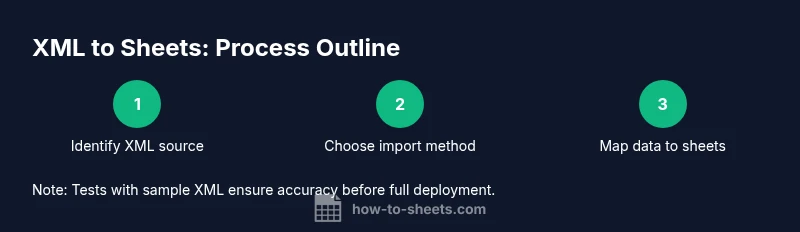
By the end of this guide you will know how to bring XML data into Google Sheets and keep it refreshed automatically. You’ll choose between IMPORTXML for simple fetches, Google Apps Script for custom parsing, or the Sheets API for complex pipelines. You’ll verify XML structure, write XPath expressions, and map results to your sheet, with practical examples and safety tips.
Understanding XML landscape and why it matters for spreadsheets
XML is a flexible, human-readable markup language that encodes data in a hierarchical structure using tags and attributes. Each element nests child elements to form a tree, which makes XML ideal for exchanging structured information between systems. In practice, XML feeds power e-commerce catalogs, financial feeds, and API responses. Google Sheets can consume XML data, but you must shape the data into a tabular form that Sheets can display. For many teams, the core task is enabling an xml to google sheets workflow that updates a sheet with fresh data whenever the XML source changes. The key is to decide how tightly you want the data to stay in sync with the source and how complex the parsing needs to be. Later sections will show practical paths to achieve this reliably.
When you start, ask these questions: Is the XML data public and simple enough for IMPORTXML, or does it require custom parsing? Do you need near real-time updates or periodic refreshes? How large is the XML payload, and will it fit within Google Sheets’ performance envelope? Answering these questions early keeps your xml to google sheets integration manageable and scalable.
According to How To Sheets, framing the problem as a data extraction and mapping task helps you choose the right tool for the job and avoid over-engineering the solution.
noteFlag":false},
Tools & Materials
- Google account with access to Google Sheets(Needed to create sheets, scripts, and triggers.)
- XML data source URL or file(Public URL or local XML stored in Google Drive with proper sharing.)
- New or existing Google Sheet(A dedicated sheet helps keep imports organized.)
- XPath tester or browser console(Helpful for validating XPath expressions before importing.)
- Google Apps Script editor(Accessible via Extensions > Apps Script in Sheets.)
Steps
Estimated time: 20-40 minutes
- 1
Identify the XML source
Locate the XML feed URL or file you will import. Confirm that you have permission to access the data and note the data structure (which elements you need in Sheets). If the XML requires authentication, decide how you will handle credentials securely. Step 1 sets the foundation for a reliable import.
Tip: Test the XML in a browser to understand its structure before wiring it into Sheets. - 2
Create a clean Google Sheet for import
Open a new Google Sheet and create a dedicated tab for XML data. Label columns to reflect the elements you plan to pull (e.g., Title, Price, Date). This avoids overwriting existing data and makes debugging easier. If you already have a dataset, consider a separate sheet tab for XML imports.
Tip: Keep the sheet structure simple and predictable to reduce XPath complexity. - 3
Test a basic IMPORTXML formula
In a cell, insert a basic formula such as =IMPORTXML("https://www.w3schools.com/xml/simple.xml","//food/name"). Confirm that the results populate as expected. This validates both the URL and the XPath expression before scaling up.
Tip: Start with a narrow XPath to isolate a single value before broadening. - 4
Refine XPath expressions for multiple fields
Expand the XPath to pull multiple fields, for example, //food/name to extract names and //food/price to extract prices. Place each field in its own column and ensure the data aligns row by row. If a field returns multiple nodes, use an index or more precise path.
Tip: Use relative paths to map data consistently across all rows. - 5
Validate results against the source
Cross-check a sample of rows with the XML source to ensure mappings are correct. Look for missing values, unexpected nulls, or misordered data. This step helps prevent downstream data quality issues when dashboards rely on the sheet.
Tip: Create a small verification checklist for each column. - 6
Plan for updates and refresh
Decide how often the XML data should refresh in Sheets. If changes are sporadic, a manual refresh may suffice; for ongoing feeds, consider automation with Apps Script. This step is crucial for maintaining data accuracy over time.
Tip: Note the browser/cache behavior and ensure you trigger the right update mechanism. - 7
Optionally use Apps Script for advanced parsing
If IMPORTXML is insufficient (namespaces, conditionals, or complex structures), write a short Apps Script to fetch the XML, parse it with XmlService, and write values to your sheet. This approach enables robust logic and error handling.
Tip: Keep scripts modular (separate fetch, parse, and write functions) for easier maintenance. - 8
Set up a timed refresh (optional)
Create a time-driven trigger in Apps Script to refresh data at your chosen cadence (hourly, daily). This ensures data stays current without manual clicks. Monitor quota usage to avoid hitting Google Apps Script limits.
Tip: Test triggers in a safe sandbox to prevent unintended data loss. - 9
Document the workflow
Create a brief doc describing the data source, XPath expressions, and refresh schedule. Include fallback steps if the XML source becomes unavailable. Clear documentation helps teammates reproduce or modify the setup later.
Tip: Version-control changes to XPath expressions and scripts.
FAQ
What is IMPORTXML and when should I use it?
IMPORTXML fetches data from an XML feed or file by applying an XPath query. Use it for straightforward, well-structured XML where you don’t need additional processing.
IMPORTXML fetches data from an XML source using XPath; use it for simple imports.
Can I refresh XML data automatically in Sheets?
Yes. You can set up a time-driven Apps Script trigger to refresh data at a chosen interval, or implement a manual refresh workflow.
Yes—set up a scheduled Apps Script trigger to refresh data.
What if the XML uses namespaces?
Namespaces complicate XPath. You may need to use local-name() in XPath or preprocess the XML to remove namespaces before importing.
Namespaces complicate XPath; consider local-name() or preprocessing.
What are common pitfalls with xml to google sheets?
Large XML payloads can slow performance; authentication or cross-origin issues may block access; handling missing nodes requires robust error checking.
Be mindful of payload size and access restrictions.
Is it safe to expose XML data publicly in Sheets?
Avoid exposing sensitive XML data publicly. Use private endpoints or restricted sharing settings, and consider agent-based copies or API proxies for security.
Be careful with sensitive data; restrict access.
Watch Video
The Essentials
- Choose the right tool early (IMPORTXML for simple XML, Apps Script for complex parsing).
- Validate XPath expressions with a test XML source before expanding columns.
- Plan refresh cadence to balance timeliness and Google quota limits.
- Document the workflow for maintenance and handoffs.
- Protect sensitive data by restricting sharing and securing endpoints.