How to insert a calendar in Google Sheets
Learn how to insert a calendar in Google Sheets using date pickers, dynamic calendars, and Apps Script with practical steps and tips for quick setup.


Goal: Learn how to insert calendar in google sheets. You’ll first enable a date picker in cells, then build a dynamic calendar with formulas, and finally automate with Apps Script. This quick answer introduces the main options and sets you up for deeper steps in the full guide. Each option includes practical tips and common pitfalls. You’ll learn when to use date pickers versus formulas.
What it means to insert a calendar in Google Sheets
In Google Sheets, you can attach calendar functionality to track dates, deadlines, and events within a familiar spreadsheet layout. The goal is to give users three practical pathways: a quick date picker in cells for fast data entry, a visible dynamic calendar grid built with formulas for planning at a glance, and a script-driven workflow that can push or pull events to Google Calendar. By understanding these options, you can choose the simplest method first and scale up as needs grow. This approach also supports teams across education, operations, and freelancing who need consistent date handling in Sheets. According to How To Sheets, starting with a low-friction method helps everyone stay aligned and reduces rework when the calendar needs evolve.
Method options at a glance
There are three common paths to insert calendar functionality into Google Sheets:
- Date picker in cells (fast and non-disruptive)
- Dynamic calendar grid (visible and interactive)
- Apps Script automation (powerful and extensible) Each method serves a different use case, from quick data entry to calendar-driven automation. The following sections dive into when to use each method and how to implement them with minimal friction. The goal is a reliable, reusable calendar workflow that fits your workflow.
Planning before you build
Before you start, map out what you want the calendar to do: will users just enter dates, or should the sheet generate a monthly calendar grid, or sync events to Google Calendar? Decide where the calendar lives (which sheet and cell ranges), what data it will store (dates, notes, reminders), and who can edit it. Skipping this planning step often leads to frequent rework. Organize your data model first: a date column for inputs, a display area for the calendar, and optional event notes attached to each date. As you plan, keep accessibility and locale in mind to avoid confusion when teammates view the sheet.
Creating a simple date picker (fastest path)
The simplest way to enable a calendar-like input is to format a column as date so the built-in date picker appears when you click a cell. Select the target range, go to Format > Number > Date, and choose a display format that matches your locale. This method does not create a full calendar grid, but it gives a reliable, uniform way to capture dates. Pro tip: ensure the date format aligns with your team's common convention to prevent misinterpretation across devices and locales. According to How To Sheets, standardized date formats reduce errors and help data stay clean.
Building a dynamic calendar grid with formulas
For a visible calendar, build a 7-column by 5-6-row grid with headers for the days of the week. Use formulas to populate day numbers based on the selected month and year (often stored in separate cells). Common approaches rely on DATE, EOMONTH, and IF/ARRAYFORMULA to auto-fill days. This method is ideal for dashboards, project planning, and milestone tracking. It does require careful handling of month navigation and leap years, but once set up, you can copy or reuse templates with little modification. Keep navigation controls near the grid to switch months easily.
Automating with Apps Script (optional but powerful)
Apps Script can push sheet dates into Google Calendar, create events from rows, or show a pop-up calendar for data entry. Start by opening Extensions > Apps Script, write a function to read dates from your sheet, then call CalendarApp services to create events or reminders. This approach is best when you need cross-calendar synchronization or automated reminders for deadlines. If you’re new to scripting, begin with a simple event-creation script and gradually add features like attendees or reminders. How To Sheets recommends starting small and validating each step before expanding.
Real-world scenarios and templates
Think through practical use cases: a classroom assignment calendar, a team milestone tracker, or a personal project schedule. Templates can save time: a monthly calendar grid alongside a separate input area for event notes or reminders. You can tailor templates to your field by adding conditional formatting (weekends in a soft color), data validation for dates, and a summary view that aggregates upcoming dates. The key is to keep the layout intuitive while preserving flexibility for future changes. As you build, test with real data and adjust formatting for readability.
Common pitfalls and troubleshooting
Date handling is prone to locale mismatches, format inconsistencies, and accidental edits to formulas. Ensure consistent date formats across teammates, use data validation to prevent invalid entries, and protect formula cells where needed. If you plan to sync with Google Calendar, review Apps Script permissions and test with a single event to avoid bulk unintended entries. When things go wrong, isolate the issue by temporarily removing scripts, rechecking date inputs, and verifying the range references used in your calendar formulas. How To Sheets’s analysis shows that incremental testing is the fastest path to a reliable calendar workflow.
Tools & Materials
- Google account(Active account with access to Google Sheets)
- Web browser(Chrome/Edge/Firefox; ensure JavaScript is enabled)
- Google Sheets file(An existing or new sheet to modify)
- Optional: Google Calendar access(Needed if you plan to sync events via Apps Script)
- Sample date data(Useful for testing the calendar workflow)
- Stable internet connection(Essential for live collaboration and Apps Script access)
- Apps Script editor access(Only needed for advanced automation)
Steps
Estimated time: 60-90 minutes
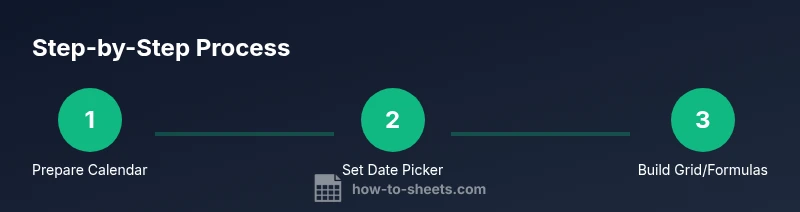
- 1
Prepare your sheet and plan the calendar layout
Open your Google Sheets file, decide which sheet and range will host the calendar, and sketch the layout (headers, date columns, and any event notes). This planning reduces rework later and helps you reuse the template. Reason: A clear layout minimizes changes across steps and speeds up testing.
Tip: Create a quick mock layout on paper or a separate tab before building in Sheets. - 2
Format date cells to enable the date picker
Select the target range, go to Format > Number > Date, and choose a locale-appropriate display format. This activates the built-in date picker when you click a cell and ensures consistent data entry.
Tip: Align the date format with your team’s locale to avoid misinterpretation. - 3
Create a dynamic monthly calendar grid with formulas
Set up a 7-column grid for weekdays and 5-6 rows for days. Use formulas like DATE(year, month, 1), EOMONTH, and IF/ARRAYFORMULA to populate days for the current month automatically. Include a month selector cell to drive the grid.
Tip: Use named ranges for year/month to simplify formula maintenance. - 4
Add navigation controls for month switching
Create inputs (like arrows or month/year fields) that update the month cell. Recalculate the grid by referencing the chosen month so users can move forward and back without editing formulas.
Tip: Named ranges make month navigation easier and less error-prone. - 5
Apply formatting and validation
Apply conditional formatting to highlight weekends and today. Add a data-validation rule to restrict entries to valid dates within a chosen range. This keeps the calendar tidy and legible.
Tip: Color-code today and weekends to improve scanning speed. - 6
Optionally integrate with Google Calendar via Apps Script
If you need calendar syncing, write a simple Apps Script to read dates from the sheet and create events in Google Calendar. Start with one test event, then expand to multiple events, attendees, and reminders.
Tip: Test with a single event first to avoid accidental mass entries. - 7
Test, save, and share
Enter sample dates, verify navigation and formatting, and confirm that others can view or edit as intended. Save versions and apply sheet protections where needed to prevent accidental edits to formulas.
Tip: Share settings should reflect intended collaboration: view-only for stakeholders or edit access for team members. - 8
Publish or reuse the template
Turn the completed sheet into a reusable calendar template. Duplicate the base sheet for new months or teams, and update documentation so others can adopt the workflow quickly.
Tip: Give the template a clear name and add a short instruction note inside the sheet.
FAQ
What is the easiest way to insert a calendar in Google Sheets?
The quickest start is to format a column as date to enable the built-in date picker. For a visible calendar, use a formula-driven grid. Apps Script adds automation if you need calendar syncing.
The easiest way starts with date formatting for a quick picker, then you can add a visible calendar with formulas or automate it with Apps Script.
Can I automate calendar events to Google Calendar from Sheets?
Yes. Apps Script can read dates from Sheets and create events in Google Calendar. Start with a single-event example and expand to multiple events and reminders as needed.
Yes. You can automate events from Sheets to Google Calendar using Apps Script, starting with one test event.
Do I need to know how to code to create a calendar in Sheets?
No. You can achieve a date picker or a basic calendar with built-in features, and only use Apps Script if you want automation or calendar syncing.
Coding isn’t required for date pickers or a simple calendar; Apps Script is optional for automation.
How do I protect calendar data in shared sheets?
Use protected ranges to lock formulas and critical cells, and clearly define edit rights in your share settings to prevent unintended changes.
Protect your formulas and set clear edit rights in the sheet’s sharing settings.
Can I reuse a calendar template for other teams or months?
Yes. Turn the calendar into a template tab, duplicate it for new teams or months, and update any template notes to guide new users.
Absolutely—turn it into a reusable template and duplicate it for new teams or months.
Watch Video
The Essentials
- Choose the simplest method first to reduce friction.
- A visible calendar grid improves planning at a glance.
- Consistent date formats minimize errors in shared sheets.
- Apps Script enables calendar syncing and automation.
- Test thoroughly and protect important cells.