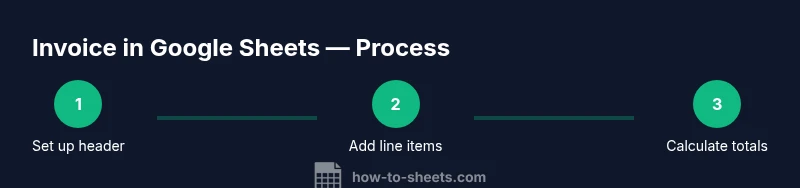
Invoice in Google Sheets: Step-by-Step Guide
Learn to build a reusable invoice template in Google Sheets with automatic line-item totals, taxes, discounts, and PDF export. Ideal for students, freelancers, and small businesses seeking a practical, no-cost invoicing solution.


Goal: create a professional invoice in Google Sheets you can reuse for every client. You’ll set up a clean header, a dynamic line-item grid with quantities and rates, automatic subtotals, tax and discount calculations, and a final total. The template will be ready to export as PDF or email directly from Google Sheets. No paid add-ons required; all steps use built-in features.
Why invoice in Google Sheets?
Using Google Sheets to generate invoices offers a cost-effective, flexible, and universally accessible solution. For students, freelancers, and small business owners, a Sheets-based invoicing workflow eliminates monthly software fees while enabling full customization. With a single template, you can customize client data, currency formats, taxes, and discounts. The result is a professional, scalable process that works online or offline through cached sheets. According to How To Sheets, this approach reduces friction by keeping everything in a familiar, shareable environment while preserving control over layout and calculations. When you need to send an invoice, you can export to PDF or email straight from the sheet, and you can clone the template for new clients without starting from scratch.
Key benefits include: low cost, immediate accessibility, consistent formatting, and easy collaboration with teammates who may review or approve invoices.
Designing a reusable invoice template
A strong invoice template starts with a simple, tidy layout that separates company data, client information, line items, and totals. Create a header section for your business name, address, and contact details. Add a client block with fields for client name, address, and invoice date. Include an obvious Invoice Number field and a Due Date field. For the line items, reserve a grid with columns for Item Description, Quantity, Unit Price, and Line Total. Keep the final Total block visually distinct using borders or shading. To ensure consistency, freeze the header row and use named ranges or defined names for key cells. The How To Sheets team notes that a clean, consistent layout saves time when you clone the template for future clients.
Core calculations with built-in formulas
Leverage Google Sheets formulas to keep totals dynamic. A typical setup might use:
- Line Total per item: =Quantity*Unit_Price
- Subtotal: =SUM(LineTotalRange)
- Tax: =Subtotal*TaxRate
- Discount: =Subtotal*DiscountRate (if applicable)
- Grand Total: =Subtotal + Tax - Discount
Use absolute references for tax and discount cells if you plan to copy the template across multiple invoices. This ensures your tax rate and discount stay constant while line totals update automatically when quantities or prices change. When needed, wrap taxes or currency formatting in a custom number format for clarity. How To Sheets emphasizes testing with a few sample entries to verify accuracy before sending to clients.
Handling line items and templates for multiple clients
To keep the template scalable:
- Reserve a fixed number of line-item rows (e.g., 10 or 20) and hide unused rows for a clean invoice.
- Use data validation to constrain the Item Description to a predefined list, enabling consistent item descriptions.
- Create a separate data table for client details (name, address, contact) and pull into the invoice with VLOOKUP or INDEX/MATCH.
- Include currency-aware formatting and a per-client currency field that drives the Unit Price and Line Total formatting. This modular approach supports multiple clients without editing the core formulas.
As you scale, you can duplicate the sheet for new clients or create a standalone template that pulls client data from a central sheet.
Automations: numbering, currency, expiration, and PDF export
Automate repetitive tasks to save time and reduce errors. Suggested automations:
- Auto-increment Invoice Number using a simple formula or Apps Script trigger when a new row is added.
- Detect currency per client and format Amount fields accordingly using conditional formatting and custom number formats.
- Generate a due date as a fixed number of days after the invoice date.
- Export or email the invoice as PDF via File > Download > PDF or by using a lightweight Apps Script to email the PDF to the client.
How To Sheets recommends starting with a small set of automation rules and expanding as you confirm formatting and delivery requirements.
Data validation, currency, taxes, and discounts
Data validation helps prevent common mistakes:
- Validate Quantity as a positive integer.
- Validate Unit Price as a positive number with two decimals.
- Validate Tax Rate and Discount Rate as percentage values with a sensible range (e.g., 0-100%).
- Ensure the currency format matches the client’s locale by using the Number Format options.
Taxes and discounts should be clearly labeled and applied to the Subtotal. If you operate in multiple jurisdictions, consider multiplying the per-invoice tax by the applicable rate at the time of invoicing. Keeping these controls tight prevents miscalculations and disputes.
Export options and sharing securely
Delivering invoices securely is as important as the calculation itself. Best practices include:
- Export to PDF to preserve layout and prevent edits.
- Share the invoice via a restricted link or email it directly from Google Sheets via a script.
- Use version control by keeping a single source of truth and duplicate copies only for finalized invoices.
- Consider watermarking or adding a PDF property for audit trails.
With these options, you can guarantee a professional, tamper-resistant invoice delivery that aligns with client expectations and your business processes.
Real-world example: sample invoice template structure
Here is a concise blueprint you can adapt:
- Header: Company Name, Address, Phone, Email, Website
- Client block: Client Name, Client Address, Client Email, Invoice Date, Due Date, Invoice Number
- Line items: Item Description | Quantity | Unit Price | Line Total
- Totals: Subtotal, Tax Rate, Tax Amount, Discount, Grand Total
- Footer: Payment Terms, Notes, and Contact Details
This structure keeps the invoice organized and easy to review. When you copy the template for a new client, simply replace the header and client sections while preserving the core calculation blocks. This approach reduces errors and speeds up your billing cycle.
Tools & Materials
- Computer or tablet with internet access(Used to access Google Sheets and the invoice template.)
- Google account(Needed to access Google Sheets and saved templates.)
- Google Sheets(For building, calculating, and exporting invoices.)
- Printer or PDF viewer(Optional if you need a hard copy or offline access.)
- Sample client data(Useful for testing the template (name, address, currency).)
Steps
Estimated time: 60-90 minutes
- 1
Create a new Google Sheet and name the file
Open Google Sheets and create a new blank spreadsheet. Name it something descriptive like 'Invoice Template'. Freeze the top row to keep headers visible as you fill data, and set up a simple header area for your company details.
Tip: Use a dedicated folder for templates to keep everything organized. - 2
Design the header and client sections
Create sections for your company data and client data. Include fields such as Invoice Number, Invoice Date, Due Date, and Client Name. Keep fonts consistent and use borders to separate sections for clarity.
Tip: Label each field clearly and use named ranges for critical cells like TaxRate and Currency. - 3
Add the line-item grid
Set up a table with columns for Description, Quantity, Unit Price, and Line Total. Use a simple line total formula like =QuantityCell*UnitPriceCell. Copy the formula down for each line item row you plan to use.
Tip: Hide unused lines or set up a dynamic range that expands as you add items. - 4
Implement calculations for totals
Create Subtotal as the sum of all line totals, then apply Tax and Discount to calculate the Grand Total. Use absolute references for tax and discount cells so formulas remain stable when copying the sheet.
Tip: Label each total clearly and format currency to improve readability. - 5
Add data validation and client data integration
Apply data validation for numbers and currency formats. Create a client data table and pull client details into the invoice using VLOOKUP or INDEX/MATCH. This reduces manual entry errors and ensures consistency.
Tip: Lock cells with formulas to prevent accidental edits. - 6
Automate numbering and export
Add a simple automation to generate or increment the Invoice Number. Set up a PDF export option via File > Download > PDF, or use a small Apps Script to email invoices directly to clients.
Tip: Test the export with a sample invoice to ensure the layout remains consistent.
FAQ
Can I automatically generate invoice numbers in Google Sheets?
Yes. Use a simple incremental formula or an Apps Script trigger to create a new number when you add an invoice. Start with a prefix like INV- and append the date or a running sequence.
Yes, you can automatically generate invoice numbers with a simple formula or a small script to ensure each invoice has a unique ID.
How do I export invoices as PDF from Google Sheets?
Use File > Download > PDF. Adjust layout options to fit your template, then save and share the PDF with your client. You can also automate this with Apps Script.
Export the invoice as a PDF from the File menu; you can automate this with a script if you send invoices frequently.
Can I customize currency per client?
Yes. Store the currency in a client data table and drive the formatting with a custom number format or conditional formatting. This keeps amounts in the client’s preferred currency.
Yes, you can customize currency per client by linking the currency to a client data field and formatting accordingly.
Is data in Google Sheets secure for invoices?
Google Sheets offers standard security controls, including restricted sharing and permissions. Be mindful of who can edit the template and consider protecting cells with formulas.
Sheet data is secure when you limit access and protect critical cells, but always review sharing settings before sending invoices.
Should I use Apps Script or add-ons for automation?
Apps Script provides deep customization and automation tailored to your workflow, while add-ons can simplify common tasks. Start with Apps Script for a lightweight, scalable solution.
Apps Script gives you flexible automation; add-ons are easier but less customizable.
Watch Video
The Essentials
- Start with a clean, consistent invoice template.
- Use built-in formulas for line totals, subtotals, taxes, and totals.
- Leverage data validation and a client data table for accuracy.
- Automate numbers and export to PDFs for professional delivery.