Google Sheets Quote Template: A Step-by-Step Guide
Learn to create a reusable Google Sheets quote template with an itemized line-item table, metadata, and built-in formulas for totals, tax, discounts, and terms. This step-by-step guide includes data validation, printing tips, and sharing options for freelancers, students, and small businesses.


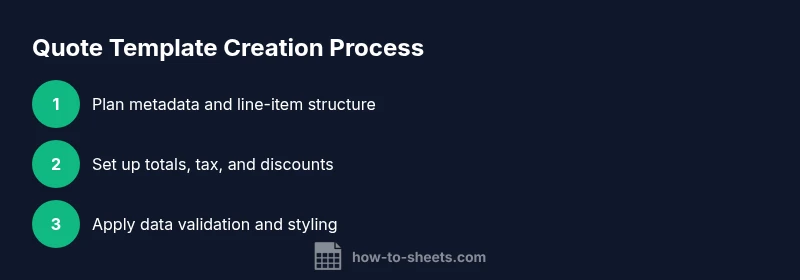
You will build a reusable Google Sheets quote template that combines client metadata, an itemized line-item table, and automatic totals. It covers header fields, a robust line-item grid, currency formatting, and formulas for Subtotal, Tax, Discounts, and Grand Total. Data validation and protected ranges keep the template consistent, printable, and easy to share. This guide walks you through setup, formulas, and styling for a professional result.
Why a Quote Template in Google Sheets Saves Time and Aligns Expectations
A well-designed Google Sheets quote template reduces back-and-forth, standardizes pricing, and helps you present professional quotes to clients. It captures essential metadata (client name, quote number, date, terms) and pairs it with a clear line-item table. By keeping item descriptions separate from prices, you gain flexibility to reuse the same structure for different projects. According to How To Sheets, a well-constructed template is more than a look; it’s a repeatable workflow that scales with your business. For students, freelancers, and small teams, a single template can serve every client with minor updates. This article guides you through building a practical google sheets quote template that you can copy, adapt, and share in minutes. You’ll learn how to configure header metadata, set up a robust line-item section, implement totals and taxes with simple formulas, and format the sheet for printing and emailing quotes.
Core Elements of a Professional Quote
A professional quote template should contain three layers: client details and metadata at the top, a line-item section with item descriptions and pricing, and summary fields with totals, tax, discounts, and terms. In addition, add a field for quote validity and payment terms, such as "Net 30" or "Upon Delivery." Ensure you include your business name or logo in the header for branding. The template should be human-friendly and machine-readable, so named ranges and consistent formatting help you reuse the document across clients without error. Having a defined structure reduces errors and speeds up client onboarding, especially for teams handling multiple projects.
For the How To Sheets audience—students, professionals, and small business owners—the template is a practical tool that scales. Use a single master file and create copies per client, updating only client-specific fields while preserving formulas and structure.
Designing the Template Layout in Google Sheets
Start with a clean sheet and a layout that clearly separates metadata from line-items. Reserve the top rows for client information: fields like Client Name, Company, Contact, Quote Number, Issue Date, and Valid Until. Freeze the header rows so the template remains readable when you scroll. Use a two-column approach: a metadata panel on the left and a line-item area on the right. Color-code headers for quick scanning, and set consistent column widths to keep the sheet printable as a PDF. Consider a dedicated area for Terms and Conditions and a place to note delivery timelines. By designing with printing in mind, you’ll avoid last-minute changes before sending quotes. This layout supports easy duplication, extension to multiple pages, and future automation without compromising readability.
Building the Line-Item Table and Pricing Logic
Create a table with columns for Item Code, Description, Quantity, Unit Price, Discount (%), and Line Total. Use a formula in Line Total to multiply Quantity by Unit Price, then apply the discount: =C2D2(1-E2). This keeps each line item accurate and makes it easy to adjust discounts globally. When you fill rows, the bottom row should automatically compute the Subtotal as the sum of Line Totals. Use named ranges for LineTotal to simplify totals elsewhere in the sheet. For performance and clarity, reserve a separate area for Item Description so long descriptions don’t shrink the main view. If you offer bundled items or services, consider a separate Row Group that you can expand or collapse in print.
Core Formulas for Totals, Taxes, and Discounts
Total line items: =SUM(LineTotal) where LineTotal is the named range for the line totals column. Tax amount: =Subtotal * TaxRate. Grand total: =Subtotal + TaxAmount - DiscountAmount. If you offer a fixed discount, place it in a Discount Total cell and reference it in Grand Total. Format currency using your locale to ensure consistency across quotes and receipts. Keep the tax rate in a single cell (e.g., TaxRate) so changing it updates totals automatically. Use IFERROR to handle empty rows gracefully, ensuring your totals remain accurate as you extend the quote.
This section ensures your quote math stays reliable as you iterate on quotes for different clients.
Data Validation and Drop-Downs to Ensure Consistency
Protect critical cells and add drop-downs for items, tax rates, and payment terms. Create a drop-down for Tax Rate with options like 0%, 5%, 8%, and 10%. Use data validation to prevent invalid entries in core fields. For line items, lock the Item Code field to a known list to prevent duplication and missing items. Consider a separate sheet for your item catalog and reference it with VLOOKUP or INDEX/MATCH to pull descriptions automatically when you enter an item code. This reduces manual typing and keeps descriptions uniform across quotes.
Styling for Print-Ready Quotes
Choose a clean font, 9–12pt, and crisp borders. Use bold headers and subtle shading to separate sections. Ensure currency formatting is applied to all price cells and that the totals area stands out with a larger font size. Set up a print area that includes both the header and a few line items, then test by exporting to PDF. Add a company logo image to the header to improve recognition and trust. Use conditional formatting to highlight overdue quotes or missing fields so your final document is always professional.
Reusing Templates Across Clients and Teams
To reuse, copy the master template and clear client-specific fields while keeping formulas intact. Use protected ranges for cells that hold critical formulas and data. Create a named range for the item catalog to simplify updating descriptions or prices. Save copies as templates in Google Drive or your project folder and share the template with teammates to standardize quotes across your organization. When you share, enable comment access for feedback but restrict editing to prevent accidental changes to formulas.
Authority Sources and Next Steps
This section refers to general best practices for spreadsheet templates and professional invoicing. For further reading on business quoting and payment terms, consult established resources. Here are some reputable sources you can explore to strengthen your understanding of invoicing, taxes, and client communications:
- https://www.sba.gov/ (Small Business Administration) – Practical guidance for small business processes and invoicing practices.
- https://www.hbr.org/ (Harvard Business Review) – Articles on professional communication and client proposals.
- https://mit.edu/ (Massachusetts Institute of Technology) – Educational resources on data management and financial workflows.
Tools & Materials
- Google account(Needed to access Google Sheets and save templates)
- Google Sheets(Ensure you’re using the latest features; accessible at sheets.google.com)
- Sample item library (CSV)(Optional for populating line items quickly)
- Currency formatting settings(Set your locale so currency symbols and decimals render correctly)
- Printer or PDF export(Useful for producing printable quotes)
- Named ranges and data validation setup(Optional but recommended for maintainability)
Steps
Estimated time: 30-45 minutes
- 1
Create a new Google Sheet
Open Google Sheets and create a new blank spreadsheet. Rename it to something descriptive like 'Quote Template - ClientName'. Create two tabs: 'Quote' and 'Item Catalog'.
Tip: Use Make a copy to reuse the master template for new clients. - 2
Set up header metadata
In the top region, enter Client Name, Company, Contact, Quote Number, Issue Date, and Valid Until. Freeze the header rows to keep metadata visible while scrolling.
Tip: Use date pickers for Issue Date and Valid Until to ensure valid dates. - 3
Build the line-item table
Create columns for Item Code, Description, Quantity, Unit Price, Discount (%), and Line Total. Leave a few empty rows to accommodate new items.
Tip: Link Description to the Item Catalog so updates auto-fill descriptions. - 4
Add pricing logic
Enter the formula for Line Total: =C2*D2*(1-E2). Extend to additional rows. Name the LineTotal column for easy summing.
Tip: Copy the formula down as you add rows; use ARRAYFORMULA to auto-fill if desired. - 5
Create totals and tax cells
Define Subtotal as =SUM(LineTotal). Add TaxRate and compute Taxes as Subtotal*TaxRate. Define GrandTotal as Subtotal + Taxes - any Discounts.
Tip: Place Subtotal, Tax, and Grand Total in clearly labeled cells for printing. - 6
Configure data validation
Set drop-downs for Tax Rate (0%, 5%, 8%, 10%), Payment Terms (Net 30, Net 15, Upon Delivery), and Item Code from the catalog.
Tip: Use a separate sheet for the item catalog and reference it with VLOOKUP. - 7
Style for readability
Apply bold headers, borders, and currency formatting. Freeze panes, and protect cells containing formulas.
Tip: Test print to verify margins and alignment before sending to a client. - 8
Test, copy, and share
Fill in sample data to verify all formulas. Save a master template and share with teammates with editing restricted on formulas.
Tip: Create a named range for the item catalog to simplify updates.
FAQ
What is a Google Sheets quote template?
A Google Sheets quote template is a pre-built spreadsheet that standardizes the sections of a client quote, including metadata, a line-item table, and automatic totals. It helps you produce consistent proposals quickly.
A quote template in Google Sheets standardizes client quotes with metadata, line items, and automated totals so you can issue quotes quickly.
Do I need scripts to automate a quote template?
Scripts are optional; many templates work well with built‑in formulas and named ranges. Apps Script can add features like automatic quote numbering or PDF export on a button click.
Scripts are optional. You can achieve most tasks with formulas, but scripts add extra automation if you need it.
How do I format currency across locales?
Set the locale in Sheet settings, then apply currency formatting to price cells. This ensures correct symbols, decimal places, and separators for your region.
Set your locale and apply currency formatting so prices show correctly for your region.
Can I reuse the template for many clients?
Yes. Create a master template and duplicate it for new clients. Update client fields while keeping formulas intact, to ensure consistency across quotes.
Yes—duplicate the master template for each client to keep consistency.
How do I export quotes as PDF?
Use File > Download > PDF Document (.pdf) and verify layout before sending. Printing a test page helps ensure margins and page breaks are correct.
Export to PDF via the menu and check layout with a test print first.
Watch Video
The Essentials
- Create a clear, reusable quote template in Sheets.
- Use named ranges and data validation to keep data clean.
- Automate totals with simple, robust formulas.
- Protect formulas and test print outputs before sharing.