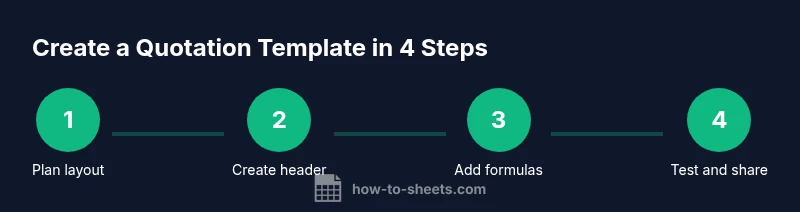
Quotation Template Google Sheets: Step-by-Step Guide
Learn to build a reusable quotation template in Google Sheets that auto-calculates totals, taxes, and discounts. Includes placeholders, data validation, currency formatting, and sharing steps for teams.


You can build a reusable quotation template in Google Sheets that auto-calculates subtotals, taxes, discounts, and final totals. This guide shows how to set up placeholders, apply data validation, format currencies, and use simple formulas so you can generate polished quotes in minutes. You'll learn where to store client data, how to customize line items, and how to save the sheet as a template to share with teammates.
Why a quotation template in Google Sheets matters
Quotes are often the first formal interaction with a potential client. A well-crafted quotation template in Google Sheets ensures consistency, professionalism, and speed. According to How To Sheets, centralized templates reduce back-and-forth and human error, enabling teams to produce polished quotes in minutes. The How To Sheets team found that when quotes follow a clear structure, sales cycles shorten and error rates drop. In 2026, cloud-based templates remain the fastest path to scalable quoting, because you can share one template with teammates and maintain a single source of truth. This section explains the core why behind templates: clarity, version control, and reusability. You’ll also see common pitfalls and how to avoid them by design.
Core layout: what goes into a quote
A quotation template should separate the business information, client details, line items, and terms for clarity. Start with a header that includes your company name, logo placeholder, quote number, date, and payment terms. Then add client fields: client name, address, contact person, and discount eligibility. The body contains the line items: description, quantity, unit price, and total per line. Finally, include summary fields like subtotal, tax, discount, shipping (if applicable), and grand total. Using a consistent layout helps you copy quotes for multiple clients without forgetting essential elements. This section outlines a recommended structure and explains how to adapt it to different industries while maintaining readability and a professional appearance.
Setting up the header with client and company data
Place the company header at the top, including business name, address, phone, email, and website. Reserve a separate block for client information: client name, client company, client address, contact email, and proposed validity period. Use merged cells sparingly to keep the sheet printable, but rely on separate cells for each field to enable data validation and scripting later. Make sure the quote date auto-fills and the quote number can increment automatically (see later steps). This header setup ensures you can reuse the template for dozens of clients without rewriting the layout.
Line items: item description, quantity, unit price, and totals
Create a clearly defined line-item table with columns for Description, Qty, Unit Price, and Line Total. Use a formula to compute Line Total as Qty times Unit Price. Include optional columns for item codes or SKU and a notes field if needed. Provide a minimum of five lines to accommodate small projects, but allow extra rows to be added with a simple shortcut. If you anticipate more items, consider a separate sheet for line items and a lookup to populate the main quote. Keeping line items clean prevents misreads and disputes later.
Calculations: subtotals, discounts, tax, and grand total
Subtotal is the sum of all line totals. If discounts apply, implement a discount field either as a percentage or a fixed amount and apply it to the subtotal. Tax calculation should use the applicable tax rate, which can be stored in a separate cell or sheet for easy updates. The grand total equals Subtotal minus Discount plus Tax. Consider adding shipping or handling fees as a separate line item to preserve clarity. Clear labeling helps clients understand each component of your quote.
Formatting and currency standards
Format currency consistently across all monetary fields and align numbers for readability. Use a thousand separator and two decimal places by default. Apply conditional formatting to highlight overdue quotes or changes in price. Ensure dates adopt a consistent format (YYYY-MM-DD) to reduce confusion across time zones. Consider a light, printer-friendly color scheme for physical copies, and keep bold headings for quick scanning. Consistency in formatting improves professional perception and reduces back-and-forth.
Data validation and template protection
Data validation ensures fields like currency, tax rate, and discount percentage accept only valid values. Use drop-down menus for terms, payment methods, and status (Draft/Sent/Accepted). Protect formulas and critical cells to prevent accidental edits; you can unlock input fields while keeping formulas locked. Create a separate data sheet for shared constants, then reference those values in your main quote. This approach reduces errors and makes the template more robust for colleagues.
Automating with templates: creating a reusable sheet
To make the template truly reusable, set up automatic numbering for quotes, and consider a simple script or built-in features to duplicate the template with pre-filled company data. Use Google Sheets’ built-in features like named ranges, data validation rules, and conditional formatting to minimize manual steps. Saving the file as a template in Google Drive allows anyone on your team to open and save a new quote, while preserving the original structure. If you need more automation, a light Apps Script can increment the quote number and timestamp the creation date.
Testing, exporting, and sharing quotes
Test the template with several scenarios: quotes with and without discounts, different tax rates, and varied line items. Export quotes as PDF for client emailing, or copy them into a standard email template. Share the template with teammates and set permissions to prevent unintended changes to formulas. Regularly review and update tax rates, company information, and terms to keep quotes accurate. A well-tested template reduces last-minute surprises and improves client trust.
Tools & Materials
- Computer or tablet with internet access(For accessing Google Sheets and saving templates)
- Google account(Needed to access Google Sheets and Google Drive)
- Sample data for testing(Optional but helpful to test formulas)
- Printer or PDF tool(For producing client-ready quotes)
Steps
Estimated time: 45-60 minutes
- 1
Define the template scope
Decide which data fields are required for every quote (customer, items, terms, and totals). Set rules for discount ranges and tax applicability to prevent scope creep.
Tip: Write a one-sentence goal for the template before you begin. - 2
Create header and placeholders
Set up top sections for company data and client information. Use dedicated cells for each field to enable validation and scripts later.
Tip: Label fields clearly and keep a consistent label style. - 3
Build the line-item table
Create columns for Description, Qty, Unit Price, and Line Total. Add a simple formula for Line Total: Qty × Unit Price.
Tip: Leave space for extra items and leave a buffer row at the end. - 4
Add subtotal, discounts, tax, and total
Sum line totals for Subtotal, apply discounts, calculate Tax, and compute the Grand Total.
Tip: Store the tax rate in a separate cell or sheet for easy updates. - 5
Apply formatting and dates
Format currency, set two decimals, and standardize date format to YYYY-MM-DD.
Tip: Use a printer-friendly color scheme for printed quotes. - 6
Implement data validation
Add dropdowns for terms, status, and payment method. Validate numeric fields like quantities and prices.
Tip: Protect critical cells to prevent accidental edits. - 7
Protect formulas and share constants
Lock formulas while keeping input cells editable. Store constants (tax rate, currency symbols) on a separate sheet.
Tip: Link the main sheet to the constants sheet via formulas. - 8
Save as template and test
Save the sheet as a template and run through test quotes with different data sets.
Tip: Test edge cases like zero quantities or negative discounts. - 9
Share, review, and iterate
Share with teammates, gather feedback, and refine fields or formatting as needed.
Tip: Maintain version control by keeping a changelog.
FAQ
What is a quotation template in Google Sheets?
A quotation template is a pre-formatted sheet used to generate client quotes. It standardizes fields, ensures consistent formatting, and automatically calculates totals. You can tailor it to your business rules and save it as a reusable template.
A quotation template is a pre-formatted sheet to generate client quotes with automatic totals.
How do I set up automatic totals in a quote?
Automatic totals are created by multiplying quantity by unit price for each line and then summing those line totals. Add a subtotal row, then apply discount and tax calculations to arrive at the grand total.
Totals are calculated by line totals summed, then adjusted by discount and tax.
Can I share the template with teammates?
Yes. Save the file as a template in Google Drive and grant editing or viewing rights as appropriate. Use protected ranges to prevent accidental changes to formulas.
You can share the template and control permissions to protect formulas.
How do I customize currency and tax rates?
Store currency format and tax rate in dedicated cells or a constants sheet. Reference these in your formulas so the template updates automatically when rates change.
Keep rates in a constants area and reference them in formulas.
Is it possible to export quotes as PDFs?
Yes. Use Google Sheets' built-in export feature to save quotes as PDFs for emailing to clients, preserving formatting.
Quotes can be exported as PDFs directly from Sheets.
How do I protect formulas from edits?
Lock critical cells with protected ranges, leaving input fields accessible. This prevents accidental changes while maintaining usability.
Protect the formulas with locked ranges and allow edits only where needed.
Watch Video
The Essentials
- Create a reusable quote template in Sheets.
- Automate subtotals and taxes with standard formulas.
- Keep data sources separate from the template for easy updates.
- Test and share the template with teammates.