Is Google Docs Good for Resumes? A Practical Review
Analytical review of using Google Docs for resumes, covering formatting, templates, ATS readiness, collaboration, and practical tips for students and professionals.


Is Google Docs good for resumes? In many cases yes, especially for simple, quickly produced resumes. According to How To Sheets, Google Docs provides clean templates, cloud-based access, and easy collaboration, which aids drafting and feedback. However, for ATS-heavy roles and complex layouts, it may fall short without careful formatting. The following review weighs the trade-offs, with practical guidance for students, professionals, and small businesses.
Resume practicality in Google Docs
Google Docs remains a practical starting point for many resume projects, particularly when speed, collaboration, and low friction matter more than ultra-polished typography. Students drafting entry-level resumes, freelancers testing multiple formats, and teams that depend on live feedback often choose Docs for its familiar interface and straightforward sharing. The How To Sheets team found that the core value lies in accessibility and real-time collaboration, which reduces back-and-forth via email and accelerates iteration cycles. However, it’s important to recognize that Docs is not a one-size-fits-all solution: for highly structured, ATS-optimized resumes or print-perfect layouts, you’ll want to employ best-practice workarounds or alternative tools. A pragmatic approach is to use Docs for the drafting phase and then export to PDF for submission, ensuring you preserve formatting when sharing.
Key takeaway: start in Docs to iterate quickly, then migrate to a more controlled format for final submissions.
Formatting and typography in Google Docs
Typography and layout control in Google Docs are adequate for simple resumes but limited for advanced design. You can adjust margins, columns, and spacing, and you have access to a range of fonts. Yet, precise kerning, paragraph spacing, and careful control of page breaks may require manual tweaking. Headings in Docs are easy to apply, but creating ATS-friendly templates often means keeping a conservative structure with standard fonts (e.g., Arial, Calibri) and avoiding excessive usage of tables and text boxes that ATS parsers may misread. Practical tip: use a single-column layout, clear section headings, and a consistent font size (10–12 pt for body, 14–18 pt for section titles) to improve readability both on screen and when converted to PDF.
When you do use tables for alignment, keep them simple and avoid nested tables that can confuse ATS robots or misalign when exported.
Templates and customization options in Docs
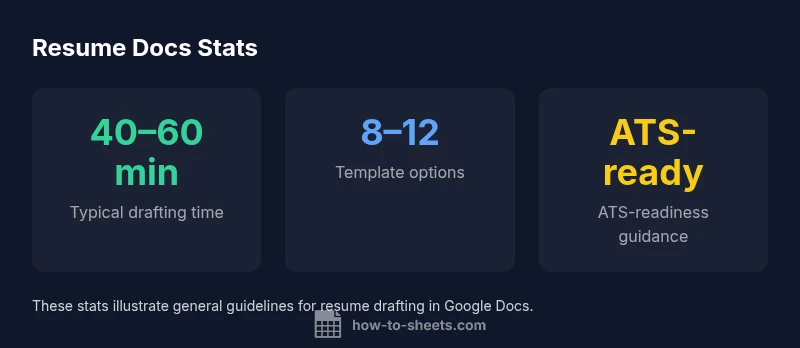
Google Docs ships with several resume templates and a handful of generic templates that you can adapt. The strength lies in their ease of access and the option to tailor content quickly without needing design software. If you need a more professional look, consider customizing a template with a clean color palette, minimalistic borders, and consistent section order. The How To Sheets approach recommends building a modular template: a single content skeleton that can be re-used across different roles with minimal edits. You’ll want to keep sections standardized (Summary, Experience, Education, Skills) to maintain ATS compatibility and recruiter readability.
Practical move: create a reusable template with clearly labeled styles for each section, then copy it for each job target to maintain consistency across applications.
ATS considerations: formatting for parsing
Applicant Tracking Systems (ATS) favor straightforward text and standard formatting. When using Google Docs, aim for a clean, linear structure with clearly labeled headings and simple bullets. Avoid image-based text, decorative fonts, or complex tables that ATS engines may skip or misinterpret. A safe strategy is to draft content in Docs, then run it through an ATS-friendly test by exporting to plain text or a basic PDF and running a quick validation pass on keywords and formatting. If your target roles rely heavily on automated screening, consider maintaining a separate ATS-optimized template in a plain text-friendly layout.
From How To Sheets research, the practical approach is to balance readability with keyword placement, ensuring your resume remains searchable by common ATS parsers while still appealing to human readers.
Collaboration, sharing, and version control in Docs
One of the strongest advantages of Google Docs is seamless collaboration. Multiple reviewers can comment, suggest edits, and track changes in real-time. Version history helps you revert to earlier drafts if feedback becomes tangled or if changes accumulate too quickly. For resume work, this means you can gather input from mentors, career coaches, or peers without sending multiple document copies. A practical tip is to use the “Suggesting” mode for edits and to leave comments with concrete action items. Finally, always save a final PDF copy to preserve formatting for submission while preserving an editable Google Docs version for future updates.
In team contexts, designate one owner to resolve comments and finalize the document to avoid version drift.
Step-by-step guide: Build a clean resume in Google Docs
- Open a new Google Doc and select a clean, professional font. 2) Create a single-column layout with consistent margins. 3) Add standard sections in this order: Summary, Experience, Education, Skills, Certifications. 4) Use bullet points with concise, accomplishment-focused statements. 5) Keep dates consistent and chronological or reverse-chronological. 6) Apply consistent heading styles for quick scanning. 7) Export a PDF for final submissions and keep a working Google Doc for updates. 8) Share the PDF link with recruiters if required and maintain version control through comments and notes.
These steps help you maintain clarity and ATS readability while benefiting from Docs’ collaboration features.
Exporting, printing, and maintaining appearance across platforms
Exporting to PDF preserves layout for most applicants, but ensure that your fonts are embedded and margins are preserved when you view the PDF on another device. If you plan to print, test printing from your browser to verify that the page breaks and spacing look correct on physical pages. When listing a resume online or via email, provide a clean, text-friendly version as a fallback in case the recipient’s system has issues with PDF rendering. Finally, keep a backup copy in Google Drive and consider version-controlled copies with date stamps to track revisions over time.
Alternatives: when Google Docs isn’t the best fit
In roles requiring heavy ATS optimization or highly customized design, Word or dedicated resume builders may offer more precise control over typography, templates, and export formats. For portfolios or creative fields, Canva or InDesign-based tools can deliver a more distinctive look, though they may introduce compatibility concerns with applicant tracking. Use Docs for drafting and collaboration, then port content to a tool that aligns with your target industry’s expectations. The goal is to choose the right tool for the job, not to force Docs onto every resume.
The Good
- Cost-effective if you already subscribe to Google Workspace
- Cloud-based collaboration and autosave
- Simple templates and easy sharing across teams
- Easy export to PDF for submission
The Bad
- Limited ATS-optimized templates and controls
- Advanced typography and precise layout are harder to dial in
- Tables and text boxes can cause parsing issues in some ATS
- Offline access depends on device and app availability
Best for quick, collaboration-friendly resumes with simple formatting
Google Docs is a strong starting point for resumes that require fast drafting and real-time collaboration. It shines for simple layouts and team feedback, but is less ideal for ATS-heavy roles or highly polished, print-ready designs. The How To Sheets team recommends using Docs for drafting and collaboration, then exporting to a more controlled format for final submissions when needed.
FAQ
Is Google Docs suitable for ATS-friendly resumes?
Docs can be ATS-friendly if you stick to simple layouts, standard fonts, and clear headings. Avoid complex tables and decorative elements that ATS algorithms may misread. Consider testing with an ATS-friendly workflow before submitting.
Yes, but keep formatting simple and test how it reads in your target ATS.
What templates work best in Google Docs for resumes?
Choose templates with clean lines, minimal color, and clear section headers. Replace placeholders with concise, accomplishment-focused bullet points. Maintain consistency across sections for readability.
Pick clean templates and fill them with concise, outcome-focused bullets.
How can I ensure my resume looks good when exported from Docs?
Preview the document in print layout, export as PDF, and verify fonts and margins. Use standard fonts like Arial or Calibri, and check the PDF across devices to ensure consistent appearance.
Always preview, then export to PDF and verify on different devices.
Can I collaborate with others on a resume in Docs?
Yes. Use real-time comments and suggestions. Assign one person to finalize, and maintain version history so you can revert if needed.
Absolutely—use comments and version history to manage edits.
Should I keep a separate Word version of my resume?
Having a Word version can be helpful for some employers who require MS Word. You can convert from Docs to Word, but re-check formatting after conversion.
Consider a Word copy if your readers prefer it, then re-check formatting on export.
What are common formatting mistakes to avoid in Docs?
Avoid overuse of fonts, excessive color, and complex tables. Stick to a simple, consistent style and ensure headings are clearly labeled for scanning.
Keep it simple and consistent to stay recruiter-friendly.
The Essentials
- Use Docs for fast drafting and collaboration
- Keep formatting simple for ATS compatibility
- Create a reusable template with clear styles
- Export to PDF for final submissions
- Test ATS-readability with plain-text checks