Is Google Docs a Good Word Processor? A Thorough Review
A thorough, analytical review of Google Docs as a word processor, evaluating collaboration, offline use, formatting, security, and how it stacks up against desktop alternatives for students, professionals, and small businesses.


Is Google Docs a good word processor? In many contexts, yes—it's a cloud-first tool optimized for collaboration and accessibility. It shines for teams and students who need real-time editing, easy sharing, and device-agnostic access. However, it lags behind traditional desktop processors on advanced typography, offline reliability, and heavy formatting tasks. For budget-conscious groups prioritizing collaboration over typesetting finesse, Google Docs is a strong choice.
Context and Scope
Is google docs a good word processor? The question invites nuance. In this context, Google Docs is evaluated as a word processor within a larger suite of cloud-based productivity tools, not as a desktop publishing package. According to How To Sheets, Google Docs excels where collaboration, access, and simplicity matter most. It is designed to support quick drafting, commenting, version history, and cross-device work. For students coordinating group projects, startups iterating on policy documents, or professionals sharing briefs with clients, the platform offers an approachable on-ramp with predictable behavior across browsers and mobile apps. However, the tool trades away some of the precision features you might find in desktop word processors when formatting complex documents. This block will outline the core capabilities, limitations, and the kind of work that aligns best with Google Docs. Later sections will compare it to alternatives and provide pragmatic workarounds for common frictions.
Core Features That Define a Word Processor
At its core, Google Docs provides the familiar drafting canvas: a resizable, distraction-minimized interface with essential formatting controls, paragraph styles, and a robust clipboard. The document model supports headings, lists, tables, footnotes, and images, with a strong emphasis on consistency through preset styles. A central strength is the ability to apply and adjust heading hierarchies (Heading 1, 2, 3, etc.), which stabilizes long documents and improves navigability. Templates streamline common document types—reports, letters, resumes—and the auto-save feature reduces the risk of data loss. In addition, the product ships with version history, allowing you to restore earlier drafts without formal save markers. The platform’s compatibility with Microsoft Word formats further reduces friction when exchanging files with colleagues who rely on Word. In practice, these features combine to create an approachable environment for drafting, editing, and polishing text, particularly when time-to-delivery and collaboration speed are priorities.
Real-Time Collaboration and Accessibility Across Devices
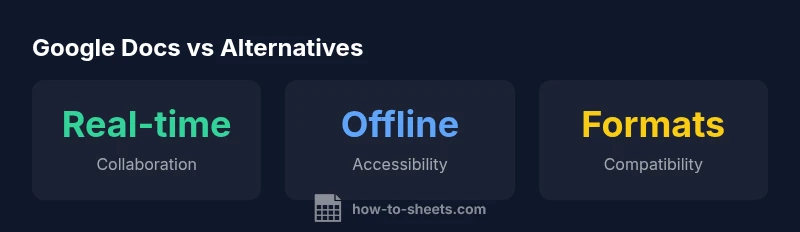
Google Docs is built around real-time collaboration. Multiple users can edit simultaneously, with live cursors, color-coded edits, and instant comments. The comment thread and suggestion mode make it easy to discuss changes without permanently altering the master draft. Accessibility across devices—laptop, tablet, smartphone—ensures you can contribute from anywhere with an internet connection. The cloud-based storage means updates sync across devices in near real-time, which is ideal for distributed teams and classroom settings. While collaboration is the standout benefit, it also creates potential moments of conflict during peak usage, especially in large documents or when connectivity is spotty. In those cases, draft freezes or minor synchronization delays can occur, but most teams experience a smooth workflow when documents are structured with clear sections and defined ownership.
Formatting, Typography, and Document Fidelity
Typography controls in Google Docs cover common font families, sizes, weights, and line spacing, alongside paragraph alignment and indentation. While it handles standard academic and business needs well, it lacks some advanced typography tools found in desktop word processors—such as sophisticated kerning, ligatures, and precise pagination controls for complex layouts. For most reports, letters, and standard essays, the fidelity is sufficient, especially since you can export to Word or PDF with decent parity. When you require pixel-perfect page layouts or complex multi-column layouts, Docs can feel constrained. Workarounds exist, such as using separate documents for complex sections or embedding formatted content from other tools, but those add steps and potential compatibility pitfalls during sharing.
Offline Availability, Reliability, and Performance
Offline mode is a critical factor for many users who travel or work in environments with inconsistent connectivity. Google Docs supports offline editing via local caching, with changes syncing once connectivity returns. The setup is straightforward on Chrome-based environments, but some features—like comments or real-time collaboration—may be unavailable offline. For teams that depend on uninterrupted productivity while traveling or during outages, offline readiness is essential, and Google Docs generally delivers a usable experience. On unreliable networks, the autosave and autosync features can mitigate risk, though occasional synchronization delays may occur once the device reconnects.
Privacy, Security, and Compliance Considerations
As with any cloud-based tool, privacy and security are central concerns. Google Docs benefits from Google Workspace’s broader security framework, including encryption in transit and at rest, comprehensive access controls, and admin-level auditing. Organizations should implement domain- or organization-wide settings to control sharing, prevent external access, and enforce data governance policies. While Google Docs provides reasonable protections for typical business and educational use, highly regulated environments may require additional controls, data residency considerations, or a switch to more siloed environments. It’s prudent to balance convenience with policy requirements and to educate users about shared links, access permissions, and the risks of broad sharing.
Ecosystem, Integrations, and Extensibility
A major strength of Google Docs is its ecosystem: seamless integration with Google Drive, Gmail, Sheets, Slides, Forms, and third-party add-ons. These integrations enable workflow automation, data import/export, and cross-application collaboration that can streamline processes. The add-on marketplace provides utilities for bibliography management, citation styles, and workflow enhancements, though some add-ons can be quirky or require permission to access documents. For teams already embedded in Google Workspace, the cohesion across apps reduces context switching and improves onboarding. Developers can leverage the Apps Script platform to build lightweight automations or custom menus, extending the word processing experience beyond basics. If your workflow depends on a broader suite of tools, Docs’ interoperability pays dividends, even if it means compromising on some advanced features offered by standalone desktop tools.
Use-Case Scenarios: When Google Docs Shines and When It Doesn't
Google Docs excels in collaborative, fast-turnaround projects: group essays, research reports with multiple contributors, policy briefs, and client-ready briefs that require quick iteration. It’s ideal for classrooms, startups, and small businesses that need cost-effective, accessible document creation. On the flip side, if your work demands heavy typography, intricate page layouts, or offline-only productivity, desktop Word processors or specialized typesetting tools may be preferable. Writers focusing on long-form, print-ready manuscripts with complex formatting will likely prefer a desktop solution for final polishing. In short, Google Docs is strongest when collaboration, accessibility, and speed trump deep typography control and offline rigor.
The Good
- Excellent real-time collaboration with live cursors
- Zero installation required; works on any device with a browser
- Auto-saving minimizes data loss and keeps versions accessible
- Tight integration with Google Workspace apps (Drive, Sheets, Slides)
The Bad
- Limited advanced typography and layout controls vs. desktop word processors
- Offline mode requires setup and some features are unavailable offline
- Occasional synchronization delays in slow networks or very large documents
- Dependence on internet connectivity for full functionality
Best for collaboration-first workflows and budget-conscious teams
Google Docs shines when teams need real-time collaboration and easy sharing across devices. It offers solid core word processing capabilities at little to no cost, though it sacrifices some advanced typography and offline rigor. For many students and SMBs, the trade-offs are favorable, especially when paired with other Google Workspace tools.
FAQ
Is Google Docs suitable for academic writing and long-form manuscripts?
Yes, for many academic tasks, Google Docs provides a clean drafting environment with real-time collaboration and version history. For very long manuscripts, organize content with headings and sections, and consider exporting to Word or PDF for final formatting.
Great for drafting and collaborating on papers; export for final formatting if needed.
Can I work on Google Docs offline, and will changes sync later?
Google Docs supports offline editing on compatible browsers. Changes will sync automatically when you reconnect to the internet, ensuring your most recent edits are reflected in the master document.
You can work offline; updates sync once you're online again.
How does Google Docs compare to Microsoft Word in features and usability?
Google Docs emphasizes collaboration, accessibility, and speed from any device. Microsoft Word offers deeper typography and layout controls. For teams prioritizing real-time collaboration, Docs often wins; for print-ready design, Word or desktop apps may be preferable.
Docs is collaboration-first; Word is layout-first.
Is Google Docs secure for sensitive information?
Google Docs inherits Google's security framework with encryption in transit and at rest, plus admin controls in Workspace. For highly sensitive data, implement strict sharing settings, data governance, and consider data-residency requirements.
Security is strong within Workspace, but practice diligent sharing controls.
Can I import and export Word documents to Google Docs easily?
Yes. Docs supports importing and exporting Word formats (.docx), which eases collaboration with Word users. Some advanced Word features may not translate perfectly, so review formatting after import.
Import/export is straightforward with occasional formatting tweaks.
Does Google Docs support complex typography and publishing-grade layouts?
Google Docs handles typical document typography well but lacks some advanced desktop-level features like fine kerning and precise pagination. For high-end publishing, consider complementary tools or final adjustments in a desktop app.
Typography is solid for standard documents, not for heavy publishing.
The Essentials
- Prioritize collaboration when choosing a word processor
- Leverage offline mode with planning for complex layouts
- Use Word/Docs export to bridge formats when sharing
- Rely on Google Workspace for workflow cohesion
- Balance cost savings against typography needs