Job Application Tracker in Google Sheets: A Step-by-Step Guide
Learn to build a practical job application tracker in Google Sheets with templates, formulas, and automation to manage applications, follow-ups, and outcomes. A flexible, shareable template for students, professionals, and small teams.


You will learn to build a job application tracker in Google Sheets that centralizes company, role, status, dates, and next steps. By the end, you’ll have a reusable template with clean data validation and lightweight formulas. All you need is a Google account and access to Google Sheets to get started.
Why a Google Sheets-based job application tracker matters
Maintaining momentum in a job search requires visibility. A centralized tracker built in Google Sheets helps you see where each application stands, what information you still need, and when to follow up. By consolidating company names, roles, submission dates, contact notes, and next steps in one place, you reduce the chance of missed deadlines and duplicated efforts. This approach aligns well with practical workflows used by students, professionals, and small teams who value transparency and speed. The phrase 'job application tracker google sheets' captures the core idea: a lightweight, flexible tool that lives where you already work. The How To Sheets team emphasizes simplicity: start with a clean template, add a few essential fields, and iterate as you learn what you actually use. This keeps the learning curve low while delivering real, actionable benefits from day one.
Core fields to include in your tracker
A functional tracker needs consistent data. At minimum, include the following columns: Company, Role, Job URL, Source, Date Applied, Status, Follow-up Date, Response, and Next Steps. Add optional fields like Contact Person, Job Reference Number, and Interview Stage. Use dropdowns for Status (Applied, Interview, Offer, Rejected) to keep data uniform, and use date pickers for all dates. If you share this with teammates, consider a shared drive permission model and column-level protections for critical formulas. When you design, think about filters you’ll use most often: status, company, or follow-up date. The result is a sheet you can scan quickly, rather than a jumble of scattered notes. Keep the language consistent and avoid abbreviations that only some people understand.
Designing your sheet for efficiency
Plan the layout first: a single data sheet with a clear header row, plus a separate dashboard sheet for metrics. Use named ranges for key fields so formulas stay readable. Apply data validation to ensure entries stay within expected values, and implement conditional formatting to highlight overdue follow-ups or stalled applications. For example, turn the Status cell red when Follow-up Date is before today and Status is not 'Offer' or 'Closed'. Add a simple search row or a dedicated tab to quick-jump to a specific company. If you work on mobile, ensure the template renders cleanly on smaller screens and that critical columns stay visible when scrolling. The goal is a robust foundation you can reuse for future job searches.
Template setup: from scratch or copy-paste
Decide whether you want to build from scratch or start by duplicating a starter template. If from scratch, create a header row with the fields you listed above, then format the sheet with a light grid and header style. If you’re copying, paste values into a clean sheet and adjust column widths. Create a second sheet for dashboards and add a simple summary table. Save a master copy as a template in Google Drive so you can reuse it for new searches. Consider naming conventions and a short one-line description for future users. Finally, enable simple sharing settings so teammates can view or edit as appropriate, and add a note explaining how to customize for individual job searches.
Automation ideas: reminders and status updates
Automations increase reliability without demanding your attention. Use simple built-in features like conditional formatting and email notifications from Google Sheets to remind you of upcoming Follow-up Dates. For more advanced users, Google Apps Script can send automated reminders or create calendar events when a Follow-up Date approaches. Keep automation lean; start with reminders, then layer in more features as your team’s needs grow. If you share the tracker, ensure you set appropriate permissions so changes don’t break core formulas. A light automation strategy keeps you focused on applying rather than managing the tracker.
Example formulas and templates you can reuse
Here are practical formulas you can drop into your sheet to save time and reduce errors. For counting rows that match a condition: =COUNTIF(Status:Status, "Interview"). For filtering a list to show only active applications: =FILTER(A2:G, Status:Status<>"Closed"). For conditional status checks: =IF(TODAY()>FollowUpDate, "Overdue", "On track"). For a simple lookup to pull a URL by company name: =VLOOKUP("Acme Corp", CompanyRange, 2, FALSE). Protect critical cells with data validation to avoid accidental changes. You can also create a lightweight dashboard using pivot tables to summarize applications by status or by month. The key is to keep formulas readable and well-documented in a separate Help tab.
Reporting and dashboards: turning data into insights
With a dashboard sheet, you can visualize the pipeline at a glance. Use pivot tables to summarize by Status or by Month Applied, and chart the trend of applications over time. Create a small KPI section that shows total applications, open follow-ups, and interview rate. Use slicers to let viewers filter by source or job type. When sharing with colleagues, keep the dashboard in a read-only state to prevent accidental edits, but permit access to the underlying data so teammates can update entry details. A well-crafted dashboard helps your resume search stay strategic, not reactive.
Common pitfalls and how to avoid them
Common mistakes include overcomplicating the tracker with too many fields, inconsistent statuses, and no defined follow-up cadence. Avoid vague placeholders like 'TBD' and instead use explicit statuses. Regularly audit data for duplicates and outdated entries. Establish a weekly review ritual to update statuses, close stale applications, and plan next steps. Finally, back up templates and changes, especially if you plan to automate. A simple, disciplined approach pays off with a tracker that remains useful over months of job searching.
How to customize for teams and collaboration
When you collaborate, set clear ownership for each row or group of rows and agree on a single source of truth. Use Google Sheets sharing settings to control who can edit, comment, or view. Consider a protected range for cells that contain formulas or critical configurations. For teams, maintain a shared glossary, especially for common job search terms, to ensure everyone reads the same values. Periodically review permissions and update the template accordingly. A well-managed collaboration approach increases transparency and speeds up responses from hiring teams.
Tools & Materials
- Google account(Must be signed in to access Google Sheets and save templates.)
- Google Sheets access(Ensure edit access to the tracker and any shared templates.)
- Starter template (optional)(Duplicate a template to jump-start setup.)
- Apps Script (optional)(For advanced reminders or calendar events.)
- Mobile access (optional)(Sheet-friendly view on smartphone.)
Steps
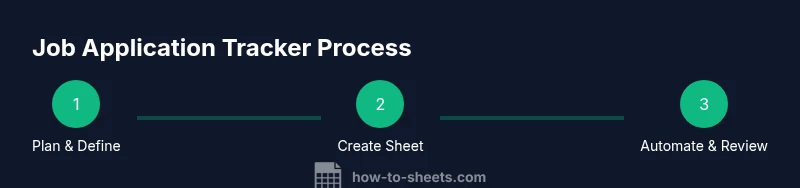
Estimated time: 60-90 minutes
- 1
Define the tracker goals
Clarify what you want to track (e.g., company, role, status, follow-ups) and what success looks like (e.g., timely follow-ups, fewer missed responses). Write these goals down so the template aligns with your job-search workflow.
Tip: Capture your top 3 metrics (response rate, follow-up cadence, stage progression) to guide design. - 2
Create the core sheet structure
Set up a single data sheet with headers for Company, Role, Job URL, Source, Date Applied, Status, Follow-up Date, Response, and Next Steps. Add optional fields later as needed. Keep the initial structure simple to avoid overwhelm.
Tip: Use clearly labeled headers and avoid abbreviations that may confuse teammates. - 3
Add data validation and dropdowns
Apply data validation to Status (Applied, Interview, Offer, Rejected) and to dates to ensure consistency. Create drop-down lists for common values so entry is standardized across the team.
Tip: Data validation reduces errors and makes filtering predictable. - 4
Populate a starter dataset
Enter a few example rows to test filters and dashboards. Include diverse statuses and dates so you can see how the UI responds to different inputs.
Tip: Start with realistic samples to test edge cases like overdue follow-ups. - 5
Set up basic automation
Implement simple reminders by using conditional formatting and email notifications. If you’re comfortable, add a low-cost Apps Script to generate calendar events for upcoming follow-ups.
Tip: Begin with reminders before adding calendar integration to minimize maintenance. - 6
Create a dashboard and share
Build a small dashboard sheet with counts by status and a line chart of applications over time. Share the template with teammates and set appropriate permissions to protect formulas.
Tip: Use a shared glossary to keep terminology consistent.
FAQ
What is a job application tracker google sheets?
A job application tracker in Google Sheets is a centralized spreadsheet that helps you manage applications across stages. It tracks company, role, submission dates, status, follow-ups, and next steps, so you stay organized during a job search.
A job application tracker in Google Sheets is a central spreadsheet to manage all your job applications from start to finish.
Can I share and collaborate on the tracker?
Yes. Google Sheets supports sharing with view, comment, or edit permissions. For teams, consider protecting critical formulas and using a single source of truth for statuses.
Yes, you can share and control permissions for collaborators to edit or view the tracker.
Which formulas are most useful?
Useful formulas include COUNTIF for counting statuses, FILTER to create filtered views, VLOOKUP for cross-sheet lookups, and IF statements to flag overdue follow-ups. Keep formulas simple and document them.
Use common formulas like COUNTIF, FILTER, and VLOOKUP to automate checks and views.
Is this tracker mobile-friendly?
Basic trackers render on mobile, but you may need to widen columns or use a compact view. For critical tasks, rely on quick filters and the dashboard rather than heavy editing on mobile.
Yes, but you may want to keep the layout simple for mobile viewing.
How do I protect the tracker from accidental changes?
Use protected ranges for critical formulas, limit editing rights, and clearly document which users can modify configuration. Regular backups also help prevent data loss.
Protect crucial cells and make sure backups exist so accidental edits don’t break the tracker.
Watch Video
The Essentials
- Define a focused tracker scope to prevent bloat.
- Use validation and formatting to keep data clean.
- Rely on simple formulas; avoid overcomplicating the sheet.
- Build a lightweight dashboard for quick insights.
- Regularly review and back up your tracker.