Google Sheets Resume Template: Build an ATS-Ready CV
Learn to create a professional ATS-friendly resume template in Google Sheets. Step-by-step guidance, best practices, and customizable layouts for job seekers.


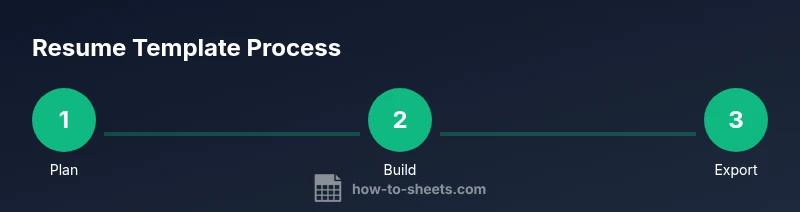
You will learn how to build an ATS-friendly resume in Google Sheets with a clean, printable layout and dynamic sections. You’ll need a blank sheet, a tidy font, and reusable data blocks for contact, summary, experience, education, and skills. This quick answer also hints at a ready-made template and how to export to PDF for job applications in minutes today.
Why a Google Sheets Resume Template?
A Google Sheets resume template offers a flexible, editable, and ATS-friendly way to present your professional story. Using a template keeps formatting consistent and makes it fast to tailor for different roles. According to How To Sheets, adopting a structured Google Sheets resume template helps you stay adaptable while preserving readability for recruiters and applicant tracking systems. The How To Sheets team found that a clean, modular design reduces formatting errors and makes updates painless. In this guide, we’ll outline how to build a comprehensive, job-ready resume in Sheets that you can reuse for multiple applications. The keyword-rich content can be updated in minutes without reformatting the entire document.
Core Benefits of Using a Resume Template in Sheets
Using a resume template in Google Sheets brings several practical advantages across job applications and career planning. It enforces a consistent structure, which is essential when applying to ATS-based systems that scan for common sections and keywords. Templates also support collaboration — you can share a draft with mentors or career services and receive feedback in real time. The ability to quickly clone and adapt sections means you can tailor your resume to different roles without starting from scratch. The How To Sheets analysis shows templates help keep content aligned and legible, reducing the risk of misreading critical details.
Key Features to Include in a Resume Template
- Contact block: name, phone, email, LinkedIn, portfolio links
- Professional summary: 2-4 lines focusing on impact and keywords
- Experience: role titles, company, dates, bullets with achievements
- Education: degree, school, graduation year
- Skills: concise bullet list or columns with skill level
- Certifications and projects: concise entries with outcomes
- Additional sections: languages, awards, volunteer work
- Print-ready settings: margins, font size, and alignment for a clean PDF export
How to Design a Clean, ATS-Friendly Resume in Google Sheets
Design plays a critical role in readability and ATS compatibility. Use a single-column or two-column layout with clear headings and left-aligned text. Choose an accessible sans-serif font (like Arial or Calibri) at 10–12 pt and keep margins generous for print. Avoid embedded images, logos, or decorative fonts that can confuse ATS. Use simple bullets, consistent date formats, and keyword-rich phrasing that mirrors the job description.
Quick Design Checklist
- Define sections and subsections, then freeze the header row.
- Reserve a shared area for personal data and avoid duplicating fields.
- Use named ranges or clear labels for easy updates.
- Test export by printing to PDF and reviewing readability.
Practical Examples: Variation for Roles
Engineering resumes benefit from a concise experience section with clear project outcomes and measurable results. Marketing resumes emphasize campaigns, reach, and growth metrics. For freelance work, include client names, engagement duration, and portfolio links. By maintaining a consistent structure, you can swap content without changing formatting, ensuring a professional look across industries.
Common Pitfalls and How to Avoid Them
Avoid crowded cells and long paragraphs that break the layout when printed. Do not rely on images or charts that ATS parsers may ignore. Keep dates in a consistent format and double-check contact details for accuracy. Finally, never skip exporting a final version to PDF before submitting applications.
From Template to Job Application: Exporting and Sharing
When you’re ready to apply, export a clean PDF using the template’s print settings. Save a copy of the workbook with a descriptive name for multiple applications, and use Google Drive sharing controls to share drafts with mentors while keeping the final file private. Regularly update your template as you gain new experience or completion of courses.
Tools & Materials
- Blank Google Sheets document(New sheet with a clean, A4-friendly layout)
- Basic font stack(Use sans-serif like Arial or Calibri, 10-12pt)
- Headers and section labels(Consistent styling and section order)
- Data validation rules (optional)(Dropdowns for sections like experience years)
- Export formats (PDF, CSV)(PDF is preferred for job applications)
Steps
Estimated time: 25-40 minutes
- 1
Create the document structure
Open Google Sheets, create a new blank sheet, and define the main sections: Contact, Summary, Experience, Education, Skills. Set a clean, left-aligned grid and freeze the top row so headers stay visible as you scroll.
Tip: Use a single sheet for the resume to avoid complex navigation; keep sections clearly labeled. - 2
Enter your personal details
Fill the Contact block with name, phone, email, LinkedIn, and portfolio links. Use simple text formatting and verify spellings to ensure professionalism.
Tip: Double-check the email and LinkedIn URL for accuracy; this reduces follow-up friction. - 3
Add modular content blocks
Create distinct blocks for Summary, Experience, Education, and Skills. Use consistent headings and bullet styles. Name each range for easy updates and reuse.
Tip: Keep bullet length uniform to improve scan-ability in both screen and print views. - 4
Set up data validation
Add drop-downs for fields such as years of experience, job types, or locations to maintain consistency. This makes filtering and customization easier without manual errors.
Tip: Limit options to a concise list to avoid overwhelming the reader with choices. - 5
Style for readability
Choose a modest font size, consistent color palette, and left alignment. Ensure enough white space and that the document prints well on Letter or A4.
Tip: Test a one-page print to confirm margins and line breaks look good. - 6
Configure export and sharing
Prepare a PDF export path, create versions for different jobs, and set sharing permissions. Keep a private master file and publish public versions only when ready.
Tip: Always export a final PDF before submitting to avoid last-minute formatting issues.
FAQ
What is a Google Sheets resume template?
A Google Sheets resume template is a preformatted layout you can fill with your information. It keeps sections consistent, makes updates easy, and helps you stay ATS-friendly. You can customize the template for different job applications without changing the overall design.
A Google Sheets resume template is a ready-made layout you fill with your details to stay consistent and easy to update.
Can I customize the resume for ATS parsing?
Yes. Use plain text, standard fonts, and keywords that match the job description. Avoid images or embedded objects that ATS may skip. Keep dates and sections consistent for reliable parsing.
Yes — keep it plain text and keyword-rich for ATS parsing and readability.
Is Google Sheets a good tool for resumes overall?
Google Sheets is excellent for simple, maintainable resumes and quick updates. For highly designed resumes, you might export to PDF later. Sheets works best when you need structure and easy edition.
Sheets is great for simple, updatable resumes, especially when you value structure.
How do I export a resume from Sheets?
Export the resume as a PDF via File > Download as > PDF. Check layout, margins, and fonts in the PDF before submitting. Save a copy of the sheet for future updates.
Export as a PDF to share or print, and keep a master file for updates.
Should I track multiple versions in the same file?
Yes. Use separate tabs or named sections for different roles or industries. This keeps content centralized while preserving formatting.
Yes, keep separate versions within the same file to stay organized.
What about privacy when sharing my resume template?
Use restricted sharing settings and only share editable links with trusted mentors. Maintain a private master file and publish only finalized copies for applications.
Limit access and keep your master file private until you're ready to share.
Watch Video
The Essentials
- Define a clear resume structure before typing.
- Use modular blocks to ease customization for roles.
- Export to PDF for consistent submission.
- Keep formatting ATS-friendly with plain text and keywords.
- Customize per industry while preserving the layout.