Loan Amortization in Google Sheets: A Practical Guide
Learn to build a reusable loan amortization schedule in Google Sheets with clear inputs, core formulas, handling extra payments, and validation tips for accuracy.


You will learn how to build a loan amortization schedule in Google Sheets, including principal, interest, and remaining balance calculations for fixed-rate loans. You’ll need a few inputs: loan amount, annual interest rate, loan term, and payment frequency. This guide walks you through a reusable template and essential formulas.
What is loan amortization and why it matters
Loan amortization is the systematic reduction of a loan's balance through periodic payments that cover both interest and principal. Understanding amortization helps you forecast total interest paid, compare loan offers, and plan repayments. According to How To Sheets, a well-built amortization schedule clarifies how payments change the balance over time and how extra payments shorten the loan term. For fixed-rate loans, the monthly payment remains constant while the interest portion declines and the principal portion grows. In Google Sheets, you can model amortization with a few inputs and formulas to automate the entire table, reducing manual calculation errors and saving time on future scenarios. A solid schedule also supports budgeting, student planning, and business cash-flow forecasting.
Planning your Google Sheets amortization template
Before opening Google Sheets, decide the core inputs: loan amount, annual interest rate, loan term (in years), and the number of payments per year. This choice determines the payment frequency (monthly, biweekly, weekly). Create a clean layout that separates inputs (assumptions) from calculations (the amortization table). Use a dedicated input area with clear labels and data validation to prevent typos. Structure your template so it can be reused for different loans by changing inputs only, not formulas. Document assumptions like compounding frequency and whether payments start at the end of the period. A well-planned template yields consistent results and makes it easy to run scenarios such as extra payments or rate changes.
Core formulas you’ll use in Google Sheets
The backbone of a loan amortization schedule is the set of financial functions that split each payment into interest and principal. In Google Sheets, the PMT function returns the payment per period:
=PMT(rate_per_period, total_payments, -loan_amount, [future_value], [type])
The IPMT function gives the interest portion for a specific period:
=IPMT(rate_per_period, period, total_payments, -loan_amount, [future_value], [type])
The PPMT function returns the principal portion for a specific period:
=PPMT(rate_per_period, period, total_payments, -loan_amount, [future_value], [type])
You’ll typically reference a fixed rate and a fixed total number of payments across rows, using absolute references for those constants. For example, with monthly rate = annual_rate/12, periods = years*12, and loan_amount as the present value, you can compute a consistent payment and then derive each period's split. Include cumulative totals if you want a running sum of interest or principal. Remember to manage signs (negative present value in PMT) to get readable positive payment amounts.
Designing the input sheet: loan terms and assumptions
Create an input panel with the following fields: Loan Amount, Annual Interest Rate (as a percent or decimal), Term (years), Payments per Year, and Optional Extra Payments. Use data validation to constrain inputs: rate between 0 and, say, 100%, term between 1 and 40 years, and payments per year values like 12 for monthly or 26 for biweekly. Indicate default values (for example, 5% rate, 30 years, 12 payments) to streamline testing. Document the unit of each input (e.g., rate as annual percent, amount in dollars). Consider using named ranges (e.g., loan_amount, annual_rate) so formulas remain readable when you copy or adjust the sheet.
Building the amortization table: headers, rows, and calculations
Set up a table with columns: Period, Payment, Interest, Principal, Balance, and (optionally) Cumulative Interest. The first period’s balance equals the loan amount. The Payment column uses =PMT(rate_per_period, total_periods, -loan_amount, 0, 0). For each subsequent row, calculate:
- Interest: =IPMT(rate_per_period, period, total_periods, -loan_amount, 0, 0)
- Principal: =PPMT(rate_per_period, period, total_periods, -loan_amount, 0, 0)
- Balance: previous_balance - Principal Lock the rate and total_periods as absolute references so copying down preserves them. If extra payments are allowed, add a separate column that subtracts from the balance after the standard principal payment.
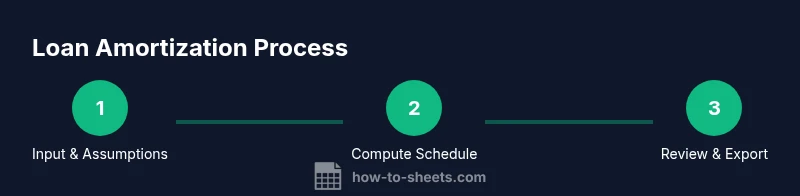
Step-by-step: set up inputs and constants
- Create a dedicated input area and enter Loan Amount, Annual Rate, Term, and Payments per Year.
- Convert annual rate to per-period rate: rate_per_period = annual_rate / payments_per_year.
- Compute total_periods: term_years * payments_per_year.
- Decide on end-of-period payments (type = 0 for end, 1 for beginning).
- Decide whether to allow extra payments and where they apply in the schedule.
- Add a test loan in the template to verify formulas before using real data. Tip: Use named ranges like rate_per_period and total_periods to keep formulas readable. Warning: rounding errors can accumulate; consider rounding to two decimals for currency fields.
Step-by-step: build the amortization table
- In row 1 (Period = 1), Balance starts as loan_amount.
- Payment applies each period: in the Payment column, reference the PMT formula.
- In the Interest column, fill with IPMT for each period; in the Principal column, fill with PPMT.
- Balance updates with Balance(previous) - Principal.
- Copy formulas down for all periods; ensure the final Balance after the last period is near zero.
- Add a conditional check: if Balance goes negative, adjust the final payment amount or apply a tiny rounding correction. Tip: Use absolute references for rate_per_period and total_periods to keep rows consistent. Pro tip: include a small rounding function in the Balance calculation to display currency cleanly.
Step-by-step: handle extra payments and biweekly schedules
- If you enable extra payments, add an Extra Payment column and subtract it from the Balance after applying Principal.
- For biweekly schedules, adjust periods per year to 26 and scale PMT accordingly; you’ll have more frequent but smaller payments.
- If you model biweekly payments, you may accelerate payoff; ensure total_periods reflects the new cadence.
- Document any assumptions for extras (timing, frequency) to keep future users aligned. Tip: Apply extra payments to the same row as the corresponding period so the impact on Balance and interest is immediate.
Step-by-step: handling rate changes and adjustable-rate scenarios
- For rate changes, create a RateChange table with period ranges and new rate values, then apply IF statements to switch rate_per_period when period falls within a change window.
- Build separate amortization sub-tables for each rate period or use a dynamic rate lookup in the payment calculation.
- Validate that the final payoff occurs as expected under the new rate(s) and that cumulative interest reflects the rate history.
- When rate changes are simulated, clearly annotate in the sheet to prevent misinterpretation. Tip: Use named ranges for the rate change schedule and an index-matching approach to keep formulas readable.
Step-by-step: testing, auditing, and common errors
- Run a sanity check by testing with a known loan (e.g., 100,000 at 5% for 30 years) and verify total payments and final balance.
- Confirm that sum of Interest and Principal equals total payments within a tight rounding tolerance.
- Audit a few random periods by hand to ensure IPMT and PPMT match the expected splits.
- Create a backup copy of the template before making major edits, so you can revert if needed. Tip: Turn on currency formatting and fixed decimals to catch rounding issues early.
Visualization and reporting options
- Add a simple chart to visualize balance over time; a line chart helps you see payoff trajectory clearly.
- Include a quick summary panel showing total interest paid, total principal, and payoff date.
- Use conditional formatting to highlight near-zero balances or high-interest periods.
- For scenarios, present side-by-side comparisons of different rates or payment frequencies to illustrate impact. Tip: Keep visuals uncluttered; the data should drive decisions, not the chart.
Reusing and sharing your template
- Document how to customize inputs for a new loan, including a short
Real-world scenarios and templates you can reuse
- Demonstrate scenarios such as refinancing, extra payments, and rate adjustments, and show how the template adapts to each case.
- Encourage saving a copy named with the loan identifier and date, then updating inputs for new projects.
- Provide a brief troubleshooting guide for common misalignments (mismatched periods, incorrect rate, or rounding).
- Encourage readers to save templates as Google Sheets templates for easy reuse across teams or classes.
- Wrap up with a reminder that customization is possible but should be documented for auditability.
Security and sharing best practices
- When sharing, restrict editing rights to prevent accidental changes to formulas; grant view or comment access when appropriate.
- Create a dedicated version history, so you can revert to a known-good template after edits.
- If the sheet contains personal loan details, protect sensitive cells and consider using a separate input sheet with restricted access.
- Disable external links or sensitive data imports unless necessary for the schedule. Tip: Maintain a clear changelog for template updates and share only with trusted collaborators.
Tools & Materials
- Google account with Google Sheets access(Ensure you have editing rights and a reliable internet connection)
- Loan details (amount, annual rate, term, payments/year)(Enter numbers; rate can be 0.05 or 5% depending on locale)
- Optional extra payments data(If you plan extra payments, specify schedule or amounts)
- Device with internet(For cloud-based editing and collaboration)
- Template skeleton (sheet layout)(Header area, input panel, amortization table setup)
- Backup copy(Save a version before major edits)
Steps
Estimated time: 60-90 minutes
- 1
Collect inputs and define assumptions
Enter loan amount, annual rate, term, and payments per year in the input panel. Decide on extra payments and rate-change scenarios. This step establishes the parameters for the entire model.
Tip: Use a named range for each input to simplify formulas and make re-use easy. - 2
Compute per-period rate and total periods
Convert annual rate to rate per period by dividing by payments per year. Calculate total_periods = term_years * payments_per_year. These values feed the PMT/IPMT/PPMT formulas.
Tip: Double-check units (percent vs decimal) to avoid miscalculations. - 3
Create the payment and schedule headers
Set up the schedule headers: Period, Payment, Interest, Principal, Balance. Use PMT to compute the Payment and place it in the first row.
Tip: Format as currency for readability and lock references with $ for consistency. - 4
Fill interest and principal per period
For each period, fill Interest with IPMT and Principal with PPMT. Balance updates by subtracting the Principal from the previous balance.
Tip: Copy formulas down; verify the last Balance is near zero due to rounding. - 5
Add extra payments (optional)
If you model extra payments, create an Extra column and subtract from the Balance after applying Principal.
Tip: Document timing of extra payments to keep scenario analyses accurate. - 6
Test and validate the template
Run a known loan through the sheet to verify total payments, final balance, and cumulative totals. Check that the sum of Interest and Principal matches total payments.
Tip: Keep a backup copy before testing new scenarios.
FAQ
What is amortization, and how does it work in a loan schedule?
Amortization splits each payment into interest and principal, gradually reducing the loan balance. A schedule shows how much interest you pay over time and when the loan is fully paid. It’s useful for budgeting and comparing offers.
Amortization splits each payment into interest and principal, showing how the loan is paid off over time.
Which Google Sheets functions are used in the schedule?
The core functions are PMT for payments, IPMT for interest, and PPMT for principal. These drive the table and can be combined with SUM or CUMIPMT for totals.
Use PMT for payments, IPMT for interest, and PPMT for principal to build the schedule.
How do I handle extra payments?
Add an Extra Payment column and subtract it from the Balance after applying Principal. This reduces the payoff time and total interest.
Add extra payments in a separate column and apply them after the standard principal portion.
How do I adjust for biweekly payments?
Set payments per year to 26 and adjust the rate per period accordingly. The total_periods will reflect the biweekly cadence.
Change the cadence to biweekly by using 26 payments per year and adjust the rate per period.
Why is my final balance not exactly zero?
Rounding in currency calculations can leave a tiny residual. Use a final adjustment or rounding to handle near-zero balances.
A tiny rounding error may leave a small balance; adjust the last payment if needed.
Can I reuse this template for different loans?
Yes. Maintain the inputs panel for new loans and preserve the formulas in the calculation area. Save as a template for future use.
Yes—change the inputs for a new loan and reuse the same sheet template.
Watch Video
The Essentials
- Define inputs first, then formulas.
- Use PMT, IPMT, and PPMT for accurate splits.
- Test with a known loan to validate results.
- Extend the model to extras and rate changes for real-world scenarios.