Make Google Docs Look and Feel Like Word: A Practical Guide
Learn practical steps to make Google Docs resemble Word by adjusting fonts, margins, templates, and layout. This guide covers import/export, Word-like styles, templates, and collaboration features for a smooth cross-platform workflow.


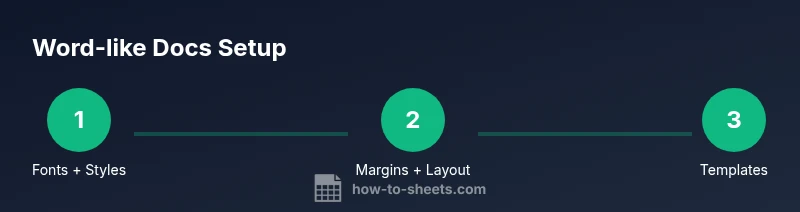
By adjusting fonts, margins, layout, and styles, you can make google docs like word. Start with Word-like fonts, enable Print Layout, and adopt Word-style headings. Import or export .docx files for compatibility, and use templates to keep the look consistent. This approach minimizes formatting drift when switching between platforms.
Why making Google Docs resemble Word matters
For students, professionals, and small business owners, transitioning between Google Docs and Word is common. The goal of this guide is to help you achieve a Word-like feel in Google Docs so you can maintain familiarity, reduce retraining time, and keep documents visually consistent across platforms. The phrase make google docs like word captures the intent: you want the same typography, layout, and structure whether you’re drafting in Docs or polishing a Word document. By focusing on fonts, margins, heading styles, and templates, you can significantly reduce formatting drift during file exchanges and collaborative work. This approach also benefits teams with mixed toolsets, ensuring a predictable reading experience for recipients.
Throughout this process, you’ll balance Google Docs’ native features with Word’s iconic formatting cues. While Docs doesn’t replicate every aspect of Word’s ribbon, you can approximate the look-and-feel by applying consistent styles, using Word-compatible templates, and leveraging Docs’ powerful collaboration features. The How To Sheets team has found that a deliberate setup yields a reliable, repeatable result for cross-platform documents.
Fonts and typography: replicate Word's look
Fonts are the most visible way to mimic Word. Google Docs includes a robust, expandable font list, but Calibri is not natively available. To achieve a Word-like appearance, choose fonts that resemble Word’s default aesthetics, such as Arial or Roboto, and apply them consistently to the document’s Normal text style. You can add additional fonts from the Google Fonts catalog to expand your options. After selecting a preferred font, update the default styles (Normal text, Heading 1, Heading 2, etc.) so new content inherits the same look. This creates a familiar reading rhythm across sections, bullet lists, and captions. Remember to test spacing and ligatures in long-form content to preserve readability across devices.
A practical tactic: set Normal text to Arial 11 or Roboto 11, Headings to a bold weight with larger sizes (e.g., H1 20–22 pt, H2 16–18 pt), and ensure consistent line spacing (1.15–1.5) for optimal Word-like readability. If you work with collaborators who prefer a specific font, create a shared Word-like template or style guide that enforces the same choices. This minimizes last-minute formatting changes during reviews or edits.
Page setup: margins, orientation, and print layout
Page setup is foundational to a Word-like document. In Google Docs, you’ll adjust margins, page orientation, and paper size to mirror Word defaults. Go to File > Page setup to set margins to 1 inch (or your standard) and ensure the orientation matches your Word document. For most business and academic work, Portrait orientation and Letter or A4 size are standard. Enable Print layout via View > Print layout to see how content will appear when printed, which helps align with Word’s print view. Consistency here prevents unexpected shifts when a Word file is opened or re-exported. If you frequently share documents with Word users, consider exporting a version with Word’s default margins to minimize reflow.
Practical tip: Create a master template with the desired Page setup settings and use it for new documents. This keeps future files aligned and reduces repetitive setup tasks. Also, verify indent settings and justification in your Paragraph settings to keep a Word-like alignment across sections.
Styles and headings: creating Word-like structure
One of Word’s hallmarks is its robust heading and style system. In Google Docs, you can replicate this by customizing the built-in Heading 1, Heading 2, and Normal text styles. Define a consistent hierarchy (e.g., Title, Heading 1, Heading 2, Heading 3) with predictable font choices, sizes, and spacing. Update the “Styles” toolbar to save your Word-like template so new documents automatically use these settings. When you’re drafting long documents, the outline panel (View > Show document outline) helps you navigate by headings, just like Word’s navigation pane. If you already have Word documents, use the Word-to-Docs conversion process to apply Styles automatically during import, then adjust as needed.
Best practice: apply one font family across all headings and another for body text to preserve a clean, consistent appearance. Maintain consistent paragraph spacing and avoid mixing fonts within a single section unless intentional for emphasis.
Templates: Word-like templates in Google Docs
Templates are a convenient way to enforce a Word-like look across multiple documents. Google Docs includes templates you can customize, or you can store your own Word-like templates in Google Drive for repeat use. Create a “Word-style” template that includes your preferred fonts, heading levels, margins, and default images or placeholders. When starting a new document, select this template to jump into a Word-like baseline immediately. If your team relies on Word templates, you can convert those Word templates to Google Docs by converting or copying styles and sections, then saving them as a Docs template. This reduces the risk of mismatch when colleagues switch between platforms.
Tip: keep template updates centralized in a shared folder so everyone can access the latest Word-like baseline without re-creating styles from scratch.
Importing and exporting Word documents for compatibility
Interoperability is key when collaborating with Word users. Google Docs can import Word (.docx) files, preserving much of the layout and styles if fonts are available in Docs. Similarly, exporting to Word (.docx) is straightforward via File > Download > Microsoft Word (.docx). For best results, ensure your Word document uses fonts that exist in Google Docs or that you’ve mirrored in your Word-like template. After import, review headings, fonts, and margins to confirm consistency. If you notice drift, reapply the Word-like styles and adjust the template to prevent recurrence in future imports. Regularly test round-trips with a sample document to catch issues early.
A practical approach is to establish a standard Word-via-Docs workflow: keep a master Word-like Docs template, convert Word documents responsively, and validate the outcome after each exchange with collaborators.
Print layout, outlines, and alignment in Google Docs
Print layout visibility helps you ensure your document reads the same on screen and on paper, mirroring Word’s print view. Turn on Print layout and use the ruler to align margins, tabs, and indentation. The Outline view (View > Show document outline) mirrors Word’s navigation pane, enabling quick jumping between sections. Proper alignment of bullets and numbering is essential for Word-like consistency; use the built-in bullet and numbered list options and anchor them to the paragraph style to keep uniform spacing. If your Word document used multilevel lists, re-create the hierarchy in Docs using heading levels and the List options to maintain the same indentation structure across devices and printouts.
Pro tip: Before finalizing, print a test page or export to PDF to verify that line breaks and page breaks align with Word expectations.
Track changes, comments, and collaboration: close to Word’s review flow
Word’s Track Changes and Comments have equivalents in Google Docs via Suggesting mode and the comment system. Set the document to Suggesting mode (the editing menu) so edits appear as suggestions rather than permanent changes, closely mimicking Word’s review workflow. Use comments to leave context for reviewers, and mention colleagues with @-mentions to trigger notifications. When transitioning between Word and Docs within a team, establish conventions for accepting or rejecting suggestions to avoid formatting drift. If you rely on Word’s tracked changes, expect minor formatting differences after import—plan a quick re-format pass using the Word-like Styles to restore consistency.
Tips: assign a dedicated reviewer, use comment threads to separate content edits from formatting requests, and periodically lock certain sections with Protected ranges (where available) to maintain structural integrity.
Additional tips: images, tables, and formatting consistency
Images and tables can be a source of subtle drift when moving between Word and Docs. Keep a consistent approach by inserting images with the same size and alignment, using table styles that mimic Word’s borders and shading, and avoiding complex Word-only table features that Docs handles differently. If you rely heavily on advanced Word table features, consider converting the final version to a Word-like template in Docs or doing a final alignment pass after export to Word. For citations and references, Docs’ Explore and Citations features offer Word-like functionality, but ensure font and style consistency across all elements so the overall document maintains a uniform Word-like appearance.
Checklist: verify font usage, heading consistency, margins, and list formatting in every major section after edits.
Final checklist and quick-start template for a Word-like Docs
Before you publish or share, run a quick Word-to-Docs validation: fonts match across body and headings, margins and page setup align with Word defaults, and the document outline reflects proper hierarchy. Save a Word-like final version as a Docs template in Drive for future use. Share the template with your team and document any exceptions or font substitutions to maintain consistency. With this setup, you’ll experience a smoother cross-platform workflow and less formatting drift when moving between Google Docs and Word.
Final note: consistency is the goal
The overarching goal is consistency rather than exact replication. You won’t be able to replicate every Word feature in Docs, but with a Word-like template, standardized styles, and a clear workflow for imports/exports, you can achieve a highly familiar experience. Regularly revisit your Word-like template as fonts, templates, or organizational needs evolve. The result is a predictable, efficient authoring environment that leverages Docs’ collaboration strengths while keeping Word’s familiar formatting cues front and center.
Tools & Materials
- Stable internet connection(Needed to access Google Docs and Drive in real time)
- Google account(Sign in to access Docs, Drive, and templates)
- Access to Google Docs (web or mobile)(Use Docs app or browser version (recommended for full features))
- Optional: Word document source (.docx)(For import testing and conversion practice)
Steps
Estimated time: 60-120 minutes
- 1
Open a Word-like template
Create a new document and apply a Word-like base template with your chosen font, heading styles, margins, and spacing. This ensures you start every document from a consistent baseline.
Tip: Save this as a reusable template in Drive for quick access. - 2
Set default fonts and styles
Update the Normal text, Heading 1, Heading 2, and other styles to your Word-like choices. This ensures all new content inherits the same appearance automatically.
Tip: Keep a separate style guide document to reference font sizes and line spacing. - 3
Configure page setup
Go to File > Page setup and set 1-inch margins (or your standard), portrait orientation, and Letter or A4 size as needed. Enable Print layout to preview how content will look when printed.
Tip: Apply these settings to the template to avoid rework. - 4
Create Word-like headings
Adjust Heading 1/2/3 styles to reflect Word’s hierarchy (size, boldness, spacing). Use the Outline view to verify structure and navigation parity.
Tip: Consistency in heading levels improves navigation and reduce drift during edits. - 5
Enable print layout and ruler
Turn on Print layout and ensure the ruler is visible to align margins and tabs visually, mirroring Word’s layout cues.
Tip: Use ruler guides to align bullets and indents accurately. - 6
Import a Word document when needed
Use File > Open > Upload to convert a .docx file to Google Docs. Review font availability and reapply Word-like styles if necessary.
Tip: Keep a Word-like override for fonts so imported content remains consistent. - 7
Apply Word-like templates for new projects
Store a Word-like template in Drive and start new documents from it to enforce consistency across projects.
Tip: Share the template with teammates and document any font substitutions. - 8
Use outline, lists, and alignment
Use consistent bullets, numbering, and alignment options to maintain a Word-like structure across sections.
Tip: If you reverse-engineer Word content, reapply your Word-like styles after import. - 9
Utilize track changes and comments
Switch to Suggesting mode for edits, and use comments for reviewer notes to mimic Word’s review flow.
Tip: Tag reviewers with @mentions to streamline feedback. - 10
Export to Word when necessary
Export final documents as .docx to share with Word users, then re-import to verify formatting remains intact.
Tip: Do a quick spot-check after export and adjust styles if needed. - 11
Test on another device
Open the document on a different computer or mobile device to verify fonts, margins, and layout appear consistently.
Tip: Small device differences are expected; adjust font sizes if needed. - 12
Create a reusable Word-like template in Drive
Save a comprehensive Word-like template with all styles, margins, and layout settings for repeat use.
Tip: Document the template’s intended use cases to guide teammates.
FAQ
Can I use Calibri in Google Docs to mimic Word?
Calibri isn’t available in Google Docs. Use Arial or Roboto as substitutes and adjust sizes to approximate Word’s appearance. When importing Word documents, reapply Word-like styles to preserve the look.
Calibri isn’t available in Docs. Use Arial or Roboto and reapply Word-like styles after import.
How do I export a Google Doc to Word without losing formatting?
Use File > Download > Microsoft Word (.docx). After exporting, open the file in Word to verify headings, fonts, and margins. If needed, adjust the Word-like template in Docs and re-export.
Export via Word format and check formatting in Word; adjust if needed.
What’s the best way to start a Word-like document in Google Docs?
Start with a Word-like template that defines fonts, heading styles, and margins. Apply the template to new documents, and use the Outline view to maintain a Word-like structure.
Begin with a Word-like template and use Outline to stay organized.
Can I track changes like Word in Google Docs?
Google Docs uses Suggesting mode for edits, which mirrors Word’s track changes. Use comments for reviewer notes and @mentions to notify collaborators.
Use Suggesting mode for edits and comments for feedback.
Will fonts look the same on all devices?
Fonts can render differently across devices. Stick to a small set of web-safe or Google Fonts and keep the same font-family in your Word-like template.
Fonts may vary by device; limit to a consistent font set.
Watch Video
The Essentials
- Set Word-like fonts and update styles for consistency
- Configure margins, layout, and print view to mirror Word
- Use Word-like templates to enforce standards
- Leverage Word-like templates for imports/exports to minimize drift
- Utilize tracking and comments to maintain review flow