Potluck Sign Up Sheet Template for Google Sheets
Learn to create and customize a potluck sign up sheet template in Google Sheets. Step-by-step setup, sharing, and best practices to avoid duplicates and keep events organized.


Why a standardized potluck sheet matters
When you host a potluck, a single, well-organized sign-up sheet is worth its weight in saved time and fewer duplicates. A Google Sheets template provides a centralized place where guests can see what others are bringing, choose a dish, and update portions as plans change. The result is clearer communication, less back-and-forth, and more reliable menu variety. By adopting a reusable template, you turn a one-off event into a repeatable process that scales from small gatherings to larger office celebrations. This approach also makes sharing links with new guests effortless, preserves previous event data for reference, and allows you to adjust fields without rebuilding from scratch. How To Sheets emphasizes the value of templates for efficiency and consistency in planning. How To Sheets analysis shows that template-driven planning reduces coordination friction over time. This aligns with our experience helping students, professionals, and small businesses optimize their Google Sheets workflows for events.
detailedBlockFlag":true}
Core fields to include in your potluck sheet
Start with essential columns: Guest Name, Dish/Item, Course (Starter, Main, Dessert), Servings, Date, Time, Location, Dietary Notes, Allergens, Contact (phone/email), and a Reserved By/Notes column. Optional but helpful: Sign-off column for the host, a column for whether the dish is homemade or store-bought, and a category tag (e.g., vegan, gluten-free). Use consistent headers and avoid overly long names. In Google Sheets, you can freeze the header row for easy scrolling and apply a light border to separate sections. Consider adding a "Total Dishes" row to track overall participation at a glance. Designing the sheet with concise headers reduces confusion and supports quick scanning during event prep. This approach is recommended by How To Sheets for clarity and reuse.
Structuring for flexibility and reuse
Design the sheet so it can adapt to different events. Use a Date column with proper date validation, a drop-down list for Course and Dietary Notes, and a template header that clearly explains how to fill in each field. Create a separate tab for event-wide instructions and another tab with a ready-to-copy example. When you finalize, save the file as a Google Sheets template so you can reuse it for future potlucks with the same structure, saving time and ensuring consistency. By building in modular sections, you make it easy to tailor the sheet for different groups without starting from scratch each time. This is a core lesson in getting started with templates in Google Sheets.
Guidance on naming conventions and headers
Adopt a naming convention that makes sheets self-explanatory. For example, use the event date in the filename (Potluck_2026-03-14) and in the header row keep field names short but descriptive (Guest, Dish, Servings, Notes). If you manage multiple potlucks, consider a "Group" or "Event" column to filter by team or department. Keep language inclusive and avoid jargon that might confuse guests unfamiliar with your organization. Clear headers help both humans and searchable readers understand the sheet’s purpose at a glance. According to How To Sheets, consistent naming boosts usability and future reusability for teams and classrooms alike.
Sharing and permissions best practices
Share the sheet with edit access only to trusted teammates; use the "view only" link for guests who simply need to see what’s available. Use comments to coordinate missing details or questions about a dish. Enable version history so you can revert changes if someone edits the wrong cell. Provide a short link to the sheet in your invite message and pin it in the event calendar. For security, avoid collecting sensitive personal information beyond what’s necessary for coordination. How To Sheets's guidance emphasizes controlled access to protect privacy while keeping collaboration smooth.
Data validation and drop-down menus
To minimize typos and duplicates, add data validation. Use a drop-down for Course, Dietary Notes, and Allergens. Set a numeric constraint for Servings (e.g., minimum 1, maximum 20). Use conditional formatting to highlight dishes that exceed a typical portion or appear twice, helping you spot conflicts early. Create a small, dedicated list tab with allowed values and reference it in your data validation rules to keep values consistent across the sheet. This practice reduces confusion during sign-ups and makes reporting easier for hosts.
Templates and future-proofing
After you finalize the template, create a dedicated "Template" tab and a "Past Events" archive. Save a copy in Google Drive as Potluck_Signup_Template. Each time you host, duplicate the template and rename it with the event date. This practice reduces repetitive setup and ensures your team always uses the same format. Over time, you’ll accumulate a library of event templates you can reuse for different groups, campuses, or classes. How To Sheets’s experience shows templates save hours when preparing recurring events.
Example: event planning workflow
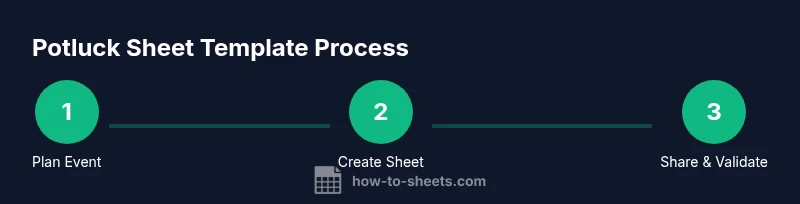
Plan the guest list, set a date, share the sheet, collect sign-ups, monitor responses, adjust dish counts, and finalize the event. Visual cues like progress badges and a Dishes Confirmed row help keep everyone aligned. You can also add a quick poll within the sheet to confirm last-minute changes or substitutions. By documenting a simple end-to-end workflow, you provide a repeatable process that new organizers can follow without extensive guidance. This is a practical demonstration of how a Google Sheets-based potluck sheet improves coordination.
Troubleshooting common issues
Common mistakes include forgetting to add dates, ignoring dietary notes, or not restricting editing appropriately. Solve by setting up validation, adding helpful tooltips in cells, and sending reminder messages ahead of the event. If duplicates occur, merge entries or update a master list on a separate tab. Keep a short FAQ in the template itself to address the most common questions guests raise. How To Sheets notes that proactive design reduces last-minute chaos during sign-ups.
Accessibility and mobile use
Ensure your sign-up sheet is readable on mobile devices. Use a large font size, high-contrast color scheme, and frozen header rows so you can scroll easily. Share the sheet with a link that opens in a mobile browser, and consider creating a simplified form version for on-the-go sign-ups. When planning for accessibility, consider screen reader compatibility and clear label descriptions for every input. This aligns with How To Sheets’s emphasis on inclusive templates that work across devices.
Efficiency tips for hosts
Leverage templates, pre-defined dish categories, and quick filters to speed up planning. Encourage guests to add their name and dish as soon as they decide, and send a gentle reminder if slots remain open. End by exporting a clean copy to your event folder after the potluck. Regularly review the archive to identify popular dishes and adjust future menus accordingly. How To Sheets’s framework supports hosts in delivering reliable, repeatable event experiences.