Sign Up Sheet Template in Google Sheets: A Practical Guide
Learn how to build a reusable sign up sheet template in Google Sheets, with layout tips, data validation, sharing controls, and automation for events and teams.


By the end, you'll have a ready-to-use sign-up sheet template in Google Sheets, designed for events, volunteer shifts, or team tasks. You’ll learn how to structure columns, set validation, customize headers, and share securely. This guide covers a reusable template you can copy for any project, plus tips to automate sign-ups.
Why a Sign-Up Sheet Template Matters
A well-crafted sign-up sheet template in Google Sheets saves time, reduces errors, and keeps everyone aligned. For events, volunteer drives, or team rosters, a clean template provides a single source of truth that all participants can view and update. The How To Sheets team found that small templates—if well structured—improve consistency and speed up enrollment workflows. By using a template, you avoid recreating the wheel for every new initiative and ensure everyone follows the same data standards. This consistency is especially valuable for students, professionals, and small business owners who juggle multiple projects.
In practice, templates enforce data integrity, such as requiring email addresses or validating date fields, and they simplify reporting. When your sheet becomes a repeatable tool, you can focus more on coordinating people and less on formatting. A thoughtful template also makes it easier to analyze participation over time, plan coverage for events, and share results with stakeholders.
Core Features of an Effective Sign-Up Sheet Template
An effective template balances simplicity with enough structure to prevent messes. Core features include clearly labeled headers, a defined data region, and built-in validation to prevent invalid entries. A good template also anticipates common use cases: event sign-ups, volunteer shifts, and task assignments. You should plan for scalability, so add extra columns for notes or contact preferences. Finally, consider how the template will be shared: view-only links for participants, and edit access for organizers. When these features are in place, the template serves as a reliable foundation for day-to-day coordination.
Designing the Layout in Google Sheets
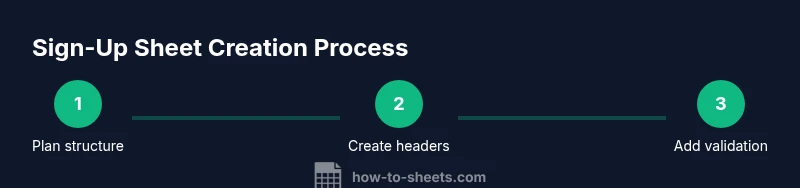
Start with a clean canvas: create a new Google Sheet and name it clearly (e.g., “Event Sign-Up — April 2026”). In the first row, reserve headers such as Name, Email, Role, Date, Time Slot, and Notes. Freeze the header row so it remains visible while you scroll. Use alternating row colors to improve readability, and set column widths to accommodate common entries. A consistent alignment and font choice makes scanning faster for participants and organizers alike. For large events, reserve separate sections for group sign-ups or specific tasks.
Data Validation and Data Integrity
Data validation is essential to maintain clean data. Use a date picker for the Date column to prevent text entries, and create a dropdown for Time Slot with predefined options. Require emails in the Email column or format-check them with a simple validation rule. Consider validating names against a minimal character set to avoid empty submissions. Validation reduces back-and-forth corrections and ensures that the summary reports you generate are accurate. Remember to test validators with sample data before sharing the sheet.
Sharing, Permissions, and Version Control
Decide early who can edit and who can view. For public sign-ups, give view-only access to participants and restrict editing to organizers. When possible, publish a copy as a template so each event starts from a pristine baseline. Use Google Sheets' version history to track changes and revert if needed. If you anticipate concurrent edits, enable notification rules so organizers are alerted to new sign-ups. This careful sharing approach protects data integrity while keeping everyone informed.
Extending the Template with Automation and Forms
To scale sign-ups, link a Google Form to your sheet so participants can submit entries directly without opening the sheet. Use form responses to populate the sign-up grid automatically, then apply validation to keep data clean. You can also add simple Apps Script triggers to remind organizers of upcoming shifts or to close sign-ups when slots fill up. Even without scripting, conditional formatting (for example, green fills for full slots) provides a visual cue that makes management easier.
Real-World Examples and Template Reuse
Once you’ve built a solid template, duplicate it for future events, classes, or volunteer drives. Keep a master template in your drive with a clear naming convention and a short instruction section. Include a downloadable quick-start sheet for newcomers. Over time, you’ll develop a library of event-specific templates that share the same structure, making onboarding and coordination quicker and more reliable.
Tools & Materials
- Google account(Needed to access Google Sheets and save templates)
- Google Sheets access(Accessible via browser; mobile app can work but browser is preferred)
- Computing device with internet(Desktop or laptop recommended for layout design)
- Template layout idea(Sketch your column headers and data fields before building in Sheets)
- Sample data and test entries(Helpful for testing validators and formatting)
Steps
Estimated time: 25-45 minutes
- 1
Create a new Google Sheet
Open Google Sheets and start a blank spreadsheet. Rename the file to a descriptive title like “Event Sign-Up Template – Q2 2026.” This gives you a clean starting point and a consistent naming convention for easy retrieval.
Tip: Tip: Create a dedicated folder for templates to keep them organized. - 2
Set up header row
In row 1, enter headers such as Name, Email, Role, Date, Time Slot, and Notes. Freeze the header row so it stays visible as you scroll. Use bold text for headers to improve readability.
Tip: Tip: Keep headers short and standardized across events. - 3
Define the sign-up data area
Select a clean data range beneath the header and decide how many rows to reserve for sign-ups. This creates a structured area for participants to enter data and for organizers to scan quickly.
Tip: Tip: Leave a few empty rows for last-minute sign-ups. - 4
Apply data validation
Add a date picker to the Date column and set up a dropdown for Time Slot with predefined options. Validate the Email column to ensure entries follow an email format. Test with sample data to confirm validators work as expected.
Tip: Tip: Use a validated range to keep validators centralized. - 5
Link a sign-up form (optional)
If you expect many sign-ups, create a Google Form and connect it to the sheet. Form responses will populate the sheet automatically, reducing manual entry and errors.
Tip: Tip: Include a field for consent if required for your event. - 6
Enhance readability with formatting
Apply alternating row colors, wrap text in long notes, and set reasonable column widths. Visual clarity helps participants submit correctly and saves time during review.
Tip: Tip: Use conditional formatting to highlight full slots or missing emails. - 7
Protect and share the template
Decide who can edit and who can view. Create a pristine copy to share as a template, and enable version history to track changes. Send attendees an access link and, if appropriate, restrict editing rights.
Tip: Tip: Disable sharing to keep control over the master template.
FAQ
What is a sign-up sheet template and why use one in Google Sheets?
A sign-up sheet template is a reusable layout for collecting participant information and availability. Using a Google Sheets template standardizes data collection, reduces errors, and speeds up event planning by providing a ready-to-fill format that team members can access and update.
A sign-up sheet template is a repeatable layout for collecting names and details. It saves time and reduces mistakes when coordinating events or tasks.
How do I share the sheet securely with participants?
Share the sheet with view access to participants and limited edit rights for organizers. Use protected ranges for critical columns, and consider creating a template link rather than distributing the master file.
Set view-only permission for participants and restrict edits to organizers. Use protected ranges to keep important fields safe.
Can I automate reminders for sign-ups?
Yes. You can connect a Google Form to collect sign-ups or use Apps Script to trigger email notifications based on sheet activity. This reduces manual follow-up and helps ensure timely participation.
You can automate reminders with apps script or use a form to collect sign-ups automatically.
How do I restrict editing rights without blocking collaboration?
Plan roles and permissions at the template level. Provide editors only to organizers, while participants get view access. Regularly review sharing settings and keep a backup copy of the master template.
Limit who can edit, give others view-only access, and keep a backup copy of the template.
Is Google Forms better for large events?
For large events, Google Forms can streamline data collection, while a Sheets-based template remains ideal for organizers who need immediate visibility and live updates. Using both together often yields the best results.
Forms can handle many responses, while Sheets gives you live visibility for organizers.
Watch Video
The Essentials
- Plan headers before data entry
- Validate inputs to maintain data quality
- Use forms to scale sign-ups for large events
- Test the template before sharing