Google Sheets Sign Up Sheet: Step-by-Step Guide
Learn to build a flexible Google Sheets sign up sheet with templates, data validation, and sharing settings for teams, classes, and events. A practical guide by How To Sheets.


Goal: Create a Google Sheets sign up sheet that tracks participants, times, and roles. You’ll design a shared sheet, define sign-up slots, and apply data validation to prevent duplicates. This guide covers layout, sharing permissions, and lightweight automation to keep event sign-ups organized for meetings, classes, or volunteers. Whether you’re planning a class, club, or conference, this approach scales cleanly.
What is a Google Sheets sign up sheet and why use it?
A Google Sheets sign up sheet is a shared table that lets participants volunteer for slots, roles, or tasks. It centralizes names, contact information, and time blocks in one live document. According to How To Sheets, digital sign-up sheets reduce paper waste and improve visibility for organizers and participants. You can tailor columns for sign-up slots, event dates, and optional notes, and you can enforce rules to prevent duplicates or invalid email addresses. Because the sheet lives in Google Drive, everyone with access sees real-time updates, minimizing back-and-forth emails. A well-structured sheet also scales as your event grows: you can add more slots, new roles, or additional dates without creating a separate form or file. The result is a single source of truth that makes attendance tracking, volunteer coordination, and RSVP management easier for students, professionals, and small business owners.
Core design patterns for sign-ups in Google Sheets
- Columns: Define clear headers such as Name, Email, Role, Date, Slot, and Status. This makes filtering easy and supports automation later.
- Slots and dates: Use separate columns for slot times or date ranges to avoid crowded rows.
- Data validation: Apply dropdowns for Status (Open, Taken, Waitlist) and Role to reduce entry errors.
- Visual cues: Use conditional formatting to highlight full slots or overdue sign-ups, helping volunteers focus quickly.
- Views and filters: Create view-ready sheets with filters for specific dates, roles, or people, so teams can slice data efficiently.
Common mistakes and how to avoid them
- Missing headers or inconsistent data: Always freeze the header row and validate that required fields are filled. Use data validation to enforce email formats and required fields.
- Overloading the sheet: Break complex schedules into multiple sheets or tabs to keep each view focused and fast to load.
- No change-tracking: Enable version history and consider adding a simple change log section so edits are auditable.
- Open sharing without governance: Restrict editing access to trusted collaborators and use view-only sharing for participants to prevent unwanted edits.
Customization and automation options
Google Sheets sign up sheets can scale with your needs through thoughtful customization. Add drop-down menus for Roles and Statuses using data validation. Use conditional formatting to highlight slots that are almost full, or those with missing contact info. Formulas like COUNTIF help you display real-time counts of filled vs. open slots, while basic scripting can auto-fill dates or remind sign-ups via email. For more robust workflows, you can connect Sheets to Google Forms to funnel new sign-ups automatically into the sheet, keeping data centralized and clean.
Sharing, permissions, and privacy considerations
Choose the right access level for different users. Editors can sign people up and modify data; viewers can watch progress without altering the sheet. Protect critical cells like headers and formulas to prevent accidental edits. Consider creating a separate data sheet for personal details and linking only the necessary fields to the public sign-up sheet. Regularly review access lists and retire outdated permissions to maintain privacy and security.
Templates and starter sheets you can adapt
Start with a simple, clean header like: Name, Email, Role, Date, Time, Slot, Notes, Status. Copy this into a new Google Sheet and tailor the columns to your event. For recurring events, duplicate the sheet and reuse the same structure with minor tweaks. If you prefer form-based intake, link to a Google Form so responses automatically populate the sheet, maintaining consistency across entries.
Quick setup checklist
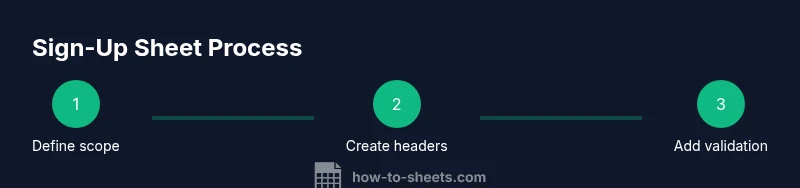
- Define purpose, audience, and event scope. 2) Create a new Google Sheet and set up headers. 3) Add sign-up slots with date/time blocks. 4) Apply data validation for essential fields. 5) Freeze header row and protect key cells. 6) Share with appropriate permissions. 7) Test the flow by submitting a mock entry. 8) Monitor entries and adjust as needed. 9) Back up the sheet regularly.
Real-world use cases and templates
Education programs, community events, volunteer rotas, and workplace training sessions all benefit from a single, editable sign-up sheet. By using consistent fields and clear statuses, coordinators reduce back-and-forth emails and keep participants informed about available slots and deadlines.
Tools & Materials
- Google account with access to Google Sheets(Needed to create and share the sheet)
- A draft or starter Google Sheet(Include headers and a sample row)
- Data validation rules (dropdowns, required fields)(Predefine statuses and roles)
- Header row freeze and cell protection(Lock headers and critical formulas)
- Template/legend document(Explain columns and codes for participants)
Steps
Estimated time: 45-90 minutes
- 1
Define purpose and scope
Identify event type, date range, and how many slots you need. Establish roles to be tracked and decide whether sign-ups are first-come, first-served or assigned by category.
Tip: Document rules upfront to avoid later back-and-forth. - 2
Create the sheet structure
Make headers such as Name, Email, Role, Date, Slot, and Status. Freeze the header row and add a legend in a dedicated area for new collaborators.
Tip: Keep headers short and consistent for easy filtering. - 3
Add sign-up slots
List all dates and times you want to offer. Use separate rows or a dedicated column for each slot with a status column to indicate availability.
Tip: Label slots clearly to avoid confusion about AM/PM times. - 4
Apply data validation
Set drop-downs for Role and Status. Enforce email formats and require Name and Email fields to be filled before submission.
Tip: Reject invalid entries to reduce cleanup work. - 5
Protect critical cells
Lock the header row and any formula cells to prevent accidental edits by participants.
Tip: Use sheet protection with specific editors if needed. - 6
Share and set permissions
Share the sheet with collaborators as editors only when necessary; otherwise use viewers or commenters to limit changes.
Tip: Auditing who can edit helps maintain data integrity. - 7
Test the sign-up flow
Submit a mock entry to verify the flow from entry to display in the Status column and the counts.
Tip: Fix any dead links or misaligned columns before going live. - 8
Publish and monitor
Share the live sheet, monitor entries in real time, and adjust the layout if participants report confusion or missing fields.
Tip: Schedule a quick weekly review during busy periods. - 9
Maintain privacy and cleanup
Remove or anonymize personal data after events where required, and archive completed sheets for reference.
Tip: Set retention reminders to keep data compliant.
FAQ
What is a Google Sheets sign up sheet and when should I use one?
A Google Sheets sign up sheet is a shared document that lets participants reserve spots, roles, or tasks. It centralizes attendee information and slot details in real time, making coordination easier for events, classes, or volunteer rosters.
A sign up sheet in Google Sheets helps you manage reservations and roles in one live document, ideal for events and volunteer tasks.
How do I share a sign-up sheet with others while keeping control?
Share the sheet with collaborators as editors only if they need to modify data. Otherwise, use viewer or commenter access and rely on protected ranges for critical parts like headers and formulas.
Share with care. Give editing rights only to trusted people; otherwise keep it read-only and protect key parts.
Can I prevent double-booking or duplicate entries?
Yes. Use data validation for the Email field and enforce unique names per slot. Regularly audit the Status column to ensure slots aren’t marked as both filled and open.
You can stop duplicates by validating emails and enforcing unique sign-ups per slot.
Are there ready-made templates for sign-up sheets in Google Sheets?
There are templates you can adapt, and you can create your own starter sheet with standard headers and slot logic. Templates save setup time and help maintain consistency across events.
Yes, you can start from templates or create your own clean starter sheet.
What privacy considerations should I keep in mind?
Only collect information necessary for the event and limit access to personal data. Consider archiving or anonymizing data after events to comply with privacy guidelines.
Only collect what you need and guard personal data; archive it when appropriate.
How can I automate reminders for sign-ups?
You can set up simple email reminders via Apps Script or integrate with forms to trigger notifications when slots are filled or approaching deadlines.
Use automation or forms to remind participants about upcoming slots.
Watch Video
The Essentials
- Define purpose and scope before building the sheet
- Use data validation to prevent entry errors
- Protect headers and regulate access
- Keep privacy and data retention in mind