QR Code Generator in Google Sheets: A Practical Guide
Learn how to generate and embed QR codes directly in Google Sheets using formulas or add-ons. This step-by-step guide covers setup, automation, printing, and real-world workflows for students, professionals, and small businesses.


Generate QR codes inside Google Sheets using formulas or add-ons, then embed them into reports and automate updates from your data. This practical guide covers setup, printing, troubleshooting, and real-world workflows, so you can keep your data and codes synchronized in one place. You’ll learn two reliable methods and how to choose the best fit for your sheet.
What is a QR code generator in Google Sheets and why use it?
QR codes are compact, machine-readable representations of data. A QR code generator in Google Sheets lets you turn text, URLs, or IDs into scannable codes directly in your spreadsheet. According to How To Sheets, integrating QR codes into your data workflows reduces manual steps and keeps everything in one place, which is especially helpful for inventory, event tickets, or contact-sharing sheets. This approach is ideal for teams that want to streamline labeling, tracking, and distribution without switching apps. When you keep data and codes in the same file, auditing and versioning become simpler, and you can share a single source of truth with teammates. For many students, professionals, and small business owners, this is the simplest path to scalable QR code generation in Sheets.
A well-maintained sheet with embedded QR codes can accelerate workflows, reduce errors from copy-paste tasks, and enable quick scanning during meetings or on printed materials. If you regularly produce labels, receipts, or asset tags, a coded system in Sheets helps you track everything from a single interface. In practice, your sheet becomes a live catalog: data rows feed QR codes that point to resources, product pages, or contact details, all ready for printing or distribution.
Why this approach helps different user groups
- Students: simplify assignments, digital handouts, and student ID tracking by encoding URLs or IDs into QR codes right inside your project sheets.
- Professionals: streamline client handoffs, asset tagging, and incident reports with automatic QR code generation tied to live data.
- Small business owners: create branded QR codes for product labels, price lists, or inventory docs without leaving Sheets.
The central benefit across these groups is speed and consistency. By keeping data and codes together, you minimize context-switching and ensure that updates propagate automatically when the source data changes. The How To Sheets team sees this as a practical way to level up daily workflows with minimal friction.
Methods overview: formula-based vs add-ons
There are two primary paths to generate QR codes in Sheets. The first uses a URL-based QR code service via the IMAGE function, which renders a QR image directly in a cell. The second path leverages Google’s Chart API or a QR code generator add-on from the Google Workspace Marketplace for a GUI-based workflow. Formula-based methods are fast and work well for large datasets when you keep inputs well-structured. Add-ons can offer user-friendly interfaces, bulk generation options, and built-in error handling. In many cases, a hybrid approach works best: use formulas for dynamic cells and reserve add-ons for one-off projects or teams that prefer a UI.
Data safety and privacy considerations
Because formula-based QR generation often calls external services, you should avoid encoding extremely sensitive data in publicly accessible spreadsheets. If your data contains personal identifiers or confidential information, consider masking data or using internal QR code generation options that run locally within your organization. For professional teams, it’s smart to review your data-sharing policies and use secured endpoints whenever possible. The How To Sheets analysis emphasizes designing processes that minimize data exposure while still delivering fast, reliable QR code generation.
Practical tips for data quality before encoding
- Normalize inputs: trim spaces, remove extraneous characters, and ensure consistent URL formats when encoding data into QR codes.
- Use ENCODEURL for any text that contains spaces or special characters to prevent broken URLs or unreadable codes.
- Test a few sample rows to confirm the generated images render correctly in your target environment (Sheets, Docs, Slides, or printed labels).
- Plan image sizes early: larger codes scan more reliably but take more space in reports; choose a size that fits your output medium.
Printing, sharing, and embedding QR codes in documents
QR codes generated in Sheets can be copied into Google Docs or Slides, or exported as part of a report. To ensure best results, keep consistent image dimensions and avoid stretching the QR images when embedding. If you plan to print labels, export the QR cells at high resolution or use a print-friendly format. For digital sharing, linking to a Sheet where QR codes render in cells can simplify collaborative workflows. Remember that the scan reliability depends on the image resolution and the viewer’s device, so testing across devices is wise.
Automating updates and refreshing codes with Triggers and Apps Script
You can automate QR code updates by tying the encoding step to data changes using Apps Script or by scheduling periodic refreshes. A simple script can re-calculate the QR code images when a source column changes, ensuring your visuals remain current. This is especially valuable for inventory sheets, event check-ins, or contact registries where data evolves over time. If you’re new to Google Apps Script, start with a small trigger and expand as you grow comfortable with the code.
Common pitfalls and quick fixes
- Data length: very long strings may exceed URL limits for some QR services. Consider breaking data into smaller chunks or encoding a short identifier that maps to a longer URL elsewhere.
- Special characters: always ENCODEURL inputs to prevent misinterpretation by the QR generator.
- Privacy: avoid encoding sensitive data in externally hosted QR endpoints or public sheets; opt for internal tooling when needed.
- Performance: large sheets with many QR images can slow down; use selective rendering or batch updates to keep performance acceptable.
Real-world use case: small business inventory QR sheet
Imagine a small hardware store that maintains a Google Sheet with items, SKU numbers, and locations. Each row includes a URL to the product page. A single formula in a 150x150 image cell renders the QR code for that item. Staff can print product labels or share digital catalogs, and when prices or locations change, updating the sheet updates the corresponding codes automatically. This approach keeps inventory and labeling synchronized and reduces the risk of mismatched codes during stocktakes.
Final considerations and best practices
When you design QR code workflows in Google Sheets, balance flexibility with reliability. Start with a simple dataset and test end-to-end rendering, printing, and scanning. As your confidence grows, scale up by adding array formulas, triggers, and optional add-ons to support bulk generation and better error handling. Always keep a clear data dictionary to map each field to its encoded output, and document any automation you introduce so teammates can reproduce and maintain the process.
Tools & Materials
- Google account with access to Google Sheets(Used to sign in and manage your Sheets documents)
- Google Sheets document(Contains your data and QR code formula cells)
- Data column to encode (e.g., URLs, IDs)(Ensure data is clean, normalized, and URL-safe where possible)
- Internet connection(QR generation relies on external services for formula-based methods)
- QR code rendering method (formula or add-on)(Choose your preferred approach before starting)
- Optional: Access to Google Workspace Marketplace add-on for QR codes(Use if you prefer a GUI-based workflow and bulk options)
- Printer or PDF export capability(For distributing physical labels or reports)
Steps
Estimated time: 20-40 minutes
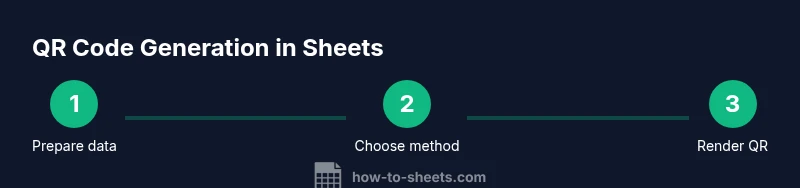
- 1
Prepare your data
Organize your source data in a column (e.g., A2:A). Ensure there are no blank rows in the range you plan to encode. Clean up any extraneous spaces and confirm that text is URL-safe or suitable for encoding.
Tip: Test a few sample rows to confirm data integrity before scaling. - 2
Choose your QR method
Decide whether you’ll use a formula-based approach (URL with IMAGE) or a GUI-based add-on. This determines how you’ll construct the encoding URL and where the QR image will appear.
Tip: If you’re new to Apps Script, start with the formula method for speed. - 3
Create a single-cell QR formula
In a target cell, enter a formula that renders a QR image for one row. Example: =IMAGE("https://chart.googleapis.com/chart?cht=qr&chs=150x150&chl=" & ENCODEURL(A2)).
Tip: Use ENCODEURL to handle spaces and special characters. - 4
Fill down to cover more rows
Drag the fill handle or use an array formula to apply the same encoding logic to multiple rows. Ensure the target column has the correct range reference.
Tip: Consider using ARRAYFORMULA for large datasets to reduce manual copying. - 5
Adjust image size and output
Choose a QR size that aligns with your medium (e.g., 150x150 or 300x300). Larger codes scan more reliably but take more space in reports.
Tip: Keep a consistent size across the dataset for clean visuals. - 6
Test with sample scans
Scan a handful of codes with different devices to ensure readability. If some scanners fail, adjust size or verify the encoded data.
Tip: Test both printed and digital outputs to catch issues early. - 7
Try an array-based approach for bulk rows
Use an ARRAYFORMULA to generate a matrix of QR images for a large data range. This can streamline mass labeling or cataloging tasks.
Tip: Some environments require row-by-row rendering; verify compatibility first. - 8
Automate updates with triggers
If your source data changes, set up a time-driven or on-edit trigger to refresh codes automatically. This keeps outputs in sync with the data source.
Tip: Start with a simple onEdit trigger to experiment before full automation.
FAQ
Can I generate QR codes for multiple rows at once?
Yes. Use an ARRAYFORMULA or a bulk-capable add-on to generate QR codes for many rows in one go. Test with a small batch before scaling.
Yes, you can generate QR codes for many rows at once using array formulas or a bulk add-on.
Is it secure to encode URLs with QR codes in Sheets?
Data security depends on the data you encode and where the sheet is shared. Avoid exposing sensitive information; consider masking data or hosting sensitive content behind authenticated endpoints.
Security depends on what you encode and where the sheet is shared.
What is the best image size for QR codes in Sheets?
Commonly 150x150 to 300x300 pixels work well for most printed and digital uses. Larger sizes improve scan reliability but consume more space in your sheet.
Typically 150 by 150 up to 300 by 300 pixels works well.
Do QR codes in Sheets require internet access?
For formula-based QR generation that relies on external APIs, an internet connection is required. If you need offline capability, consider a local generator or offline Apps Script solution.
Yes, online access is needed when using external QR services.
Can I update QR codes automatically when source data changes?
Yes. Use Apps Script triggers or built-in spreadsheet recalculation to refresh QR images as source data updates.
Yes, with triggers or periodic recalculation you can keep codes current.
Can I customize QR codes with colors or logos?
Some external services allow color customization, but embedded logos may complicate readability. Prefer monochrome codes for reliability unless your service explicitly supports logos without affecting scan performance.
Color and logos are possible with some services, but can affect readability.
Watch Video
The Essentials
- Start with a simple data set and test end-to-end QR rendering.
- Choose between formula-based and add-on approaches based on team needs.
- Use ENCODEURL to ensure robust QR data encoding.
- Automate updates to keep QR codes synchronized with source data.