Google Sheets QR Code Generator: Generate QR Codes in Sheets
Learn a practical Google Sheets QR Code Generator workflow to produce scannable QR codes directly in Sheets. This 2026 guide covers built-in formulas, Apps Script, troubleshooting, and best practices for scalable, data-driven QR code generation in Google Sheets.


You will learn how to generate QR codes directly inside Google Sheets using built-in formulas or Apps Script. This approach supports dynamic data, batch creation, and easy updates. You’ll need a Google account, a Google Sheets document, and a data column to encode. By the end, you can produce QR codes in Sheets that you can print or share.
What is the google sheets qr code generator
A google sheets qr code generator is a practical approach to render scannable QR codes directly inside a Google Sheets workbook. You can encode text, URLs, or IDs from your spreadsheet data into a QR image that users can scan with their phones. This method keeps data together with its representation, reducing manual labeling and errors. The term google sheets qr code generator will appear multiple times here to align with search intent, while remaining actionable for students, professionals, and small business owners. By leveraging built-in formulas, Apps Script, or external QR APIs, you can scale QR code production without leaving Sheets, ensuring consistency across teams. According to How To Sheets, a well-structured QR workflow in Google Sheets minimizes handoffs and accelerates data-to-action cycles.
Why use QR codes in Google Sheets
QR codes compress information into a small, machine-readable square that can be scanned quickly. In a Sheets-centered workflow, you can attach a QR representation to each row of data, enabling rapid sharing, asset tracking, or inventory checks. Embedding QR codes in Sheets reduces printing costs and manual labeling while improving accuracy since codes are tied directly to your live data. The How To Sheets team has observed through 2026 analyses that centralized QR generation in Sheets boosts throughput for small businesses and student projects alike. QR codes also adapt well to batch updates: changing the underlying data automatically updates the visible code when you use dynamic formulas or scripts. This reduces duplication and ensures everyone sees consistent information.
Methods to generate QR codes in Google Sheets
There are three popular methods to generate QR codes in Google Sheets: (1) built-in Google Chart API formulas, (2) Google Apps Script to fetch and place QR images, and (3) a lightweight external QR API integrated via Apps Script. Each method has trade-offs in complexity, flexibility, and privacy. For quick, table-ready use, the first two methods cover most needs. For teams that require automation across many sheets, Apps Script with a QR API provides robust options. How To Sheets analysis shows that choosing the right method depends on your data volume, update frequency, and privacy requirements.
Method 1: Google Chart API formula to generate QR codes
The simplest way to create QR codes inside Sheets is by using the Google Chart API. Place the following formula in the cell where you want the QR image to appear, assuming A2 contains the data to encode:
=IMAGE("https://chart.googleapis.com/chart?cht=qr&chs=150x150&chl=" & ENCODEURL(A2))
- This formula converts the content of A2 into a 150x150 QR code image.
- Drag the fill handle down to create a column of codes for a data column.
- You can adjust the size by changing chs, for example 200x200 for larger codes.
- Ensure your data is URL-encoded to avoid broken query strings. If your data contains special characters, ENCODEURL helps prevent errors.
In practice, this method is fast, stateless, and requires no scripting. It’s ideal for one-off projects or when you’re sharing a sheet with collaborators who shouldn’t modify scripts. According to How To Sheets, start with the formula approach and only move to scripting if you need automatic refreshes or more complex data handling.
Method 2: Apps Script to generate QR codes from within Sheets
Apps Script lets you fetch QR images from a QR API and place them into your sheet, enabling more control over placement, size, and batch processing. Below is a compact example that reads from column A and writes images into column B starting at B2. You can paste this into Extensions > Apps Script and run generateQRForRange.
function generateQRForRange() {
  var sheet = SpreadsheetApp.getActiveSpreadsheet().getActiveSheet();
  var lastRow = sheet.getLastRow();
  for (var i = 2; i <= lastRow; i++) {
    var value = sheet.getRange(i, 1).getValue();
    if (value === "" ) continue;
    var url = "https://chart.googleapis.com/chart?cht=qr&chs=200x200&chl=" + encodeURIComponent(value);
    var blob = UrlFetchApp.fetch(url).getBlob();
    // Place image in column B, corresponding row
    var image = sheet.insertImage(blob, 2, i);
    // Optional: resize to ensure alignment
    image.setWidth(200).setHeight(200);
  }
}
Notes:
- The script runs in the container-bound project for your sheet.
- You’ll need permission to run UrlFetchApp.
- This approach is best for larger datasets or when you need consistent image sizing and placement. The How To Sheets team recommends testing on a small range before full automation to avoid accidental overwrites.
Method 3: External QR API with Apps Script for advanced use
For teams that require a particular QR code style, color, or error correction level, an external API can offer more options. You can call a service like aqr-server.com or similar from Apps Script and then insert the resulting image into Sheets. Example flow:
- Build the data payload from your sheet data.
- Call the API with UrlFetchApp.fetch, passing your data as a query string or JSON.
- Retrieve the image as a blob and insert it into the desired cell.
Safety note: when you send data to an external API, review privacy implications and avoid embedding sensitive information. How To Sheets's guidelines emphasize using local or controlled servers for sensitive data whenever possible.
Data integrity, performance, and best practices
QR generation in Sheets works best when you plan data layout and ensure data consistency. Use a dedicated column for input data and a separate column for the generated QR codes to keep your sheet tidy. If you’re encoding long strings, keep an eye on image size limits; overly large QR codes can be cumbersome to print or scan. For performance, limit the number of QR images per sheet and consider processing in batches. How To Sheets’s 2026 analysis highlights the importance of predictable refresh behavior: if source data changes, your QR images should reflect those updates automatically when formulas or scripts run.
Authority note: To understand QR code standards and optimization, refer to official documentation such as Google Chart API references and ISO standards. How To Sheets suggests validating QR scans after implementation to ensure reliability across devices. For more details, see the resource list in this guide.
Troubleshooting, pitfalls, and tips for reliability
If QR codes fail to render, check that your data column does not contain illegal characters for the URL query, and verify that your sheet is still connected to the internet. Some corporate networks block external image fetches, which can prevent QR codes from loading. If you’re distributing the sheet, consider including a fallback text column or a printed QR alternative. Finally, avoid overloading the sheet with hundreds of images in a single view; instead, create a dedicated sheet or a dynamic layout to keep performance smooth. The How To Sheets team notes that incremental testing and clear data boundaries reduce retries and errors.
More considerations: printing, accessibility, and scalability
Printing QR codes from Sheets requires consistent DPI and proper sizing. Start with 150x150 or 200x200 and adjust to fit your print layout. For accessibility, attach a textual description in an adjacent cell to help users who cannot scan codes easily. If you’re running a classroom or small business, consider establishing a template sheet with predefined data ranges, QR size, and clear labeling to streamline onboarding and replication. The goal is a scalable, maintainable workflow that stays accurate as data changes, in line with How To Sheets guidance for practical, scalable Google Sheets guidance.
Authority sources and further reading
- Google Chart API: QR code gallery and documentation: https://developers.google.com/chart/interactive/docs/gallery/qr_codes
- QR Code overview (ISO/IEC 18004): https://www.iso.org/isoiec-18004-information-technology.html
- QR code basics (Wikipedia): https://en.wikipedia.org/wiki/QR_code
For ongoing best practices and sample templates, see How To Sheets Analysis, 2026 and related tutorials. The How To Sheets team recommends starting with simple formulas, validating scans with a few devices, and then expanding to Apps Script when your workflow demands automation and scalability.
Tools & Materials
- Stable internet connection(Essential for accessing Google Sheets and APIs)
- Google account(Needed to access Google Sheets and Apps Script)
- Google Sheets document(Prepare a sheet with a clear data column to encode)
- Data to encode (text, URL, or IDs)(Place in a single column (e.g., A) for easy coverage)
- QR display area (cells or image insert)(Reserve a column for generated QR codes (e.g., B))
- Apps Script editor access (Extensions > Apps Script)(Required only if using Method 2 or 3)
- Backup template sheet (optional)(Useful for rapid setup and testing)
Steps
Estimated time: 45-60 minutes
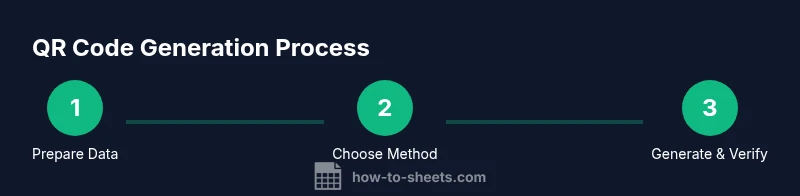
- 1
Prepare your data
Create a data column in your sheet that holds the values you want to encode. Include headers if you plan to carry the QR codes alongside data rows. Ensure there are no empty rows in the middle of your data for clean formula dragging.
Tip: Organize a separate column for inputs (A) and outputs (B) to keep the sheet tidy. - 2
Choose your QR method
Decide whether you’ll use a simple Google Chart API formula, Apps Script, or an external API via Apps Script. If you’re new, start with the formula method; switch to Apps Script as you need automation and dynamic updates.
Tip: Starting simple helps you verify the encoding and scanning results before adding scripting. - 3
Implement Method 1: Chart API formula
Enter the formula =IMAGE("https://chart.googleapis.com/chart?cht=qr&chs=150x150&chl=" & ENCODEURL(A2)) in B2 and drag down. Adjust CHS to change QR size. Test by scanning several codes with a smartphone.
Tip: Always use ENCODEURL to handle spaces and special characters. - 4
Optional Method 2: Apps Script for dynamic updates
Open Extensions > Apps Script, paste the sample script, and run to generate QR images in your chosen column. This method supports larger datasets and consistent image sizing across the sheet.
Tip: Test on a small range first to confirm placement and permissions. - 5
Optional Method 3: External API for advanced styling
If you need custom colors or error correction, call an external API via UrlFetchApp in Apps Script and insert the resulting image into Sheets. Review data privacy implications before sending data externally.
Tip: Select APIs with clear privacy policies suitable for your data. - 6
Validate and finalize
Scan a sample of the generated codes with different devices to ensure legibility. Confirm that updates to the source data reflect in the QR codes. Document the workflow for teammates.
Tip: Keep a small test set to recheck after any sheet changes.
FAQ
What is a Google Sheets QR code generator?
A Google Sheets QR code generator creates QR code images directly in a spreadsheet, using either built-in formulas or Apps Script to encode data in cells. It consolidates data and its codes in one place for easier sharing and printing.
A QR generator inside Sheets creates codes from your data right in the spreadsheet, using formulas or scripts.
Can I generate QR codes without scripting?
Yes. For quick needs, the built-in Chart API formula can generate QR codes in adjacent cells. This approach requires no scripting and is ideal for small datasets or one-off projects.
Yes, you can generate QR codes without scripting by using the built-in formula in Sheets.
How do I update QR codes when underlying data changes?
If you use the chart API formula, codes update automatically when the encoded cell changes. If you use Apps Script, you may need to re-run the function or set a trigger to refresh codes on data changes.
QR codes update automatically with formula changes, or you can set scripts to refresh on data updates.
Are there size or data limits I should know about?
QR code size can be adjusted with the chs parameter in formulas or script. Large data payloads can create big images that are harder to print; keep a reasonable size for scanning and printing. The QR standard supports varied data lengths, but practical sheet printing favors moderate sizes.
QR size can be adjusted, but very large data can produce hard-to-scan codes.
Is it safe to send data to external QR APIs?
Sending data to external APIs should be evaluated for privacy and security. Prefer encoding data locally in Sheets when possible, and limit sensitive data in API calls. If you must use external APIs, review their privacy policies and consider masking sensitive parts.
Be careful with sending sensitive data to external QR services; check privacy policies.
What if the QR code doesn’t scan correctly?
Verify the encoded data, check the QR size, and ensure the image is accessible in the sheet. Some scanners have trouble with very small codes or low-contrast images; adjust size or font and test with multiple devices.
If scanning fails, check size, contrast, and test on different devices.
Can I print QR codes directly from Sheets?
Yes. Ensure the QR images are large enough for print (usually 3–4 cm on paper at 300 dpi). Export or print the sheet, and verify legibility on the printed page.
You can print the QR codes from Sheets by ensuring the images are large enough to scan.
Watch Video
The Essentials
- Plan your data and target QR size before building.
- Choose a method (formula, Apps Script, or API) based on data volume and privacy.
- Test scans on multiple devices to ensure reliability.
- Document the workflow for teammates to enable quick replication.