Google Sheets Barcode Generator: A Practical Step-by-Step Guide
Learn how to build a google sheets barcode generator using formulas, Apps Script, and add-ons. Practical steps for QR codes and Code 128, with templates, tips, and real-world use cases.


With a google sheets barcode generator setup, you can turn text data into scannable codes directly in your spreadsheet. This guide shows how to generate QR codes and Code 128 barcodes using built-in formulas, Apps Script, and reputable APIs—without leaving Google Sheets. Follow the steps to print labels, manage inventory, or track assets efficiently.
Why a Google Sheets Barcode Generator matters
In many business, education, or inventory contexts, having a quick, in‑spreadsheet barcode workflow saves time and reduces errors. A google sheets barcode generator lets you transform text like product IDs, SKUs, or asset tags into scannable codes directly inside your sheet. The opportunity isn't to replace dedicated labeling software, but to streamline data capture within the tools you already use. According to How To Sheets, practitioners who embed barcode generation into their Sheets workflows report faster data entry and fewer handoffs between systems, especially when working with small teams or on‑the‑go tasks. You can generate QR codes for URLs, or Code 128 barcodes for compact alphanumeric data, then print labels or display the codes on shipping screenshots or dashboards. The benefit is flexibility: you decide where to place the codes, how large to print them, and which barcode type best matches your data. The rest of this guide walks you through practical, repeatable steps to set up a reliable, maintainable Google Sheets barcode generator that scales with your needs.
Types of barcodes supported in Google Sheets
Barcodes come in many flavors, but the two most practical for a Google Sheets workflow are QR codes and Code 128. QR codes encode data in a square grid readable by most phones; they are excellent for URLs and longer strings because they tolerate moderate length. Code 128 is a compact linear barcode efficient for short to mid‑length alphanumeric codes, making it popular for inventory SKUs and asset tags. In a single sheet, you can generate either type by feeding the data into a formula that builds a barcode image URL, or by using Apps Script to call an external service and return an image URL. When you design your sheet, consider how scanners will be used: business attendees scanning in retail aisles may favor QR codes for their robustness with mobile cameras; warehouse operations requiring fast scans often prefer Code 128 due to compactness. If you plan to print labels, test both types at actual label sizes to confirm legibility. This section helps you decide which barcode type aligns with your data format and scanning environment.
Approaches to implement barcode generation in Sheets
There are three mainstream approaches you can use in Google Sheets:
- Built‑in formulas with image URLs: Combine ENCODEURL data to an image URL that renders a barcode, using the IMAGE function to show it directly in a cell.
- Apps Script with an external API: Write a small script that calls a barcode service and returns the image URL for insertion into your sheet.
- Add‑ons and templates: Leverage prebuilt tools that ship with ready‑to‑use sheets and UI, suitable for teams that want a plug‑and‑play solution.
The choice depends on your comfort with scripting, the type of barcode, and whether you need multi‑barcode layouts. If you expect high volume or frequent updates, Apps Script coupled with a caching strategy tends to be more robust than ad‑hoc formulas. The How To Sheets team recommends starting with a simple formula‑based approach to learn the basics before moving to script‑based methods for reliability and automation.
Method A: QR codes via IMAGE with a public QR API
Core idea: place your data in a sheet column and render a QR image in the adjacent column using a public API. The simplest approach uses the IMAGE function with a URL that encodes the cell data. Example workflow:
-
Put text in A2 (for example a URL or product ID).
-
In B2 use a formula like:
=IMAGE('https://api.qrserver.com/v1/create-qr-code/?size=150x150&data=' & ENCODEURL(A2))
-
Copy the formula down to generate many QR codes.
Notes:
- The QR image scales with the cell size, so adjust row height and column width to preserve readability.
- If you store sensitive data, be mindful that it is sent to an external service whenever you generate a code.
- For long lists, consider caching URLs in a hidden column to reduce calculation load.
Pro tip: keep the data length reasonable and test scans on multiple devices to verify reliability.
Method B: Code 128 barcodes using Apps Script
Code 128 is a compact linear barcode format ideal for inventory codes. In Sheets, you can generate a Code 128 barcode by calling an Apps Script function that returns a URL to a barcode image, then render that image with the IMAGE function. Steps:
-
Create a small Apps Script project in your Google Sheet:
function CODE128_BARCODE_URL(text) { var base = 'https://barcode.tec-it.com/barcode.ashx?data='; var url = base + encodeURIComponent(text) + '&code=Code128&unit=Fit&width=300&height=100'; return url; }
-
In your sheet, in C2 use: =IMAGE(CODE128_BARCODE_URL(A2))
-
Drag down to fill more rows.
Alternative: expose a second custom function that returns a URL to a local or private API if your organization hosts a barcode service.
Tip: for larger datasets, implement a simple cache in Apps Script to avoid repeated calls for identical inputs.
Step-by-step workflow and testing plan
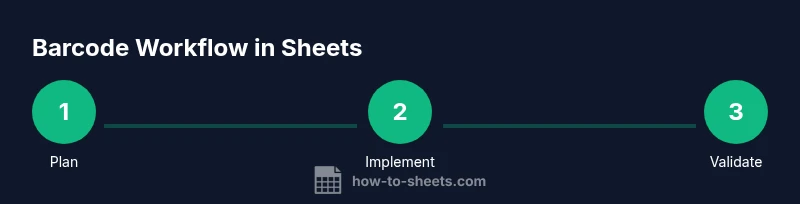
To ensure reliability, build your workflow in stages and test at each step. Start with a single row and a small dataset. Verify the barcode image renders correctly in your target audience's scanning environment. Then expand to multiple rows and a mix of data types. Finally, test print readiness by exporting to PDF or printing a test label sheet. Maintain a changelog so you can revert changes if something breaks.
Printing considerations and label design
Printing barcodes requires careful attention to size, quiet zones, and contrast. Keep a minimum imaging height of around 12–15 mm for Code 128 and at least 20–25 mm for QR codes, depending on label stock. Use solid black on white and avoid decorative backgrounds. When preparing for production, export to a high‑resolution format (300–600 dpi) and run a small batch print to validate readability with your scanners. Consider numbering schemes so you can group labels by batch or category for easier inventory management.
Common pitfalls and how to avoid them
- Data privacy risk: sending sensitive data to external barcode services can expose information. Avoid transmitting confidential fields unless you control the endpoint. - Image size issues: overly small barcode images are hard to scan; always calibrate with printer output. - Data length: QR codes tolerate longer payloads, while Code 128 is better for compact strings; choose accordingly. - Caching: without caching, repeated API calls can slow down large sheets. Implement a simple cache in Apps Script or on your server.
Tools & Materials
- Computer or laptop with internet access(Access Google Sheets in a browser)
- Google account(Needed to access and save Sheets)
- Google Sheets(Create or open a spreadsheet for data and barcode images)
- Apps Script editor(Extensions > Apps Script in Sheets to create custom functions)
- Internet access to barcode APIs(QR API or Code 128 barcode services)
- Printer and label stock (optional)(For physical label printing and verification)
Steps
Estimated time: 60-90 minutes
- 1
Plan data and barcode type
Identify the data fields you will convert to barcodes and decide whether QR codes or Code 128 barcodes best fit your workflow. Consider where the codes will be scanned and how much data you need to store.
Tip: Document the data length per field to avoid unnecessary truncation. - 2
Prepare the sheet layout
Create columns for the data (A), QR image or barcode image (B or C), and any metadata (optional). Freeze header rows and set clear column widths for readability.
Tip: Use INDIRECT or named ranges to simplify formulas as your sheet grows. - 3
Implement QR codes via IMAGE
Add a formula that builds a QR URL and render it with IMAGE. Test with a small dataset and adjust image size to suit your label stock.
Tip: Encapsulate data with ENCODEURL to ensure URL safety. - 4
Implement Code 128 via Apps Script
Create a small Apps Script function that returns a barcode URL, then render with IMAGE in Sheets. This enables automation and bigger datasets.
Tip: Keep the Apps Script function simple and cache responses for identical inputs. - 5
Validate scans and print tests
Scan a sample of labels with your expected scanners. Check readability at actual print sizes and adjust the barcode height and width if needed.
Tip: Test across multiple devices to confirm consistent scanning results. - 6
Automate and share
If this is a shared sheet, set permissions, create a template, and document usage guidelines so others can reuse the workflow.
Tip: Maintain a changelog and update scripts when APIs change.
FAQ
What is a Google Sheets barcode generator and how does it work?
A Google Sheets barcode generator uses formulas, Apps Script, or add-ons to convert data into barcode images within cells. It can render QR codes or Code 128 barcodes directly in Sheets and lets you print or display the codes as part of your data workflow.
A barcode generator in Sheets converts text data into barcode images inside cells using formulas or scripts.
What barcode types can I generate in Sheets?
The most practical options are QR codes and Code 128. QR codes are versatile for URLs and long strings, while Code 128 is compact for inventory data.
You can generate QR codes and Code 128 barcodes in Sheets.
Do I need to use an external API for barcodes?
Not necessarily. You can generate using built-in image URLs for QR codes or call Apps Script to access external barcode services when needed.
You can use built-in image URLs or Apps Script with an external API.
How do I print barcodes legibly on labels?
Ensure the image size matches label stock and use high contrast. Print a test page at true label size to verify readability.
Printing requires correct size and contrast; test before a full run.
Is it secure to use external barcode services?
External services may see your data. Limit data sent, use private endpoints when possible, and consider on‑premise options for sensitive datasets.
Be mindful of data privacy when using external services.
Watch Video
The Essentials
- Plan data and barcode type before building.
- Use QR for longer data and Code 128 for compact codes.
- Test thoroughly in print and scan scenarios.
- Automate with Apps Script for reliability and scale.