Refresh Google Sheets: A Practical Step-by-Step Guide
Learn practical, step-by-step methods to refresh Google Sheets data, including manual updates, automatic refresh with Apps Script, and best practices for reliable, up-to-date dashboards.


You will learn how to refresh Google Sheets data by reloading imports, forcing recalculation, and using Apps Script or built-in functions. Key prerequisites include internet access, access to the sheet, and any data connectors you rely on. Follow the steps to ensure your sheet always shows current values.
What refresh google sheets means for your workflow
Refresh google sheets means updating cells that pull data from external sources, or forcing recalculation of formulas so dashboards reflect the latest values. In practice, you’re aligning data in your Sheet with live services, files, or feeds. According to How To Sheets, the most reliable refresh strategy starts with clear data sources, a known cadence, and a fallback method when a connection fails. When your goal is a dependable dashboard, plan your refresh around the data’s latency and your stakeholders’ needs. The phrase refresh google sheets should be treated as a capability you build into your spreadsheet design, not a one-off action. This approach helps students, professionals, and small business owners maintain confidence in decision-making that relies on current numbers.
While refreshing data is common in dashboards and reporting, it is also a best practice in personal budget trackers and project trackers. By setting expectations for how fresh the data must be, you can choose a refresh cadence that aligns with your workflow. The How To Sheets team emphasizes that a well-implemented refresh strategy reduces manual checks and prevents stale analysis from slipping into reports.
The first step is to understand your sources: IMPORTRANGE connections to other spreadsheets, IMPORTXML/IMPORTHTML pulls from web data, or API-based connections via Google Apps Script. Each source has different refresh behavior and permissions requirements. The goal of this guide is to help you design a predictable refresh pattern that minimizes manual work while keeping values accurate and timely.
note”:null},{
Manual refresh methods
Manual refresh is the quickest option when data freshness matters only sporadically. Re-enter or edit IMPORTRANGE and IMPORTDATA formulas to force a recalculation, or simply press Enter after selecting the formula cell to trigger a recalculation. Another practical approach is to add a tiny helper cell with the function =NOW() or =TODAY() and copy-paste values to avoid circular references, which nudges Sheets to pull in updated data. If you’re refreshing a browser-based sheet, a quick page reload (Ctrl+R or Cmd+R) will refresh the view and often clear transient cache that affects display. Remember that some external connectors require re-authorization after permission changes. This method is favored when you need a quick sanity check or to refresh a narrow slice of data before a presentation.
For teams collaborating in real time, manual refresh can be scheduled around meeting times or report cutoffs. Keep a lightweight changelog noting when you performed a manual refresh and what sources were affected. This creates a traceable history useful for audits or stakeholder inquiries. The How To Sheets guidance reiterates that manual refresh is a reliable baseline method that doesn’t require code and works across many common data sources.
If you’re using impulse-driven dashboards, you can pair manual refresh with a volatile function in a designated summary cell to make the refresh more visible. A simple pattern is to place =NOW() in a hidden cell, then copy its value to a log area to indicate when the last refresh occurred.
tip":"When refreshing manually, avoid editing dependent cells during the refresh to prevent transient calculation errors."},{
Apps Script: simple automation without heavy coding
Apps Script provides a lightweight path to automate refresh without building a complex integration. Start with a simple script that iterates through your sheets, reads the data range, and writes it back to trigger recalculation and cache flush. A minimal example is:
function refreshAll() {
  const ss = SpreadsheetApp.getActiveSpreadsheet();
  ss.getSheets().forEach(sheet => {
    const r = sheet.getDataRange();
    const v = r.getValues();
    r.setValues(v);
  });
  SpreadsheetApp.flush();
}
Save the script, authorize it, and optionally set a time-driven trigger to run this function at your preferred cadence (e.g., every hour). This approach works well for dashboards that rely on multiple IMPORTRANGE connections or external feeds. The trigger reduces manual effort while keeping data reasonably fresh.
If you’re new to Apps Script, focus on small, incremental scripts and test in a copy of your sheet. Always review quotas and ensure triggers don’t run too often, which could impact performance. The How To Sheets Team recommends starting with a single trigger and expanding only after validating stability and data accuracy.
tip":"Test the script on a copy of your sheet first to avoid disrupting live data. Start with a short interval (e.g., hourly) and adjust based on needs."},{
Special case: IMPORTRANGE and external data sources
IMPORTRANGE is a common way to pull data from other spreadsheets, but it can cache data for a short period. If you notice lag, try editing the source URL or re-authenticating the connection in Sheet where the data appears. In some cases, deleting and re-adding the IMPORTRANGE formula forces a fresh fetch. You can also place a dummy trigger formula, such as =NOW(), in a separate cell to indicate that a refresh was expected and has occurred.
When dealing with APIs or paid data feeds, respect rate limits and authentication scopes. If the external source requires OAuth permission, ensure the correct account is active and that the scope includes read access. The How To Sheets analysis shows that having a clear source map—what data comes from where—helps you reason about refresh timing and error states more effectively.
tip":"Document data sources and credentials in a shared sheet so teammates understand refresh expectations and permission requirements."},{
Troubleshooting common refresh issues
Refresh problems often fall into a few buckets: permission errors with data sources, cache delays, or formula-based instability. Start by verifying that all data connectors have the necessary permissions and that user accounts are not expired. If a refresh fails, check the sheet’s execution log (Extensions > Apps Script > Executions) for error messages and adjust your script or formulas accordingly. For slow refreshes, consider reducing the data footprint — limit imported ranges, avoid volatile functions in large ranges, and split dashboards into modular sheets that refresh independently.
Network latency can also affect refresh speed. If you’re working in a distributed team, ensure everyone uses a stable internet connection, and consider off-peak refresh windows to reduce contention. How To Sheets recommends a diagnostic sequence: confirm permissions, test with a simple data source, review logs, and slowly reintroduce complexity. This method helps you isolate issues without guessing at root causes.
tip":"Use a controlled test sheet with a small data subset to reproduce refresh issues quickly and safely."},{
Best practices for reliable refreshes
Designing a robust refresh strategy starts with clear data cadences and graceful degradation. Document your sources, refresh frequency, and expected latency. Use a combination of manual checks and automated scripts to cover both ad hoc and scheduled updates. Keep backups of sheets before enabling automation to prevent data loss, and enable version history so you can revert if a refresh introduces errors. When possible, decouple data sources from the presentation layer so you can refresh data without modifying the user-facing dashboards.
Finally, monitor performance and adjust. If an automated refresh slows down your sheet’s responsiveness, stagger refresh times or limit the scope of each run. The How To Sheets team emphasizes that predictable refresh behavior reduces firefighting and improves trust in data, especially for students and professionals who rely on timely insights for decision-making.
tip":"Schedule periodic reviews of your refresh setup to accommodate changing data sources and user needs."},{
Practical templates and checklists you can reuse
To help you start quickly, consider these templates: a refresh checklist showing data sources, permissions, and cadence; a simple Apps Script starter that refreshes only specific sheets with critical connectors; and a small validation log that records last refresh timestamps and data row counts. For dashboards with multiple data streams, create a modular system where each data source has its own refresh routine, and a master sheet cell indicates overall freshness. This structured approach makes it easier to scale and maintain as your sheet ecosystem grows.
If you’d like a ready-to-use starter, adapt the examples above to your own data sources and share the template with teammates. How To Sheets’s guidance is to keep it simple, test thoroughly, and document changes so others can follow the refresh process confidently.
tip":"Start with a minimal viable template and expand features as you validate data accuracy and performance."
Tools & Materials
- Computer or laptop with internet access(Ensure your browser is up to date and you’re signed into Google account)
- Google account with access to the spreadsheet(Needed for IMPORTRANGE, Apps Script, and sharing)
- Active Google Sheet(s) with data connections(Examples: IMPORTRANGE, IMPORTDATA, IMPORTXML)
- Browser refresh capability (Ctrl/Cmd+R)(Useful for quick manual refresh view)
- Google Apps Script editor(For implementing automated refresh (Extensions > Apps Script))
- Backup copy of the spreadsheet(Important before enabling automated scripts)
- Documentation of data sources(Helps teammates understand refresh cadence)
Steps
Estimated time: 45-60 minutes
- 1
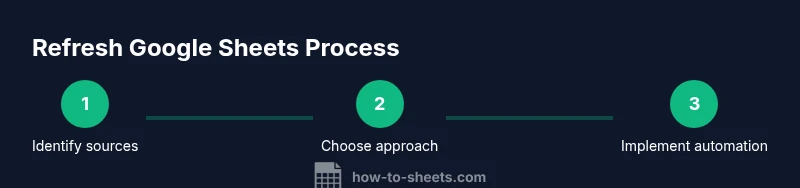
Identify data sources
List every source the sheet relies on (IMPORTRANGE, IMPORTDATA, API connections). Note each source’s update behavior and authentication requirements. This foundation prevents surprises during refresh.
Tip: Create a data-source map in a separate tab for quick reference. - 2
Decide refresh approach
Choose between manual refresh, automated scripts, or a hybrid strategy. Your choice should align with data cadence and team needs. Set realistic expectations for how fresh the data must be.
Tip: Document the chosen cadence so teammates know when updates occur. - 3
Refresh IMPORTRANGE manually
Re-enter the IMPORTRANGE formula or re-authorize the connection if prompted. This is a quick check to ensure the source is reachable and updating.
Tip: If re-authorization prompts appear, grant access to the source spreadsheet. - 4
Force recalculation with a volatile function
Add a helper cell using NOW() or TODAY() to force calculation, and copy-paste values to avoid circular references. This makes the sheet recalculate and pull fresh data.
Tip: Only use this in a non-production cell or a helper area to avoid clutter. - 5
Create a simple Apps Script to refresh
Write a small script that reads each data range and writes the same values back, then calls SpreadsheetApp.flush() to push updates.
Tip: Test on a copy first, then deploy with a trigger if desired. - 6
Set up a time-driven trigger (optional)
In Apps Script, create a time-driven trigger to run the refresh function at a regular interval (e.g., hourly). This ensures data stays fresh without manual intervention.
Tip: Start with once-per-hour cadence and adjust as needed. - 7
Validate refreshed results
Review key cells to confirm values reflect the latest data. Check a timestamp, row counts, and a few critical metrics to ensure accuracy.
Tip: Maintain a short QA checklist for each refresh.
FAQ
What does refreshing data in Google Sheets accomplish?
Refreshing updates values pulled from external sources or recalculates formulas so dashboards reflect current data. It helps maintain accurate reports and reduces manual verification.
Refreshing makes sure your sheet shows up-to-date numbers by updating external data and recalculating formulas.
Do I need to refresh manually every time I update a source?
Not always. Some sources update automatically, but operations like IMPORTRANGE may lag. Use manual refresh for quick checks and consider automation for regular cadence.
Not always—automatic updates exist, but you may need manual refresh when immediacy matters.
How can I refresh IMPORTRANGE automatically?
Automatic refresh for IMPORTRANGE isn’t built-in, but you can use Apps Script to re-enter the formula or rewrite values at intervals, triggering recalculation. Also ensure re-authorization if permissions change.
You can automate refresh with a small Apps Script that re-writes IMPORTRANGE cells on a schedule.
Is there a risk to data integrity when refreshing?
Yes, improper scripts can overwrite important data or create circular references. Always test on a copy, backup your sheet, and verify critical metrics after refresh.
There is a risk if you oversimplify scripts; always test and back up first.
What are common refresh issues and how do I fix them?
Permission prompts, cached results, and source latency are common. Check permissions, review error logs in Apps Script, and verify source availability before troubleshooting further.
Common issues include permission prompts and cache delays; check logs and sources to fix.
Watch Video
The Essentials
- Identify data sources and refresh cadence before acting
- Use manual refresh for quick checks and automation for reliability
- Leverage Apps Script to automate without heavy coding
- Validate data after each refresh to ensure accuracy