Sample Google Sheets Data Download: A Practical Guide
Learn how to download a sample Google Sheets data set in CSV, XLSX, or PDF. This step-by-step guide covers formats, sources, and best practices for safe, efficient data exports.


Downloading a sample Google Sheets data download is straightforward and teaches you export options without risking real files. In this guide, you’ll identify formats, locate reliable sample data, and perform a clean download from Google Sheets. Before you start, ensure you have a Google account and stable internet access. This is a practical task for students, professionals, and small business owners.
Why downloading a sample dataset matters
A sample Google Sheets data download is a safe way to learn export workflows, practice formatting, and verify downstream compatibility without exposing sensitive information. According to How To Sheets, practicing with a representative sample helps you understand how different formats behave in data pipelines, BI tools, and statistical analyses. A well-chosen sample allows you to compare how CSV, XLSX, and PDF handle headers, formulas, and embedded charts. For students, this hands-on approach accelerates mastery; for professionals and small teams, it reduces errors when sharing data externally. By starting with a real-looking but sanitized dataset, you can test automation, validate column alignment, and check encoding issues before touching live sheets. The result is faster, safer exports and clearer communication with colleagues and clients. The How To Sheets analysis emphasizes that a well-prepared sample is the foundation of reliable data exports and reproducible workflows.
Formats you can export from a sample sheet
When you download from Google Sheets, you typically choose among CSV, XLSX, ODS, or PDF. For data manipulation and analysis, CSV and XLSX are the most common choices. CSV exports preserve raw data (no formulas), which is ideal for import into Python, R, or database tools. XLSX preserves multiple sheets, formatting, and formulas, making it suitable for sharing a complete workbook with colleagues. PDF provides a static, print-ready snapshot suitable for reports or audits, though it isn’t ideal for data manipulation. OpenDocument Spreadsheet (ODS) is a cross-compatibility option supported by many open-source tools. Encoding matters in CSV exports; UTF-8 is generally recommended to avoid character corruption. Consider your downstream tools when choosing formats to ensure a smooth handoff.
Finding reliable sample datasets for practice
Reliable samples can come from public, non-sensitive sources or sanitized copies of real datasets. Start with publicly available templates and datasets that resemble your real-world use cases, then sanitize to remove any personally identifiable information. How To Sheets recommends looking for datasets that include representative column types (dates, numbers, text, and currencies) and realistic scales. You can assemble a practice sheet by combining clean, public data with fictional entries to mirror your workflow. If you’re preparing for a specific task (like budgeting or inventory), frame the sample data to reflect those fields. Finally, document any assumptions you make about the data so your exports remain reproducible for teammates.
Step-by-step guide: downloading a sample dataset from Google Sheets
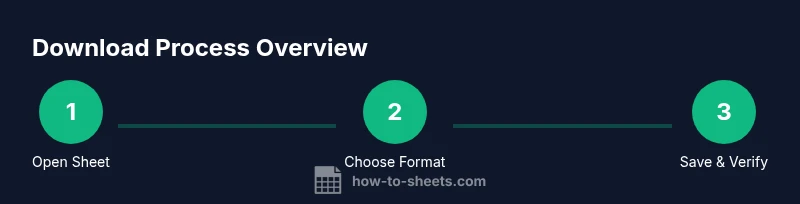
Downloading a sample dataset from Google Sheets involves a few clear actions. Start by opening the sheet in your browser and confirming you’re looking at a non-sensitive, public-facing sample. Then, use Google Sheets’ export options to save the data in the format you need. The process is iterative: you may export multiple formats to compare outputs or to feed different tools in your workflow. This approach ensures you understand data fidelity, formatting, and encoding across formats, which is essential for consistent results across projects. Throughout, keep privacy and naming conventions in mind to support easy sharing and future reuse. Remember that you can always revert to the original sample if you need to retry an export.
Troubleshooting, best practices, and common pitfalls
Avoid common pitfalls like exporting the wrong sheet (CSV exports only the active sheet) or losing formatting in CSV exports. Always sanitize data before download to maintain privacy, especially if the sample is derived from real-world use cases. Use clear, consistent filenames and keep a simple folder structure to track formats and versions. When dealing with large datasets, consider exporting in chunks or using Google Apps Script for automation. Finally, test the downloaded files by opening them in the target tools (Excel, Python, BI software) to confirm everything imports cleanly.
Tools & Materials
- A Google account with access to Google Sheets(Essential to access and download sheets)
- Stable internet connection(Required for accessing Google Sheets online)
- Sample dataset URL or shared sheet link(Use a non-sensitive, publicly accessible sheet)
- Target export formats (CSV, XLSX, PDF, ODS)(Choose formats based on downstream workflows)
- A descriptive file naming convention(Helps with organization and versioning)
- Optional: Google Sheets offline access(Useful if internet is intermittent)
Steps
Estimated time: Total time: 10-15 minutes
- 1
Open the sample Google Sheets file
Launch Google Sheets in your browser and open the provided sample sheet. Verify you’re viewing the correct dataset and that it contains representative columns you’ll export. This step ensures you’re practicing with a safe, non-sensitive dataset.
Tip: If you don’t have a link, request a shared copy from your instructor or colleague. - 2
Review and sanitize the data
Scan for unnecessary columns or sensitive information and remove or mask as needed. Sanitation keeps your export clean for analysis and prevents accidental data exposure. Consider duplicating the sheet for practice so the original stays intact.
Tip: Use a temporary copy to avoid altering the source data. - 3
Click File > Download
From the menu, select File, then Download to reveal available formats. This action prepares your data for export and initiates the format-specific workflow. You’ll choose the target format next.
Tip: If you don’t see options, ensure you’re in view mode of the correct sheet tab. - 4
Choose the export format
Pick CSV for single-sheet data, XLSX for multi-sheet workbooks, or PDF for a static report. Confirm any prompts (like encoding) and proceed. The choice affects how formulas, formatting, and headers render in the destination.
Tip: For data pipelines, CSV (UTF-8) is usually the most compatible. - 5
Save the downloaded file
Save to a known folder with a descriptive filename (e.g., sample_sales_q2.csv). If exporting multiple formats, repeat the process for each format. Keep a simple versioning scheme to track updates.
Tip: Use consistent naming: sheetname_format_date. - 6
Validate the export in downstream tools
Open the downloaded file in your analysis tool or viewer to confirm headers, data types, and row counts align with expectations. If something looks off, re-export after adjusting the source sheet.
Tip: Check for common issues like mis-encoded characters or truncated fields.
FAQ
How do I download a Google Sheets dataset as CSV?
Open the sheet, go to File > Download > Comma-separated values (.csv), then save the file. For datasets with multiple sheets, consider XLSX for preservation of all sheets.
Open the sheet, choose Download as CSV, and save. For multi-sheet data, export as XLSX.
Can I download multiple sheets at once?
CSV exports only the active sheet, but XLSX exports preserve all sheets in a workbook. Use XLSX for multi-sheet data and CSV for single-sheet data.
CSV exports one sheet; XLSX exports the whole workbook.
What formats are best for data analysis in Python?
CSV is typically ideal for Python data pipelines due to its simplicity, while XLSX can be used when structure and formulas matter. Ensure UTF-8 encoding when saving as CSV.
CSV is usually best for Python, with UTF-8 encoding recommended.
How can I preserve formatting when exporting to CSV?
CSV stores plain data only, so formatting is not preserved. Export to XLSX or PDF if you need formatting in the output.
CSV doesn’t keep formatting; use XLSX or PDF for formatted output.
Are there size limits for Google Sheets exports?
Google Sheets supports fairly large datasets, but practical limits depend on your browser and system resources. For very large exports, split the data or export in chunks.
Very large exports may require chunking the data.
Can I automate downloads from Google Sheets?
Yes. You can use Google Apps Script or APIs to automate exporting sheets to CSV or other formats on a schedule or trigger. Start with a small script and test in a copy of your sheet.
Automation via Apps Script or APIs is possible; start small and test.
Watch Video
The Essentials
- Download a sample dataset to practice exports
- CSV and XLSX are the most common formats
- Sanitize data before sharing or exporting
- Validate exports in downstream tools