Scan to Google Sheets: A Practical OCR Import Guide
Learn how to scan documents or images and import data into Google Sheets using OCR. This practical guide covers capture, recognition, cleanup, validation, and automation for reliable, editable data.


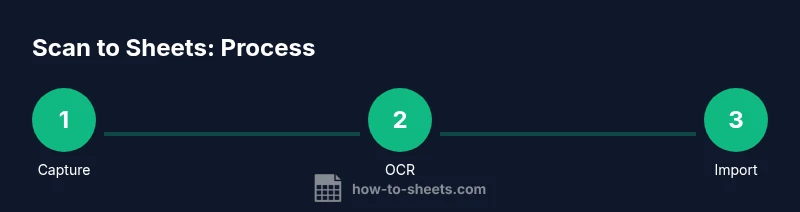
Scan to Google Sheets is a practical workflow to convert photographed or scanned data into editable Sheets using OCR. This ultra-compact summary highlights capture, OCR processing, and import steps, plus basic cleanup. See our detailed step-by-step guide for exact actions and tips.
What scanning to Google Sheets means
In its simplest form, scanning to Google Sheets means using a scanner or smartphone camera to convert physical documents into digital text via optical character recognition (OCR), then bringing that text into Google Sheets for editing and analysis. The process combines image capture, OCR accuracy, and spreadsheet import steps to turn paper forms, invoices, or notes into structured data. The benefits include faster data entry, easier data sharing, and the ability to apply Sheets' formulas, filters, and charts to the captured data. Throughout this guide, we focus on practical, repeatable steps you can apply to multiple documents without specialized software. You’ll learn how to choose the right OCR approach, when to rely on manual checks, and how to organize the resulting data so it remains usable for days, weeks, or entire projects. The goal is a reliable, scalable workflow you can adapt as your data needs grow.
Use cases and benefits
Organizations of all sizes rely on scan-to-Sheets workflows for different tasks: intake forms, receipts, inventory lists, and survey sheets. Key advantages include reduced manual typing, faster data availability, and improved consistency when you standardize templates. With OCR, you can extract text quickly, but you still need to clean up and structure the data in Sheets. By combining a reliable capture method with Sheets’ data validation, you gain better control over your data pipeline and faster decision-making.
Before you start: requirements and setup
Before starting, assemble the required tools and confirm your environment. A stable internet connection, a Google account, and access to Google Sheets are essential. Decide whether you’ll work on mobile, desktop, or both. If you plan to batch multiple scans, consider organizing your documents in a dedicated folder and establishing consistent file naming. Finally, set expectations for OCR accuracy and plan for a manual review step. Having a clear plan saves time and reduces frustration when errors appear in later steps.
How OCR fits into the workflow
Capture an image, run OCR to extract text, import into Sheets, and then refine. The OCR step converts image data into machine-encoded text, but it often introduces errors in numbers, dates, or mis-spaced words. The import step places the text into a workbook, where you can immediately begin cleaning with built-in Sheets tools. This section explains the practical role of OCR and how to minimize errors through settings and workflows.
Data cleaning and normalization in Sheets
After import, you’ll typically need to clean and structure the data. Use TRIM to remove extra spaces, CLEAN to strip non-printing characters, and SPLIT or REGEXEXTRACT to separate combined fields. Establish headers and consistent data types (text, numbers, dates). Apply data validation rules to prevent invalid entries and set up conditional formatting to highlight anomalies. A little upfront planning saves hours of rework later.
Handling OCR mistakes and accuracy boosters
OCR is not perfect, especially with messy originals or unusual fonts. Improve accuracy by scanning at higher resolutions, avoiding curved pages, and ensuring good lighting. If a scan contains tables, try OCR settings that preserve tabular structure. When possible, proofread critical rows and use a secondary pass for revised scans. Consider an explicit workflow for known fields (e.g., dates in MM/DD/YYYY).
Automating batch scans with templates and Sheets features
For frequent data imports, create a reusable template in Google Sheets with predefined headers, formats, and data-validation rules. Use a dedicated import script or Apps Script to load OCR-exported CSVs into the correct sheet and columns. You can also use Google Drive folders and a named file pattern to trigger automatic imports. This approach reduces manual steps and keeps data consistent.
Authority sources and best practices
To ground this guide in best practices, consult official documentation and reputable sources. For example, Google's support pages on Drive OCR and Sheets import provide foundational guidance, while educational institutions describe OCR limitations and verification strategies. In practice, combining a strong capture process with structured Sheets workflows yields reliable results.
Tools & Materials
- Smartphone or camera-enabled device(High-resolution capture is key; use HDR if available)
- Scanner (flatbed or sheet-fed) or a dedicated scanning app(Prefer 300-600 dpi for accuracy)
- OCR software or OCR-enabled apps(Look for table-preservation and CSV export options)
- Google account with access to Google Sheets(Necessary for saving and sharing data)
- Stable internet connection(OCR and cloud syncing rely on network access)
- Optional: CSV export-capable OCR app(Facilitates clean import into Sheets)
- Organization system for documents(Folder structure and consistent naming help batch processing)
Steps
Estimated time: 60-90 minutes
- 1
Capture the document
Position the document flat and well lit. Use a steady surface or tripod to prevent blur. Ensure the entire page is in frame and avoid shadows that obscure text.
Tip: Use the highest practical resolution and shoot with natural light when possible. - 2
Choose an OCR method and extract text
Select an OCR app or service and extract the text from the image. Save or copy the text to clipboard, or export as CSV for import.
Tip: Prefer OCR that preserves table structure to reduce post-import editing. - 3
Import data into Google Sheets
Open Sheets and paste or use Import to bring in the text. If the data comes as CSV, use File > Import to place it correctly.
Tip: If data is columnar, use Split text to columns to separate fields. - 4
Clean and normalize
Apply TRIM, CLEAN, and text-to-columns where needed. Normalize dates and numeric fields to consistent formats.
Tip: Create a header row before importing and maintain consistent data types. - 5
Validate data quality
Cross-check a sample against the original image and set up data validation rules to catch anomalies.
Tip: Highlight suspicious rows with conditional formatting for quick review. - 6
Automate repeat imports
Build a reusable template or Apps Script to process multiple OCR outputs with minimal manual steps.
Tip: Name files and folders clearly to trigger batch processing automatically.
FAQ
Can I scan directly into Google Sheets without OCR?
No. OCR is required to convert images into editable text before importing into Sheets. You then refine formatting in Sheets.
No—OCR is needed first, then you can edit in Sheets.
Which OCR app works best with Google Sheets?
Choose an OCR app that maintains table structure and can export CSV or plain text for easy import into Sheets.
Pick an OCR tool that preserves tables and exports CSV.
How accurate is OCR for numbers and dates?
OCR accuracy depends on image quality and font. Expect occasional misreads; plan a verification pass for critical fields.
OCR can misread numbers or dates; verify critical fields.
Can I automate batch scans into Sheets?
Yes. Use templates, Apps Script, or automation workflows to batch-import OCR outputs into Sheets.
Yes, with templates or scripts you can batch import outputs.
What about privacy when using OCR in the cloud?
Consider local OCR for sensitive data and review app permissions. Use enterprise-grade tools when available.
Be mindful of data processing and permissions when using OCR in the cloud.
Watch Video
The Essentials
- Scan with good lighting to boost OCR performance.
- Import text into Sheets and structure it with headers.
- Leverage Sheets features to clean and validate data.
- Automate repeat imports with templates and scripts.