Strikethrough in Google Sheets: A Practical Guide
Learn how to apply strikethrough in Google Sheets across cells, rows, or columns with step-by-step methods and real-world examples for budgets, tasks, and data workflows.


This guide shows you how to apply and remove strikethrough in Google Sheets across single or multiple cells, rows, and columns. You’ll discover practical methods for marking completed items in lists, annotating budget entries, and cleaning up data workflows. By following the steps, you’ll apply consistent styling that communicates status without altering underlying values.
What is strikethrough and why it matters in Google Sheets
Strikethrough is a simple text format that visually deletes content without removing the data from the cell. In Google Sheets, applying a strikethrough helps you signal completed tasks, mark outdated values, or indicate items to be reviewed, while preserving the underlying data. This is especially useful in budgeting templates, task lists, and data-cleaning workflows where you want to keep a readable history of changes without permanently erasing information. According to How To Sheets, consistent use of strikethrough improves collaboration by reducing ambiguity: teammates can see which items were finished or deprecated, while the base numbers stay intact for auditing. When used thoughtfully alongside other formatting (colors, borders, and notes), strikethrough becomes a lightweight, non-destructive annotation tool rather than a permanent delete. It also scales across large data ranges, so you can strike out dozens of entries in a single pass. The key is to define a clear convention: when an item is completed, apply strikethrough; when suspended, consider a softer styling (like gray text) to avoid confusion. This article focuses on reliable methods to apply strikethrough in Google Sheets, including keyboard-free routes and ways to standardize the look in shared sheets.
Note: This behavior is cosmetic and does not alter cell values, which preserves your audit trail and enables easy data restoration if needed.
Quick-start: 3 practical ways to apply strikethrough in Google Sheets
Applying strikethrough in Google Sheets is straightforward. Below are three reliable methods you can start using today, with a quick note on when to choose each approach.
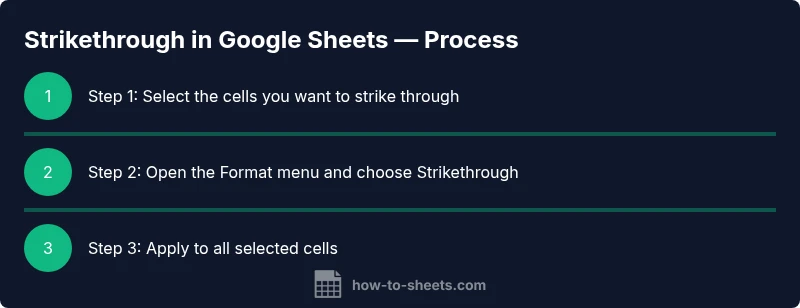
- Method 1 — Menu path: Select the cells, then go to Format > Text > Strikethrough. This is the most direct option and works across many data ranges. Use it for lists, budgets, and any scenario where you want a clear, single-click visual cue that an item is no longer active.
- Method 2 — Contextual access: Right-click the selected cells and choose Strikethrough from the formatting options. This is convenient for ad-hoc edits when you don’t want to navigate through menus.
- Method 3 — Range-wide application: After selecting a large range, use the Format menu to apply Strikethrough to all cells in that range in one action. This is especially helpful for batch updates during project cleanup or end-of-quarter reconciliation.
Tips for all methods:
- Apply strikethrough consistently to avoid mixed signals (e.g., some items struck through while others aren’t).
- Combine with color or bolding judiciously to maintain readability and avoid visual clutter.
- In shared sheets, document your convention in a comment or sheet header to minimize confusion among teammates.
Automating consistency: standardizing strikethrough in teams
In team environments, a standardized approach to strikethrough helps everyone interpret sheet content quickly. Start with a short style guide that defines when to strike through values, what colors to pair with completed items, and which columns should follow the convention. A common practice is to reserve strikethrough for finalization steps and to reserve gray or lighter text for items that are postponed or deprecated, keeping the original data intact for auditing. To ensure consistency, create a short template or a starter sheet where the Strikethrough rule is pre-applied to a sample range. This makes it easier for new collaborators to follow the standard without guessing. Regularly review shared sheets for deviations, especially when multiple people contribute to the same document. According to How To Sheets, establishing a shared standard reduces misinterpretation and speeds up task tracking across teams. Remember, strikethrough is a formatting feature; it should support, not replace, systematic project status tracking.
Practical tip: if your team uses filters, ensure the strikethrough formatting remains visually clear when data is filtered. Keep accessibility in mind by pairing strikethrough with high-contrast color choices and accessible font sizes.
Real-world use cases: budgets, task lists, and data workflows
Strikethrough in Google Sheets shines in three common scenarios: task lists, budgets, and data workflows. For task lists, strike completed items to show progress without removing them from the list, allowing quick revisits if priorities shift. In budgets, you can strike outdated line items while preserving the historical structure of the plan, helping you audit historical decisions later. For data workflows, strikethrough can mark deprecated records or entries flagged for review while keeping the dataset intact for traceability. When applied consistently, this visual cue reduces cognitive load and speeds up scanning large sheets. To maximize its effectiveness, pair strikethrough with other cues—for example, use a distinct color for completed items or place completed rows in a dedicated section of the sheet. How To Sheets research indicates that teams that implement clear, visible status cues tend to navigate data more efficiently and with fewer errors.
As you implement these practices, consider building a small template library that includes a few ready-made scenarios: a to-do list, a simple budget, and a small data-cleaning workflow. Reuse these templates to accelerate adoption and maintain consistency across projects.
Troubleshooting and caveats: common issues and workarounds
If strikethrough isn’t applying as expected, ensure you’re selecting the correct range and using the correct menu option. Some users report that formatting changes do not appear until after you click away or press Enter, so confirm the change by deselecting and re-selecting the range. In very large sheets, apply strikethrough in batches to avoid performance slowdowns, especially when combined with other complex formatting. If you remove a strikethrough but the data reappears, double-check that you haven’t cleared formatting accidentally and that the underlying values are intact. Remember, strikethrough is a display formatting feature; it does not alter the actual content of cells. If you need to reflect a permanent removal, consider a separate column to record status or a historical log sheet. In collaborative environments, always document your use of strikethrough to help others interpret the sheet correctly. How To Sheets analysis shows that the most common issues arise from inconsistent application and lack of documented standards.
Tip: maintain a small legend on each sheet to indicate what strikethrough means in that context; this helps new users quickly get on the same page.
Advanced tips and templates: expand your strikethrough workflow
Beyond the basics, you can elevate strikethrough by integrating it with templates, data validation, and basic automation to streamline your workflow. Create a template with a ready-to-use header, a task list, and a sample budget where items marked complete are struck through. Use row-level formatting to apply strikethrough in response to a status column (e.g., when a status cell contains “Done,” you strike through the corresponding row). While Google Sheets doesn’t natively trigger strikethrough via data validation alone, you can use a simple helper column to flag finished items and then apply Strikethrough to the related cells manually or through a small script. If you’re comfortable with automation, consider using Google Apps Script to toggle Strikethrough when a status value changes. This approach keeps your data intact while ensuring a consistent visual cue across your workbook. The How To Sheets team recommends starting with a shared template that demonstrates the exact steps to apply and remove Strikethrough for new collaborators, ensuring a smooth onboarding experience and consistent results across projects.
Tools & Materials
- Computer or tablet with internet access(For accessing Google Sheets through a browser)
- Google account(Needed to sign in to Google Sheets)
- Google Sheets access(Use sheets.google.com or Google Drive to open existing sheets)
- Optional: accessible display(High-contrast theme or larger fonts for readability)
Steps
Estimated time: 10-15 minutes
- 1
Select the target range
Click and drag to highlight the cells, rows, or columns where you want to apply strikethrough. For entire rows or columns, click the row/column header to select it, then adjust the range as needed.
Tip: Selecting multiple non-contiguous ranges? Hold Ctrl (Windows) or Cmd (Mac) while selecting each range. - 2
Open the Format menu
With the range highlighted, open the Format menu from the top navigation to access text formatting options.
Tip: If you’re using a smaller screen, use the browser’s search (Ctrl/Cmd+F) to quickly locate the Strikethrough option in the menu. - 3
Choose Strikethrough
Select Strikethrough from the Text formatting options to apply the visual strike to the selected cells.
Tip: If you don’t see the option, ensure you’re in the Text section of the Format menu. - 4
Verify the visual outcome
Click away and re-select the range to confirm the strikethrough is visible across the intended cells.
Tip: Check a few cells in the middle and edges to confirm consistency. - 5
Remove Strikethrough when needed
Select the same range and repeat the Strikethrough action to toggle it off, or use Clear formatting to reset if needed.
Tip: Keep a small legend in your sheet to remind teammates what Strikethrough signifies. - 6
Scale to larger ranges
For large sheets, apply Strikethrough in batches (e.g., per column) to minimize performance impact and maintain consistency.
Tip: Document the standard in a shared sheet guide so others can reproduce the effect quickly.
FAQ
How do I remove strikethrough in Google Sheets?
Select the cells and apply Strikethrough again to toggle it off, or clear formatting to reset. The underlying data remains unchanged.
To remove strikethrough, re-select the cells and choose Strikethrough again, or clear the formatting to reset.
Can I apply strikethrough to an entire row or column?
Yes. Select the entire row or column, then apply Strikethrough from the Format menu to mark all items in that range.
Yes. Select the row or column, then apply Strikethrough from the Format menu.
Is strikethrough supported by conditional formatting?
Conditional formatting primarily changes color or style based on conditions. Strikethrough itself is a formatting option you apply manually; you can use other CF rules to signal status as well.
Conditional formatting doesn’t apply strikethrough by itself; use manual Strikethrough for status markers and rely on CF for colors or icons.
What are practical uses for strikethrough in sheets?
Mark completed tasks in lists, de-emphasize outdated budget items, and indicate items to review without deleting data.
Use strikethrough to mark completed tasks or deprecated items without deleting data.
Does strikethrough affect the cell data?
No. Strikethrough is purely visual formatting and does not alter the cell’s underlying value.
No, strikethrough is only visual and does not change the data in the cell.
How can I apply strikethrough to non-contiguous cells quickly?
Hold the appropriate modifier while selecting multiple ranges, then apply Strikethrough from the Format menu to all selected areas.
Select multiple ranges with the modifier key, then apply Strikethrough.
Watch Video
The Essentials
- Apply strikethrough via the Format menu for quick results
- Use batch selections to cover large ranges efficiently
- Pair strikethrough with colors and legends for clarity
- Strikethrough is visual only; data remains intact