How to Remove Underline in Google Sheets
Learn how to remove underline in Google Sheets with simple, proven steps. This guide covers toolbar methods, menu options, keyboard shortcuts, and bulk techniques to keep your sheets clean and consistent.


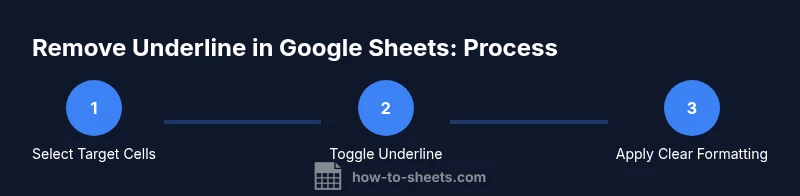
To remove an underline in Google Sheets, select the cells with underlined text and toggle off the Underline button on the toolbar, or press Ctrl+U (Cmd+U on Mac). If some content remains underlined due to mixed formatting, use Clear formatting to strip only text decoration. These methods handle typical, mixed, and bulk edits efficiently.
How to remove underline in google sheets: why it matters
Underlines are a simple text decoration in Google Sheets that can creep in when data is pasted, copied from other apps, or when templates are reused. They help emphasize headers or totals, but they can also clutter a sheet if overused. When you ask how to remove underline in google sheets, you’re really asking for quick, reliable ways to restore a clean, uniform appearance without disturbing numbers or cell alignment. In this block we explore the scenarios in which you’ll want to remove underlines and how the correct method depends on whether every cell, a single column, or only a portion of your range is affected. Think of underline removal as part of a broader formatting hygiene that keeps data readable and professional. The approach you choose should preserve integer data, dates, and formulas while eliminating decorative marks that distract readers.
Quick note on keyword usage
For search optimization and user clarity, this article frequently references the primary topic: how to remove underline in google sheets. The terminology is consistent across methods to avoid confusion, whether you’re working with a few cells or an entire sheet.
First principle: underline is a text decoration, not a border or fill
Understanding the distinction helps you pick the right tool. An underline is applied at the text level, while borders and fills are separate formatting properties. When removing an underline, you’ll typically target the text decoration only, leaving borders, background colors, and number formatting intact. This separation matters if you’re preserving emphasis in headers or totals while normalizing the rest of the data.
Situations you’ll encounter
You might see underlines after pasting data from a word processor, importing from CSV, or copying from a web page. In some templates, a global underline decoration may be part of a formatting rule. Knowing how underline behaves across cells — whether it’s consistent in a row or only in select cells — helps you choose the fastest method. This section maps common scenarios to the most efficient method for removing the underline.
How the methods stack up
There are several reliable methods to remove underline in google sheets. Keyboard shortcuts are fastest for power users, while toolbar and menu options offer visual control. For mixed formatting or bulk cleanup, Clear formatting provides a clean slate so you can reapply the formatting you want. The following sections break down each method with practical steps and caveats.
Tools & Materials
- Device with internet access(Chrome, Edge, or Google Sheets app)
- Active Google account(Needed to edit and save changes)
- Keyboard for shortcuts(Ctrl/Cmd keys for quick removal)
- Mouse or trackpad(Click toolbar buttons or menus)
- Backup copy of the sheet(Optional: keep a version before changes)
Steps
Estimated time: Estimated total time: 10-15 minutes
- 1
Open your Google Sheets document
Navigate to the sheet that contains underlined text and select the range you plan to modify. This step ensures you’re working on the correct data without affecting unrelated cells.
Tip: Use Ctrl/Cmd+A to select all cells, then deselect non-target areas with Shift-click. - 2
Check whether underline is the only formatting
Review a few cells to confirm the underline decoration is the only formatting you want to remove. If other formatting (color, font size) should stay, plan to reapply after removing the underline.
Tip: If many cells share formatting, consider applying one universal method to all at once. - 3
Click the Underline button on the toolbar
With the target range selected, click the U icon (Underline) on the toolbar to toggle the underline off. If it’s already off, it will remain off for the selected cells.
Tip: If the toolbar is hidden, enable it via View > Show toolbar. - 4
Use the Format menu to remove underline
Go to Format > Text > Underline and ensure the option is unchecked for the selected range. This method mirrors the toolbar action and helps in environments where the toolbar isn’t accessible.
Tip: This path is helpful on smaller screens where toolbar buttons may be limited. - 5
Try keyboard shortcuts for speed
Press Ctrl+U (Windows/Linux) or Cmd+U (Mac) to toggle underline for the selected text. This is often faster when you’re making multiple edits.
Tip: If the shortcut doesn’t work, check your browser shortcuts or conflicts with other apps. - 6
Apply Clear formatting for broad cleanup
If multiple formatting properties need resetting, choose Format > Clear formatting. Note that this will remove bold, italics, colors, borders, and more, so you’ll need to reapply any desired styles.
Tip: Do a quick test on a small area before applying to the entire range. - 7
Preserve non-text decorations
If you need to keep borders or background colors, reapply them after removing the underline. This avoids rework after the initial change.
Tip: Use the Paint Format tool to copy borders and fills from a reference cell. - 8
Verify consistency across the sheet
Review adjacent rows and columns to ensure the underline is consistently removed. Inconsistent decoration can imply incomplete edits or mixed formatting rules.
Tip: Sort or filter by header rows to assess formatting at scale. - 9
Document the change for teammates
If you’re collaborating, add a quick note about the change. This helps teammates understand formatting decisions and reduces repeated edits.
Tip: Maintain a shared formatting guide for future reference. - 10
Practice in a sample sheet
Before adjusting production worksheets, practice the steps in a test sheet to build confidence with various data types like dates, numbers, and text.
Tip: Create a template with both underlined and non-underlined cells to reuse later.
FAQ
Can underline be applied to entire rows or columns in Google Sheets?
Yes. Select the range you want and use the toolbar button, the Format menu, or a shortcut to remove or reapply the underline. The method works the same whether you target a single cell or many.
Yes, you can remove underlines from whole rows or columns by selecting them and using the same tools.
Does Clear formatting remove other styling besides the underline?
Yes. Clear formatting strips all font and cell style settings, including bold, color, and borders. You’ll need to reapply any needed styles after removing the underline.
Clear formatting removes all styles, so reapply what you need afterward.
Is there a difference between Underline and borders in Sheets?
Underline affects text decoration only. Borders are separate and affect cell boundaries. You may need to manage both if you want a clean, uniform look.
Underline is text, borders are cell boundaries—treat them separately.
How can I undo an underline removal if I made a mistake?
Use the Undo command or press Ctrl+Z (Cmd+Z on Mac) to revert the last action. This preserves a safe margin for experimentation.
Hit Undo to quickly revert if you remove something by mistake.
Can I automate underline removal for future sheets?
You can create a small Apps Script or use conditional formatting to apply rules, but underline is typically manual formatting. For repeat tasks, consider a template with no underlines.
Automation is possible but usually not necessary for simple underline removal.
Where is the Underline option located in Google Sheets?
The Underline option sits on the formatting toolbar as a U icon, and also appears under Format > Text > Underline for precise control.
Look for the U icon on the toolbar or use the Format menu.
Watch Video
The Essentials
- Underline is a text decoration, not a border.
- Use toolbar or Format menu for targeted removal.
- Clear formatting is best for bulk cleanup with caution.
- Keyboard shortcuts speed up repeat edits.
- Always verify sheet-wide consistency after changes.