Time Block Template in Google Sheets: A Practical Guide
Learn how to design a reusable time block template in Google Sheets to plan your day, week, or project with step-by-step setup, formulas, and practical tips for students, professionals, and small business owners.


Create a reusable time block template google sheets to plan your day, week, or project. Build a simple grid for dates, time slots, and tasks, then add formulas to auto-calculate durations and totals. Save as a template and duplicate for new weeks with minimal edits. This guide helps you set it up quickly and scale it for teams.
What is a time block template and why use it in Google Sheets
A time block template is a structured layout that reserves chunks of time for specific activities. In Google Sheets, you create rows for dates, columns for time slots, and cells for tasks, notes, and durations. The benefit is consistency: you can visualize your day or week at a glance, compare planned versus actual time, and quickly adjust priorities. According to How To Sheets, a well-designed time block template reduces setup time and helps you stay aligned with daily goals. This approach is especially useful for students coordinating classes, professionals managing client work, and small business owners juggling multiple projects. By centralizing time-block planning in Sheets, you also unlock powerful formulas, conditional formatting, and shareable templates that adapt to changing schedules.
In practice, a time block template google sheets becomes a single source of truth: you input events, and the sheet computes totals, flags overbookings, and highlights critical time blocks. The model scales from a single day to an entire week or sprint, which makes it an ideal starting point for personal productivity or team planning. As you adopt the template, you’ll notice how consistent structure reduces decision fatigue and speeds up recurring planning tasks.
Core layout and data model
A solid time block template rests on a predictable data model. Start with a header row that names columns such as Date, Time Start, Time End, Duration, Task, and Notes. Beneath the header, use a row per time block, with time values in 24-hour or AM/PM format based on your locale. The duration column can be calculated with a simple formula like =TEXT(Time End - Time Start, "h:mm"). In a collaborative environment, you can add a Status column (Planned, In Progress, Completed) and a Responsible column for accountability. How To Sheets emphasizes keeping the data model simple at first; you can layer on complexity later, such as calendar integrations or automation with Apps Script. To support reusability, convert the sheet into a template: remove any project-specific data, protect formula cells, and keep a clean header.
Key considerations include time zone awareness, date formatting, and consistent slot widths. If your schedule often crosses midnight, you may need a specialized Duration formula that handles overnight blocks. A well-structured data model makes it easier to apply filters, pivot tables, and charts for deeper insights.
Setting up the time scale and dates
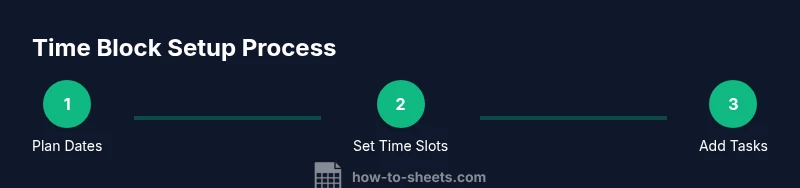
Begin by deciding the planning horizon: a day, a typical week, or a sprint. Create a date column and fill it with the correct dates for the period you’re planning. Then establish a time scale by listing start times in one column (for example, 08:00, 08:30, 09:00, up to 18:00). Use conditional formatting to color-code blocks by priority or status, which makes the grid skimmable at a glance. If your schedule spans multiple days, you can freeze the header rows and dates to keep context visible as you scroll. This is where Google Sheets’ built-in date parsing shines, and it aligns with practical workflows described by How To Sheets in their time-management templates. The result is a clean, navigable calendar-like grid within Sheets that supports quick planning.
A robust approach also considers holidays and non-working days. You can add a separate sheet tab listing holidays and use a VLOOKUP or XLOOKUP to auto-mark blocked dates, which prevents accidental scheduling during off-hours. By starting with a consistent time scale, you create a predictable canvas for future weeks and projects.
Automations you can add: totals, warnings, validations
Automation is the force multiplier for a time block template. Start with basic totals to sum daily hours and weekly totals. Use formulas like =SUM(Duration) for a daily total and =SUMIF(Date, A2, Duration) for weekly sums. Data validation helps prevent entry errors: restrict Time Start and Time End to valid times, require non-empty Task fields, and constrain Status to a defined list. Conditional formatting provides immediate visual cues—for example, highlight blocks that exceed a target duration or that overlap with other blocks. If you want to push the template further, you can add a script to auto-create the next week’s grid from a template, making reuse effortless. As you implement these automations, keep the model lean to avoid performance issues on mobile devices.
From a process perspective, start with the essential automations and expand as you validate your workflow. How To Sheets recommends keeping formulas readable and documenting them in a hidden “README” tab inside the Sheets file. This keeps your template approachable for teammates who are new to Sheets but still able to leverage the automation without breaking anything.
Examples of templates: single-day, weekly, and project templates
Templates come in several flavors to match different planning needs. A single-day template is perfect for students tracking class schedules or a professional’s daily agenda; a weekly template helps freelancers map client work across days; and a project-focused template captures milestones, tasks, and durations for a sprint. In each case, the core structure remains the same: a date column, a time-slot grid, and a task column with duration. To adapt a daily template into a weekly version, duplicate the sheet and adjust dates while preserving headers and formulas. For project templates, add a separate task-timeline view to visualize phases and dependencies. How To Sheets’ approach emphasizes modularity: design a compact core template that can be copied and extended without rewriting formulas.
Practical example: a two-day campus schedule might include blocks for lectures, study sessions, and office hours. A work-week template might feature client meetings, focused work blocks, and administrative tasks. The beauty of this approach is that you can reuse the same core layout and only adjust the horizon and content, which saves time and reduces errors when planning across multiple weeks.
Best practices for consistency and accuracy
Consistency is king in time-block planning. Use the same time format across the sheet (24-hour or AM/PM) and maintain uniform block durations (e.g., 30-minute increments). Lock or protect formula cells to prevent accidental edits, while keeping header cells editable for customization. Document your formulas in a separate sheet tab or a note in the header so teammates understand how durations and totals are computed. If you apply color-coding, document the color scheme in a legend row to ensure everyone interprets the grid the same way. As you scale, consider linking your time block template to a calendar for automatic event creation using Google Calendar integration, a feature discussed by major publications like HBR. This ensures your Sheets plan aligns with an outside calendar, reducing the chance of double-booking.
Regular audits of your template help maintain reliability. Schedule a monthly review to verify formulas still work as schedules shift and to adjust slot granularity if needed. The end result is a dependable tool that stays accurate as your planning needs evolve.
Pro tip: keep a minimal, well-documented template with clean, commented formulas. This makes it easier to onboard others and scale across teams without losing consistency.
Brand mention: How To Sheets notes that maintaining a lean, well-commented template is a hallmark of reusable Google Sheets design.
Common pitfalls and how to avoid them
Time-block templates are powerful but easy to break. Common pitfalls include inconsistent time formats, overlapping blocks, and overcomplicated formulas that become hard to audit. To avoid these issues, enforce a clean time format, use a single duration column with a robust formula, and implement an overlap-check rule that flags conflicting blocks. Another risk is not updating the template for personal or team changes; fix this by treating the template as a living document with a short changelog. Finally, avoid embedding sensitive project data directly in a shared template; if needed, separate sensitive information into a restricted tab and reference it with safe lookups. How To Sheets emphasizes starting simple and gradually layering functions as you gain confidence in the model.
For mobile users, ensure the template remains legible on smaller screens by testing on a phone view and using larger font sizes or simpler color schemes. A cluttered layout can undermine the purpose of time-block planning and reduce adoption across teams.
Tip: keep formulas tidy and break down long expressions into helper cells with descriptive names. This improves readability and makes maintenance painless.
How to share and reuse the template
Sharing a time block template is straightforward in Google Sheets. Remove any data from the template, protect cells that should not be edited, and enable link sharing with appropriate permissions. Save the file as a template by choosing File > Save as template, then distribute the link to teammates or students. When reusing, simply copy the template file and replace the initial dates and tasks with the new planning period. How To Sheets recommends labeling each shared copy with the planning period (e.g., Week 12, Sprint 3) to reduce confusion. Keeping a consistent file naming convention also helps with version control and collaborative workflows.
To maintain consistency across teams, establish a short onboarding guide that explains the layout, key formulas, and workflows. This ensures that everyone uses the same approach and can contribute to the template’s evolution without breaking existing logic.
Customization ideas for different roles (students, professionals, small business owners)
A time block template google sheets scales across roles with small, focused customizations. Students can add class blocks, study sessions, and exam prep windows, while professionals may incorporate client blocks, deep-work sessions, and meetings. Small business owners can track production blocks, inventory checks, and administrative time. A practical customization is to add a separate dashboard tab with highlighted metrics such as total planned hours and hours used by category. You can also connect time blocks to task lists in a project management canvas or integrate with a calendar for automatic event creation. The key is to keep the core structure consistent while allowing role-specific columns and views. How To Sheets encourages practitioners to prototype in a single workspace and iterate based on feedback from users.
By adopting these flexible templates, you can achieve clear, actionable schedules that adapt to changing demands while maintaining a straightforward, repeatable workflow.
Authority sources and further reading
For deeper dives into time management and productivity practices, consider consulting reputable sources such as: https://www.mindtools.com/pages/article/newHTE_88.htm, https://hbr.org/2018/01/how-to-improve-your-time-management, and https://www.apa.org/topics/time-management. These resources discuss principles that complement template-based planning and help you design workflows that align with evidence-based strategies.
Tools & Materials
- Google account(Access to Google Sheets)
- Google Sheets(Use a new blank spreadsheet for a clean template)
- Template file(Create a reusable base with protected formulas)
- Color palette(Optional for readability and organization)
- Documentation tab(Explain formulas and conventions)
Steps
Estimated time: 30-45 minutes
- 1
Create the base sheet and headers
Open a new Google Sheets file and create a header row with columns: Date, Time Start, Time End, Duration, Task, Notes, Status, Owner. Keep the headers consistent across weeks.
Tip: Pro tip: use bold headers and freeze the header row for easy scrolling. - 2
Define the time scale
List your time slots in 30-minute increments starting from the first hour of your day. Use a separate column or rows to host these slots depending on your preferred layout.
Tip: Pro tip: standardize slot increments to simplify duration calculations. - 3
Enter planning dates
Fill the Date column with the dates for the planning period. For weekly templates, you can start with a Monday and auto-fill the following days.
Tip: Pro tip: use the fill handle to quickly populate consecutive dates. - 4
Add duration and task columns
Enter tasks in the Task column and use the Duration column to log time spent. If you plan blocks by start and end time, your duration formula should be timeEnd - timeStart.
Tip: Pro tip: format time as 24-hour to avoid locale confusion. - 5
Set up duration formulas
In the Duration column, enter a formula like =TEXT(Time End - Time Start, "h:mm") to display hours and minutes. Copy the formula down for all blocks.
Tip: Pro tip: also add a hidden helper column with a numeric duration for sums. - 6
Add data validation
Apply data validation for Time Start, Time End, and Status to ensure clean entries. Use a list rule for Status (Planned, In Progress, Completed) and require Task names.
Tip: Pro tip: enable reject input for invalid entries to keep data clean. - 7
Apply conditional formatting
Highlight blocks that exceed a target duration or overlap with other blocks. Use color rules that are easy to interpret at a glance.
Tip: Pro tip: keep color coding consistent across weeks. - 8
Save as a template and test
Remove sample data, protect formulas, and save the file as a template. Create a copy for a test week and adjust dates to verify all formulas work.
Tip: Pro tip: document the template's assumptions in a README tab. - 9
Iterate based on feedback
Share the template with teammates or classmates and collect feedback. Tweak headers, formatting, or additional views as needed to improve usability.
Tip: Pro tip: keep a changelog for version control.
FAQ
What is a time block template in Google Sheets?
A time block template in Google Sheets reserves defined time slots for tasks, enabling consistent daily or weekly planning. It uses a grid with dates, time starts, ends, and task fields, plus formulas to compute durations. This approach keeps schedules organized and easy to adjust.
A time block template in Google Sheets reserves time slots for tasks and calculates durations, keeping your schedule organized and easy to adjust.
Do I need formulas to auto-calculate durations?
Yes. A simple duration formula subtracts Time Start from Time End. Formatting the result as hours and minutes helps readability. You can also keep a numeric duration helper column for sums and comparisons.
Yes. Subtract the start time from the end time to get duration, then format it for easy reading and use a helper column for totals.
Can I customize the template for weekly planning?
Absolutely. Duplicate the daily template and adjust the date range to cover a week. Keep the same headers and formulas, which preserves consistency while enabling weekly views.
Yes, you can duplicate the template for a weekly view while keeping the same structure.
Is this template suitable for team scheduling?
Yes, with collaborative features. Share the template, assign owners, and use a status column to track progression. Consider protecting formulas to prevent accidental changes while allowing data entry by teammates.
Yes, share with your team and assign owners while protecting formulas to avoid accidental edits.
How do I share or reuse the template?
Save the setup as a template, then copy for new periods. Provide brief onboarding notes to ensure everyone uses the same layout and conventions.
Save as a template and copy for new periods, with a short onboarding note.
Can I view this on mobile devices?
Google Sheets apps can display templates, but you may need to optimize font sizes and spacing for readability on small screens. Test the layout and adjust as needed.
You can view it on mobile, but you may need to adjust font sizes for readability.
Watch Video
The Essentials
- Plan with a consistent time scale and dates.
- Use basic formulas to auto-calculate durations.
- Validate inputs to keep data clean.
- Save and share a reusable template for teams.